


Kelby's stats
- Review count149
- Helpfulness votes1,296
- First reviewSeptember 27, 2009
- Last reviewMay 14, 2026
- Featured reviews0
- Average rating4.8
Reviews comments
- Review comment count0
- Helpfulness votes0
- First review commentNone
- Last review commentNone
- Featured review comments0
Questions
- Question count0
- Helpfulness votes0
- First questionNone
- Last questionNone
- Featured questions0
- Answer count13
- Helpfulness votes2
- First answerSeptember 22, 2016
- Last answerDecember 9, 2021
- Featured answers0
- Best answers0
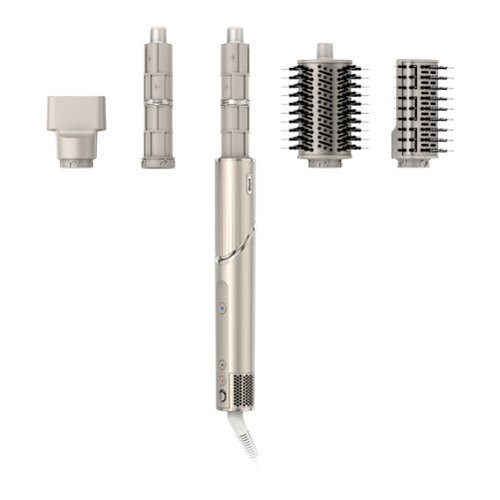
With Shark FlexStyle, you can easily transform between a powerful, fast, hair dryer, and an ultra-versatile multi-styler with no-heat-damage. One twist is all it takes to flex from one to the other. Attach different stylers and unlock the ability to curl, volumize, smooth, and dry~the choice is yours. Lightweight & powerful, FlexStyle is the answer to fast, easy styling.
Customer Rating

5
Effective Hair Styling, Without the Heat Damage
on October 5, 2022
Posted by: Kelby
----- SUMMARY -----
Verdict:
The Shark FlexStyle is an excellent all-in-one styler that doesn’t cause heat damage. The included attachments, 4 heat, and 3 airflow modes, along with the ability to flip from drying to styling make the FlexStyle very versatile. It delivers impressive results and will save you time. My wife recommends it to anyone looking to up their hair styling game.
Pros:
- Can be a hair styling wand or dryer
- Avoids causing heat damage by regulating temperatures
- Multiple attachments included for various hairstyles
- Lightweight and easy to use
Cons:
- Doesn’t come with a case/bag
----- DETAILS -----
Design & Use:
What’s unique about the Shark FlexStyle is that it transforms from a hair styling wand into a hair dryer. There’s a switch that you press which allows you to easily rotate the straight wand into an L-shaped blow dryer. In either shape, you can use one of the attachments to accomplish the look you’re going for. The box includes two 1.25” curlers (one that curls left and another right), an oval brush, and a paddle brush. They just snap into place and they’re locked in so that they don’t fall off. There’s another switch on the back to release the attachment lock. The third switch is located at the bottom and it turns the power on/off. There are also three buttons, one that controls airflow, another for temperature control, and a third that provides cool air. Having three switches and three buttons is much more than my wife is used to on a hair styling device but she thought they were intuitive. She skipped over the instructions because she was excited to try the Shark FlexStyle out and didn’t need to reference them, but they’re included and thorough. A style guide is also included in the box which my wife appreciated because it gives you tips to achieve the look you’re going for, including the recommended heat and air settings. The one gripe my wife and I have is that the FlexStyle doesn’t include a case/bag for easier storage in our bathroom, or for traveling. That’s a minor inconvenience though for an otherwise exceptional product. Overall, we’re surprised by how compact and lightweight the design is, especially for such a versatile device. We think Shark did an excellent job by balancing versatility with ease of use and portability.
Features & Performance:
Dry hair, split ends, and breakage caused by heat damage are a thing of the past, thanks to the Shark FlexStyle. After my wife tested it out, she’s a believer in Shark’s claim that the FlexStyle measures and regulates temperatures 1,000 times per second to ensure consistent heating. Many other similar hair styling devices heat up as you use them, but she hasn’t noticed that with the FlexStyle. There are 4 heat and 3 airflow settings that allow you to customize your styling. Couple that with all of the available attachments and the impressive results, and you can make it look like you just came from the salon. My wife said she has never really been able to curl her hair well with a normal curling iron, but the FlexStyle with its auto-wrap curler attachments works great. If you’re like my wife and haven’t used an air styling and drying device like this before, it might take some getting used to, but once you get the hang of it, you’ll be styling your hair better and in less time.
----- WHAT’S IN THE BOX -----
1 x Shark FlexStyle Air Drying & Styling System
2 x 1.25” Auto-Wrap Curlers
1 x Oval Brush
1 x Paddle Brush
1 x Styling Concentrator
1 x Styling Guide
1 x Safety/Warranty/Troubleshooting Instructions
Verdict:
The Shark FlexStyle is an excellent all-in-one styler that doesn’t cause heat damage. The included attachments, 4 heat, and 3 airflow modes, along with the ability to flip from drying to styling make the FlexStyle very versatile. It delivers impressive results and will save you time. My wife recommends it to anyone looking to up their hair styling game.
Pros:
- Can be a hair styling wand or dryer
- Avoids causing heat damage by regulating temperatures
- Multiple attachments included for various hairstyles
- Lightweight and easy to use
Cons:
- Doesn’t come with a case/bag
----- DETAILS -----
Design & Use:
What’s unique about the Shark FlexStyle is that it transforms from a hair styling wand into a hair dryer. There’s a switch that you press which allows you to easily rotate the straight wand into an L-shaped blow dryer. In either shape, you can use one of the attachments to accomplish the look you’re going for. The box includes two 1.25” curlers (one that curls left and another right), an oval brush, and a paddle brush. They just snap into place and they’re locked in so that they don’t fall off. There’s another switch on the back to release the attachment lock. The third switch is located at the bottom and it turns the power on/off. There are also three buttons, one that controls airflow, another for temperature control, and a third that provides cool air. Having three switches and three buttons is much more than my wife is used to on a hair styling device but she thought they were intuitive. She skipped over the instructions because she was excited to try the Shark FlexStyle out and didn’t need to reference them, but they’re included and thorough. A style guide is also included in the box which my wife appreciated because it gives you tips to achieve the look you’re going for, including the recommended heat and air settings. The one gripe my wife and I have is that the FlexStyle doesn’t include a case/bag for easier storage in our bathroom, or for traveling. That’s a minor inconvenience though for an otherwise exceptional product. Overall, we’re surprised by how compact and lightweight the design is, especially for such a versatile device. We think Shark did an excellent job by balancing versatility with ease of use and portability.
Features & Performance:
Dry hair, split ends, and breakage caused by heat damage are a thing of the past, thanks to the Shark FlexStyle. After my wife tested it out, she’s a believer in Shark’s claim that the FlexStyle measures and regulates temperatures 1,000 times per second to ensure consistent heating. Many other similar hair styling devices heat up as you use them, but she hasn’t noticed that with the FlexStyle. There are 4 heat and 3 airflow settings that allow you to customize your styling. Couple that with all of the available attachments and the impressive results, and you can make it look like you just came from the salon. My wife said she has never really been able to curl her hair well with a normal curling iron, but the FlexStyle with its auto-wrap curler attachments works great. If you’re like my wife and haven’t used an air styling and drying device like this before, it might take some getting used to, but once you get the hang of it, you’ll be styling your hair better and in less time.
----- WHAT’S IN THE BOX -----
1 x Shark FlexStyle Air Drying & Styling System
2 x 1.25” Auto-Wrap Curlers
1 x Oval Brush
1 x Paddle Brush
1 x Styling Concentrator
1 x Styling Guide
1 x Safety/Warranty/Troubleshooting Instructions
I would recommend this to a friend!






Share this review:


+5points
8of 11voted this as helpful.

You have a lot on your plate and need a printer that~s going to give you great results without slowing you down. Our fastest WorkForce printer for home offices, the WorkForce WF-2960 delivers presentations, spreadsheets, flyers and more at remarkable speeds. Engineered with Epson~s leading-edge PrecisionCore technology, this all-in-one printer consistently produces professional-quality prints with rich, vibrant colors and crisp text. With a built-in scanner, copier, fax and Auto Document Feeder~plus, a large 2.4" color touchscreen display and 150-sheet paper tray~the WF-2960 is the ultimate printer for productive home offices.
Customer Rating
5
Reliable, Versatile Home Printer
on September 19, 2022
Posted by: Kelby
----- SUMMARY -----
Verdict:
The Epson WorkForce WF-2960 All-in-One Inkjet Printer provides everything I need in a home printer and more. It’s reliable, fast, convenient, and produces high-quality prints. The mobile app and voice-activated printing are neat features to have as well. From the initial setup to today, I haven’t experienced any issues. If you’re looking for an all-in-one printer, the WorkForce WF-2960 is a solid choice.
Pros:
- Compact, space-saving design
- Easy setup process
- Fast printing
- Excellent print quality
- Reliable
- Supports Wi-Fi connectivity
- Convenient paper handling
- Voice-activated printing
Cons:
- None
----- DETAILS -----
Design:
At 10 inches tall and a little over 16 inches wide, the Epson WorkForce WF-2960 All-in-One Inkjet Printer is pretty compact for an all-in-one. The input and output paper trays can slide into the printer when not in use for reduced footprint on your desk or wherever you decide to place it. On the back of the printer, there’s the power input, a LAN port, a USB port, an EXT port, and a LINE port. The front has a power button (with indicator light), a home button, a received fax light, a 2.4” color touchscreen, and a help button. The touchscreen is bright when illuminated (it automatically goes to sleep) and convenient to use. I just wish it was slightly bigger because some of the buttons are a bit small.
Setup:
There are only a few steps to complete the setup process for the Epson WorkForce WF-2960. First, you unpack everything, then you choose your setup method (either the smartphone app or on a computer). I chose the smartphone app and found it to be an easy, guided experience. You’ll turn on and configure the printer which involves choosing some basic settings like your language, date/time format, and Wi-Fi (or you can choose a USB or Ethernet connection). After that, you install the included ink cartridges, then the printer will start “charging” the ink. Lastly, you install the Epson software on your computer, and then you’re ready to print. The setup process took me about 10 minutes, and I didn’t experience any issues.
Print Quality:
Whether I print in black and white or in color, the print quality is excellent. I’m impressed by the crisp text and vibrant colors. Scans and copies are also high quality. What’s also impressive is the speed at which it does everything.
Features:
Aside from the excellent print quality and speed, my favorite features of the WorkForce WF-2960 are the 150-sheet paper tray, automatic 2-sided printing, and individual ink cartridges. The 150-sheet paper tray prevents you from loading paper frequently, and the automatic 2-sided printing helps you save paper. Since the printer uses individual ink cartridges, you can just replace the one ink cartridge you need, which is nice because they rarely all empty at the same rate. Another feature I’ve never had with a printer before is hands-free, voice-activated printing. There are select commands you can use with Alexa, Siri, or Google Assistant, such as asking the Epson printer to print your to-do or shopping list. Features like these make the WorkForce WF-2960 a productive and versatile all-in-one printer.
Software:
Epson’s Smart Panel app offers easy mobile printing as well as a variety of useful features, like the ability to check the printer status and ink levels, and initiate firmware updates or print head cleaning. The computer software is similar. Both are easy to use and reliably communicate with the printer.
----- WHAT’S IN THE BOX -----
1 x WorkForce WF-2960 All-in-One Printer
1 x Power Cord
4 x Claria 222 Ink Cartridges (1 x Black Ink Cartridge and 3 x Color Ink Cartridges)
1 x Quick Start Guide
Verdict:
The Epson WorkForce WF-2960 All-in-One Inkjet Printer provides everything I need in a home printer and more. It’s reliable, fast, convenient, and produces high-quality prints. The mobile app and voice-activated printing are neat features to have as well. From the initial setup to today, I haven’t experienced any issues. If you’re looking for an all-in-one printer, the WorkForce WF-2960 is a solid choice.
Pros:
- Compact, space-saving design
- Easy setup process
- Fast printing
- Excellent print quality
- Reliable
- Supports Wi-Fi connectivity
- Convenient paper handling
- Voice-activated printing
Cons:
- None
----- DETAILS -----
Design:
At 10 inches tall and a little over 16 inches wide, the Epson WorkForce WF-2960 All-in-One Inkjet Printer is pretty compact for an all-in-one. The input and output paper trays can slide into the printer when not in use for reduced footprint on your desk or wherever you decide to place it. On the back of the printer, there’s the power input, a LAN port, a USB port, an EXT port, and a LINE port. The front has a power button (with indicator light), a home button, a received fax light, a 2.4” color touchscreen, and a help button. The touchscreen is bright when illuminated (it automatically goes to sleep) and convenient to use. I just wish it was slightly bigger because some of the buttons are a bit small.
Setup:
There are only a few steps to complete the setup process for the Epson WorkForce WF-2960. First, you unpack everything, then you choose your setup method (either the smartphone app or on a computer). I chose the smartphone app and found it to be an easy, guided experience. You’ll turn on and configure the printer which involves choosing some basic settings like your language, date/time format, and Wi-Fi (or you can choose a USB or Ethernet connection). After that, you install the included ink cartridges, then the printer will start “charging” the ink. Lastly, you install the Epson software on your computer, and then you’re ready to print. The setup process took me about 10 minutes, and I didn’t experience any issues.
Print Quality:
Whether I print in black and white or in color, the print quality is excellent. I’m impressed by the crisp text and vibrant colors. Scans and copies are also high quality. What’s also impressive is the speed at which it does everything.
Features:
Aside from the excellent print quality and speed, my favorite features of the WorkForce WF-2960 are the 150-sheet paper tray, automatic 2-sided printing, and individual ink cartridges. The 150-sheet paper tray prevents you from loading paper frequently, and the automatic 2-sided printing helps you save paper. Since the printer uses individual ink cartridges, you can just replace the one ink cartridge you need, which is nice because they rarely all empty at the same rate. Another feature I’ve never had with a printer before is hands-free, voice-activated printing. There are select commands you can use with Alexa, Siri, or Google Assistant, such as asking the Epson printer to print your to-do or shopping list. Features like these make the WorkForce WF-2960 a productive and versatile all-in-one printer.
Software:
Epson’s Smart Panel app offers easy mobile printing as well as a variety of useful features, like the ability to check the printer status and ink levels, and initiate firmware updates or print head cleaning. The computer software is similar. Both are easy to use and reliably communicate with the printer.
----- WHAT’S IN THE BOX -----
1 x WorkForce WF-2960 All-in-One Printer
1 x Power Cord
4 x Claria 222 Ink Cartridges (1 x Black Ink Cartridge and 3 x Color Ink Cartridges)
1 x Quick Start Guide
I would recommend this to a friend!



Share this review:


+3points
3of 3voted this as helpful.
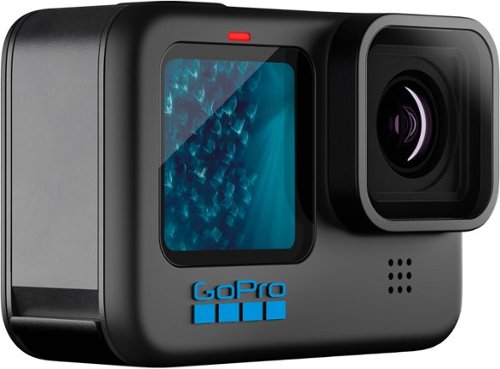
Record your memorable adventures with this GoPro HERO11 Black camera. The rear LCD screen lets you conveniently frame your shots to optimize picture quality, and the image sensor features a wide field of view to capture more content. This GoPro HERO11 Black camera boasts HyperSmooth 5.0 stabilization and Horizon Lock for crisp footage even if the camera moves and captures 5.3K videos and 27MP photos for detailed visuals.
Customer Rating
5
Little Camera, Big Performance
on September 19, 2022
Posted by: Kelby
----- SUMMARY -----
Verdict:
Using the GoPro Hero 11 has been a joy. You can expect impressive video quality that’s enhanced by features like “HyperSmooth” stabilization and horizon lock. With its rugged, portable, and waterproof design you can take the Hero 11 wherever the action is and capture shots that other cameras can’t. Its mediocre low-light performance makes it imperfect, but there are so many great things to say about the Hero 11 that make up for that drawback. If you’re looking for an action camera, the GoPro Hero 11 should be at the top of your list.
Pros:
- Rugged and portable design
- Waterproof (up to 33ft)
- Excellent video quality
- 360º horizon locking
- “HyperSmooth” stabilization
- Versatile 8:7 sensor
- Great companion app (Quik)
Cons:
- Not great in low light
----- DETAILS -----
Design:
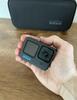
Like its predecessors, the GoPro Hero 11 is portable, easy to hold, and rugged. There’s no design change from the Hero 10, but as the saying goes, “if it ain’t broke, don’t fix it”. The front of the camera has what I’d call a selfie screen, and the back has a touch-enabled display, which is where you manage the various settings and modes. On the bottom, there are built-in “folding fingers” for mounting the camera on GoPro accessories. It’s a smart design that makes mounting easy, and I like that they can fold flat when not in use. Since the design hasn’t changed, every GoPro mounting accessory is compatible with the Hero 11. The side of the camera has a power/mode button and a sliding door that houses the microSD card (not included) and Enduro battery, as well as a USB-C port. The top just has the record button. It’s a simple design that works well for an action camera. The Hero 11 is also waterproof up to 33ft and has a water-repelling lens cover.
Video, Photo & Audio Quality:
What has impressed me most about the GoPro Hero 11 is the video quality and “HyperSmooth” stabilization. It shoots video up to 5.3K 8:7 resolution, and the stabilization is phenomenal. I just took a trip to Arizona and was most impressed by the video footage of an ATV ride over rough terrain and my hike up Camelback Mountain. Footage from a previous trip where I used my phone or another digital camera to do the same activities was nauseating, but the Hero 11 footage was smooth and a joy to watch.
I primarily use the Hero 11 for video, but the excellent still photo quality was a pleasant surprise. You can take 27-megapixel still photos or grab 24.7-megapixel photos from video footage. There’s also the ability to export videos in different formats. This is a convenient feature because you can take one 8:7 video and upload it to various social platforms in the ideal format. Wide cinematic works well for YouTube, and extra-tall vertical shots work well for TikTok. You can also crop the shot into a square for Instagram. The versatility is great to have.
My only disappointment in video and photo quality is the mediocre low-light performance. The Hero 11 doesn’t seem to gather enough light in low-light environments. There’s room for improvement in that regard, but otherwise, the video and photos look excellent.
The audio captured by the Hero 11’s onboard mics is average. Ambient sound is captured pretty well, but voices can be a bit muffled. If you want better audio, I’d invest in the GoPro Media Mod or Pro 3.5mm Mic Adapter.
A few other features worth mentioning are the 10-bit color, slo-mo, and horizon lock. With 10-bit color, you get over 1 billion color shades that help create a more lifelike video. Couple that with the excellent clarity, and the footage is impressive. Slo-mo works very well, allowing you to slow video up to 8X while maintaining 2.7K resolution, or 4K resolution at 8X slo-mo. It’s easy to toggle the slo-mo speed if you want some of your slo-mo video to be faster/slower than other parts. Horizon lock uses the processor to keep the horizon in place so that if your camera tilts while recording, your horizon stays level. These features and more make the GoPro Hero 11 a powerful and versatile action camera.
Performance:
The Enduro battery is included with the Hero 11. It maximizes the battery life and can cope with hot or cold weather without impacting performance. The battery life varies based on your recording settings. For example, 4K 60fps recording for 30 minutes depletes the battery by about 50%, and if you bump up to 4K 120fps recording, nearly 20 minutes will deplete the battery by about 50%. Less intensive 30fps will give you more battery life. Since different settings affect the battery life significantly, it’s hard to say what the exact battery life is. However, if I were to average them out, I’d say I get about 1.5 hours on one charge. That’s decent, but I hoped for more. I’d advise carrying a spare battery or two with you, or getting the GoPro Volta battery grip.
I haven’t experienced any overheating issues, but the higher your resolution and frame rate, the hotter it gets. If the camera does get too hot and needs to cool down, a temperature icon appears on the screen. If needed, it should shut itself down. I haven’t pushed it to that point though. Overheating isn’t unique to GoPro cameras. Almost any small but powerful camera or smartphone that’s recording high resolution, high frame rate content can overheat. You just have to understand the limitations and only use the highest settings when they’re most needed.
Software:
GoPro's companion app, Quik, is basically an editing app for your GoPro footage, but there’s a lot more to it. The app allows you to seamlessly transfer, edit, and share. It also acts as a private content feed, preventing you from losing track of your best videos and photos. Using your phone to control the GoPro is also possible with Quik. For some features though, you’ll need a GoPro subscription. For example, some premium editing tools and Auto Highlight Videos are only available to GoPro Subscribers. I could go on and do a full review just about Quik, but in the interest of time, just know that it’s a convenient app that’s a fantastic supplement to the GoPro Hero 11.
----- WHAT’S IN THE BOX -----
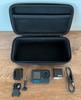
1 x GoPro Hero 11 Black Action Camera
1 x Enduro battery
1 x Carrying case
1 x Curved adhesive mount
1 x Mounting buckle and thumb screw
1 x USB-C cable
1 x Owner's manual
Verdict:
Using the GoPro Hero 11 has been a joy. You can expect impressive video quality that’s enhanced by features like “HyperSmooth” stabilization and horizon lock. With its rugged, portable, and waterproof design you can take the Hero 11 wherever the action is and capture shots that other cameras can’t. Its mediocre low-light performance makes it imperfect, but there are so many great things to say about the Hero 11 that make up for that drawback. If you’re looking for an action camera, the GoPro Hero 11 should be at the top of your list.
Pros:
- Rugged and portable design
- Waterproof (up to 33ft)
- Excellent video quality
- 360º horizon locking
- “HyperSmooth” stabilization
- Versatile 8:7 sensor
- Great companion app (Quik)
Cons:
- Not great in low light
----- DETAILS -----
Design:
Like its predecessors, the GoPro Hero 11 is portable, easy to hold, and rugged. There’s no design change from the Hero 10, but as the saying goes, “if it ain’t broke, don’t fix it”. The front of the camera has what I’d call a selfie screen, and the back has a touch-enabled display, which is where you manage the various settings and modes. On the bottom, there are built-in “folding fingers” for mounting the camera on GoPro accessories. It’s a smart design that makes mounting easy, and I like that they can fold flat when not in use. Since the design hasn’t changed, every GoPro mounting accessory is compatible with the Hero 11. The side of the camera has a power/mode button and a sliding door that houses the microSD card (not included) and Enduro battery, as well as a USB-C port. The top just has the record button. It’s a simple design that works well for an action camera. The Hero 11 is also waterproof up to 33ft and has a water-repelling lens cover.
Video, Photo & Audio Quality:
What has impressed me most about the GoPro Hero 11 is the video quality and “HyperSmooth” stabilization. It shoots video up to 5.3K 8:7 resolution, and the stabilization is phenomenal. I just took a trip to Arizona and was most impressed by the video footage of an ATV ride over rough terrain and my hike up Camelback Mountain. Footage from a previous trip where I used my phone or another digital camera to do the same activities was nauseating, but the Hero 11 footage was smooth and a joy to watch.
I primarily use the Hero 11 for video, but the excellent still photo quality was a pleasant surprise. You can take 27-megapixel still photos or grab 24.7-megapixel photos from video footage. There’s also the ability to export videos in different formats. This is a convenient feature because you can take one 8:7 video and upload it to various social platforms in the ideal format. Wide cinematic works well for YouTube, and extra-tall vertical shots work well for TikTok. You can also crop the shot into a square for Instagram. The versatility is great to have.
My only disappointment in video and photo quality is the mediocre low-light performance. The Hero 11 doesn’t seem to gather enough light in low-light environments. There’s room for improvement in that regard, but otherwise, the video and photos look excellent.
The audio captured by the Hero 11’s onboard mics is average. Ambient sound is captured pretty well, but voices can be a bit muffled. If you want better audio, I’d invest in the GoPro Media Mod or Pro 3.5mm Mic Adapter.
A few other features worth mentioning are the 10-bit color, slo-mo, and horizon lock. With 10-bit color, you get over 1 billion color shades that help create a more lifelike video. Couple that with the excellent clarity, and the footage is impressive. Slo-mo works very well, allowing you to slow video up to 8X while maintaining 2.7K resolution, or 4K resolution at 8X slo-mo. It’s easy to toggle the slo-mo speed if you want some of your slo-mo video to be faster/slower than other parts. Horizon lock uses the processor to keep the horizon in place so that if your camera tilts while recording, your horizon stays level. These features and more make the GoPro Hero 11 a powerful and versatile action camera.
Performance:
The Enduro battery is included with the Hero 11. It maximizes the battery life and can cope with hot or cold weather without impacting performance. The battery life varies based on your recording settings. For example, 4K 60fps recording for 30 minutes depletes the battery by about 50%, and if you bump up to 4K 120fps recording, nearly 20 minutes will deplete the battery by about 50%. Less intensive 30fps will give you more battery life. Since different settings affect the battery life significantly, it’s hard to say what the exact battery life is. However, if I were to average them out, I’d say I get about 1.5 hours on one charge. That’s decent, but I hoped for more. I’d advise carrying a spare battery or two with you, or getting the GoPro Volta battery grip.
I haven’t experienced any overheating issues, but the higher your resolution and frame rate, the hotter it gets. If the camera does get too hot and needs to cool down, a temperature icon appears on the screen. If needed, it should shut itself down. I haven’t pushed it to that point though. Overheating isn’t unique to GoPro cameras. Almost any small but powerful camera or smartphone that’s recording high resolution, high frame rate content can overheat. You just have to understand the limitations and only use the highest settings when they’re most needed.
Software:
GoPro's companion app, Quik, is basically an editing app for your GoPro footage, but there’s a lot more to it. The app allows you to seamlessly transfer, edit, and share. It also acts as a private content feed, preventing you from losing track of your best videos and photos. Using your phone to control the GoPro is also possible with Quik. For some features though, you’ll need a GoPro subscription. For example, some premium editing tools and Auto Highlight Videos are only available to GoPro Subscribers. I could go on and do a full review just about Quik, but in the interest of time, just know that it’s a convenient app that’s a fantastic supplement to the GoPro Hero 11.
----- WHAT’S IN THE BOX -----
1 x GoPro Hero 11 Black Action Camera
1 x Enduro battery
1 x Carrying case
1 x Curved adhesive mount
1 x Mounting buckle and thumb screw
1 x USB-C cable
1 x Owner's manual
I would recommend this to a friend!
Share this review:


+2points
2of 2voted this as helpful.
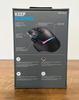
G502 X PLUS, the latest version of Logitech~s most popular gaming mouse, combines a legacy of performance with the most advanced gaming technologies. G502 X also introduces hybrid optical-mechanical LIGHTFORCE switches for the primary left and right buttons. Also equipped with LIGHTSYNC RGB powering flowing 8-LED lighting that~s customizable and adapts as you play with startup/power-down effects and battery optimization through active play detection. Complete with updated LIGHTSPEED wireless with 68 percent faster response rate, HERO 25K sub-micron sensor and more.
Customer Rating
5
Light-years Ahead of the Competition
on September 13, 2022
Posted by: Kelby
----- SUMMARY -----
Verdict:
There’s a lot to like about the Logitech G502 X Plus. It’s fast, highly customizable, and offers satisfying clicks. You’ll also be happy with the long battery life and comfortable design. The G502 X Plus is an excellent gaming mouse for those who want several customizable buttons and speedy performance that won’t let you down in fast-paced games.
Pros:
- Appealing and comfortable design
- Highly customizable
- Crisp and tactile switches
- Fast response rate
- Long battery life
Cons:
- No Bluetooth connectivity
----- DETAILS -----
Design & Features:
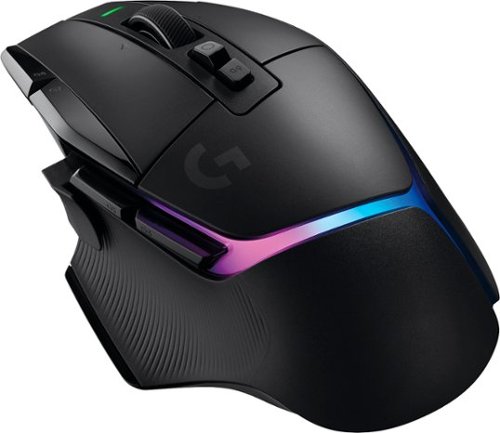
With its curved profile and supportive thumb rest, the Logitech G502 X Plus gaming mouse has an ergonomic shape. There are also a few nice touches like a rubberized, textured grip on the sides and a small indentation in the left click button. It has felt comfortable to use while playing a variety of games or working from home.
The front has a USB-C input for charging, but the mouse is also compatible with Logitech’s PowerPlay Wireless Charging System (sold separately). Since I don’t currently have that, I can’t speak to how well PowerPlay works with the G502 X Plus, but it’s nice knowing that feature is available. Battery life is solid, with up to 120 hours when RGB lighting is off or 37 hours when you have the RGB set to always on.
A unique design aspect of the “Plus” version of the G502 X is the 8-zone LED lighting area on the palm rest. With that, you also get active play detection which will automatically turn the lighting off when your hand covers it (to conserve battery power). The lighting settings and more can be customized in the Logitech G Hub software. More on that later.
All the clicks and button presses feel nice on the G502 X Plus, thanks to Logitech’s new hybrid optical-mechanical switches, which are crisp and tactile. It was a noticeable and satisfying change from my previous mouse.
The left side has a removable sniper button that can easily be swapped out with a non-clickable rubberized button (included in the box). The sniper button is also reversible, so it can flair towards your thumb or away from it, depending on your preference or hand size.
As for the scroll wheel, you have the choice between hyperfast scrolling or a more precise, “ratcheted” mode. The scroll wheel also allows you to scroll left and right by pushing your finger on the left or right side to tilt it in either direction.
On the bottom, you’ll find PTFE feet, which help the mouse glide smoothly across various surfaces. I’m using a leather-like pad on my desk, but I tried the G502 X Plus on a mouse pad and a few other flat surfaces and barely felt any friction.
The ergonomic design of the G502 X Plus coupled with its light weight makes this the most comfortable mouse I’ve ever used. It’s also sleek and eye-catching, especially with the RGB lighting on. If you’d rather not have the RGB, the non-plus version of this mouse has all the same features without the lighting, and it’s a bit cheaper.
Performance:
The G502 X Plus handles each game exceptionally well. For testing, I picked several games across different genres, like Red Dead Redemption 2, Age of Empires IV, The Witcher 3, and Call of Duty: Warzone. The accuracy and responsiveness are fantastic. Having the extra buttons comes in handy, especially since you can customize them to a specific game. The buttons are well-positioned so that they can be easily pressed when needed, but I appreciate that they’re also unobtrusive. The USB-A “Lightspeed” wireless receiver has proven to be reliable, as I’ve not experienced any connection drops or mouse lag. I have zero complaints about the performance of this mouse. I just wish it came with Bluetooth connectivity as well because that makes it a little easier to switch between my desktop and laptop, but that’s not a dealbreaker for me.
Software:
Logitech G Hub is the home for adjusting the RGB lighting, reprogramming buttons, creating profiles for games and apps, customizing the DPI levels (mouse sensitivity), and monitoring the battery. When I installed Logitech G Hub, it instantly recognized my G502 X Plus mouse and has been working seamlessly with it since. It’s an easy-to-use software with only a few screens to toggle through, but it offers a lot of customization.
----- WHAT’S IN THE BOX -----
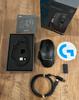
1x G502 X Plus Wireless Gaming Mouse
1 x DPI-Shift Button Cover
1 x USB-C Charging Cable
1 x Lightspeed USB-A Receiver
1 x USB Extension Adapter
1 x User Documentation
1 x Sticker
Verdict:
There’s a lot to like about the Logitech G502 X Plus. It’s fast, highly customizable, and offers satisfying clicks. You’ll also be happy with the long battery life and comfortable design. The G502 X Plus is an excellent gaming mouse for those who want several customizable buttons and speedy performance that won’t let you down in fast-paced games.
Pros:
- Appealing and comfortable design
- Highly customizable
- Crisp and tactile switches
- Fast response rate
- Long battery life
Cons:
- No Bluetooth connectivity
----- DETAILS -----
Design & Features:
With its curved profile and supportive thumb rest, the Logitech G502 X Plus gaming mouse has an ergonomic shape. There are also a few nice touches like a rubberized, textured grip on the sides and a small indentation in the left click button. It has felt comfortable to use while playing a variety of games or working from home.
The front has a USB-C input for charging, but the mouse is also compatible with Logitech’s PowerPlay Wireless Charging System (sold separately). Since I don’t currently have that, I can’t speak to how well PowerPlay works with the G502 X Plus, but it’s nice knowing that feature is available. Battery life is solid, with up to 120 hours when RGB lighting is off or 37 hours when you have the RGB set to always on.
A unique design aspect of the “Plus” version of the G502 X is the 8-zone LED lighting area on the palm rest. With that, you also get active play detection which will automatically turn the lighting off when your hand covers it (to conserve battery power). The lighting settings and more can be customized in the Logitech G Hub software. More on that later.
All the clicks and button presses feel nice on the G502 X Plus, thanks to Logitech’s new hybrid optical-mechanical switches, which are crisp and tactile. It was a noticeable and satisfying change from my previous mouse.
The left side has a removable sniper button that can easily be swapped out with a non-clickable rubberized button (included in the box). The sniper button is also reversible, so it can flair towards your thumb or away from it, depending on your preference or hand size.
As for the scroll wheel, you have the choice between hyperfast scrolling or a more precise, “ratcheted” mode. The scroll wheel also allows you to scroll left and right by pushing your finger on the left or right side to tilt it in either direction.
On the bottom, you’ll find PTFE feet, which help the mouse glide smoothly across various surfaces. I’m using a leather-like pad on my desk, but I tried the G502 X Plus on a mouse pad and a few other flat surfaces and barely felt any friction.
The ergonomic design of the G502 X Plus coupled with its light weight makes this the most comfortable mouse I’ve ever used. It’s also sleek and eye-catching, especially with the RGB lighting on. If you’d rather not have the RGB, the non-plus version of this mouse has all the same features without the lighting, and it’s a bit cheaper.
Performance:
The G502 X Plus handles each game exceptionally well. For testing, I picked several games across different genres, like Red Dead Redemption 2, Age of Empires IV, The Witcher 3, and Call of Duty: Warzone. The accuracy and responsiveness are fantastic. Having the extra buttons comes in handy, especially since you can customize them to a specific game. The buttons are well-positioned so that they can be easily pressed when needed, but I appreciate that they’re also unobtrusive. The USB-A “Lightspeed” wireless receiver has proven to be reliable, as I’ve not experienced any connection drops or mouse lag. I have zero complaints about the performance of this mouse. I just wish it came with Bluetooth connectivity as well because that makes it a little easier to switch between my desktop and laptop, but that’s not a dealbreaker for me.
Software:
Logitech G Hub is the home for adjusting the RGB lighting, reprogramming buttons, creating profiles for games and apps, customizing the DPI levels (mouse sensitivity), and monitoring the battery. When I installed Logitech G Hub, it instantly recognized my G502 X Plus mouse and has been working seamlessly with it since. It’s an easy-to-use software with only a few screens to toggle through, but it offers a lot of customization.
----- WHAT’S IN THE BOX -----
1x G502 X Plus Wireless Gaming Mouse
1 x DPI-Shift Button Cover
1 x USB-C Charging Cable
1 x Lightspeed USB-A Receiver
1 x USB Extension Adapter
1 x User Documentation
1 x Sticker
I would recommend this to a friend!




Share this review:


+1point
1of 1voted this as helpful.

Feel the action with 4K HDR visuals, ultra-fast 144Hz refresh rate, and Full Array Local Dimming contrast that makes game worlds come alive with detail and vibrance. Built for extraordinary gaming performance with support for Nvidia G-SYNC and HDMI 2.1 VRR compatibility, the INZONE M9 is your path to victory.
Customer Rating

4
Unique Design, Stunning Visuals
on September 7, 2022
Posted by: Kelby
----- SUMMARY -----
Verdict:
Sony’s INZONE M9 is a strong competitor in the crowded gaming monitor market. It has a unique style that compliments the PlayStation 5, but the minimal branding helps it fit well into any gaming setup. With its stunning 4K HDR picture quality and smooth performance, you’ll love the gaming experience on the INZONE M9.
Pros:
- Sleek, eye-catching design
- Phenomenal 4K picture quality
- Smooth performance (144Hz refresh rate)
- Full array local dimming
- Good selection of ports
- Auto HDR Tone Mapping (with PS5 only)
Cons:
- Integrated speakers have poor sound quality
- Stand does not swivel
- Input scanning is slow
----- DETAILS -----
Unboxing & Setup:
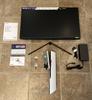
The Sony INZONE M9 is well-packaged and arrived undamaged. Inside the box, you’ll receive the monitor, power adapter, power cord, and owner’s documents (quick setup guide, operating instructions, warranty card, product registration sheet, and INZONE stickers). Sony doesn’t include HDMI or DisplayPort cables, so you’ll have to supply your own. The only assembly required is attaching the stand or mounting it. In either case, a screwdriver will be needed. From there, it’s just plug-and-play.
Design:
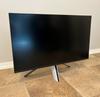
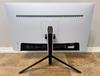
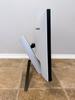
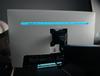
The INZONE M9 is a sleek 27” gaming monitor with a black-and-white color scheme that looks a lot like the PlayStation 5. I don’t own one, but I’m still a big fan of the design, and it looks great next to my white PC. It’s a simple and aesthetically pleasing design, and I appreciate some of the small design aspects like thin bezels, minimal branding, and an RGB strip on the back. Though I chose to mount the INZONE M9 (which follows VESA mounting standards), the stand is one of the better ones I’ve seen. Its unique, tripod design does a good job stabilizing the monitor and provides both height and tilt adjustment. I wish it offered panel rotation and side-to-side swiveling though. The port selection on the back includes two HDMI 2.1 ports, one USB Type-C (with DisplayPort), one USB Type-B, three USB Type-A ports, one standard DisplayPort, and one headphone jack. There’s plenty to connect multiple devices, and the monitor will switch inputs automatically when a video signal is detected. However, the input scanning process is slower than other monitors I’ve used. Since there’s a KVM switch inside the monitor, peripherals can easily be swapped when the input is changed. It’s convenient and has worked well in my tests.
Features:
The main features of the INZONE M9 are its 4K resolution, 144Hz refresh rate, 1ms response time, G-Sync compatibility, and variable refresh rate (VRR). But perhaps the signature feature that sets the INZONE M9 apart from many other gaming monitors is its full array local dimming. In short, it helps deliver a more realistic experience. There are 96 lighting zones that provide localized contrast, a technology more commonly found in 4K TVs. There are other gaming monitors on the market with more than 96 lighting zones, but for a far higher price. I think the INZONE M9 with its 96 lighting zones is a good value. Another neat feature that the INZONE M9 offers is Auto HDR Tone Mapping which automatically sets the optimal HDR settings for games, but this feature is currently only compatible with the PlayStation 5. Though I appreciate that the INZONE M9 has integrated speakers, don’t expect much out of them. They can get pretty loud, but I’d describe the sound as hollow. You’ll want to use headphones or a better speaker setup to get the most out of your gaming experience.
Software:
On the back of the monitor, there’s an on-screen display control stick that allows you to access and navigate through picture adjustments like contrast, saturation, and brightness, as well as game-assist tools like a frame rate counter and crosshairs. The menu is simple and easy to navigate, but you also have the option of downloading INZONE Hub (a desktop application) and using that to adjust all the settings. Though I have no complaints about the on-screen display settings, the desktop application is convenient to use and nice to have.
Performance:
The picture quality on the INZONE M9 is phenomenal. The 4K clarity, high brightness and contrast, and color accuracy are a sight to see. Combine that with basically no input lag and you have a smooth and stunning gaming experience. No matter what game I played, the excellent visuals were accompanied by fluid gameplay, even with settings and frame rate maxed out.
----- WHAT’S IN THE BOX -----
1 x Gaming Monitor
1 x AC Power Adapter
1 x AC Power Cord
1 x Setup Guide
1 x Operating Instructions
1 x Color Calibration Factory Report
1 x Warranty Card
1 x Product Registration Sheet
2 x INZONE Stickers
Verdict:
Sony’s INZONE M9 is a strong competitor in the crowded gaming monitor market. It has a unique style that compliments the PlayStation 5, but the minimal branding helps it fit well into any gaming setup. With its stunning 4K HDR picture quality and smooth performance, you’ll love the gaming experience on the INZONE M9.
Pros:
- Sleek, eye-catching design
- Phenomenal 4K picture quality
- Smooth performance (144Hz refresh rate)
- Full array local dimming
- Good selection of ports
- Auto HDR Tone Mapping (with PS5 only)
Cons:
- Integrated speakers have poor sound quality
- Stand does not swivel
- Input scanning is slow
----- DETAILS -----
Unboxing & Setup:
The Sony INZONE M9 is well-packaged and arrived undamaged. Inside the box, you’ll receive the monitor, power adapter, power cord, and owner’s documents (quick setup guide, operating instructions, warranty card, product registration sheet, and INZONE stickers). Sony doesn’t include HDMI or DisplayPort cables, so you’ll have to supply your own. The only assembly required is attaching the stand or mounting it. In either case, a screwdriver will be needed. From there, it’s just plug-and-play.
Design:
The INZONE M9 is a sleek 27” gaming monitor with a black-and-white color scheme that looks a lot like the PlayStation 5. I don’t own one, but I’m still a big fan of the design, and it looks great next to my white PC. It’s a simple and aesthetically pleasing design, and I appreciate some of the small design aspects like thin bezels, minimal branding, and an RGB strip on the back. Though I chose to mount the INZONE M9 (which follows VESA mounting standards), the stand is one of the better ones I’ve seen. Its unique, tripod design does a good job stabilizing the monitor and provides both height and tilt adjustment. I wish it offered panel rotation and side-to-side swiveling though. The port selection on the back includes two HDMI 2.1 ports, one USB Type-C (with DisplayPort), one USB Type-B, three USB Type-A ports, one standard DisplayPort, and one headphone jack. There’s plenty to connect multiple devices, and the monitor will switch inputs automatically when a video signal is detected. However, the input scanning process is slower than other monitors I’ve used. Since there’s a KVM switch inside the monitor, peripherals can easily be swapped when the input is changed. It’s convenient and has worked well in my tests.
Features:
The main features of the INZONE M9 are its 4K resolution, 144Hz refresh rate, 1ms response time, G-Sync compatibility, and variable refresh rate (VRR). But perhaps the signature feature that sets the INZONE M9 apart from many other gaming monitors is its full array local dimming. In short, it helps deliver a more realistic experience. There are 96 lighting zones that provide localized contrast, a technology more commonly found in 4K TVs. There are other gaming monitors on the market with more than 96 lighting zones, but for a far higher price. I think the INZONE M9 with its 96 lighting zones is a good value. Another neat feature that the INZONE M9 offers is Auto HDR Tone Mapping which automatically sets the optimal HDR settings for games, but this feature is currently only compatible with the PlayStation 5. Though I appreciate that the INZONE M9 has integrated speakers, don’t expect much out of them. They can get pretty loud, but I’d describe the sound as hollow. You’ll want to use headphones or a better speaker setup to get the most out of your gaming experience.
Software:
On the back of the monitor, there’s an on-screen display control stick that allows you to access and navigate through picture adjustments like contrast, saturation, and brightness, as well as game-assist tools like a frame rate counter and crosshairs. The menu is simple and easy to navigate, but you also have the option of downloading INZONE Hub (a desktop application) and using that to adjust all the settings. Though I have no complaints about the on-screen display settings, the desktop application is convenient to use and nice to have.
Performance:
The picture quality on the INZONE M9 is phenomenal. The 4K clarity, high brightness and contrast, and color accuracy are a sight to see. Combine that with basically no input lag and you have a smooth and stunning gaming experience. No matter what game I played, the excellent visuals were accompanied by fluid gameplay, even with settings and frame rate maxed out.
----- WHAT’S IN THE BOX -----
1 x Gaming Monitor
1 x AC Power Adapter
1 x AC Power Cord
1 x Setup Guide
1 x Operating Instructions
1 x Color Calibration Factory Report
1 x Warranty Card
1 x Product Registration Sheet
2 x INZONE Stickers
I would recommend this to a friend!

Share this review:


+1point
1of 1voted this as helpful.
It~s easy to transform your home into a safe haven with SimpliSafe~s award-winning security system. Everything is simple to set up, effortless to use, and designed to do one thing only: keep your home and family safe. Indoor and outdoor security cameras let you see everything happening in full HD. So you can spot trouble and capture the evidence. If someone tries to break in, advanced sensors will sound the alarm. And it's powered with optional 24/7 professional monitoring. Agents keep watch even when you can't, ready to instantly alert emergency responders - and they stay on the line with you until they arrive. So no matter where you are or what you're doing, your home is protected 24/7. There's no safe like SimpliSafe.
Customer Rating
5
Simple Security Customized to Your Home
on September 1, 2022
Posted by: Kelby
----- SUMMARY -----
Verdict:
Every living space is unique, so there shouldn’t be a “one-size-fits-all” approach to home security. SimpliSafe does an excellent job providing you with a variety of sensors and cameras to build your own custom security system, and the DIY setup process is easy. This 12-piece security kit helps ensure your whole home is covered inside and out, and additional sensors or cameras can be added as you see fit. Based on my experience so far, I feel confident that each sensor and camera works reliably well. Its versatility, ease of use, and performance make this SimpliSafe kit an ideal choice for whole-home indoor and outdoor security.
Pros:
- Quick, simple installation
- System is controllable via a mobile app
- Outdoor cameras are wireless
- Indoor and outdoor cameras have great video quality
- Sensors are reliable
- Quick response from 24/7 monitoring center
Cons:
- Indoor camera isn't wireless
----- DETAILS -----
Unboxing & Setup:
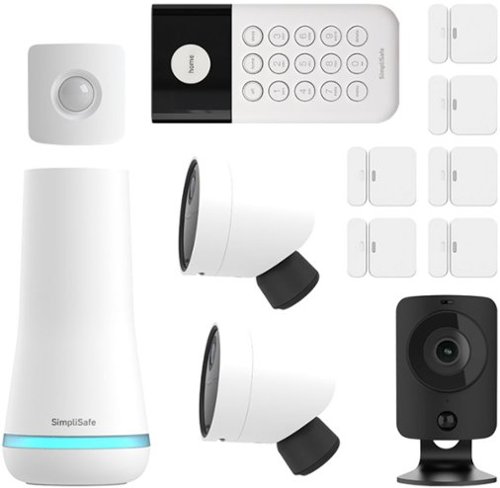
This 12-piece kit is one of the most all-encompassing security packages I’ve seen from SimpliSafe. You can always add more sensors or cameras to it, but what’s included in this kit will satisfy most homes in terms of overall coverage (both inside and out). In the box, you’ll receive the base station, keypad, six entry sensors, a motion sensor, an indoor camera, and two outdoor cameras. There’s also a thorough owner’s manual, a yard sign, and window stickers.
The SimpliSafe app (available for iOS and Android) is where you start the setup process. First, you’ll create an account and the app guides you through each step of the process. I applaud SimpliSafe for providing instructions specific to each component of the security system and for the level of detail. It was easy to follow, and I had everything set up in minutes. The only exception was waiting for the outdoor camera batteries to charge before I mounted them. It took a couple of hours for them to charge, but the batteries last 3-6 months on a single charge, depending on your usage, and settings.
SimpliSafe App:
When you open the SimpliSafe mobile app, the “Overview” tab is the first thing you see, and it puts the ability to arm or disarm your system at the forefront. Below that, you might see some motion history from your cameras, if there is any. Other tabs in the app include “Cameras”, which allows you to hop into a live view of any of your indoor and outdoor cameras, and “Timeline” which gives you a breakdown of events, such as when you armed/disarmed the system and when a camera detected motion. For the camera motion events, tapping on the event in the timeline will show you a recording. Notifications and a variety of other device settings like camera motion detection sensitivity can be managed in the app as well. It’s an easy-to-use interface that puts system management at your fingertips wherever you are.
Outdoor Cameras:
Mounting the outdoor cameras is simple. There’s a dome-shaped mounting bracket that you attach to the desired location using two screws, then the camera magnetically attaches. The design allows you to easily swivel the camera around to find the best angle. The one tricky part was finding the optimal location for the cameras. Several locations did not work well because of a poor Wi-Fi connection. There was some trial and error to find the right spot for each camera but afterward, the setup went smoothly. With 1080p resolution, the outdoor cameras capture clear and colorful video. At night, it automatically switches to night vision which you can choose to be infrared (black and white) or in full color with a spotlight. I like the spotlight option because it shines a bright light when motion is detected which could scare potential intruders away. Motion detection has been reliable during my tests, and you can customize the sensitivity in the app. There’s also two-way audio which allows you to hear what’s happening or broadcast your voice through the camera’s speaker. With high-quality video, night vision, and intelligent motion alerts, the SimpliSafe outdoor cameras are an effective way to keep an eye on your home.
Indoor Camera, Sensors, and Other Features:
Like the outdoor camera, the indoor camera offers 1080p resolution, night vision, two-way audio, and motion detection. In terms of features, not much is different from the outdoor cameras. The main differences are that one is designed for outdoors and is weatherproof, and the other is not. For peace of mind, there’s also a privacy shutter on the indoor camera that you can set to automatically cover the lens when you’re at home. I just wish the indoor camera was wireless like the outdoor camera so that it could be placed in locations that aren't near an outlet.
The entry sensors are ideal for doors and windows, and the motion sensor is ideal for any key areas where an intruder could pass through. I initially worried that the motion sensor would detect my cat when I’m away with the system armed, but I haven’t had any issues. SimpliSafe says that it works great with pets up to 50 lbs, but they also recommend installing the motion sensor 6-10 feet off the ground with the test button on top for pets under 30 lbs. For pets over 30 pounds, they recommend installing it button-side down, about 4 feet off the ground. Whether it's the entry sensors or the motion sensor, each mounts easily with the already attached adhesive tape. Just peel the paper backing off and stick them in the desired location.
By default, they will trigger the alarm but you can set up “Secret Alerts” in the app as well. “Secret Alerts” is a neat feature that sends you a text, email, or push notification when a sensor is triggered but doesn’t alert the monitoring center or sound an alarm. Perhaps there’s a drawer or cabinet that shouldn’t be accessed by children. You could use an entry sensor that triggers a secret alert upon opening.
Monitoring:
With SimpliSafe’s monthly plans, you pay to have 24/7 monitoring and dispatch, and other features, like allowing the monitoring center to access your camera feeds (with your consent) for visual verification and priority police dispatch. The plans are described well on SimpliSafe’s website, so I won’t cover all the details here. However, you can choose to forego the monitoring plans and keep track of your system yourself. Again, details on what you do and don’t have access to are listed on SimpliSafe’s website. My experience with a 24/7 monitoring plan has been great. When I had a false alarm, I promptly received a call from the monitoring center, and when I told them it was a false alarm, they still asked for my safe word to confirm it was actually me. The person who called me was kind and courteous as well.
----- WHAT’S IN THE BOX -----
1 x Base Station
1 x Keypad
1 x Indoor Camera
2 x Outdoor Cameras
6 x Entry Sensors
1 x Motion Sensor
1 x SimpliSafe Yard Sign with Stake
2 x SimpliSafe Decals/Stickers
1 x Owner’s Manual
Verdict:
Every living space is unique, so there shouldn’t be a “one-size-fits-all” approach to home security. SimpliSafe does an excellent job providing you with a variety of sensors and cameras to build your own custom security system, and the DIY setup process is easy. This 12-piece security kit helps ensure your whole home is covered inside and out, and additional sensors or cameras can be added as you see fit. Based on my experience so far, I feel confident that each sensor and camera works reliably well. Its versatility, ease of use, and performance make this SimpliSafe kit an ideal choice for whole-home indoor and outdoor security.
Pros:
- Quick, simple installation
- System is controllable via a mobile app
- Outdoor cameras are wireless
- Indoor and outdoor cameras have great video quality
- Sensors are reliable
- Quick response from 24/7 monitoring center
Cons:
- Indoor camera isn't wireless
----- DETAILS -----
Unboxing & Setup:
This 12-piece kit is one of the most all-encompassing security packages I’ve seen from SimpliSafe. You can always add more sensors or cameras to it, but what’s included in this kit will satisfy most homes in terms of overall coverage (both inside and out). In the box, you’ll receive the base station, keypad, six entry sensors, a motion sensor, an indoor camera, and two outdoor cameras. There’s also a thorough owner’s manual, a yard sign, and window stickers.
The SimpliSafe app (available for iOS and Android) is where you start the setup process. First, you’ll create an account and the app guides you through each step of the process. I applaud SimpliSafe for providing instructions specific to each component of the security system and for the level of detail. It was easy to follow, and I had everything set up in minutes. The only exception was waiting for the outdoor camera batteries to charge before I mounted them. It took a couple of hours for them to charge, but the batteries last 3-6 months on a single charge, depending on your usage, and settings.
SimpliSafe App:
When you open the SimpliSafe mobile app, the “Overview” tab is the first thing you see, and it puts the ability to arm or disarm your system at the forefront. Below that, you might see some motion history from your cameras, if there is any. Other tabs in the app include “Cameras”, which allows you to hop into a live view of any of your indoor and outdoor cameras, and “Timeline” which gives you a breakdown of events, such as when you armed/disarmed the system and when a camera detected motion. For the camera motion events, tapping on the event in the timeline will show you a recording. Notifications and a variety of other device settings like camera motion detection sensitivity can be managed in the app as well. It’s an easy-to-use interface that puts system management at your fingertips wherever you are.
Outdoor Cameras:
Mounting the outdoor cameras is simple. There’s a dome-shaped mounting bracket that you attach to the desired location using two screws, then the camera magnetically attaches. The design allows you to easily swivel the camera around to find the best angle. The one tricky part was finding the optimal location for the cameras. Several locations did not work well because of a poor Wi-Fi connection. There was some trial and error to find the right spot for each camera but afterward, the setup went smoothly. With 1080p resolution, the outdoor cameras capture clear and colorful video. At night, it automatically switches to night vision which you can choose to be infrared (black and white) or in full color with a spotlight. I like the spotlight option because it shines a bright light when motion is detected which could scare potential intruders away. Motion detection has been reliable during my tests, and you can customize the sensitivity in the app. There’s also two-way audio which allows you to hear what’s happening or broadcast your voice through the camera’s speaker. With high-quality video, night vision, and intelligent motion alerts, the SimpliSafe outdoor cameras are an effective way to keep an eye on your home.
Indoor Camera, Sensors, and Other Features:
Like the outdoor camera, the indoor camera offers 1080p resolution, night vision, two-way audio, and motion detection. In terms of features, not much is different from the outdoor cameras. The main differences are that one is designed for outdoors and is weatherproof, and the other is not. For peace of mind, there’s also a privacy shutter on the indoor camera that you can set to automatically cover the lens when you’re at home. I just wish the indoor camera was wireless like the outdoor camera so that it could be placed in locations that aren't near an outlet.
The entry sensors are ideal for doors and windows, and the motion sensor is ideal for any key areas where an intruder could pass through. I initially worried that the motion sensor would detect my cat when I’m away with the system armed, but I haven’t had any issues. SimpliSafe says that it works great with pets up to 50 lbs, but they also recommend installing the motion sensor 6-10 feet off the ground with the test button on top for pets under 30 lbs. For pets over 30 pounds, they recommend installing it button-side down, about 4 feet off the ground. Whether it's the entry sensors or the motion sensor, each mounts easily with the already attached adhesive tape. Just peel the paper backing off and stick them in the desired location.
By default, they will trigger the alarm but you can set up “Secret Alerts” in the app as well. “Secret Alerts” is a neat feature that sends you a text, email, or push notification when a sensor is triggered but doesn’t alert the monitoring center or sound an alarm. Perhaps there’s a drawer or cabinet that shouldn’t be accessed by children. You could use an entry sensor that triggers a secret alert upon opening.
Monitoring:
With SimpliSafe’s monthly plans, you pay to have 24/7 monitoring and dispatch, and other features, like allowing the monitoring center to access your camera feeds (with your consent) for visual verification and priority police dispatch. The plans are described well on SimpliSafe’s website, so I won’t cover all the details here. However, you can choose to forego the monitoring plans and keep track of your system yourself. Again, details on what you do and don’t have access to are listed on SimpliSafe’s website. My experience with a 24/7 monitoring plan has been great. When I had a false alarm, I promptly received a call from the monitoring center, and when I told them it was a false alarm, they still asked for my safe word to confirm it was actually me. The person who called me was kind and courteous as well.
----- WHAT’S IN THE BOX -----
1 x Base Station
1 x Keypad
1 x Indoor Camera
2 x Outdoor Cameras
6 x Entry Sensors
1 x Motion Sensor
1 x SimpliSafe Yard Sign with Stake
2 x SimpliSafe Decals/Stickers
1 x Owner’s Manual
I would recommend this to a friend!






Share this review:


+6points
6of 6voted this as helpful.
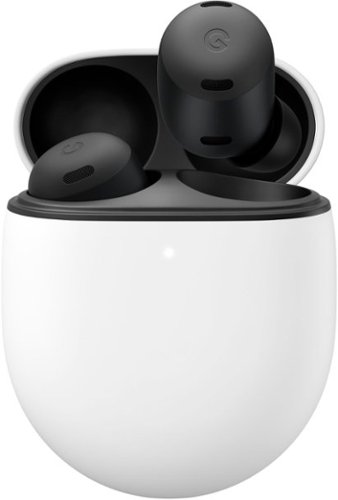
Meet Google Pixel Buds Pro, the wireless earbuds with premium, immersive sound that adapts to you. Active Noise Cancellation with Silent Seal blocks outside sounds, so your music shines.
Customer Rating
5
Stylish Design, Splendid Sound
on August 11, 2022
Posted by: Kelby
----- SUMMARY -----
Verdict:
The Pixel Buds Pro deliver a satisfying listening experience alongside useful features like gestures and hands-free Google Assistant. Couple that with their excellent battery life, comfort, and stylish design, and I think the Pixel Buds Pro are serious contenders in the wireless earbuds market. They’re the noise-canceling earbuds that Android fans like me have been asking for.
Pros:
- Good active noise cancellation
- Solid audio quality and consistency
- Excellent battery life
- Comfortable to wear
- Stylish design
- Hands-free Google Assistant
Cons:
- Some features not available for iPhone users
- No custom equalizer adjustments
----- DETAILS -----
Unboxing & Setup:
The Pixel Buds Pro come in a simple box with just the earbuds (housed in their charging case), a cardboard tube containing two extra eartip sizes (one smaller pair and one larger pair), as well as a quick-start guide and a safety/warranty pamphlet. There’s no charging cable, so you’ll either need a USB-C cable or a Qi-certified wireless charger to charge the case. On an Android phone, paring couldn’t be simpler. Opening the lid of the Pixel Buds Pro case will automatically start Google’s “Fast Pair” service on your phone and guide you through the setup. Though the Pixel Buds Pro are compatible with iPhones, it’s a slightly slower process because you’ll need to put them in paring mode and find them in the settings.
Design & Comfort:
At first glance, I was skeptical about the comfort of the Pixel Buds Pro. They also don’t look like they’d stay in your ears well. To my surprise, they do. Even when I workout or talk on the phone, they stay put. The comfort is great too, and that remains true during longer listening sessions as well. The two extra sets of eartips included in the box help you find the right fit. There’s even an eartip seal check in the Pixel Buds app. More on that later. The earbuds have IPX4 water resistance, so sweaty workouts or unexpected rain are no problem. The case is also water resistant but slightly less so, with an IPX2 rating.
Noise Cancellation & Other Features:
Google’s active noise cancellation (ANC) on the Pixel Buds Pro is excellent at dampening noises. Sounds from my nearby air conditioning unit are unnoticeable, and the buzz of a busy coffee shop is brought to a very quiet level. The only noise where I think there’s room for improvement is wind. If I have ANC on while running or on a breezy day, some of the wind sounds get picked up. On the flip side, transparency mode lets the ambient noise in so that you can hear your surroundings better. The Pixel Buds Pro can be controlled with gestures, and they work well. One tap will play/pause, two will skip the track, and three will go back. A press and hold will switch between ANC and transparency. However, in the Pixel Buds app, you can customize that same gesture to activate Google Assistant on either the right or left earbud. I find Google Assistant especially useful on the earbuds for hearing notifications read to me and responding to texts. There’s also an intuitive gesture to raise or lower the volume. A swipe forward will increase the volume and backward will lower it. Like a gesture, the Pixel Buds Pro have in-ear detection which will automatically pause audio when you remove an earbud and resume when you put it back in. Another feature I’ve found useful is multipoint connectivity. With the Pixel Buds Pro connected to both my laptop and my phone, I can go from listening to a Spotify song on my phone, pause it, then start listening to a YouTube video on my laptop. There’s no delay. Google says spatial audio is coming this Fall, which shifts the field of sound as you move your head. I look forward to trying that out.
Audio & Mic Performance:
I’m happy with the audio quality of the Pixel Buds Pro. I’d describe it as balanced. The audio is clear with ample bass kick, but not so much that it detracts from the rest of the soundstage. There’s also good separation between vocals and the instruments. With the Volume EQ toggle in the Pixel Buds app, treble and bass are elevated at lower volumes to ensure that highs, mids, and lows are balanced at any volume. What I was a bit disappointed to not see though was a conventional equalizer for further audio adjustments, but perhaps that could come in a future app/firmware update. I’ve not only been impressed with the audio quality but also the consistency. Throughout my extensive use so far, I’ve had zero audio dropouts.
With beamforming mics and a dedicated voice pickup unit, call quality on the Pixel Buds Pro is great. I tested a variety of conditions indoors and outdoors, and the person I called claimed there was little to no background noise. This exceeded my expectations, especially when I tried them outside on a windy day or near a busy street. Whoever you call shouldn’t have any issues hearing you.
Pixel Buds App:
A variety of settings are available in the Google Pixel Buds app. On a Pixel, the app is already integrated into the system. For non-Pixel Android phones, you can get the app on the Play Store. It’s a simple but useful interface. The settings mainly include Google Assistant preferences, seeing location info or ringing the earbuds to help you find them, touch controls, sound settings, and firmware updates. Another neat feature is the eartip seal check which is a 20-second evaluation that helps determine if you have a good seal. Having the proper fit helps ensure that ANC blocks as much noise as possible and improves the audio quality. I like that the Pixel Buds app is both simple and useful. The one downside is that it’s not available for iOS, so iPhone users are stuck with the defaults and unable to download any firmware updates.
Battery Life & Charging:
I put Google’s claimed 11-hour battery life (per charge) to the test, which proved to be accurate. The one caveat is that’s with ANC off. When I enabled ANC the whole time, I averaged about seven hours. The case provides a little under two full charges, so with ANC enabled the total battery life is about 20 hours, and with it disabled, the total is about 31 hours. That gives the Pixel Buds Pro a slight advantage over some of the other “pro” earbuds on the market. Other than using the Pixel Buds app to see battery status, you can open the case lid when the earbuds are inside and see what the light on the front shows. Solid white is fully charged, solid yellow means one or both earbuds are charging, and blinking yellow means the earbuds have charge left but the charging case has less than 20%. When it’s time to charge, there’s a USB-C slot located at the bottom of the case, or you can charge wirelessly on any Qi-certified charging accessory.
----- WHAT’S IN THE BOX -----
1 x Pair of Pixel Buds Pro
1 x Charging Case
2 x Additional Pairs of Eartips (Different Sizes)
1 x Quick-Start Guide
1 x Safety/Warranty Information
Verdict:
The Pixel Buds Pro deliver a satisfying listening experience alongside useful features like gestures and hands-free Google Assistant. Couple that with their excellent battery life, comfort, and stylish design, and I think the Pixel Buds Pro are serious contenders in the wireless earbuds market. They’re the noise-canceling earbuds that Android fans like me have been asking for.
Pros:
- Good active noise cancellation
- Solid audio quality and consistency
- Excellent battery life
- Comfortable to wear
- Stylish design
- Hands-free Google Assistant
Cons:
- Some features not available for iPhone users
- No custom equalizer adjustments
----- DETAILS -----
Unboxing & Setup:
The Pixel Buds Pro come in a simple box with just the earbuds (housed in their charging case), a cardboard tube containing two extra eartip sizes (one smaller pair and one larger pair), as well as a quick-start guide and a safety/warranty pamphlet. There’s no charging cable, so you’ll either need a USB-C cable or a Qi-certified wireless charger to charge the case. On an Android phone, paring couldn’t be simpler. Opening the lid of the Pixel Buds Pro case will automatically start Google’s “Fast Pair” service on your phone and guide you through the setup. Though the Pixel Buds Pro are compatible with iPhones, it’s a slightly slower process because you’ll need to put them in paring mode and find them in the settings.
Design & Comfort:
At first glance, I was skeptical about the comfort of the Pixel Buds Pro. They also don’t look like they’d stay in your ears well. To my surprise, they do. Even when I workout or talk on the phone, they stay put. The comfort is great too, and that remains true during longer listening sessions as well. The two extra sets of eartips included in the box help you find the right fit. There’s even an eartip seal check in the Pixel Buds app. More on that later. The earbuds have IPX4 water resistance, so sweaty workouts or unexpected rain are no problem. The case is also water resistant but slightly less so, with an IPX2 rating.
Noise Cancellation & Other Features:
Google’s active noise cancellation (ANC) on the Pixel Buds Pro is excellent at dampening noises. Sounds from my nearby air conditioning unit are unnoticeable, and the buzz of a busy coffee shop is brought to a very quiet level. The only noise where I think there’s room for improvement is wind. If I have ANC on while running or on a breezy day, some of the wind sounds get picked up. On the flip side, transparency mode lets the ambient noise in so that you can hear your surroundings better. The Pixel Buds Pro can be controlled with gestures, and they work well. One tap will play/pause, two will skip the track, and three will go back. A press and hold will switch between ANC and transparency. However, in the Pixel Buds app, you can customize that same gesture to activate Google Assistant on either the right or left earbud. I find Google Assistant especially useful on the earbuds for hearing notifications read to me and responding to texts. There’s also an intuitive gesture to raise or lower the volume. A swipe forward will increase the volume and backward will lower it. Like a gesture, the Pixel Buds Pro have in-ear detection which will automatically pause audio when you remove an earbud and resume when you put it back in. Another feature I’ve found useful is multipoint connectivity. With the Pixel Buds Pro connected to both my laptop and my phone, I can go from listening to a Spotify song on my phone, pause it, then start listening to a YouTube video on my laptop. There’s no delay. Google says spatial audio is coming this Fall, which shifts the field of sound as you move your head. I look forward to trying that out.
Audio & Mic Performance:
I’m happy with the audio quality of the Pixel Buds Pro. I’d describe it as balanced. The audio is clear with ample bass kick, but not so much that it detracts from the rest of the soundstage. There’s also good separation between vocals and the instruments. With the Volume EQ toggle in the Pixel Buds app, treble and bass are elevated at lower volumes to ensure that highs, mids, and lows are balanced at any volume. What I was a bit disappointed to not see though was a conventional equalizer for further audio adjustments, but perhaps that could come in a future app/firmware update. I’ve not only been impressed with the audio quality but also the consistency. Throughout my extensive use so far, I’ve had zero audio dropouts.
With beamforming mics and a dedicated voice pickup unit, call quality on the Pixel Buds Pro is great. I tested a variety of conditions indoors and outdoors, and the person I called claimed there was little to no background noise. This exceeded my expectations, especially when I tried them outside on a windy day or near a busy street. Whoever you call shouldn’t have any issues hearing you.
Pixel Buds App:
A variety of settings are available in the Google Pixel Buds app. On a Pixel, the app is already integrated into the system. For non-Pixel Android phones, you can get the app on the Play Store. It’s a simple but useful interface. The settings mainly include Google Assistant preferences, seeing location info or ringing the earbuds to help you find them, touch controls, sound settings, and firmware updates. Another neat feature is the eartip seal check which is a 20-second evaluation that helps determine if you have a good seal. Having the proper fit helps ensure that ANC blocks as much noise as possible and improves the audio quality. I like that the Pixel Buds app is both simple and useful. The one downside is that it’s not available for iOS, so iPhone users are stuck with the defaults and unable to download any firmware updates.
Battery Life & Charging:
I put Google’s claimed 11-hour battery life (per charge) to the test, which proved to be accurate. The one caveat is that’s with ANC off. When I enabled ANC the whole time, I averaged about seven hours. The case provides a little under two full charges, so with ANC enabled the total battery life is about 20 hours, and with it disabled, the total is about 31 hours. That gives the Pixel Buds Pro a slight advantage over some of the other “pro” earbuds on the market. Other than using the Pixel Buds app to see battery status, you can open the case lid when the earbuds are inside and see what the light on the front shows. Solid white is fully charged, solid yellow means one or both earbuds are charging, and blinking yellow means the earbuds have charge left but the charging case has less than 20%. When it’s time to charge, there’s a USB-C slot located at the bottom of the case, or you can charge wirelessly on any Qi-certified charging accessory.
----- WHAT’S IN THE BOX -----
1 x Pair of Pixel Buds Pro
1 x Charging Case
2 x Additional Pairs of Eartips (Different Sizes)
1 x Quick-Start Guide
1 x Safety/Warranty Information
I would recommend this to a friend!






Share this review:


+1point
1of 1voted this as helpful.

Meet the premier gaming headset to rule them all. Armed with hybrid ANC, THX AAA, and upgraded Razer TriForce Bio-cellulose drivers for flagship quality audio. Backed by an intelligent dual-wireless design for seamless switching between low-latency PC/console gaming and Bluetooth mobile use.
Customer Rating
4
Multi-Purpose and Just Short of Magnificent
on August 5, 2022
Posted by: Kelby
----- SUMMARY -----
Verdict:
There’s a lot that the Razer Barracuda Pro does well. Multi-device connectivity, comfort, great battery life, excellent audio quality, competent mic performance, and a solid design. I think it’s just shy of a five-star headset, only because they’re mostly plastic, detracting from the premium feel, and they aren’t compatible with Xbox. If those aren’t dealbreakers for you, the Barracuda Pro is a good choice for your next gaming headset.
Pros:
- Quick and easy setup
- Comfortable, even for prolonged use
- Excellent audio quality
- Nice carrying case included
- Seamless multi-device connectivity
- Competent mic performance
- Great battery life
Cons:
- Plastic design
- Not compatible with Xbox
----- DETAILS -----
Unboxing & Setup:
When you open the box you’re greeted with a nice hard-shell zip-up carrying case. Inside of it, the Barracuda Pro headset is folded flat, since the earcups can rotate. There’s a convenient compartment in the middle that’s even magnetically held shut. Razer put thought into the design of the case, which gave me a positive first impression, and I appreciated that it was included. The case protects the headset well and makes it easy to transport. Inside the compartment are two braided cables, one that’s a USB-C to USB-A charging cable and another that’s a USB-A to USB-C extender, which allows you to connect the USB-C dongle to a USB-A port. There’s a little pouch within the compartment that holds the USB-C dongle. Again, Razer was thoughtful in the design because the dongle is small and would be easy to lose if there wasn’t a dedicated pouch. As suggested in the instructions, I fully charged the headset before first use, which took a couple of hours. Setup was quick and easy because the USB-C dongle automatically connects to the headset when you plug it in. Setting up Bluetooth is also simple, with just the extra step of putting the headset in pairing mode. Sound settings and firmware updates are done in the Razer Synapse software (more on that later).
Design & Features:
I like the style of the Barracuda Pro because it blurs the lines between gaming and everyday use. I wanted a headset that I could use for gaming, work, and when I’m on the go without the attention-grabbing design that many gaming headsets have. In this regard, the Barracuda Pro has been just what I was looking for. Aside from the green indicator on the mic mute switch, the headset is mostly black, including the subtle Razer logo on the earcups. Though the headset looks metal in pictures, the outer shell is plastic which was a bit of a disappointment. I suppose it helps keep the headset lightweight, but I think it detracts from the premium feel. Some metal would’ve elevated the design, but the build quality is still solid. In terms of comfort, I’ve been very impressed. Between listening to music and conference calls while working from home, I often wear the headset for 8+ hours a day, and I have no complaints. The headband provides enough clamp to stabilize the headset without any ear or head pain, and the faux-leather-covered memory foam earpads are soft. I worry about the memory foam's longevity though, because it feels low-density, so it seems possible that it could compress over time. The right earcup has a “SmartSwitch” button that allows you to easily toggle between noise canceling on/off as well as ambient mode which amplifies sounds or voices around you. Double pressing the button seamlessly switches between high-speed 2.4GHz or Bluetooth mode, a feature I’ve found useful. When I’m gaming on my PC and receive a call, I can quickly answer and use the headset for the call, or when I finish a conference call on my PC and want to take a break, I can leave my desk with my phone in hand and stream music from it almost instantly. There’s no waiting to connect on either end. On the left earcup, there’s a mic mute button, volume wheel, power button, and USB-C charging port. The power button has many more uses, like pausing music/videos or accepting/ending calls with a single short press. A double press will take you to the next song or reject a call. Three presses will go back to the previous song. There’s a bit of a learning curve remembering what button presses do what, but I like having that level of control all on the headset. Presumably to help it fit into a gaming and on-the-go lifestyle, Razer opted for in-cup microphones instead of a boom mic (more detail on the mic performance later). The included USB-C dongle that enables a “HyperSpeed” wireless connection is compatible with PC, PlayStation 4, PlayStation 5, Nintendo Switch, and Android devices with USB-C ports. Since there’s also Bluetooth connectivity, you can pair the headset with compatible devices as well. As an Xbox owner, I was disappointed that the Barracuda Pro isn’t compatible. I’m not sure why Xbox was excluded, but it seems like a missed opportunity.
Performance:
Whether it’s games, music, or entertainment, the Barracuda Pro pumps out a lot of bass without overpowering or drowning out the lows and highs. It’s crisp and clear sound. I like the default settings, but the Razer Synapse software gives you a lot of flexibility to fine-tune the sound to your liking. The active noise cancellation and ambient (audio pass-through) modes work quite well but they’ll reduce the bass and soundstage significantly. They’re nice to have though. I just wish the ambient mode didn’t pick up wind as much because it can be noisy. Though audio quality was my main interest in the Barracuda Pro headset, the mic quality is important to me as well. Since I use the headset for work and gaming, I need a mic to communicate with fellow gamers or colleagues at work. Most of my time talking with a headset is spent while I’m working, so I asked my colleagues how I sounded, and they had no complaints. The integrated mics on the Barracuda Pro might not surpass the quality of what a boom mic can offer, but for most people, I think they’ll be good enough. If you’re a streamer though, you'd be better off with a desktop microphone.
Software:
Tools and settings for the Barracuda Pro can be managed in the Razer Synapse software. It’s convenient and easy to use right from the start. Connecting the USB-C dongle automatically initiates a pop-up that you can just click to install the software. I liked that I didn’t have to read instructions or browse the internet to find the download. The software enables THX Spatial Audio and provides a variety of sound enhancement toggles and sliders, such as volume normalization, bass boost, and voice clarity. It also gives you the ability to update the headset’s firmware.
Battery Life:
On a single charge, I average around 40 hours of battery life. Other similar headsets that I’ve either owned or seen on the market average around 20 hours of battery life, so I’m impressed that the Barracuda Pro doubles that. Even with heavy usage, I usually don’t have to worry about charging for a week or more. When it does come time to charge, the headset will say “low battery”, and there’s a braided USB-C to USB-A charging cable included in the box.
----- WHAT’S IN THE BOX -----
1 x Razer Barracuda Pro Wireless Gaming Headset
1 x USB-C Wireless (2.4GHz) Transmitter
1 x USB-C to USB-A Braided Charging Cable
1 x USB-A to USB-C Extender
1 x Hard-Shell Zip-Up Carrying Case
1 x Quick Start Guide
1 x Razer Sticker
Verdict:
There’s a lot that the Razer Barracuda Pro does well. Multi-device connectivity, comfort, great battery life, excellent audio quality, competent mic performance, and a solid design. I think it’s just shy of a five-star headset, only because they’re mostly plastic, detracting from the premium feel, and they aren’t compatible with Xbox. If those aren’t dealbreakers for you, the Barracuda Pro is a good choice for your next gaming headset.
Pros:
- Quick and easy setup
- Comfortable, even for prolonged use
- Excellent audio quality
- Nice carrying case included
- Seamless multi-device connectivity
- Competent mic performance
- Great battery life
Cons:
- Plastic design
- Not compatible with Xbox
----- DETAILS -----
Unboxing & Setup:
When you open the box you’re greeted with a nice hard-shell zip-up carrying case. Inside of it, the Barracuda Pro headset is folded flat, since the earcups can rotate. There’s a convenient compartment in the middle that’s even magnetically held shut. Razer put thought into the design of the case, which gave me a positive first impression, and I appreciated that it was included. The case protects the headset well and makes it easy to transport. Inside the compartment are two braided cables, one that’s a USB-C to USB-A charging cable and another that’s a USB-A to USB-C extender, which allows you to connect the USB-C dongle to a USB-A port. There’s a little pouch within the compartment that holds the USB-C dongle. Again, Razer was thoughtful in the design because the dongle is small and would be easy to lose if there wasn’t a dedicated pouch. As suggested in the instructions, I fully charged the headset before first use, which took a couple of hours. Setup was quick and easy because the USB-C dongle automatically connects to the headset when you plug it in. Setting up Bluetooth is also simple, with just the extra step of putting the headset in pairing mode. Sound settings and firmware updates are done in the Razer Synapse software (more on that later).
Design & Features:
I like the style of the Barracuda Pro because it blurs the lines between gaming and everyday use. I wanted a headset that I could use for gaming, work, and when I’m on the go without the attention-grabbing design that many gaming headsets have. In this regard, the Barracuda Pro has been just what I was looking for. Aside from the green indicator on the mic mute switch, the headset is mostly black, including the subtle Razer logo on the earcups. Though the headset looks metal in pictures, the outer shell is plastic which was a bit of a disappointment. I suppose it helps keep the headset lightweight, but I think it detracts from the premium feel. Some metal would’ve elevated the design, but the build quality is still solid. In terms of comfort, I’ve been very impressed. Between listening to music and conference calls while working from home, I often wear the headset for 8+ hours a day, and I have no complaints. The headband provides enough clamp to stabilize the headset without any ear or head pain, and the faux-leather-covered memory foam earpads are soft. I worry about the memory foam's longevity though, because it feels low-density, so it seems possible that it could compress over time. The right earcup has a “SmartSwitch” button that allows you to easily toggle between noise canceling on/off as well as ambient mode which amplifies sounds or voices around you. Double pressing the button seamlessly switches between high-speed 2.4GHz or Bluetooth mode, a feature I’ve found useful. When I’m gaming on my PC and receive a call, I can quickly answer and use the headset for the call, or when I finish a conference call on my PC and want to take a break, I can leave my desk with my phone in hand and stream music from it almost instantly. There’s no waiting to connect on either end. On the left earcup, there’s a mic mute button, volume wheel, power button, and USB-C charging port. The power button has many more uses, like pausing music/videos or accepting/ending calls with a single short press. A double press will take you to the next song or reject a call. Three presses will go back to the previous song. There’s a bit of a learning curve remembering what button presses do what, but I like having that level of control all on the headset. Presumably to help it fit into a gaming and on-the-go lifestyle, Razer opted for in-cup microphones instead of a boom mic (more detail on the mic performance later). The included USB-C dongle that enables a “HyperSpeed” wireless connection is compatible with PC, PlayStation 4, PlayStation 5, Nintendo Switch, and Android devices with USB-C ports. Since there’s also Bluetooth connectivity, you can pair the headset with compatible devices as well. As an Xbox owner, I was disappointed that the Barracuda Pro isn’t compatible. I’m not sure why Xbox was excluded, but it seems like a missed opportunity.
Performance:
Whether it’s games, music, or entertainment, the Barracuda Pro pumps out a lot of bass without overpowering or drowning out the lows and highs. It’s crisp and clear sound. I like the default settings, but the Razer Synapse software gives you a lot of flexibility to fine-tune the sound to your liking. The active noise cancellation and ambient (audio pass-through) modes work quite well but they’ll reduce the bass and soundstage significantly. They’re nice to have though. I just wish the ambient mode didn’t pick up wind as much because it can be noisy. Though audio quality was my main interest in the Barracuda Pro headset, the mic quality is important to me as well. Since I use the headset for work and gaming, I need a mic to communicate with fellow gamers or colleagues at work. Most of my time talking with a headset is spent while I’m working, so I asked my colleagues how I sounded, and they had no complaints. The integrated mics on the Barracuda Pro might not surpass the quality of what a boom mic can offer, but for most people, I think they’ll be good enough. If you’re a streamer though, you'd be better off with a desktop microphone.
Software:
Tools and settings for the Barracuda Pro can be managed in the Razer Synapse software. It’s convenient and easy to use right from the start. Connecting the USB-C dongle automatically initiates a pop-up that you can just click to install the software. I liked that I didn’t have to read instructions or browse the internet to find the download. The software enables THX Spatial Audio and provides a variety of sound enhancement toggles and sliders, such as volume normalization, bass boost, and voice clarity. It also gives you the ability to update the headset’s firmware.
Battery Life:
On a single charge, I average around 40 hours of battery life. Other similar headsets that I’ve either owned or seen on the market average around 20 hours of battery life, so I’m impressed that the Barracuda Pro doubles that. Even with heavy usage, I usually don’t have to worry about charging for a week or more. When it does come time to charge, the headset will say “low battery”, and there’s a braided USB-C to USB-A charging cable included in the box.
----- WHAT’S IN THE BOX -----
1 x Razer Barracuda Pro Wireless Gaming Headset
1 x USB-C Wireless (2.4GHz) Transmitter
1 x USB-C to USB-A Braided Charging Cable
1 x USB-A to USB-C Extender
1 x Hard-Shell Zip-Up Carrying Case
1 x Quick Start Guide
1 x Razer Sticker
I would recommend this to a friend!
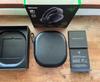



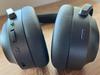
Share this review:


+1point
3of 5voted this as helpful.

The Normatec 3 by Hyperice is the next evolution of the iconic Normatec series, using dynamic air compression to advance your wellness, recover faster, improve your training, and maximize your performance. Normatec~s patented precision pulse technology helps to increase circulation, revive muscles, and reduce swelling and has long been the choice of elite athletes and consumers throughout the globe. 7 levels of compression and our patented Pulse technology deliver precise treatment to 5 overlapping zones with ZoneBoost by using biomimicry to replicate the natural muscle pumps and one way valves of the legs. Trust us, your legs will thank you. Sizing: We recommend measuring your inseam. If inseam is 31 - 35 inches , selected 'Standard'. If between sizes, size down for a more secure fit.
Customer Rating
5
Your Legs Will Thank You
on August 5, 2022
Posted by: Kelby
----- SUMMARY -----
Verdict:
After experiencing the Normatec 3, I believe it’s one of the best recovery tools available. I’ve been trying to make recovery a bigger part of my active lifestyle, and the convenience and effectiveness of the Normatec 3 are helping me do that. Whether you’re a fitness enthusiast or just someone on your feet a lot, I think you’d benefit from the Normatec 3.
Pros:
- Easy to setup and use
- Highly effective for recovery and warmups
- Customizable pressure and zone settings
- Useful app with Bluetooth control
- Great battery life
Cons:
- No saveable profiles in the app
- No carrying case/bag included
----- DETAILS -----
Unboxing & Setup:
The Normatec 3 comes well–packaged in a nice box. The unboxing experience doesn’t make or break a product, but it’s a good first impression, and I applaud Hyperice for going above and beyond. There’s even a handle on top of the box. Until I upgrade to a gym bag or the Normatec Backpack, it’ll be great for storage. When you open up the box, the first thing you see is the control unit. To the right are the two leg attachments (aka compression boots), and then several cardboard slots that have the hose, 15V charger, additional plug adapters (for different types of wall outlets), and the user documentation. Getting started is as easy as attaching the hose to the control unit and boots, putting the boots on, turning on the control unit, customizing your settings, and pressing start.
Design & Features:
Starting with the Normatec 3 control unit, you have four setting selections with various options/levels. “Attachment Selection” is for choosing the attachment. In this case, it's legs, but hip and arm attachments are available. “Pressure Level” allows you to choose from seven levels. “ZoneBoost” extends the duration of compression to a specific area, and there are five zones to choose from. “Time” sets the duration of the compression and can be adjusted in 15-minute increments. You can choose to stop it at any point with the start/stop button located in the bottom right corner. I like that the control unit is compact, simple, and has a smooth, matte finish. It’s both functional and appealing. As for the compression boots, each has a zipper that slides from the bottom to the top, making it easy to slip them on and off. Each boot also has its own hose connector which you attach to the main hose that ultimately merges into one going into the control unit. The boots are quite long, so they can accommodate a wide height range. I’m 5’11” and the boots fit me well, but there’s plenty of room if you’re shorter or taller. My wife and I share these compression boots, and I initially thought they might be too long for her, but the ability to turn off the upper zone and not zip them up completely worked just fine for her. More on the customizations later. Overall, from the control unit down to the boots, each component of the Normatec 3 seems well-designed and high quality.
Effectiveness:
I’m new to compression therapy and was admittedly a little skeptical. That skepticism quickly disappeared when I used Normatec 3 for the first time. The best way to describe it is like a restorative massage. It’s fantastic for recovery but also for warming up. Leg day is a little more bearable for me when I use the Normatec 3 to get my legs ready with a 15-minute “Pre workout warmup” routine that’s available in the Hyperice app as well as a 45-minute “Post workout recovery”. The Normatec 3 has made a noticeable difference in my workouts and recovery. I’m a believer in compression therapy now and hope to get the arm and hip attachments at some point.
Battery:
Though you can use the Normatec 3 while it’s plugged into an outlet, the Control Unit has up to three hours of battery life. I think three hours is great for this type of device because it allows me to get quite a few sessions in on one charge and take the Normatec 3 with me to locations where an outlet isn’t available. Battery status can be checked by looking at the five lights at the top of the Control Unit.
Verdict:
After experiencing the Normatec 3, I believe it’s one of the best recovery tools available. I’ve been trying to make recovery a bigger part of my active lifestyle, and the convenience and effectiveness of the Normatec 3 are helping me do that. Whether you’re a fitness enthusiast or just someone on your feet a lot, I think you’d benefit from the Normatec 3.
Pros:
- Easy to setup and use
- Highly effective for recovery and warmups
- Customizable pressure and zone settings
- Useful app with Bluetooth control
- Great battery life
Cons:
- No saveable profiles in the app
- No carrying case/bag included
----- DETAILS -----
Unboxing & Setup:
The Normatec 3 comes well–packaged in a nice box. The unboxing experience doesn’t make or break a product, but it’s a good first impression, and I applaud Hyperice for going above and beyond. There’s even a handle on top of the box. Until I upgrade to a gym bag or the Normatec Backpack, it’ll be great for storage. When you open up the box, the first thing you see is the control unit. To the right are the two leg attachments (aka compression boots), and then several cardboard slots that have the hose, 15V charger, additional plug adapters (for different types of wall outlets), and the user documentation. Getting started is as easy as attaching the hose to the control unit and boots, putting the boots on, turning on the control unit, customizing your settings, and pressing start.
Design & Features:
Starting with the Normatec 3 control unit, you have four setting selections with various options/levels. “Attachment Selection” is for choosing the attachment. In this case, it's legs, but hip and arm attachments are available. “Pressure Level” allows you to choose from seven levels. “ZoneBoost” extends the duration of compression to a specific area, and there are five zones to choose from. “Time” sets the duration of the compression and can be adjusted in 15-minute increments. You can choose to stop it at any point with the start/stop button located in the bottom right corner. I like that the control unit is compact, simple, and has a smooth, matte finish. It’s both functional and appealing. As for the compression boots, each has a zipper that slides from the bottom to the top, making it easy to slip them on and off. Each boot also has its own hose connector which you attach to the main hose that ultimately merges into one going into the control unit. The boots are quite long, so they can accommodate a wide height range. I’m 5’11” and the boots fit me well, but there’s plenty of room if you’re shorter or taller. My wife and I share these compression boots, and I initially thought they might be too long for her, but the ability to turn off the upper zone and not zip them up completely worked just fine for her. More on the customizations later. Overall, from the control unit down to the boots, each component of the Normatec 3 seems well-designed and high quality.
Effectiveness:
I’m new to compression therapy and was admittedly a little skeptical. That skepticism quickly disappeared when I used Normatec 3 for the first time. The best way to describe it is like a restorative massage. It’s fantastic for recovery but also for warming up. Leg day is a little more bearable for me when I use the Normatec 3 to get my legs ready with a 15-minute “Pre workout warmup” routine that’s available in the Hyperice app as well as a 45-minute “Post workout recovery”. The Normatec 3 has made a noticeable difference in my workouts and recovery. I’m a believer in compression therapy now and hope to get the arm and hip attachments at some point.
Battery:
Though you can use the Normatec 3 while it’s plugged into an outlet, the Control Unit has up to three hours of battery life. I think three hours is great for this type of device because it allows me to get quite a few sessions in on one charge and take the Normatec 3 with me to locations where an outlet isn’t available. Battery status can be checked by looking at the five lights at the top of the Control Unit.
App:
The Hyperice app (available for iOS and Android) provides guided routines specific to the Normatec 3 and additional customization options. Since the app connects to your Normatec 3 via Bluetooth, it will automatically start and adjust the compression for you. It’s a convenient way to take the guesswork out of recovery. The custom controls in the app elevate the experience in a couple of ways. One is the ability to vary the pressure in different zones. Since I have somewhat small calves, I find higher pressure in that zone ideal, but if I had that same pressure towards my thighs, it would be too much. With the adjustable zone pressure, I can find just the right setting for each zone. The other useful customization option is the ability to skip zones. This is particularly useful for my wife and me due to our height difference. When she first tried the compression boots with the default settings, she was a little uncomfortable because they are much longer than her legs. Then we realized we could just turn off the very upper zone and not zip the boots all the way up. That made a big difference in her comfort. My only wish is that the app could save profiles so that she could easily start a session with her custom settings instead of having to adjust them each time. That minor inconvenience aside, I’m quite happy with the app because it improves the experience. The routines are convenient, and the combination of the adjustable zone pressure and ability to turn off zones allow the Normatec 3 to be comfortable and effective for different body types.
----- WHAT’S IN THE BOX -----
1 x Normatec 3 Control Unit
1 x Hose
2 x Standard Leg Attachments
1 x 15V Charger
3 x International Plug Adapters
1 x Quick-start Guide
1 x User Manual
1 x Pair of Hyperice Stickers
The Hyperice app (available for iOS and Android) provides guided routines specific to the Normatec 3 and additional customization options. Since the app connects to your Normatec 3 via Bluetooth, it will automatically start and adjust the compression for you. It’s a convenient way to take the guesswork out of recovery. The custom controls in the app elevate the experience in a couple of ways. One is the ability to vary the pressure in different zones. Since I have somewhat small calves, I find higher pressure in that zone ideal, but if I had that same pressure towards my thighs, it would be too much. With the adjustable zone pressure, I can find just the right setting for each zone. The other useful customization option is the ability to skip zones. This is particularly useful for my wife and me due to our height difference. When she first tried the compression boots with the default settings, she was a little uncomfortable because they are much longer than her legs. Then we realized we could just turn off the very upper zone and not zip the boots all the way up. That made a big difference in her comfort. My only wish is that the app could save profiles so that she could easily start a session with her custom settings instead of having to adjust them each time. That minor inconvenience aside, I’m quite happy with the app because it improves the experience. The routines are convenient, and the combination of the adjustable zone pressure and ability to turn off zones allow the Normatec 3 to be comfortable and effective for different body types.
----- WHAT’S IN THE BOX -----
1 x Normatec 3 Control Unit
1 x Hose
2 x Standard Leg Attachments
1 x 15V Charger
3 x International Plug Adapters
1 x Quick-start Guide
1 x User Manual
1 x Pair of Hyperice Stickers
I would recommend this to a friend!




Share this review:


+1point
1of 1voted this as helpful.
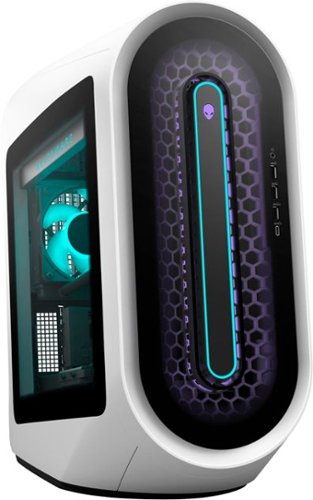
Introducing Alienware Aurora R13 - our new gaming desktop with an evolved chassis, enhanced airflow and quieter acoustics. Enjoy the freedom of gaming, streaming and creating on a multi-threaded capacity desktop with the latest 12th Gen Intel~ Core~ processors and NVIDIA GeForce 30-series graphics.
Customer Rating
5
Eye-Catching Design and Excellent Performance
on August 2, 2022
Posted by: Kelby
----- SUMMARY -----
Verdict:
The Alienware Aurora R13 isn’t just a good-looking PC. It's powerful, and games play beautifully. It has all the performance I could dream of but knowing that technology and the gaming landscape evolve, I find comfort in the fact that the Aurora R13 will be easy to upgrade. I think it’ll be a top contender in the market for years to come. If an excellent gaming experience is what you're after, the Aurora R13 won’t disappoint.
Pros:
- Eye-catching design
- Numerous ports
- Excellent performance
- Easy to upgrade
- Efficient cooling
Cons:
- None
----- DETAILS -----
Unboxing & Setup:
The Aurora R13 is nested safely inside a large box. It was nice to see the dense foam surrounding it, which kept it safe during transit. Much of the white casing has a plastic film on it for protection from scratches during the boxing and shipping process. It arrived in excellent condition and was a joy to unbox. There’s a wired keyboard and mouse included, but they’re basic and appear to be of low quality. You’ll want to use better gaming peripherals to match the high-end excellence of the Aurora R13. Setup simply requires plugging it in, powering it on, and walking through the Windows 11 guided steps. You’ll be using this beast in no time.
Design & Features:
The Aurora R13 has a sleek, ovular design that looks like something out of a sci-fi movie. Love it or hate it, the design is bold and unique. It might not be for everybody, but I personally love it. I care more about performance (and that doesn’t disappoint), but the eye-catching design is the best I’ve seen in the pre-built PC space. Housed in the new Legend 2.0 chassis, the design of the Aurora R13 is focused on thermal performance and quieter acoustics. It weighs about 34 pounds, and its dimensions are 20.1” high, 8.86” wide, and 20.8” long. RGB lighting on the inside includes a light on the rear fan and a lightbar that illuminates most of the internals. Since there’s a clear side panel on one side, you can get a nice view of this powerful machine. The front has RGB lighting around the center panel which is attractive as well.
When it comes to ports, you get lots of them. The front has a headphone jack, two USB 3.2 Gen 1 ports, a USB 3.1 Gen 1 port with PowerShare, and a USB 3.2 Gen 2 Type-C port with PowerShare. The rear has plenty more USB ports (four USB 2.0 Type A, two USB 3.2 Gen 1 Type-A, a USB-C 3.2 Gen 2 with 10Gbps speed, and a USB-C 3.2 Gen 2x2 with 20 Gbps speed). There are also surround sound outputs (rear, side, center/subwoofer), line in, line out, microphone in, two SPDIF digital outputs (one TOSLINK and one Coax), and finally an RJ-45 Killer E3100 Gigabit Ethernet jack for a wired internet connection (but the R13 is also equipped with Killer Wi-Fi 6).
Although I don’t have a component to upgrade this early in my ownership of the R13, its upgradability seems great. Getting inside just requires unscrewing a screw on the rear and removing the side panel. Since the inside is roomy and organized, I could access the components pretty easily, even with large hands.
Performance:
I had a blast putting a lot of different games to the test on the Aurora R13. Every single one played beautifully with the settings maxed out. I primarily use a 4K monitor, but I also tested 1440p and 1080p monitors. All worked just as well. From slow-paced games like Microsoft Flight Simulator to fast-paced action like Doom Eternal and anything in between, it’s awesome not having to compromise between a smooth frame rate and the highest quality visuals available. This Aurora R13 has proven its processing and graphical abilities.
The heat produced by the R13 has never felt alarmingly hot, even during longer gaming sessions, so the fans and liquid cooling seem to be efficient. Fan noise has never been distracting to me, but I almost always wear headphones, and they block out quite a bit of noise. I purposely did a few gaming sessions without headphones and noticed that the fans do get loud at the highest workloads, but it’s not usually for very long. It comes in waves where the fans can get progressively louder but then it dials back, presumably when it determines that the components are sufficiently cooled.
There’s more than enough power if the Aurora R13 will be your primary computer for everyday use. It starts up quickly, numerous browser tabs or media playing at once is no problem, and file transfers are speedy. I’m not a photo/video editor, but I see no reason why it wouldn't be able to perform well for that. During this type of basic use, the fans are very quiet.
Software:
I applaud Alienware for not pre-installing a bunch of unnecessary apps (bloatware). What they did include, primarily Alienware Command Center, is actually useful. It’s the hub for performance and lighting options, and it can act as a game launcher once it scans for compatible games. The app has an easy-to-use interface with many customizable options that you can save to unique profiles. It could be as simple as having several RGB lighting patterns available to choose from, or as detailed as having set audio, fan performance and GPU overclock settings. Another neat feature is that the profiles can be tied to specific games. For example, I have a profile tied to Doom Eternal that switches the RGB lighting to red. With Alienware Command Center, it’s nice to have everything available in one centralized location.
----- WHAT’S IN THE BOX -----
1 x Alienware Aurora R13
1 x Power Cable
1 x Wired Keyboard
1 x Wired Mouse
1 x User Documents
Verdict:
The Alienware Aurora R13 isn’t just a good-looking PC. It's powerful, and games play beautifully. It has all the performance I could dream of but knowing that technology and the gaming landscape evolve, I find comfort in the fact that the Aurora R13 will be easy to upgrade. I think it’ll be a top contender in the market for years to come. If an excellent gaming experience is what you're after, the Aurora R13 won’t disappoint.
Pros:
- Eye-catching design
- Numerous ports
- Excellent performance
- Easy to upgrade
- Efficient cooling
Cons:
- None
----- DETAILS -----
Unboxing & Setup:
The Aurora R13 is nested safely inside a large box. It was nice to see the dense foam surrounding it, which kept it safe during transit. Much of the white casing has a plastic film on it for protection from scratches during the boxing and shipping process. It arrived in excellent condition and was a joy to unbox. There’s a wired keyboard and mouse included, but they’re basic and appear to be of low quality. You’ll want to use better gaming peripherals to match the high-end excellence of the Aurora R13. Setup simply requires plugging it in, powering it on, and walking through the Windows 11 guided steps. You’ll be using this beast in no time.
Design & Features:
The Aurora R13 has a sleek, ovular design that looks like something out of a sci-fi movie. Love it or hate it, the design is bold and unique. It might not be for everybody, but I personally love it. I care more about performance (and that doesn’t disappoint), but the eye-catching design is the best I’ve seen in the pre-built PC space. Housed in the new Legend 2.0 chassis, the design of the Aurora R13 is focused on thermal performance and quieter acoustics. It weighs about 34 pounds, and its dimensions are 20.1” high, 8.86” wide, and 20.8” long. RGB lighting on the inside includes a light on the rear fan and a lightbar that illuminates most of the internals. Since there’s a clear side panel on one side, you can get a nice view of this powerful machine. The front has RGB lighting around the center panel which is attractive as well.
When it comes to ports, you get lots of them. The front has a headphone jack, two USB 3.2 Gen 1 ports, a USB 3.1 Gen 1 port with PowerShare, and a USB 3.2 Gen 2 Type-C port with PowerShare. The rear has plenty more USB ports (four USB 2.0 Type A, two USB 3.2 Gen 1 Type-A, a USB-C 3.2 Gen 2 with 10Gbps speed, and a USB-C 3.2 Gen 2x2 with 20 Gbps speed). There are also surround sound outputs (rear, side, center/subwoofer), line in, line out, microphone in, two SPDIF digital outputs (one TOSLINK and one Coax), and finally an RJ-45 Killer E3100 Gigabit Ethernet jack for a wired internet connection (but the R13 is also equipped with Killer Wi-Fi 6).
Although I don’t have a component to upgrade this early in my ownership of the R13, its upgradability seems great. Getting inside just requires unscrewing a screw on the rear and removing the side panel. Since the inside is roomy and organized, I could access the components pretty easily, even with large hands.
Performance:
I had a blast putting a lot of different games to the test on the Aurora R13. Every single one played beautifully with the settings maxed out. I primarily use a 4K monitor, but I also tested 1440p and 1080p monitors. All worked just as well. From slow-paced games like Microsoft Flight Simulator to fast-paced action like Doom Eternal and anything in between, it’s awesome not having to compromise between a smooth frame rate and the highest quality visuals available. This Aurora R13 has proven its processing and graphical abilities.
The heat produced by the R13 has never felt alarmingly hot, even during longer gaming sessions, so the fans and liquid cooling seem to be efficient. Fan noise has never been distracting to me, but I almost always wear headphones, and they block out quite a bit of noise. I purposely did a few gaming sessions without headphones and noticed that the fans do get loud at the highest workloads, but it’s not usually for very long. It comes in waves where the fans can get progressively louder but then it dials back, presumably when it determines that the components are sufficiently cooled.
There’s more than enough power if the Aurora R13 will be your primary computer for everyday use. It starts up quickly, numerous browser tabs or media playing at once is no problem, and file transfers are speedy. I’m not a photo/video editor, but I see no reason why it wouldn't be able to perform well for that. During this type of basic use, the fans are very quiet.
Software:
I applaud Alienware for not pre-installing a bunch of unnecessary apps (bloatware). What they did include, primarily Alienware Command Center, is actually useful. It’s the hub for performance and lighting options, and it can act as a game launcher once it scans for compatible games. The app has an easy-to-use interface with many customizable options that you can save to unique profiles. It could be as simple as having several RGB lighting patterns available to choose from, or as detailed as having set audio, fan performance and GPU overclock settings. Another neat feature is that the profiles can be tied to specific games. For example, I have a profile tied to Doom Eternal that switches the RGB lighting to red. With Alienware Command Center, it’s nice to have everything available in one centralized location.
----- WHAT’S IN THE BOX -----
1 x Alienware Aurora R13
1 x Power Cable
1 x Wired Keyboard
1 x Wired Mouse
1 x User Documents
I would recommend this to a friend!





Share this review:


+4points
4of 4voted this as helpful.
Kelby's Review Comments
Kelby has not submitted comments on any reviews.
Kelby's Questions
Kelby has not submitted any questions.

The Roomba i6 robot vacuum unleashes powerful cleaning when, where, and how you want with a single command to your Google Assistant or Alexa voice assistant. When messes happen, just say, ~Tell Roomba to clean under the kitchen table.~ Smart navigation maps specific objects in your home, guiding it to the mess, right when the mess happens. With 10x the suction* and automatic, personalized schedules~even recommendations during pollen and pet-shedding seasons~ its vacuuming that fits seamlessly into your life. *(compared to the Roomba~ 600 series cleaning system) *(Alexa and all related logos are trademarks of Amazon.com or its affiliates. Google is a trademark of Google LLC)
Does it work with a i Robot clean base?
Yes, the Roomba i6 is compatible with the “Clean Base Automatic Dirt Disposal” so your Roomba i6 can empty its own bin.
4 years, 6 months ago
by
Kelby
The Roomba i6 robot vacuum unleashes powerful cleaning when, where, and how you want with a single command to your Google Assistant or Alexa voice assistant. When messes happen, just say, ~Tell Roomba to clean under the kitchen table.~ Smart navigation maps specific objects in your home, guiding it to the mess, right when the mess happens. With 10x the suction* and automatic, personalized schedules~even recommendations during pollen and pet-shedding seasons~ its vacuuming that fits seamlessly into your life. *(compared to the Roomba~ 600 series cleaning system) *(Alexa and all related logos are trademarks of Amazon.com or its affiliates. Google is a trademark of Google LLC)
Does this model come with stair sensors?
The Roomba i6 robot vacuum unleashes powerful cleaning when, where, and how you want with a single command to your Google Assistant or Alexa voice assistant. When messes happen, just say, ~Tell Roomba to clean under the kitchen table.~ Smart navigation maps specific objects in your home, guiding it to the mess, right when the mess happens. With 10x the suction* and automatic, personalized schedules~even recommendations during pollen and pet-shedding seasons~ its vacuuming that fits seamlessly into your life. *(compared to the Roomba~ 600 series cleaning system) *(Alexa and all related logos are trademarks of Amazon.com or its affiliates. Google is a trademark of Google LLC)
Will this go from hardwood to shag carpet?
Yes, the Roomba i6 has sizeable tires and plenty of power to go from hardwood to shag carpet.
4 years, 6 months ago
by
Kelby
The Roomba i6 robot vacuum unleashes powerful cleaning when, where, and how you want with a single command to your Google Assistant or Alexa voice assistant. When messes happen, just say, ~Tell Roomba to clean under the kitchen table.~ Smart navigation maps specific objects in your home, guiding it to the mess, right when the mess happens. With 10x the suction* and automatic, personalized schedules~even recommendations during pollen and pet-shedding seasons~ its vacuuming that fits seamlessly into your life. *(compared to the Roomba~ 600 series cleaning system) *(Alexa and all related logos are trademarks of Amazon.com or its affiliates. Google is a trademark of Google LLC)
Can the vacuum mop??
The Roomba i6 does not have a mopping feature, but it does have “Imprint Link Technology” which syncs it with a Braava Jet m6 (sold separately) to vacuum then mop in perfect sequence.
4 years, 6 months ago
by
Kelby
The Roomba i6 robot vacuum unleashes powerful cleaning when, where, and how you want with a single command to your Google Assistant or Alexa voice assistant. When messes happen, just say, ~Tell Roomba to clean under the kitchen table.~ Smart navigation maps specific objects in your home, guiding it to the mess, right when the mess happens. With 10x the suction* and automatic, personalized schedules~even recommendations during pollen and pet-shedding seasons~ its vacuuming that fits seamlessly into your life. *(compared to the Roomba~ 600 series cleaning system) *(Alexa and all related logos are trademarks of Amazon.com or its affiliates. Google is a trademark of Google LLC)
What comes in the box for the IROBOT Roomba 6150?
1 x Roomba i6 Robot Vacuum
1 x Home Base Charging Station (with Power Cord)
1 x Quick Start Guide
1 x Warranty Information Pamphlet
1 x Safety Information Pamphlet
1 x Home Base Charging Station (with Power Cord)
1 x Quick Start Guide
1 x Warranty Information Pamphlet
1 x Safety Information Pamphlet
4 years, 6 months ago
by
Kelby
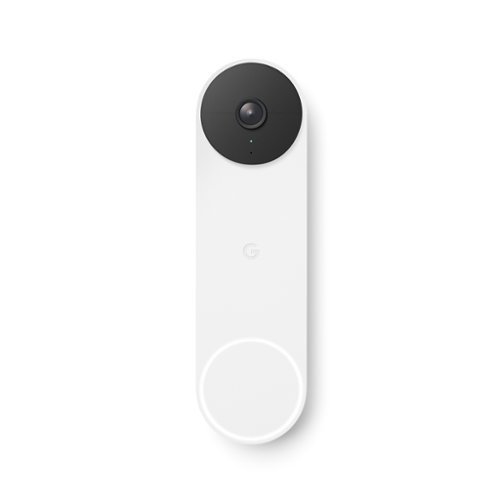
The Nest Doorbell is the battery-powered video doorbell that works with any home. See what~s happening at your door from anywhere and get intelligent alerts about important activity, like when there~s a person, package, animal, or vehicle.* And because there are no wires, you can install it yourself. Nest Doorbell requires the Google Home app and a Google Account ~ it~s not compatible with the Nest app or the home.nest.com site.
Is it waterproof?
Google states that it's "Weather resistant IP54 · Relative humidity range (20% to 85%)".
4 years, 9 months ago
by
Kelby

The Dell27~ FHD monitor is beautifully designed to sit easily into any space ready for your everyday lifestyle. Built-in dual HDMI ports keep your devices always plugged in. The three-sided ultrathin bezel design lets you enjoy superb screen clarity in 1920 x 1080 Full HD resolution. Smooth, tear-free experience with AMD FreeSync~ technology, featuring up to 75Hz refresh rate. This T~V-certified monitor has a flicker-free screen with ComfortView, a feature that reduces harmful blue light emissions.
What is the height without the stand?
Without the stand, the monitor is about 14 inches tall.
5 years, 7 months ago
by
Kelby

Don't worry about toner ~ with the revolutionary HP Neverstop 1202w All-in-One Laser Printer get up to 7x more pages than in-class laser printers before your first toner reload and up to 5,000 pages of toner right out of the box. Easily handle business tasks with print, scan, and copy functions, easy mobile printing, and the HP Smart app ~ the first mobile print app to simplify scanning and reduce time. Get consistently superb prints and up to 2.5x more pages than in-class HP Toner cartridges with the Toner Reload Kit (sold separately). Stay connected from virtually anywhere with this monochrome laser printer's wireless networking. Plus, this all-inone wireless printer has up to an 84% smaller environmental footprint, so you can get business done with the environment in mind.Prints up to 21 ISO ppm* in black.
Can you print with both a wifi setup and a usb setup? (Can laptop have a wireless connection while cpu has a usb connection?)
Yes! There is a USB cord included in the box for wired printing. You can also print wirelessly from a laptop or smartphone using the HP Smart app.
6 years, 2 months ago
by
Kelby
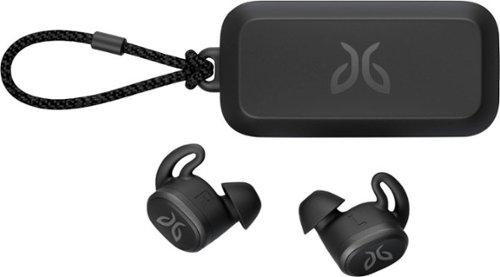
Pair your workout with these black Jaybird Vista wireless headphones. The rechargeable lithium-ion battery provides up to 6 hours of listening time, while the waterproof, sweatproof design helps prevent fluid damage. These Jaybird Vista wireless headphones have ear hooks and three pairs of soft interchangeable eartips for a secure fit and added comfort during extended periods of use.
What is the play time on a full charge.
The Jaybird Vista headphones provide 6 hours of playtime on a full charge, plus an additional 10 hours from the charging case.
6 years, 9 months ago
by
Kelby

Mince, dice, chop, blend and puree with this Ninja Master Prep QB900B food and drink mixer that features Quad Blade technology to help you create creamy frozen beverages and delicious salsas and dips with the touch of a button.
Will this machine make frozen strawberries into smoothies?
Yes! I actually use frozen fruit for smoothies quite often, and the blender does a fantastic job of blending them into smoothies.
9 years, 5 months ago
by
Kelby