


CMCMom29's stats
- Review count152
- Helpfulness votes386
- First reviewJune 23, 2009
- Last reviewJune 8, 2026
- Featured reviews0
- Average rating4.2
Reviews comments
- Review comment count0
- Helpfulness votes0
- First review commentNone
- Last review commentNone
- Featured review comments0
Questions
- Question count0
- Helpfulness votes0
- First questionNone
- Last questionNone
- Featured questions0
- Answer count19
- Helpfulness votes1
- First answerDecember 24, 2016
- Last answerSeptember 1, 2020
- Featured answers0
- Best answers1
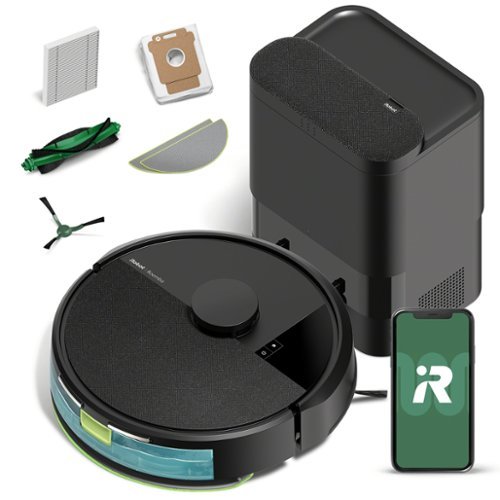
The Roomba 105 Combo Robot + AutoEmpty Dock is made for every kind of wet and dry floor-cleaning task. The self-emptying dock holds up to 75 days of debris in a bag you just lift out and toss away. The 4-stage cleaning system delivers high-performance cleaning by combining 70X more intense power-lifting suction*, an edge-sweeping brush that cleans 20% better*, a multi-surface brush to pick up all kinds of dirt, and a washable, re-usable microfiber pad to wipe away spills. ClearView LiDAR quickly maps your home for precise coverage. Choose from 3 cleaning options - mop, vacuum, or vacuum-and-mop at the same time. Using water or cleaning solution**, choose the perfect amount of liquid for the job, and set SmartScrub to 2X deeper scrubbing*** on high-traffic areas the way you would to erase the messes of the day. Tap the app, push the robot's buttons or ask your preferred voice assistant**** for an on-demand clean.
Customer Rating

3
Good for Maintenance Cleaning
on July 14, 2025
Posted by: CMCMom29
I had some challenges with the iRobot Roomba 105 Combo Vac Robot Vacuum & Mop.
I wanted to like it. My experience is that robot vacuums are great in theory, not-so-much in practice.
Maybe we just have too much going on. We have three adults and two children living in our home, along with several pets.
The first thing you need to do is to set up the Roomba Home app on your phone.
I had a previous account with iRobot, so I tried to use those credentials. They didn’t work. I tried to reset my password. I did not receive an email with the link to reset. I tried to set up a new account. That didn’t work, either.
I didn’t receive the password reset email until the next day. Of course, the link was expired by the time I received it. I tried to reset my password again. This time, the new email with the link came within minutes.
Once you set up your account, you are instructed to walk through the initial set up. This took me a while. The Roomba wants you to create a map of your rooms before the first cleaning takes place. I think this ended up taking a couple of days between the Roomba needing to go back and charge mid-mapping, and me forgetting to check the app to see if I needed to resume the process. The green brush also kept falling off.
I will say that, if you have pets, you’ll want to pick up their toys prior to using the Roomba. It won’t see them as an obstacle, and they’ll get caught in the mechanism. I had to untangle a cat toy with a string that was good and wrapped up.
In the app, you can set the Roomba to spot clean, create routines, clean all the rooms, or just certain rooms that it mapped. It will tell you if it recommends a cleaning. You can manage multiple robots in the same app. Older models, though, are managed in the iRobot app.
The first vacuum also seemed to take a long time. I only wanted it to vacuum two rooms (I had mapped three rooms on the ground floor). It took quite a while (I have screen shots attached showing its path.)
My pets have long hair, and leave what I call “tumbleweeds” – little tufts of hair on the carpet. I was dismayed to see the same hair still on the floor. I could see the lines of the Roomba on the carpet, but still quite a bit of debris was left over.
On the vinyl flooring in my kitchen, there were crumbs left there as well.
Maybe my expectations are too high. Maybe this is meant for more maintenance than deep cleaning. Even so, I have high amounts of foot traffic as we are home most of the time during the summer. Our version of “maintenance” is higher than most homes.
Overall, it is a very nice unit. It’s sturdy and well made. If you are looking for something to help maintain your home on a daily basis, this would be a good pick. If you need something for a heavy use area, I’m not sure this will foot the bill.
I would recommend this to a friend!



Share this review:


0points
0of 0voted this as helpful.

Go the extra mile with the remarkably sleek Zenbook 14 ~ the ultimate ultraportable laptop that takes sophistication to a whole new level. Seize every moment using its enhanced extended-life battery, amplify your efficiency with an Intel Core Ultra 7 processor (Series 2) and Intel Arc GPU and find seamless connectivity with full I/O ports. Immerse your senses in its vivid Lumina OLED touch display and powerful super-linear speakers
Posted by: CMCMom29
Opening up the ASUS Zenbook 14, it looks like a standard laptop. They call the shell color "Jasper Gray." There is a minimalist quality to the design. Even the logo on the cover is stylish, yet understated.
Once you open up the unit, however, you will find quite a machine.
Set up was a breeze. The touch screen is responsive to the slightest touch. Colors are fantastic. Keyboard is comfortable (though, I do miss the ten-key pad.) I was able to transfer my files and settings from my previous Asus laptop with no issues.
The machine itself is zippy. Browsers are all responsive.
I was able to register the laptop with ASUS, which alerted me to a new feature, called GlideX. It’s billed as a “cross-device connectivity software.” It allows you to remotely access and control your laptop. The GlideX app is available via the Microsoft App Store, the Google Play store, and the iOS store. I look forward to exploring that further.
I used the laptop for a couple of video meetings that I had this week. The volume was robust and clear. No problems using the camera. Microphone worked great.
I found the battery to last about 24-36 hours on one charge. The unit does not have a charge out of the box, so you will need to charge the laptop before setting it up.
I am very happy with this Zenbook and would recommend it.
I would recommend this to a friend!


Share this review:


0points
0of 0voted this as helpful.
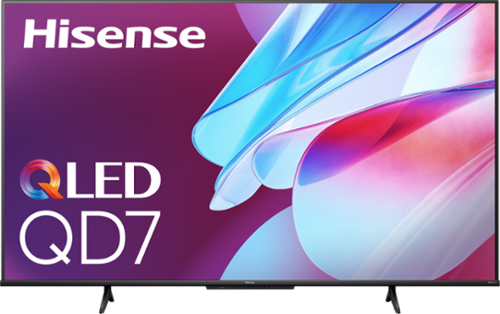
See over a billion color combinations before your eyes! The QD7 Series smart display from Hisense uses QLED Quantum Dot color technology to deliver a more vibrant and detailed picture. Get your head in the game with the super-fast refresh times of 144Hz Game Mode Pro, Auto Low Latency Mode and Variable Refresh Rate. Bring the sights and sounds of the cinema directly to your living room with Dolby Vision HDR and Dolby Atmos technology. And play videos from your phone, tablet and laptop on the big screen with the help of Chromecast.
Posted by: CMCMom29
The Hisense QD7 Smart Google TV is quite a good TV for the value.
It is easy to set up. I would recommend, if you have not done so previously, to create a Google account and download the Google Home app ahead of time. You will need both to have the smoothest set up of the TV, even if you are not using the Google Home ecosystem.
If you do not want to use the Google TV, you do have several other connections that you can use with other peripherals. You also have the option to set up Alexa to use with the TV. Amazon Prime Video is one of the pre-loaded apps.
Unfortunately, my cable provider, Spectrum, does not have an app on Google TV, so I have a Roku Ultra hooked up on HDMI 1 so that I can access their app. Otherwise, Google would have all that I would need.
One suggestion I’d like to offer Hisense is that they really should look into having an app for their remote. My Samsung soundbar can be controlled by my phone; so can my Roku. My TV should have that functionality, too.
I tried looking up a manual on the Hisense web site and could not find my exact model. It does come with a quick setup guide in the box.
For picture quality, I have no complaints. It’s bright, colorful, and it is what I would expect from a 4K TV. I have attached a couple of photos from the store mode that is active when you first turn on the TV to try and illustrate how bright and crisp the colors are. You also have many options on how to fine tune the audio and visual settings to your liking.
My Roku is capable of broadcasting in 4K, but not all programming is available in 4K. I have a screenshot of what the TV reads on the signal from HDMI 1 below.
I tried testing the Gaming function with our Xbox Series S console. The Marvel Avengers game I tested had sharp graphics. There was no discernable lag in game play. I have attached a photo of the resolution here as well.
I feel that the Hisense QD7 is a great investment. Picture is sharp. Gameplay is crisp. Audio is great. It has nearly all the features you want in a TV without the more expensive price tag.
I would recommend this to a friend!






Share this review:


+3points
3of 3voted this as helpful.

The Insignia .7 Cu. Ft. Retro Compact Microwave adds a retro touch to your space with a pop of mint color everyone will notice. The retro design includes a round viewing window and chrome details that will take you back in time. With 700W of power and a .7 cu. ft. interior, reheat meals or prepare yourself a snack with a touch of a button. Nine preset cooking functions, ten power levels and a defrost setting grant you ideal heating options for any type of dish. Control it all with a simple and straight-forward digital LED display and control knob. A removable 10 in. glass turntable ensures that your food is evenly heated and also makes cleaning the inside of the microwave easy to do.

Posted by: CMCMom29
The Insignia 0.7 Cu. Ft. Retro Compact Microwave is a-DOR-a-ble. It comes in a nice, soothing, and very retro chic mint color (though I would call it more aqua than mint).
While my kitchen is not totally “retro” in style, I do have several appliances in the same aqua/mint color palette. It coordinates quite well with my other pieces. It also adds a bit of whimsy and fun into my kitchen.
Currently, I have it sitting on top of a dorm-size refrigerator, and it fits perfectly. So, if you are shopping for a college student in your life, this would be a perfect gift.
I ordered this to have as a spare for when my main 1.1 cubic ft. microwave is otherwise engaged. Frequently, my children pick that exact time to want a microwavable snack. Having a spare microwave, if you have the room for it, is nice to have for such situations. Another option would be if you wanted another small microwave on a different floor of your home from your kitchen, such as for a bar area or when you don’t want to leave the playroom to heat up your coffee.
It is a fully featured microwave. You have Defrost, several preprogrammed functions for things like popcorn or potatoes, a non-cooking timer function, as well as a child lock feature. You can also use multi-stage cooking, and there is a fast cook feature which allows you to immediately cook for 30 seconds. You can cook for longer if you press the “Start/+30sec” button multiple times; the cooking time increases by 30 seconds with each press.
Here is where my enthusiasm starts to wane, just a bit.
The controls are simple, but not all together intuitive. For example, the timer. My inclination is to turn the dial right to set the time to cook, and for the timer to go from 0.00 and count up. That is not so with this unit. If you turn the dial to the right, you will get the preset options.
To cook with a timer, you turn the knob left, and count down from 95.00 (minutes). If I had been involved in its design, I would have suggested having the dial be devoted to timer cooking. To access presets, I would have had the timer push in, or another small button that says “presets”, which allows the dial to then choose the appropriate programing.
The other item I noticed when reviewing the instructions is that it offers a “turntable reset” function, but it doesn’t explain how to use it (photo attached).
As for performance, I think it works just as well as my larger microwave. You may need to adjust your cooking times.
My test run was making ramen noodles in the microwave (one of my children’s favorites, as well as a dorm staple). Normally, I would cook them in their microwave dish for 3 minutes on full power (P10) in the larger microwave. In this unit, I added 30 seconds to the cook time, and they came out perfectly.
Other than the small design details that I mentioned, I feel this would be a great microwave for anyone and would make a great gift.
I would recommend this to a friend!


Share this review:


0points
0of 0voted this as helpful.
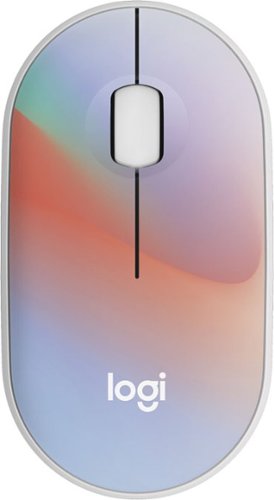
Put your style on display with the M340 wireless mouse collection, offering a choice of colorful statement designs made with recycled plastic. M340~s minimalist round shape and compact mouse design make it super portable. Enjoy silent clicks with Silent Touch Technology to work, browse, and chat in peace, and experience a strong wireless connection with the included USB receiver.
Customer Rating

5
Highly Customizable Mouse
on June 30, 2024
Posted by: CMCMom29
I am a devotee of Logitech products. I have used the M317c as my daily mouse for years. I use them so much I typically keep a stock of them for when I wear them out.
I have noticed, though, that I’m wanting something a little more comfortable in my hand as I get older. So, I thought I would try out the Logitech M340.
The ombre colors are nice. I would even say they are peaceful, which is important when you are working long hours. You don’t need any additional items that could subtly cause stress to your senses.
The mouse is mostly flat, with a slight arch toward the lower palm area of the device. My current mouse has more of a pronounced arch in the middle of the hand. This does provide more comfort as the M340 is not artificially causing your hand to stay arched.
I will note that you will need a USB-A port on your computer to use this mouse. It does not offer Bluetooth connectivity.
The battery compartment is unusual, in that you remove the top of the mouse to access it. I’m used to devices with little battery doors on the underside that allow access to your dongle and battery. The mouse itself is not rechargeable. It uses a standard AA battery.
One of the biggest selling points for Logitech devices (with this mouse being no exception) is the Logitech Options+ software. It allows the user to customize their settings for the mouse.
For example, you can send your pointer response time faster or slower. You can reverse the button functions so that the right button can perform the tasks that the left button would normally do. Your wheel is also a button where you can set it to perform a keyboard shortcut, a task view, or to switch applications, which is what I chose.
There is also a section called Smart Actions which allows you to automate a certain series of tasks with one click. There are pre-set templates you can use, or you can create your own. For example, if you have a certain series of apps that you need to open each day before you start work, you can program a Smart Action to open all of those programs with one click, saving you time.
Lastly, there is another feature called AI Prompt Builder. You can use it to copy text and reformat it for your use. For example, you can take a passage that is quite technical and ask for it to be sent to ChatGPT to reformat it into a more digestible format for your audience.
The Logitech M340 mouse is something that I would recommend. It’s sturdy, lightweight, is silent (no loud “click” noises), and easy to hold. It responds well and is quite customizable.
I would recommend this to a friend!






Share this review:


0points
0of 0voted this as helpful.
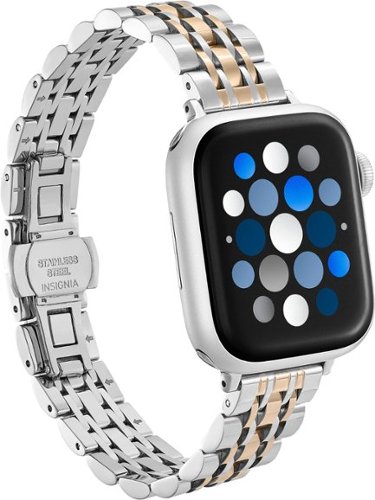
Make sure that your accessories can keep up with your busy lifestyle. The Insignia Stainless Steel Link Band forApple Watch 38mm, 40mm, 41mm and SE (1-3), and 42mm combines the style and durability of stainless steel, giving you the best of both worlds. Lug attachments keep the band connected to your watch throughout the day, while a push-button closure keeps it snugly on your wrist. It adjusts anywhere between 5.5 and 8.27 inches, ensuring a comfortable fit regardless of your wrist size. Finally, an elegant 2-tone design adds a classic touch to your wrist band. Take on the challenges of everyday life by upgrading your watch band today.
Posted by: CMCMom29
The Insignia Stainless Steel Link Band for Apple Watch is a great little watch band.
I have a 40mm Apple Watch SE 2nd Generation with a Starlight bezel. Even though the band has rose gold, I think it coordinates pretty well with the Starlight bezel.
It’s lightweight and comfortable to wear. It has an unusual clasp. Most bands I’ve owned usually have a hook that loops into another link and snaps shut. This unit is one band (when installed on the watch). The clasp hooks in two steps, where you fold one half onto the catch, and then the other half. It took me a couple of tries to get the hang of it, but I think it’s a great design.
The band retains its shine with no issues with the finish so far. It looks professional, but not too dressy where it wouldn’t go with the most casual of looks.
The adjustability, however, left a bit to be desired.
When shopping for metal bands, usually I look for removable links that don’t require tools. Typically, my experience has been that you could simply release the hook on a link (or two or three), reattach the remaining band, and there you go.
This band comes with a tool to help you remove pins (which reminded me of tiny sewing needles), then you flip the band around to have the tool seat the pin back into place once you’ve removed the appropriate number of links.
My wrist is approximately 6.75” in circumference. I had to take out three links, and it was still a bit loose.
My first attempt and removing a pin, the tool snapped off. Then, I had to find some pliers to take off the broken piece in order to replace it. There is a door on the underside of the tool holder that has a spare pin remover, along with a cylinder (used to push pins in).
It’s not hard to remove, or to replace, pins, but it’s finite work. You will need a bit of patience and some time. I think my mistake was that, while I thought the pin remover was lined up with a pinhole, it was actually hitting the band. Then, when I tightened the tool, the end snapped.
All in all, I liked the band and would recommend. I’m did not like the adjustment tool, but I’m not deducting any stars for that.
I would recommend this to a friend!






Share this review:


0points
0of 0voted this as helpful.

Change your entertainment game! The U7 series smart display from Hisense is packed with lots of exciting features that dramatically improve your watching and playing experience. Think: Mini-LED Pro, QLED Quantum Dot color technology and 144Hz Game Mode Pro. Plus, we even equipped the U7 with a NEXTGEN TV ATSC 3.0 tuner and Wi-Fi 6E router compatibility, making it virtually future-proof.
Customer Rating
5
Five Stars (with a Few Notes)
on April 28, 2024
Posted by: CMCMom29
I ordered the Hisense model 75U75LUA to replace my previous TV, which was a Hisense 60" LED, H6 Series 2160p Smart 4K UHD TV with HDR (model:60DU6070).
There was nothing “wrong” with my TV, per se. It still operates fine. I just wasn’t happy with the picture quality (it was very dark while watching movies, no matter what I set the picture settings to), and I thought a bigger TV would be nice.
A few things to note, if this is your first 75” TV (as it is mine). One, the TV will arrive via freight carrier and not the standard UPS/FedEx. I had to arrange a delivery time and be home to sign for it. Two, it will be HEAVY. It says, “Team Lift” on the box, and they aren’t kidding. You will need two people at least, if not three. I thought about mounting it on the wall, but I’m glad I didn’t go through with that plan. There’d be no way we’d get it on the wall ourselves. Three, the TV will have white panels on the sides for you to be able to handle the TV without damaging the screen. I recommend not removing these until the after your TV is in its final placement.
All that out of the way, the picture is PHENOMENAL in comparison to my old TV. The TV will start up as soon as you plug it in. The brightness was…WOW. That was just on the launch screen.
This TV has Google TV built right in. This will be more than enough to stream just about anything you want. You have access to nearly all the major streaming services. You do have shortcuts on the remote for apps like Netflix, Disney+, Prime Video, and YouTube. I say, “nearly”, because Google TV does not have the Spectrum (Charter) TV app, which is how I access my cable subscription. I have a Roku Ultra 4K that I will need to continue to use for that. I’m disappointed that Google doesn’t offer the app, but it’s not a dealbreaker. I have the Roku, as well as a Samsung Soundbar, hooked up to the TV. No issues whatsoever during setup. You can use your existing Google account to log in, or create a new ID. You also have the availability to add Kid Profiles and enable Parental Controls if you wish. I don’t have an antenna for OTA channels. I tried running the Live TV scan, but no channels were available. Google TV offers lots of free TV options, including Tubi and Pluto.
This TV has more setting than I know what to do with. As of this writing, I have only had the unit a few days. We did a test with our Xbox One. The game images were sharp. No discernable lag.
The video for programming is sharp. I was watching a movie on Pluto that was released in 1962 and it was almost as clear as any current movie. I was pleasantly surprised. The opening credits felt like they were about to jump out off the screen.
I’ve included some photos to try and show clarity. MSNBC had the clearest picture of my Spectrum lineup, so I used them for my screen caps. I also have images from the game we tested.
I did have a few hiccups, though.
The Bluetooth feature defaults to being on. You have to have this turned on in order to use Google Assistant (voice controls). However, I had a device in the home that kept asking me if I wanted to pair it to the TV. The device name that showed up, however, was not a device I (knowingly) owned. I tried Googling the name to try and figure out what was wrong, but nothing that I owned came up in relation to search results. Each time the Bluetooth feature came on, whether I hit “pair” or “cancel”, it would knock out the Spectrum signal. I would have to click on the option that said if I wanted to continue watching TV. This was happening every 30-60 seconds. That got annoying fast. In turning the off the Bluetooth, I lost access to the voice commands.
Speaking of commands, in the settings, you can turn on a setting that allows you to use certain gestures of your hands to control the TV. It’s a neat gimmick, but one I wouldn’t use personally. In reviewing that feature, though, I found out that the TV has a camera that is on (that is how it “sees” the gestures). That’s a little unnerving.
Another problem I found was that the TV kept coming on each time I turned it off. I couldn’t figure out why. I didn’t use verbal commands (this was before I turned off the Bluetooth). I wasn’t even in the room when it would come back on. Even though I had the screen saver on, it wasn’t activating on its own. I would manually turn it on, then something would cause it to go off. I tried Googling for a solution, but all I found were entries regarding Chromecast devices, which did not have the same settings. I went into the TV settings and tried a few things and finally solved the problem.
Finally, (and this may be more of a Google issue than a Hisense issue), I’m disappointed in how the Kids Profiles work. When I log into a streaming service, I usually have to choose a profile. My profile is PIN protected. That keeps the children out of my profile. When you turn Google TV on, it defaults to the last profile used, which is mine. I have to manually choose the Kids Profile. Now, if I’m not around for some reason, and they turn the TV on, they have access to virtually anything they want to see. I would prefer to have the TV prompt for a profile choice each time it is turned on. Otherwise, it’s not as convenient of a feature.
I didn’t take any stars away because I don’t know if my issues were actual defects or user error.
I would highly recommend this TV.
I would recommend this to a friend!






Share this review:


+1point
1of 1voted this as helpful.
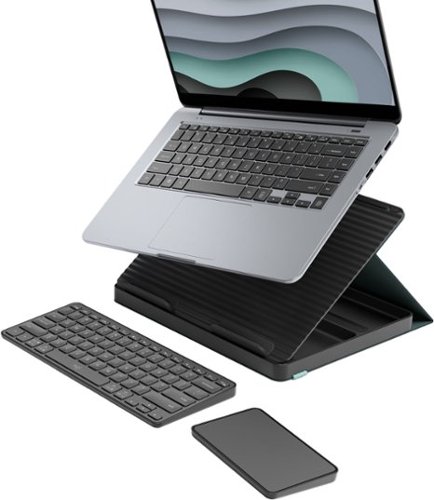
With Casa Pop-Up Desk, get comfy, focused work done anywhere in the home. Once you~re done? Fold it out of sight, out of mind. Casa has all you need to work from home in one compact kit, with a wireless keyboard, wireless touchpad and a book-like case that transforms into a laptop stand.
Posted by: CMCMom29
The Logitech Casa Pop-Up Desk is an interesting concept. It’s meant to be a portable desk for your laptop that also conveniently houses a small keyboard and a tracking pad inside.
The outside cover is like a journal in aesthetics and feel. It’s covered in a soft, canvas like material with an elastic strap. I doubt that, unless they were familiar with this product, anyone would guess what the item truly was.
I would lower your expectations a bit in execution, though. I first tried the Casa Pop-Up Desk with my ASUS Zenbook. The laptop was a bit heavy for the Casa – the laptop stood for a bit before the Casa collapsed. No harm, no foul – nothing damaged.
Then I tried it with my HP Dragonfly. A better fit. My Zenbook is a flip laptop/tablet hybrid; the Dragonfly is not. I could adjust the ASUS screen to my preferred angle for viewing. The HP is limited as to how far back you can move the screen. The angle was a little uncomfortable for me, but doable. The Casa held this laptop well during a Zoom call. No issues. I would say the lighter the laptop, the better. This would be nice to use with a tablet, such as an iPad.
The keyboard, however, was too small for me to use comfortably. No 10-key, but I wasn’t expecting that, considering it’s supposed to be a portable keyboard. My hands were close together (closer than I’m used to) while typing. While I appreciate the idea, I’m not sure how often I will use it. It’s more comfortable than trying to use the keyboard on my laptop (because of the angle of the laptop) but I made a lot of spelling errors while trying to type at my normal speed.
The keyboard came from the box with 55% charge, so I could test it right away. The trackpad, however, had no charge at all. I’d recommend charging both before using. The Case does come with a USB-C cable; you’ll need to provide your own power brick if you wish to charge via a household outlet.
The tracking pad is nice. I’m not in love with tracking pads on laptops in general, but the angle and size of the pad is nice.
I think it’s a nice unit and would be good for someone who often works remotely/off-site. That said, for the price point, I expected more.
I would recommend this to a friend!



Share this review:


0points
0of 0voted this as helpful.

Whether your mess is wet or dry, the Roomba Combo i5 robot vacuum and mop can double up on cleaning tasks with one machine. From spilled crackers to everyday shoe prints~this robot can handle it. Set it to vacuum only or vacuum & mop your hard floors by swapping in the Roomba Combo Bin.
Posted by: CMCMom29
The Roomba i5 Robot Vacuum is a power little unit.
I own robot vacuums from both Samsung and Bissell. They were ok units, but Roomba blows them out of the water. I guess there’s something to be said for going with the original at the end of the day.
The first thing you need to do is download the Roomba app. You will need this to set up the vacuum.
Then you want to load the machine from the box. You will need to find a spot in your home for the “home plate” to be. The instructions (included) show the idea measurements for the clearance so the vacuum to operate smoothly.
I did have issues with syncing the vacuum with my Android phone. I tried several times to get the app and vacuum to connect. After so many tries, the app will then offer you an alternative method to connect. That’s what I ended up using and it finally worked.
The battery life is strong. My other robot vacuums would peter out about halfway through a cycle. This robot must be related to the Energizer Bunny, because it kept going and going.
It almost ran too long for me. I kept waiting for it to quit or to need to be emptied. I finally had to go and check it. It held a lot of debris crammed in the cup. It even picked up larger debris that my normal stick vacuum wouldn’t pick up. I finally put the machine back on the home plate to charge. I want to say it ran a couple of hours before I sent it home.
I tried to resume the job the next day. Unbeknownst to me, the Roomba knocked over a broom that was in the hallway and got stuck on it. I heard it beeping from the other room and couldn’t get to it right away. Eventually it shut itself off. The app didn’t send a push notification or anything letting me know the issue.
This unit is powerful and attractive. It does a great job for us.
I would recommend this to a friend!

Share this review:


+2points
2of 2voted this as helpful.
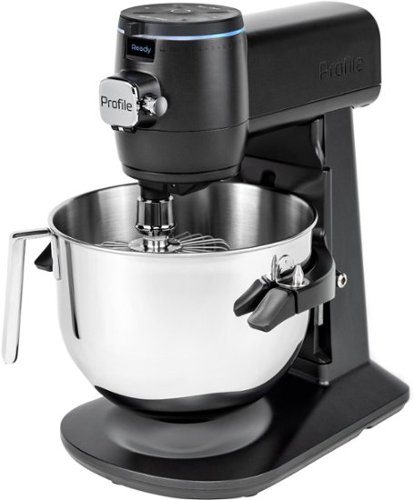
GE Profile provides modern design and the latest features in home appliances. Designed for today~s smart home, GE Profile provides features that allow you to do more, through remote monitoring, voice activation and technology that takes the guess work out of cooking and cleaning. This is Smarter Innovation you~ve been looking for. This is GE Profile.
Customer Rating
5
Mixers are Not Just for Mixing Anymore
on November 7, 2023
Posted by: CMCMom29
I have owned a KitchenAid stand mixer for close to 30 years. That was the gold standard mixer at the time. Some would argue it still is.
Yet, time and technology marches on. The GE Profile Mixer could be the new gold standard. It certainly is the most advanced stand mixer that I’ve ever seen.
One minor gripe out of the way – could this have been released in more colors? One of the things that people love about KitchenAid mixers are the amount of amazing colors they come in. Carbon (black), white, and silver just aren’t my jam. My old mixer is biscuit (cream) colored because that is what I liked then. For this review, I received the Carbon version.
When you buy your mixer, no matter if you have it delivered or brought home from the store, I would recommend you having help getting it into the house. The mixer is HEAVY. Plus, the box is extra fortified and is heavy by itself. I want to commend GE for packing it so well. I didn’t have help, so I had to gently turn it end-over-end because it was too much for me to lift, and I couldn’t push it across the floor to where I could unload it.
You can unbox the appliance by yourself, but slowly. It’s a lot to carry. I recommend putting it where it’s going to live and leave it there.
To set up the Smart features, you will need to download the SmartIQ app from your preferred app store. If you already have Smart GE Profile appliances, you probably already have it.
Do you need it to operate the machine? No, but you aren’t getting everything you paid for, either, if you don’t use it.
Setting up on the app was easy. You hit the “add appliance” icon in the upper right corner and follow the instructions.
The number of features it has are mind blowing. It has a built-in scale, so no need to go out and get a scale to measure ingredients. It actually senses when the mixture is the correct texture and viscosity, so no more overmixing. The app has recipes that will walk you through how to make them step-by-step. The top of the mixer has a LED light that will “count down” the mixing time so that you can see when it gets close to being done, even from across the room. This is stuff that I would have NEVER thought of putting in/on a mixer.
It even works with Alexa (or Google Home, if you have that ecosystem). I already had the SmartIQ skill, and the mixer automatically synced with it.
I would recommend this to a friend!

Share this review:


+1point
1of 1voted this as helpful.
CMCMom29's Review Comments
CMCMom29 has not submitted comments on any reviews.
CMCMom29's Questions
CMCMom29 has not submitted any questions.
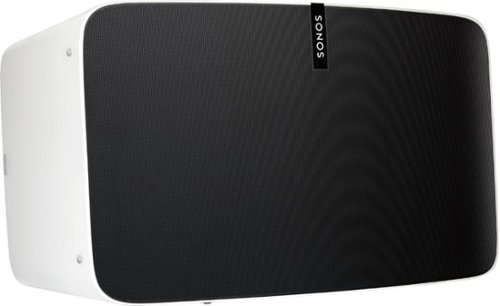
Enjoy immersive audio and near-zero distortion with this white Sonos Play:5 smart wireless speaker. The Trueplay feature makes adjustments according to the layout, furnishings and size of the room for optimal sound. This humidity-resistant Sonos Play:5 smart wireless speaker lets you stream music via Wi-Fi from your Android or iOS device.
Can I install this in the ceiling?
No, I don't see how you can. It's a shelf-style unit.
8 years, 11 months ago
by
CMCMom29
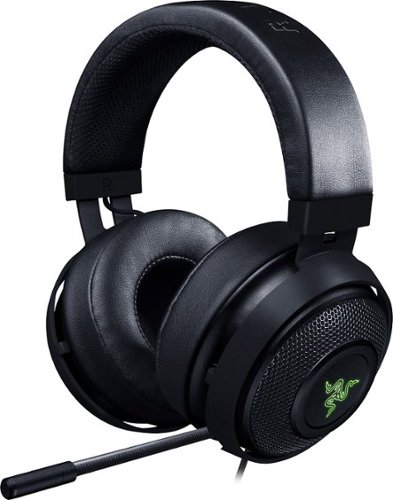
Hear every footstep, click and breath with this Razer Kraken digital gaming headset. The powerful 50mm drivers have neodymium magnets so that they produce exceptional sound directly to your ear, and the included microphone picks up speech clearly. This Razer Kraken digital gaming headset connects to a USB port for easy setup.
Its works for ps4?
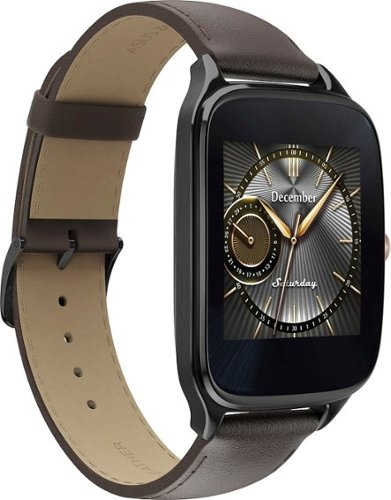
Power through the daily grind with this ASUS ZenWatch 2 smart watch. This 1.63-inch AMOLED touch screen watch is IP67-waterproof, so it's safe to wear in the shower while waiting for a very important call. This ASUS ZenWatch 2 smart watch also has a Wellness Suite that lets you plan workout routines, set training goals and track your progress.
will this watch work with iOS
Power through the daily grind with this ASUS ZenWatch 2 smart watch. This 1.63-inch AMOLED touch screen watch is IP67-waterproof, so it's safe to wear in the shower while waiting for a very important call. This ASUS ZenWatch 2 smart watch also has a Wellness Suite that lets you plan workout routines, set training goals and track your progress.
Will this watch work with my iPhone 6 plus and can I get news apps like cnn
Power through the daily grind with this ASUS ZenWatch 2 smart watch. This 1.63-inch AMOLED touch screen watch is IP67-waterproof, so it's safe to wear in the shower while waiting for a very important call. This ASUS ZenWatch 2 smart watch also has a Wellness Suite that lets you plan workout routines, set training goals and track your progress.
Are they coming out with a smaller size??
Power through the daily grind with this ASUS ZenWatch 2 smart watch. This 1.63-inch AMOLED touch screen watch is IP67-waterproof, so it's safe to wear in the shower while waiting for a very important call. This ASUS ZenWatch 2 smart watch also has a Wellness Suite that lets you plan workout routines, set training goals and track your progress.
Can this watch connect to wifi when your phone is not available?
Power through the daily grind with this ASUS ZenWatch 2 smart watch. This 1.63-inch AMOLED touch screen watch is IP67-waterproof, so it's safe to wear in the shower while waiting for a very important call. This ASUS ZenWatch 2 smart watch also has a Wellness Suite that lets you plan workout routines, set training goals and track your progress.
Is this watch compatible with a Galaxy s7?
Yes. I have it paired with a Samsung Galaxy Edge 7, and it works great.
9 years, 5 months ago
by
CMCMom29
Power through the daily grind with this ASUS ZenWatch 2 smart watch. This 1.63-inch AMOLED touch screen watch is IP67-waterproof, so it's safe to wear in the shower while waiting for a very important call. This ASUS ZenWatch 2 smart watch also has a Wellness Suite that lets you plan workout routines, set training goals and track your progress.
Can you have access to social media apps such as Facebook, Instagram, etc?
You do get notifications from those apps on the watch, but I have not seen where I could respond to them from the watch.
9 years, 5 months ago
by
CMCMom29
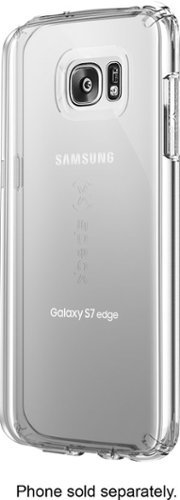
Let the sleek look of your Samsung Galaxy S7 edge show through with this Candyshell clear phone case. Crafted from custom-engineered soft acrylic, this cover absorbs shocks to protect your device. The clear material resists yellowing for long-lasting good looks, and this Candyshell clear phone case~s convenient design provides easy access to ports and buttons.
How many cases does this store have of this kind ?
I'm not sure if I understand your question, but Speck as a whole does not make very many cases for Edge phones.
9 years, 5 months ago
by
CMCMom29