


3Tcubed's stats
- Review count246
- Helpfulness votes1,647
- First reviewMarch 1, 2014
- Last reviewSeptember 25, 2026
- Featured reviews0
- Average rating4.4
Reviews comments
- Review comment count0
- Helpfulness votes0
- First review commentNone
- Last review commentNone
- Featured review comments0
Questions
- Question count0
- Helpfulness votes0
- First questionNone
- Last questionNone
- Featured questions0
- Answer count72
- Helpfulness votes46
- First answerJanuary 10, 2015
- Last answerJanuary 12, 2022
- Featured answers0
- Best answers12
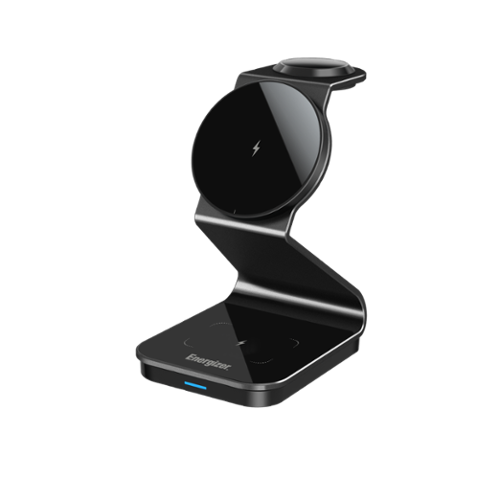
Premium matte black metal 3~in~1 wireless charging station with a sleek, ultra~slim design that fits neatly on any desk or nightstand. Supports simultaneous charging for your phone, earbuds, and smartwatch with fast wireless output up to 15W for compatible devices. Durable metal construction provides a modern, high~end look, while stable multi~device performance works best with a PD 27W or higher adapter for reliable charging. WALL ADAPTER NOT INCLUDED. 30W POWER DELIVERY ADAPTER REQUIRED FOR MAXIMUM SPEED.
Customer Rating

4
Nice compact, fast charger for 3 devices
on September 25, 2026
Posted by: 3Tcubed
I've been planning to get a desktop charger that could handle my iPhone, iWatch and headphones. The first several that I found were cheaply made plastic stands, most charging the phone at 7.5W (original Qi speed). I wanted at least Qi2 with the speed of 15W and a metal stand that could help with heat dissipation. I've always found that using a magnetic charger heats up the phone (so you need a stand made to cool things down). BTW in mid 2025 Qi2.2 was introduced which can charge at 25W, nearly twice as fast as Qi2 (but heat is a bigger issue).
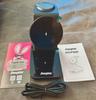
This Energizer WCP320 charger is made of powder coated metal, it's very sturdy, and quite good looking. It has 3 separate charging surfaces. The top one for Apple iWatches (they have their own changing standard, they use the Qi Standard but it requires a special Apple handshake). The middle front charging surface is for Phones (either mounted in portrait or landscape orientation). The magnetic attraction to hold the phone in place is quite strong, and the stand very stable. This is the pad supporting Qi2 fast charging. The bottom charging pad is intended for headphones (Apple and many others have cases that can be charged (earbuds charged in case). The watch and earbuds get charged at 3W, the phone can charge at up to 15W. You need to provide your wall plug to a USB charger that is at least 30W (to charge three devices at the same time) - the EU has been encouraging companies to not include USB chargers with products for quite some time (they believe there are many in most homes today).
I tested the charging stand with a 45W power pack and a 35W USB wall plug. Both handled 3 devices at the same time. I tested with an iWatch 7, an iPhone 17 Pro and some Technics (EAH-AZ100) earbuds. The watch charged at about the same speed it does with my Apple charging cable. As did the headphones on a fast Qi charger that I have. The Phone charged from 50% to 75% in 15 minutes, but from 75% to 80% took another 15-20 minutes (my phone is set to charge to a max of 80%), I think the last increment charges slower to improve battery life. The base of the WCP320 has some sort of passive cooling under the base, it does a reasonable job of keeping the mounting bracket for the 3 charging surfaces fairly cool.
I didn't have any issues; I very much like its compact design (I have limited room for more things on my desk), and that I can use the phone in either direction. Apple watches have a nightstand mode (open the Watch app, go to General, and toggle on Nightstand) so the watch dimly displays the time while it's being charged. This worked as advertised. The Energizer WCP 320 has a new found a new home on my desk! But for a new product I think it should support Qi2.2 charging.
I would recommend this to a friend!



Share this review:


0points
0of 0voted this as helpful.
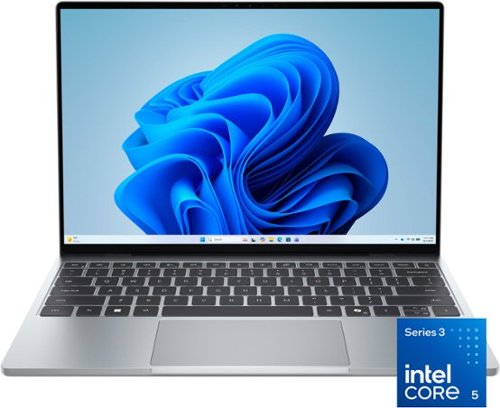
The XPS 13 embodies the essence of the XPS brand ~ combining groundbreaking design, innovation and effortless portability. It~s more than just a laptop, it~s a reflection of XPS~s commitment to pushing boundaries and delivering technology that works seamlessly in your hands, wherever life takes you.
Customer Rating

5
Good deal on a premium notebook
on September 19, 2026
Posted by: 3Tcubed
I've been traveling with a really nice 15" Notebook with a OLED display, I love it except for its weight and getting bashed by seats on airplanes. I wanted something smaller. I'm a software developer doing most of my work on windows. I've had several Dell XPS machines before, but one of my requirements is that I need at least 2Tb and a fast SSD. A year ago that would have cost me about $150, today it's more like $380 (if I'd only stocked up a year ago). The Dell XPS 13 spec sheet seemed say I could only get a 1Tb drive (from them) and had to order it with the machine as memory and SSD were soldered to the motherboard. Well not being one to believe everything they read I decided to try this entry level XPS 13, with 8Gb memory and a 512Gb SSD. I'll use an external SSD if I absolutely needed to (SSD prices are bound to come down eventually).
What really caught my attention was the 3K matt screen (2560x1600 resolution). I saw the screen instore, picked up the machine and it's 2.2 pound weight it said "take me home". I asked a salesperson if the SSD was user replaceable, and was told none of the current XPSs can be user upgraded. When I was setting up the XPS 13 at home I first noticed how well the island keyboard responded and the relatively large, responsive trackpad. The entire unit is clad in a nice sturdy silver aluminum case. And such a nice display running at 120Hz. After about 2 hours of fiddling with system settings and installing updates, I almost had everything done. But there are two more little tricks to improve the performance given the machine only has 8Gb of memory. First, change the windows swap file to have a fixed 16GB size (twice the size of physical memory; From: Windows Tools, launch Control Panel, select System, Under Device Information select: Advanced System Settings, then under: Performance click Settings, then Select Advanced, under Virtual Memory select change, now select Custom Size, set Initial Size and Maximum size to: 16384 and select Set, you will need to reboot for this to take effect (well hidden and hard to get to from Win 11)). Second, if enabled (it was on mine) disable the SSD's drive encryption: from Start Menu select Settings, click Privacy & Security and now select Device Encryption, change the toggle to off. This may take a while to complete (this reduces work that needs to be done by the hardware). My boot time was now down to 10s.
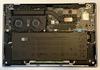
I disconnected the notebook from the power (this machine only has 2 USB-C ports (to the top right and left of the base)), both with Power Delivery, it supports Displayport 2.1 over USB (so you can easily connect an external display) but both are USB 3.2 (not Gen2 ports). I then turned it over to expose 4 screws (small star), I removed all 4, and gently pried open the case exposing the notebook's innards. And voila there was a 2230 SSD covered with a plastic sleeve. I removed the screw and sleeve to expose the 512Mb KIOXIA. This is actually an excellent 2230 SSD in the larger sizes. But most important it is user replaceable (disabling encryption is required if you are going to clone it). The memory is in fact soldered to the motherboard. The battery is also user replaceable (A EU requirement for many hardware products in 2027). So in the near future I'll replace the 512Gb drive with a 2TB, and more than double the SSD performance (I've attached KIOXIA (Formerly: Toshiba Memory) spec sheet) to get the machine I really need/want.
I disconnected the notebook from the power (this machine only has 2 USB-C ports (to the top right and left of the base)), both with Power Delivery, it supports Displayport 2.1 over USB (so you can easily connect an external display) but both are USB 3.2 (not Gen2 ports). I then turned it over to expose 4 screws (small star), I removed all 4, and gently pried open the case exposing the notebook's innards. And voila there was a 2230 SSD covered with a plastic sleeve. I removed the screw and sleeve to expose the 512Mb KIOXIA. This is actually an excellent 2230 SSD in the larger sizes. But most important it is user replaceable (disabling encryption is required if you are going to clone it). The memory is in fact soldered to the motherboard. The battery is also user replaceable (A EU requirement for many hardware products in 2027). So in the near future I'll replace the 512Gb drive with a 2TB, and more than double the SSD performance (I've attached KIOXIA (Formerly: Toshiba Memory) spec sheet) to get the machine I really need/want.
Having used it a bit more I appreciate the touch screen more on a 13" screen than with a 15" or larger, the screen is just a bit closer to your fingers making it a bit easier to access. The screen colors on the XPS 13 are very good, but not OLED quality, that being said, the 2.5K display makes the screen very easy to read. The audio quality is pretty good for a small notebook, essentially no bass but fairly good midrange and highs with decent stereo separation from above and below (there is no headphone jack, and no micro SDcard slot (boo). The keyboard has 2 levels of backlighting, but after every reboot the last level must be reset. There is no function key to disable the trackpad (something I've grown accustomed to). I did a battery rundown test while playing video (very low sound) and I got to 5% after 14 hours (excellent). I found MS Copilot to be very responsive after it had been run once. This is a big improvement from my 15" notebook. The WiFi performance is excellent. I tested with WiFi 5 and WiFi 6, and if close enough to my WiFi 6 access point, the performance was exceptional. WiFi 5 was faster than WiFi 6 when further from the AP. With 8 tabs open I expected to see the CPU struggle, but it seemed fine. When loading very large graphics files I found some studders, but not bad. Even short videos seemed to edit fine. Loading 30 minute videos for editing took a long time (combination CPU and slower SSD), but it did load. I did not try any serious gaming, I did a test to see if Minecraft would load (for my nephew) and it did run. Little more investigation. This is not a gaming notebook. For internet browsing and office automation work it's just fine. It is actually fine for Visual Studio code and python development too.
Soon I'll take it on a plane and see how much better it is to travel with a smaller, lighter notebook. This little notebook really has a premium feel with a reasonable price tag, it's quite a nice surprise. If you can afford the 16Gb memory upgrade (especially if discounted) it's even a better deal.
I would recommend this to a friend!



Share this review:


0points
0of 0voted this as helpful.
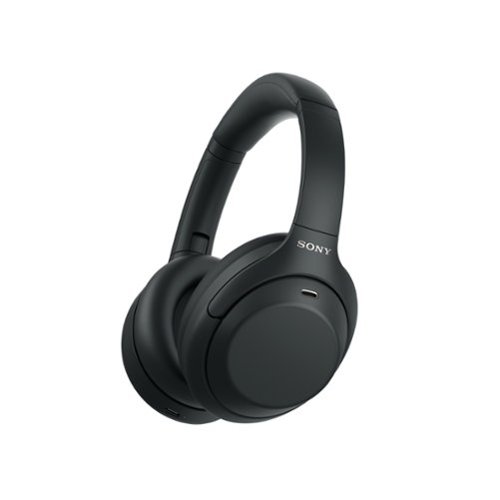
Escape the noise and step into an elevated listening experience with the WH-1000XM4C Noise Cancelling Headphones. High-fidelity audio, lightweight comfort, clear call quality, and a timeless design come together with up to 27 hours of battery life, giving you refined sound and effortless style wherever the day takes you.
Customer Rating
4
Superb, one minor issue...
on September 15, 2026
Posted by: 3Tcubed
This is probably my 10th set of wireless headphones (excluding earbuds). Why, because they keep getting better. My current favorites are B&W, Sony, Bose and Sennheiser. These Sony WH-1000MX4C seem so familiar. I had the original 1000MX4 in 2020, I essentially wore them out, the ear pads became flaky and the battery would not hold a charge for longer than a couple of hours. I replaced them in January 2024 with Sony's WH-CH720 headphones, which were always a little heavy for me and their ANC was improved, but several others had better. Today my favorite headphones are the pricey B&W Px8 S2 (for sound quality), but even though they are very comfortable, their weight becomes uncomfortable on long (overseas) flights.
I had no problem pairing the Sony WH-1000MX4C with my iPhone 17 Pro and my Google Pixel 10 (Android 16 Phone, that I use only for music). The headphones use Sony's Sound Connect app which I already had paired with Sony's link buds (I use when riding my eBike). The app allows you to install multiple headphones/ear buds (and connect to 2 pair at a time). Before doing any testing I fully charged the head phones. I then proceeded to break in using the headphone burn in the app: SQZSoft. This also allowed me to test the battery life (to some extent). I set SQZsoft to run for 24 hrs, after that the Sound Connect app showed the battery life had dropped from 100% to 15%. Which given the 27hrs Sony specs the battery life of the 1000MX4C's; seems just about right. Speaking of batteries, the 1000MX4Cs were brought back to life by Sony by now offering has a user replaceable battery (required in the EU in 2027) and several significant enhancements. The general sound curve has been improved (less bassy then the original 1000MX4s. The included graphic EQ is now 10 bands (vs 6) and the Noise Cancelation has been greatly enhanced.
My first general impression was that the sound had a very nice tight sound. Without the deep thump that the 1000MX4s had. A much more mello sound with great clarity, and effortless highs. Horns, piano and vocals are pushed forward with bright detail and exceptional midrange clarity. The high treble frequencies are executed with exceptional precision. I did a quick comparison with the WH-CH720s, and these just based on sound quality were richer, with a fuller soundstage. The Sony Noise Cancelling worked exceptionally well, I took them to my backyard where the pool pump and A/C run continuously in the summer. And the Sony WH-1000MX4Cs completely eliminated the humm of each (turning of ANC proved that point easily). In my opinion the headphones work much better with NC enabled. You can turn it off or enable the passthrough mode to better hear the external sounds. The Headphones include a RCA 3.5mm to RCA 3.5mm stereo connector, but no USB-C charging cord (they do support fast charging).
You also cannot use a USB-C to USB-C cable to wire the headphone to your phone (A feature I do like on my: Beats, Boses, B&Ws, Sennheisers and Soundcores). In fact when the headphones are being charged they drop BT connectivity (you can't charge and listen at the same time - Boo - minus 1 Star).
Now to some music from Boston and Pink Floyd listening wirelessly to my iPhone; The transition from "Foreplay to Long Time", has some great surround stereo separation, softly swirling from ear to ear. The WH-1000MX4Cs were deeper but airy. But I found the mid-ranges complexity was well handled. The overall balance of the lows and highs on the 1000MX4Cs was very captivating. As "Smokin's" bass built the 1000MX4Cs certainly get and keep your attention. Now on to Pink Floyd's classic; DSOTM. Speak to Me sounded tremendous, I knew I was in for a treat. The volume level was wonderful, the bass a little predominant, which I dialed back from the EQ settings. The subtle sounds in the opening of the song were perfect now. I had the headphones at about 60% volume and that was fine (for now), but knowing they could be driven louder later. The subtle tones were absolutely excellent as the song builds; it had real oomph that you could feel, that higher volume went. The highest notes in Time were all encompassing sounding wonderful, these headphones provide a sharp, crisp, clear airy high end. Then came the "Great Gig In the Sky" ethereal voices, wisp around the soundstage, with highs higher than I'm accustomed to hearing and with the bass building as it should have, it was just superb, a most fantastic 3D soundstage. "Money" got me drumming, it sounded so real, the tom-toms had a real kick to them, and it was even a little louder. "Us and Them" was tremendous, it literally had me turning my head, like I could tell where each of the different instruments were coming from, with a real dynamic sound stage. The music came from all around. As we ended with "Eclipse" I felt like the little voices in my head would persist. Most Excellent!
I wanted to compare my Google Pixel 10 to my iPhone 17 (both with BT 5.3). I used PowerAmp Pro on the Android and Apple Music on the iPhone. I listened to the live version of Deep Purple Smoke on the Water (FLAC-BT) on both, as synchronized as I could get them, with very similar volume levels. As I went back and forth the iPhone had a generally smoother overall tone. The android had a little kickier bass. Both sounded very good; I'd have expected the iPhone (with a better DAC) to clearly sound better. But the Android Phone held its own. I also listened to some Kansas Live and thought the Android might have had an edge in presenting better highs. I could go and tweak either via the EQ, but I was content to say that the latest Android phone was just as good as an iPhone's audio.
All told, I think that these are the best headphones for the money musically. After listening for several hours, I found them comfortable. I just spent 5+ hours with them, and rarely thought about them (other than how good they sounded, their soundstage is exceptional).
I would recommend this to a friend!


Share this review:


0points
0of 0voted this as helpful.
The TCL S55LR Series 4K UHD Smart TV combines impressive picture quality and smart features to elevate your entertainment experience. Enjoy stunning 4K UHD resolution enhanced by a high brightness LED backlight and wide color gamut, delivering brighter images, richer colors, and greater realism in every scene. High dynamic range (HDR) enhances contrast and detail, while Motion Rate 240 with MEMC keeps fast-moving action smooth and clear for sports, movies, and gaming. Designed for gamers, Game Accelerator 120 and Auto Game Mode help provide responsive gameplay with reduced input lag. Stream live and on-demand entertainment with access to live TV and 500+ free channels, connect your favorite devices through three HDMI inputs, and enjoy private listening with Bluetooth personal audio. Finished with a sleek FullView metal bezel-less design, the S55LR Series delivers an immersive viewing experience and modern style that complements any space.
Customer Rating
4
Great picture (and big), not such a great remote
on August 26, 2026
Posted by: 3Tcubed
This 85" TLC is my largest flat panel TV I have. For years I've had multiple projectors in my family room (which is 32' x 16') My seating area is 16' from my drop down screen. I decided I wanted to compare this 85" TLC to my projector. My setup has always allowed two display devices so setting up the TLC with my surround sound system was pretty easy.
This 85" S55LR does not have local dimming so comparing it to a projector (which cannot have local dimming) should be a fair comparison. I have Roku boxes connected to 4 of my TV's so I'm very familiar with their user interface. I did update the Roku app on my iPhone so my phone can now control all 5 devices. I went through the TLC setup and registration, installing/updating the Roku TV app on the TV. Setting up the TV with all my streaming services and DirecTV took nearly an hour. I first started a std HD DirecTV baseball game, I attempted to get the color and brightness settings of the TV and my projector to be as similar as possible. The TLC does not have as many advanced setting as my projector. I set the TLC to it's darkest mode which to me presented blacks and darks areas more realistically. The has four times the number of options. It allowed me to "tune in" the two pictures to be pretty similar. No matter what I did the TLC's greens were a little brighter than the projector. The blacks on the TLC were also a little brighter. Looking at a pure white screen the TLC was slightly whiter but more even than the projector especially in the corners. With solid colors (test pattern) the TLC was 100% consistent. Both of them displayed red, blue very evenly. Yellows were a different tone but both very even, the TLC was a tad brighter. The projectors blacks were a perfect inky black, the TLCs were brighter maybe offering more shades of black (just not as deep). But onto live TV.
A top over bottom (see image) comparison of the two showed the TLC had some additional detail, both had some blurring with very fast motion. The TLC has what they call Motion Rate 240 with MEMC, the projector has a motion flow feature, both claimed to improve full motion clarity. Both struggled with clarity of Baseball's fast action. The resolution of the fine details, the blades of grass were clearer and the lines on the field and numbers on uniforms were sharper. The grass on the projectors image seemed a more natural color. The more I watched for differences, the more the TLC revealed finer details.
Now on to a UHD 4K movie (Blu-ray) with both devices sharing the same signal. First up: Top Gun Maverick. I again attempted to get the colors as close to the same, by adjusting the two devices during the Menu Loop; they were close, the TLC still had a slightly brighter overall display; blacks and bright areas were close with the projector being slightly darker. Both were very detailed in the picture quality, a credit to what UHD 4K can deliver. After more critical watching of a few scenes a couple of times, it became clear that the TLC struggled with the darkest areas, details were missing from within the shadows. With fast paced full motion scenes the TLC captured the edges more crisply, where the projector seemed to smoothed out some of the details, the edges were not as fine. I did another comparison watching Dante's Peak and except for very dark scenes I overall preferred the TLC with it's slightly brighter picture (in a fairly dark room).
I also compared the sound from the TLC to my home theater, which was not a fair comparison. The TLCs sound when below 15 sounds acceptable. Over 20 (21-99) it get tinny and noisy. Just watching a ball game below 20 is fine for background noise. The TLC can almost fill a big room, but not with high quality sound The down firing stereo speakers are obviously under powered and they distort as the volume level increases. In short get a sound bar or use a good quality surround sound like I do (connected using eARC).
The built in Roku for streaming is excellent. But the only remote is a TLC remote that looks just like every Roku remote (minimalist) except that there is no microphone button for voice control. It's fine until you add something with lots of channels (like DirecTV) which then forces you to scroll through pages and pages of channel selections, with no means of keying in a channel number (that I could find). The TLC integrates well with Apple Home, Apple Airplay, Google Home and Alexa. Voice commands from all worked (as did the Roku voice commands when I swapped out the provided TLC remote for a newer backlit Roku that I happened to have on hand). The installed Roku supports voice commands but the provided remote has a sleep button where the mic button should be (they maybe saved a dollar - Boo). I did run into situations where more than one service tried to respond. I ended up using only Google Home and Roku Voice. With a wide variety of streaming services Roku presents a fairly unified menu across the different services/apps. I looked at my Fandango support and all formats including UHD worked fine, I tested both with a 5G wireless connection and a Ethernet connection both streamed without any problems.
So, for now, I can use either my projector or the TLC 85", the difference in screen size is barely noticeable. There are times when I prefer the screen up higher, and times where I like it low (TV sitting on the floor, me on the couch). With both sharing the home theater system it's hard to choose, I no doubt prefer the TLC when the room is very bright (which is unusual). BTW all of my TV's and projectors have their own sound bars or full blown theater systems, so thinking the TLC's sound is weak is not surprising (few flat panel TVs have good enough sound to satisfy me).
I would recommend this to a friend!






Share this review:


0points
0of 0voted this as helpful.
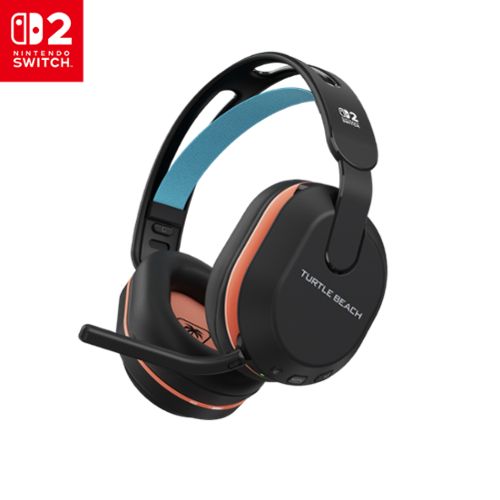
The Turtle Beach Stealth 500 Wireless Gaming Headset is built for Nintendo Switch 2 and mobile gamers who want seamless wireless audio and all-day comfort. As the first officially licensed Nintendo Switch 2 wireless gaming headset, the Stealth 500 delivers low-latency 2.4GHz wireless audio through a USB-C transmitter for Nintendo Switch 2, plus Bluetooth connectivity for mobile gaming and streaming. Premium 40mm drivers bring games to life, while built in EQ modes and Superhuman Hearing enhance critical audio details. The omni-directional flip-to-mute microphone ensures clear communication during gameplay. An ultra lightweight floating headband and plush leatherette memory foam ear cushions provide comfortable wear for long sessions, while up to 40 hours of battery life keeps you gaming longer without interruptions. Stealth 500 is designed for players who want wireless freedom across Nintendo Switch 2 and mobile.
Customer Rating
5
Makes Switch 2 even better
on August 24, 2026
Posted by: 3Tcubed
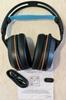
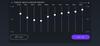
I've been using the Turtle Beach 600 on my PlayStation for just over 2 years. I still love them. The way the mic boom works to turn on/off the mic is second nature now. I'm now so used to this functionality, that when I saw the new Turtle Beach 500 for the Nintendo Switch 2, I had to have them. Installation was very easy. Like my 600's they are very softly cushioned and the headband has such a light comfortable feel. They also come with a USB C wireless receiver/transmitter but you can also use Bluetooth. They have great noise cancelling. They are said to have 40 hour of battery life which is slightly less than I get from my 600's after 2 years. They only weigh 8.3 oz. They have 4 built in EQ settings and you can define 5 custom EQ curves. You can quickly switch between the 2.4GHz wireless and Bluetooth audio sources with the on headphone QuickSwitch button. This allowed me to compare the sound of both and they are so hard to tell apart; Bluetooth has improved so much over the last several years. This headset is perfect for my Switch 2!
I proceeded to do some racing with Mario Kart World, and I was so impressed I started smiling (something I try to avoid). I was very happy with the effects I heard (especially with Superhuman hearing enabled and turned up). I then tried Resident Evil Village (a gorgeous game) everything I needed to hear/discern I could picture in my head in different directions. And the flying bullets sounded very realistic (I think) as they 'passed' by... impressive. And I'm still smiling.
These are very nice gaming headphones.
I would recommend this to a friend!



Share this review:


0points
0of 0voted this as helpful.

The TUF Gaming F16 is built to power through every gaming challenge. Dive into an Intel Core Processor i7-14650HX and NVIDIA GeForce RTX 5060 Laptop GPU with NVIDIA Advanced Optimus for smooth, responsive gameplay. Its sleek design, featuring a subtle TUF logo, pairs understated style with rugged strength. The Full HD+ 144Hz WUXGA display with 100% sRGB color range delivers vibrant, lifelike visuals that pull you straight into the action. With 16GB of DDR5 memory and a spacious 512GB PCIe Gen4 SSD, multitasking and storage are effortless. Designed for real-world toughness, it meets military-grade durability standards. Powerful components require powerful cooling, so we~ve equipped the TUF Gaming F16 with a whole suite of technology to keep it running at peak performance. From the 2nd Gen Arc Flow Fans inspired by aircraft engines to a full-width heatsink and integrated dust filters, the F16 will never lose its cool. And with Dolby Atmos and Hi-Res Audio, you~ll get rich, immersive sound that enhances every moment of your game.
Customer Rating
5
Impressive, easily upgraded
on August 18, 2026
Posted by: 3Tcubed
This ASUS F16 (FX608) is a '2026' equipped Gaming/Creator machine. It's equipped with the GeForce RTX 5060. The NVIDIA GeForce RTX 5060 which is roughly 20% to 30% faster (in raw 1080p) gaming than the older RTX 4060 (which I was using). Both cards have 8GB of VRAM, a 128-bit bus, the newer RTX 5060 uses faster GDDR7 memory and supports advanced DLSS 4 Multi Frame Generation. This processor can support 4K and 8K displays via HDMI or DisplayPort over USB (both on the left side of the notebook). The F16's 16" IPS Display is FHD+ (1980x1200 anti glare) @144Hz (with an average brightness of 300 cd/m² (nits)). The RTX 5060 supports advanced DLSS 4 Multi Frame Generation, so it will work with most modern games. It ships with a 512Gb Gen4 m.2 SSD and 16Gb DDR5 (spec say 2x8Gb dual channel, but mine had a single 16Gb SODIMM). It comes with a pretty light but beefy 100W power supply, but it's possible to power this notebook via a USB C input. The manual says the USB4 port will accept 20V/5A (100W PD), but after much trial and error I found the F16's USB power seems to be capped at 60W, with the proper cable and with "Battery Care" OFF. With "Battery Care" ON the USB power port trickle-feeds at no more than 60W. So no heavy gaming (without the power brick (it's fine for light tasks (like reading documents or web browsing)). The i7 Intel 14650HX has 8 performance cores and 8 efficient cores supporting 24 threads. With a 30 MB L3 cache. Base power consumption is 55W. Its max turbo frequency is 5.2 GHz.
The notebook itself weighs in at 4.85 lbs (pretty reasonable for a 16" gaming machine) and is 14" wide and 10.6" deep and 1.07" tall. It has a fully backlit RGB keyboard. Upon installation, I made sure that Windows 11 (Home) was up to date (this took about 90 minutes and multiple reboots (not surprising)). I also made sure that the F16's firmware was up to date, which only required one update. Nothing unexpected, but you should be aware that Windows 11 requires that you have a Microsoft Account to logon. One of the first things I did was to fully charge the battery, and then unplug the notebook, and use it for light office work (screen at 60% brightness and performance set to Balanced, mostly internet browsing. After 5 hours I got the 20% low battery warning, then I ran for another hour, which was at 3% and it auto dimmed my screen at every pause. The F16's Control Center is an app called "Armoury Crate"; Fn hotkeys and other OSD functions are defined here. It also shows most of the machine's power/performance information. So I'd say battery life is about: 6hrs; no gaming, not using the RTX 5060, not bad for a gaming notebook, nothing special.
The notebook itself weighs in at 4.85 lbs (pretty reasonable for a 16" gaming machine) and is 14" wide and 10.6" deep and 1.07" tall. It has a fully backlit RGB keyboard. Upon installation, I made sure that Windows 11 (Home) was up to date (this took about 90 minutes and multiple reboots (not surprising)). I also made sure that the F16's firmware was up to date, which only required one update. Nothing unexpected, but you should be aware that Windows 11 requires that you have a Microsoft Account to logon. One of the first things I did was to fully charge the battery, and then unplug the notebook, and use it for light office work (screen at 60% brightness and performance set to Balanced, mostly internet browsing. After 5 hours I got the 20% low battery warning, then I ran for another hour, which was at 3% and it auto dimmed my screen at every pause. The F16's Control Center is an app called "Armoury Crate"; Fn hotkeys and other OSD functions are defined here. It also shows most of the machine's power/performance information. So I'd say battery life is about: 6hrs; no gaming, not using the RTX 5060, not bad for a gaming notebook, nothing special.
I recharged, and ran Diablo IV (set to 1080p Ultra), upon loading you could hear the notebooks fans beginning to run, the frame rate varied from 120 to about 180FPS (w/DLSS4 enabled). Pretty darn respectable for a notebook, but this is a FHD display. I only ran for 90 minutes and the low battery warning came on and some of the power saving features that were set by default kicked in, and slowed things down. The heat coming out from the bottom and back was pretty warm as expected, but not as bad as I'd thought it might be. So system cooling seems to work quite well. The back of the keyboard was noticeably warmer than the front. So don't expect to do any extended gaming off the battery (da). Diablo ran very smoothly, no screen tearing, absolutely a fantastic gaming experience. The RTX 5060 is quite a nice graphics card (clearly a step up from my RTX 4060). I hooked up an external 4K HDMI monitor and the Diablo frame rate dropped to 80/140, still good and the display had noticeable improvements in the details.
Keyboard color backlighting is highly customizable as is function key definition for multiple game profiles. The Armoury Crate has plenty of bells and whistles. There are only 3 levels of backlighting brightness. The touch pad is quite large and I found it quite good but I typically use a mouse or trackball. I attached a logitech BT mouse, as I'm accustomed to it for several games. The keyboard is very solid with just a little bit of give to it. The top row of function keys has a different layout from what I'm used to as does the full number keypad. There is a hotkey to turn the touchpad on/off (I really like this), and another dedicated key to mute/unmute the Mic.
Keyboard color backlighting is highly customizable as is function key definition for multiple game profiles. The Armoury Crate has plenty of bells and whistles. There are only 3 levels of backlighting brightness. The touch pad is quite large and I found it quite good but I typically use a mouse or trackball. I attached a logitech BT mouse, as I'm accustomed to it for several games. The keyboard is very solid with just a little bit of give to it. The top row of function keys has a different layout from what I'm used to as does the full number keypad. There is a hotkey to turn the touchpad on/off (I really like this), and another dedicated key to mute/unmute the Mic.
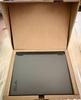
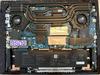
Now I'm going to go in a different direction. The 512Gb drive is not big enough for my needs (but with memory/SSD prices being what they are, I understand), and as a boot drive I'd like it to be as fast as possible (it's not). The ASUS FX608 ships with Bitlocker enabled by default (to make any disk changes it needs to be disabled). Second there are two m.2 drive slots (2280 size) , so expansion is quite easy (I'm not positive both support Gen4 drives, but I'm certain the primary (right) slot supports Gen4). But I want a faster boot drive, so I'll clone the 512Gb to a Samsung 990 Pro (via a USB adapter). Which will offer somewhat better performance. I also added a second SSD (which after installation I believe is operating at Gen3 speed). There is also some video editing and image editing software that I use that really performs much better with more RAM. So when I opened the notebook I found it had a single 16Gb SODIMM (the specs said it had dual channel RAM). So I replaced the 16Gb stick with 2 Crucial DDR5 5600 SODIMM 16Gb sticks. I removed the 11 phillips head screws from the back and pryed off the back cover. Easily done, images attached. The cloned SSD, replaces existing SSD, and Crucial memory replaced the installed 16Gb memory. The first reboot after the change took over one minute to boot/reconfigure the changes, but after that the system boots very quickly..
The 16" screen on the ASUS is really nice, the longer I used it the better it seemed, plenty bright with even backlighting. There are 3 USB-A ports, all USB 3.2, 1 USB-C port (USB4, DisplayPort over USB), 1 full size HDMI 2.1 port, 1 GB Ethernet port and a headphone/mic jack. There is no SD/MicroSD card slot! As for sound quality, it's... just ok, it can get fairly loud enough but the overall sound quality is not that pleasing. And the camera is only @1080P, it's just ok; with low light it is better than average, but nothing special. When the camera is on there is a led to the right of the camera, but no physical shutter lock. There are 2 microphones that are pretty good. This ASUS notebook does support Thunderbolt and it does support a remote monitor hooked up to the USB-C port (Display port over USB-C).
I do some astrophotography and use an app that aligns stars, this i7 notebook is nearly 20% faster than my current notebook (i7 w/RTX 4060). The good news is it's a post processing process, where I process a "stack" of images. I'm sure the RTX 5060 GPU has something to do with the improvement. The same for video processing, this is noticeably faster than what I've been using (once loaded with sufficient memory).
In summary, this is a well made computer, I wish it had come with a bigger faster SSD, as it could easily be 10-15% faster than the stock drive they include. I wish I could power the machine with USB PD (maybe without the 5060, with a 100W USB-C PD device). It's puzzling why this does not work. The included memory is very good and fast. I'd also like the option of a touch screen. And the speakers could certainly be improved (there seems to be plenty of space). But in terms of performance, properly configured, this is still a machine that can easily be upgraded. Gaming is excellent, overall I'm impressed.
I would recommend this to a friend!




Share this review:


0points
0of 0voted this as helpful.
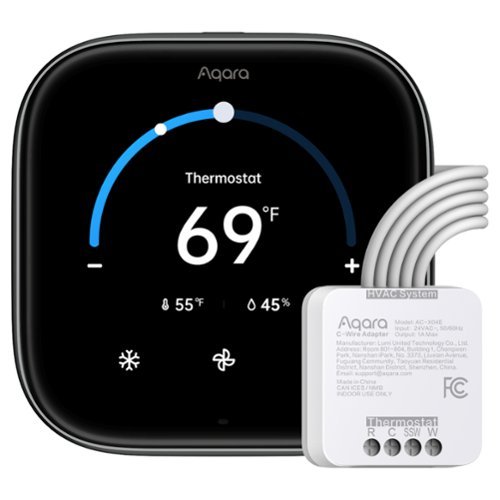
Aqara Thermostat W200, the first thermostat to support Apple Adaptive Temperature and Clean Energy Guidance, delivers effortless comfort and smarter energy savings. Your iPhone learns your routine and adjusts automatically~no schedules required. More than a thermostat, it works as a Zigbee and Thread hub with Border Router capabilities, expanding your Matter network and enabling local control across Apple, Google, Alexa, SmartThings, and Home Assistant. Built-in mmWave presence detection, dual-band Wi-Fi, security alert playback, and seamless doorbell streaming and lock control bring powerful automation together~subscription-free and designed for a future-proof smart home.
Posted by: 3Tcubed
I've had multiple smart thermostats over the years (Nest and Ecobee most recently). I moved from Nest to Ecobee to get support for multiple temperature sensors. I’ve been upgrading my smart home to move away from Zigbee to Matter and Thread. About 60% of what I have works with Apple Home. Upon learning what Apples Adaptive Temperature was I was anxious to find a product that supported it. The Aqara W200 not only supports it, it can act as a Smart Home Hub (meaning I can support more devices (total in the future)).
One big problem I had with Ecobee was that it rarely thought the home was empty. With the W200's and Apple Home means it can accurately detect when everyone's (primary) devices (iPhones) are in fact not found (requires iOS 26 or later) but then Apple's Adaptive Temperature can accurately manage home/away to set the house temperature. I'm hoping to cut my energy costs using the W200 and Apple Home.
Because it can act as a hub for other Aqara products, which really makes it convenient to improve the connectivity. I plan to add two Aqara Smart Locks (U400 locks) and will add an Aqara humidity sensor to integrate with other smart home features.
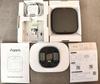
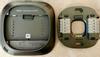
Installation was simple, and if you have ever messed with installing a modern thermostat you won't find it difficult (use the supplied wiring labels). You only need to remove a couple screws and identify your system wiring and then wire it up the W200 with the correct wires, it took me about 5 minutes.
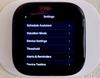
I rarely use my thermostat on the wall and mostly use the mobile app and Apple Home. I must say that I like the W200's user interface more than any other smart thermostat. Partly it does a lot more and has a much better display. I really like the menu lay out.
The quality seems decent. Like all the others it's mostly plastic but its full RGB display (it can display color images) is a step ahead of those I’ve tried. I was really attracted by new modern features (Thread and Matter) that made the thermostat attractive.
I plan to integrate W200 with the Aqara doorbell and lock that I will add. so that when someone rings the doorbell, the thermostat shows pictures of the person on the doorstep and provides the option to unlock the door directly from the W200 (or from my smartphone). Note: currently there is no support for two way voice.
Since installing the W200 I have had the opportunity to see Adaptive Home at work and it works quite well. The Aqara hooked up with HomeKit without any issues. I love how customizable it is. You can change so many of the screen settings, layouts and widgets (you can set up scenes but I did not try this, but it makes it even more flexible.
I plan to add a number of Aqara sensors in various rooms like I did with EcoBee. The Aqara app can program the W200 to use sensors in different rooms based on the times of the day to ensure the home is smartly occupied (this I have not explored).
Overall, I am very impressed with the W200 and its easy-to-use feature set; It does take some time to get the various features set up and tested (as do many smart home additions).
I would recommend this to a friend!
Share this review:


0points
0of 0voted this as helpful.
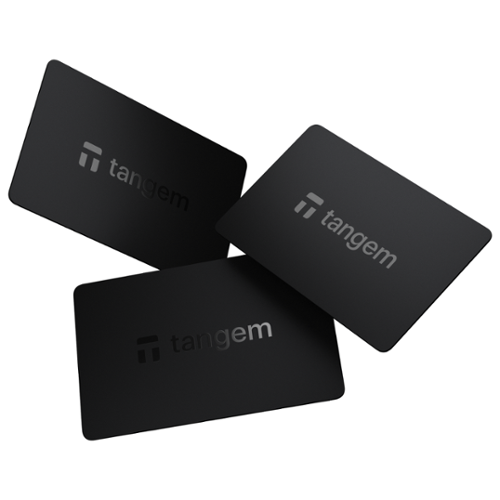
Tangem Wallet Set of 3 Cards ~ Secure Cold Wallet for Crypto Storage, No Seed Phrase Needed. Experience next-level security and convenience with the Tangem Wallet Set of 3 Cards, a revolutionary cold wallet solution for managing your digital assets. Designed with military-grade encryption and Swiss-engineered security, this sleek, credit-card-sized device offers you full self-custody of your crypto ~ without the risks of traditional seed phrase storage. Each Tangem Wallet Set of 3 Cards includes three identical smart cards, allowing you to securely back up your wallet and eliminate single-point failure. Lose one card? No worries ~ you can still access your funds with the remaining ones. Activate the wallet in under 3 minutes using your smartphone and the Tangem app, with no personal information required. Compatible with Bitcoin, Ethereum, Solana, XRP, USDT, and over 10,000 cryptocurrencies, the Tangem Wallet also supports NFTs and integrates with DeFi, dApps, and WalletConnect. It's waterproof, tamper-resistant, and designed to last more than 25 years ~ giving you peace of mind and true financial sovereignty. Whether you're a seasoned crypto investor or just getting started, the Tangem Wallet Set of 3 Cards is the most user-friendly, secure, and durable cold storage solution available today. Key Features: Set of 3 smart backup cards for maximum security. No seed phrase ~ secure your assets without memorizing or storing anything. Supports 6,000+ cryptocurrencies, NFTs, and DeFi platforms. NFC-enabled, works with iOS and Android. Tamper-proof, waterproof, and built to last 25+ years. Made in Switzerland with the highest security certifications. Upgrade your crypto security today with the Tangem Wallet Set of 3 Cards ~ your trusted cold wallet for the digital future.
Posted by: 3Tcubed
I've been using the Tangem Soft Wallet for about 2 months. I finally decided to get their hard wallet, mostly for security reasons. I wanted to give my wife access to "our" Crypto assets, and the same for our daughter (if/when necessary). I looked at almost all other options and decided I did not want another device which has to be charged and could be lost/damaged, but can't easily be duplicated. I wanted something that did not rely solely on BT or WiFi as I have concerns that these could be monitored (and standards could change over time). And I really didn't want it to have a battery or a special connector (read USB) (as they can become obsolete over time). Having used Tangem for a bit I was familiar with its strengths and weaknesses (many of which could be overcome).
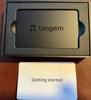
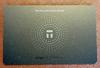
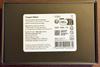
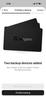
The package the three cards came in is nice, but nothing special. All instructions online via QR code. Each of the 3 cards has a unique 16 digital code on the back so you can tell them apart, but once you set up the cards as backup devices each is equivalent to the others. The cards themselves are identical in size and weight to a credit card except there is no magnetic strip or EMV chip, but there is a NFC antenna (not marked as so) within the card (that's how it works). As I'd been using their app for sometime I already had it on my iPhone. Once I held the card up to the top of the phone it offered to start the Tangem app. From there I had the option of creating a new card (keeping the prior soft wallet) or upgrading the soft wallet to the new card. Since I had provided instructions to use the prior soft wallet for other deposits I chose the new card option. Once this was done I had the option to make backup card(s), I did this for both additional cards. It then required me to finalize the backup set up option. I could now shut down the app and scanning the card would bring up the new (still empty) hardware wallet. I then transferred several partial tokens from my soft wallet to my new hard wallet. To do this you must pay any required "gas" fees. I also tried converting from one token on the soft wallet while transferring the proceeds to my new hard wallet. All of this worked as expected. At the top of the app it tells you what wallet you're dealing with, if you scan a card you automatically are dealing with your hard wallet. You can slide the wallet's name left to find your soft wallet (this took me a while to find - the app should better show "stacked cards" if you have more than one choice). The app makes it very easy to swap between tokens (with fees) or to swap to stablecoins (with no fees). When buying or selling you can easily convert from token values to your default currency.
The package the three cards came in is nice, but nothing special. All instructions online via QR code. Each of the 3 cards has a unique 16 digital code on the back so you can tell them apart, but once you set up the cards as backup devices each is equivalent to the others. The cards themselves are identical in size and weight to a credit card except there is no magnetic strip or EMV chip, but there is a NFC antenna (not marked as so) within the card (that's how it works). As I'd been using their app for sometime I already had it on my iPhone. Once I held the card up to the top of the phone it offered to start the Tangem app. From there I had the option of creating a new card (keeping the prior soft wallet) or upgrading the soft wallet to the new card. Since I had provided instructions to use the prior soft wallet for other deposits I chose the new card option. Once this was done I had the option to make backup card(s), I did this for both additional cards. It then required me to finalize the backup set up option. I could now shut down the app and scanning the card would bring up the new (still empty) hardware wallet. I then transferred several partial tokens from my soft wallet to my new hard wallet. To do this you must pay any required "gas" fees. I also tried converting from one token on the soft wallet while transferring the proceeds to my new hard wallet. All of this worked as expected. At the top of the app it tells you what wallet you're dealing with, if you scan a card you automatically are dealing with your hard wallet. You can slide the wallet's name left to find your soft wallet (this took me a while to find - the app should better show "stacked cards" if you have more than one choice). The app makes it very easy to swap between tokens (with fees) or to swap to stablecoins (with no fees). When buying or selling you can easily convert from token values to your default currency.
There are a number of token/network combinations not supported. For example my Trust Wallet had Cronos using EVM and ETH in it, but Tangem could only accept Cronos via ETH. Same situation for Tron, all networks are supported. So you do have to be careful to make sure to select the right token on the right network, especially if many networks are supported by a token (here again their app could be more helpful, but most have similar limitations (ie. Coinbase does not play well with Tether, but Tether is well supported on Trust and Crypto.com). Tangem supports over 80 blockchain networks and more than 16,000 cryptocurrencies. But because a network is supported, it does not mean all cryptos that can use that network are supported for any given currency.
My biggest gripe with Tangem is that there is no easy way (without using another platform) to transfer funds with a Fiat Currency (say USD) from/to a bank account to your Tangem wallet. Many services use Plaid or Apple Pay via linked accounts, but Tangem does not do this even with/for wire transfers. You can't send a fiat currency directly to your Tangem wallet. If you stick to the Crypto world this is fine. But I find that I need to move money to/from my bank accounts and to do this you need another crypto service (like Crypto.com, coinbase etc). I'd also like to use my Tangem card like a debit card, tap and pay with your pre-selected cryptocurrency. I'm not sure that anyone does this, but when they do it would be a big step forward for crypto in general. I know a number of crypto sites have their own branded credit cards, you generally get usage rewards in the form of a crypto currency added to your account.
In general I found the setup very easy. Selecting what cryptos you want to populate your wallet with, means you must also select the network to be used then (to a new user this is more complicated as you are not that aware of the different networks). Setting up the backup with the generated key was very easy. The speed that the card is recognised is excellent. The fact that there are no batteries or additional devices to deal with is a huge advantage. The ability to organise currencies by group and order them as you like is very convenient (user friendly). Even though all cards when paired are essentially the same, I do wish without going to device settings it told you which card was being used (maybe last 4 digits only). And under Account I wish I could change groups and reorder the list, today it only allows me to manage tokens (add new tokens/networks), this seems like an intuitive place to do this. I really did not do anything with dApps (connected WEB3 sessions); as this is a feature I personally rarely use (but you might find it necessary - it is included). I love the durability of the card, they will be very difficult to damage. I personally like the simple black card, maybe making a carbon fiber version would look cooler. But for my purposes it does what I wanted it to do. But in the future please let me use it to buy something directly from Amazon. But it will require more cooperation from both parties... I do foresee it coming!
I would recommend this to a friend!


Share this review:


0points
0of 0voted this as helpful.
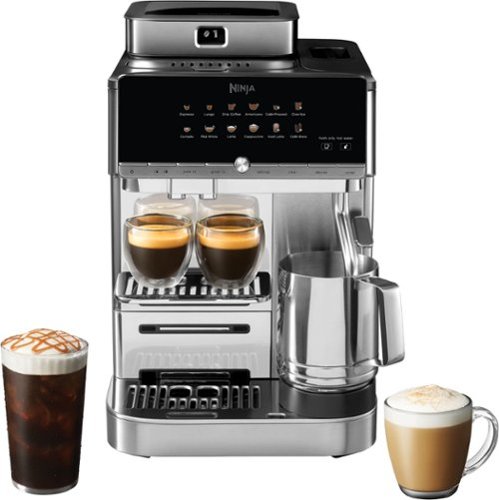
Ninja AutoBarista Pro is the only fully automatic machine that crafts true 9-bar espresso, authentic drip coffee, and rapid cold brew drinks like a barista.* Grind iQ technology auto-selects from 50 grind settings for smooth, balanced, results every time. With a 15-bar system tuned to 9-bar pressure, it delivers authentic espresso with real crema across 13 one-touch presets ~ from cold brew to cappuccino. FrothPerfect technology creates hands-free, caf~-quality microfoam in five styles, hot or iced, dairy or plant-based, all with zero barista skills required. The additional bean hopper allows you to effortlessly switch between roasts, no mixing of flavours, no leftover beans, no limits.
Posted by: 3Tcubed
My wife and I are big coffee fans. Back when Starbucks started to get un-affordable we decided to try different espresso machines. Seems like each one we tried got a little more sophisticated. They've all had their own grinder, but there the similarities end. The latest Ninja AutoBarista Pro is our first that is truly automatic, that can make hot and cold coffee drinks as well as drip coffee by the cup. Unfortunately it seems that the life cycle of many espresso machines is measured in months not years. Many have failed with gaskets that leaked. Others failed when plastic pieces broke. Still others just started dripping from within. All that we've tried had some sort of water container, the better ones with a water filter.
The Ninja AutoBarista covers so many bases. First it's pretty large and heavy (heavy is usually good). It's 17 3/4" L × 10 5/8" W × 15 7/8" H and weighs 40 pounds. The water reservoir holds 80 oz. The whole bean hopper can hold 3/4 lbs of coffee beans (and it comes with 2 interchangeable hoppers, so you can change beans easily). You can also use ground coffee, but it must be added per drink. It can make 13 different beverages. Each with its own one-touch preset. And each drink can be customized (weaker/stronger, hotter/colder). It makes authentic 9-bar espresso, drip coffee, and rapid cold brews.
It comes very well packed. It might be best to have 2 people unpack it. My initial impression is that it's a very well made, high quality, modern machine. My first espresso machine made two strengths of espresso and it had a frother that only made a mess. In fact very few of my machines had a decent frother. The Ninja AutoBarista Pro features a hands-Free "FrothPerfect" system that makes five distinct frothing styles. The machine’s presets are: Steamed Milk (heats the milk without making foam), Thin Froth (makes a silky microfoam), Thick Froth (makes a dense but airy foam), Cold Foam (aerates and whips cold milk (no heat)) and Manual Steam (you manually adjusting the steam wand position and pressure yourself). When you select a milk-based beverage, the Auto Barista displays suggestions for the best froth type and volume. You can easily override this by pressing the "Froth Type" button and toggling the "Milk Type" setting (Dairy vs. Plant-based) to adjust the aeration/temperature. Very sophisticated, it works extremely well; the frothing cup is quite large, but this prevents making mess, it has a clever internal stirring mechanism that creates the silky volume. It's great but it still needs cleaning with every use. But it is my first espresso machine with a superb frothing system.
Speaking of cleaning, when you turn the unit on it does a self rinse (2-3ozs) and after the unit turns itself off (or you do), it does another self rinse. I've found keeping a 16oz glass next to the machine that you put under the dispenser before brewing and after helping to collect the rinse water, otherwise it ends up in the lower catch basket that probably holds 16oz; that will need more frequent emptying. Two other notable features are the Grind iQ and swappable coffee bean hoppers. As I understand it the machine has a built-in scale that measures doses by weight. When you first get the machine the grinder needs to be calibrated (Grind iQ), this takes several minutes as the various grinder levels (50) go through calibration with the scale. Ensuring a proper grind/weight combination. The machine also has two separate, lockable whole-bean hoppers so you can easily switch between different roasts or coffees without discarding the prior beans (I love the way they did this). Another "hidden" feature is that Ninja has eliminated the portafilter and knock box from the users perspective, a way cleaner operation. The machine automatically rinses itself after brews (this does consume a fair amount of extra water and delays getting started quickly). It has an integrated fan to keep internal mechanisms cool and dry, reducing the risk of mold. Many components, including the brew unit, are dishwasher-safe.
I first tried the Drip Coffee setting, as I'd never had this available before on one of my machines. I compared it to an Americano. The default Americano was about 6oz, with a thin layer of crema on top. It was somewhat stronger than the drip (12oz size I made), but the drip had an excellent boldness to it. Both were great cups of coffee. Both took about a minute to prepare. To brew the Espresso it only took about 50s. It had a great crema layer, a very healthy boldness, and a great mouth feel. Superb. I then tried a cold brew, I started with a glass full of ice (as instructed), it took several minutes to complete largely due to the cold brewing process. But the taste was excellent. The machine can store drink profiles for 2 users, setting the default strength, size, temperature for each drink. You can also dispense 2 espresso shots at the same time, saving time.
I'm impressed by the speed, and the quality of the drinks. All the extra rinsing probably keeps things clean but is a bit of a bother. The cleaning of the internal brewing mechanism is quite clever. I did find that if you start a drink with whole beans and run out of whole beans while grinding, you can't switch to using ground coffee (at least I could not find a way). Not a big deal but something I decided to test when trying both whole bean and ground coffee.
I would recommend this to a friend!



Share this review:


0points
0of 0voted this as helpful.
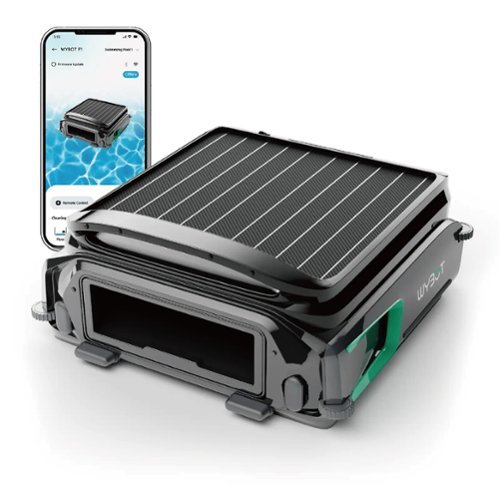
Robotic pool skimmer that autonomously collects leaves, debris, and bugs from the water~s surface. Eco-friendly and cordless with smart navigation for continuous, energy-efficient cleaning all day.

Posted by: 3Tcubed
I've had a pool skimming robot for about 7 years (3 different ones). They've all improved, but the harsh weather of Phoenix, AZ does a number on anything left in a pool 24/7, 365 days a year. You see I have a 60'x60' Ficus tree with about 250K leaves on it. They periodically fall and inevitably end up in the pool. I've been relying on skimming robot to pick up the bulk of these leaves, however under windy conditions some will make it to the bottom, as do figs that fall from the tree and don't float that long. When I have little or no wind I have to empty my skimmer every 2-3 days, when its windy I have to empty them (at least) twice a day. It's still it better than manually using a leaf skimmer. The Wybot F1 is similar in size to my previous skimmers, but it does not have any external propellers (as my others have). It also has a mesh filter which is slightly finer than my robot have been. In order to empty the F1 you have to remove it from the pool. My others have had lids that lifted open and the debris basket could be removed while it was in the pool, but with the water level being below the top of the pool this is a real reach, so it's just as easy to take the robot out of the pool when emptying the debris basket. My pool has a large rock waterfall at one end, which means the pool is not smooth (not cool deck all the way around). My first robot had a issue with this and it could get stuck; the WyBot F1 and my prior robot floated high enough this was not a problem for them.
The WyBot F1 has 2 cleaning modes: Smart and Standard. In standard mode when the battery is above 20% the robot runs pretty continuously, and stops and starts periodically when the charge is below 20%. In Smart mode when the battery is above 50% it runs intermittently cleaning in 10 minutes cycles. Below 50% it cleans less frequently, this allows it to lower power consumption and clean day and night. It can also be controlled from your smart phone (remote control - but I don't plan to use it like this}. I'd say the leaf bin of the F1 is holds about the same volume as my previous robot. My previous robot could carry a chlorine tab, the F1 does not have provision to do this (so I'll just use a pool float as I did before). Both robots randomly move about the surface of the pool picking up any leave they run across. If you created waves in the pool my previous robot might loose some leaves from it's debris bin, this seems less likely to happen with the F1. The F1 has a provision to be charged via a charger (a different voltage than WyBot C1/C2 uses (but don't use the wrong charger, the plugs are the same (and a charger for the F1 is not provided). This is nice option for the winter months when the sun does not shine as long. And it should not be necessary in the longer days of summer. The F1 uses the same app as other WyBot products use. It connects via Bluetooth and Wi-Fi (2.4Ghz only).
I've had an opportunity to compare the F1 to my prior robot, keeping both in the pool at the same time over several months (a pretty fair competition). After extensive comparisons the F1 did not collect nearly as much debris as my prior robot. The F1 did not move about/across the pool nearly as often as my prior robot (unless I manually charged it via their charger (not solar only like my prior robot)). The F1 would periodically need to be reset via the power button (as it would stop reporting to Bluetooth). When this happened it would not wake up (using the external charger also corrects this issue). The F1 seemed to perform better/longer in standard mode than in smart mode. And in my opinion F1 seemed to float to low in the water, making it difficult for it to pick up floating debris (there is a floating flap at it's "mouth" if the float is too high it prevents debris from entering it). Over a typical day with a fair amount of leaves in the pool I'd say the F1 picked up less than 20% of the debris my prior robot did. I found that even leaving the F1 in Phoenix's full sun would still not fully recharge it.
I did work with Wybot's customer support regarding these issues. They were great at correcting issues that they had control over, but they really never addressed that fact that the F1 did not work as well as my prior robot. So I'm now using their WyBot C2 robot to clean bottom and walls of my pool (love it). And I'm still using my prior robot to clean up floating debris.
The two pool robots come close to giving me a low maintenance pool.
Pool robots are the way to go. I just can't recommend the Wybot F1.
Pool robots are the way to go. I just can't recommend the Wybot F1.
No, I would not recommend this to a friend.




Share this review:


0points
0of 0voted this as helpful.
3Tcubed's Review Comments
3Tcubed has not submitted comments on any reviews.
3Tcubed's Questions
3Tcubed has not submitted any questions.
can A sim card be put into the Apple® - The new iPad® with Wi-Fi - 32GB - Black for local internet
Im trying to get internet access in Afghanistan
No, you either buy a 4G version or the Wi-Fi version; you can't upgrade/add 4g to the wi-fi version.
11 years, 8 months ago
by
3Tcubed
Phoenix.AZ
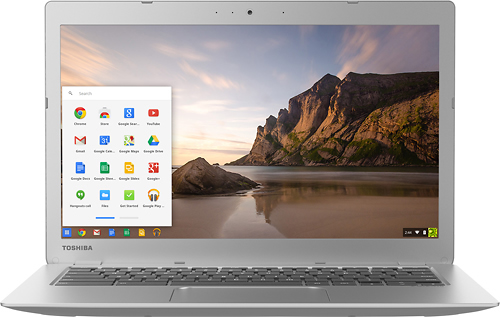
Toshiba Chromebook 2 CB35-B3340 Laptop: This ultrathin, portable Chromebook is great for anyone on the go. Easily connect to Wi-Fi hotspots with the built-in high-speed wireless LAN.Learn more about Chromebooks ~
Will a Chromebook 2 pair with a single band 2.4 mhz wireless N router?
Yes; I'm using with Netgear Nighthwlk x6; and I can pair with 2.4g & 5G networks a swell as AC, and it can see my other legacy networks.
11 years, 8 months ago
by
3Tcubed
Phoenix.AZ