


RedScorpion's stats
- Review count234
- Helpfulness votes1,564
- First reviewJune 21, 2012
- Last reviewJune 11, 2026
- Featured reviews0
- Average rating4.5
Reviews comments
- Review comment count0
- Helpfulness votes0
- First review commentNone
- Last review commentNone
- Featured review comments0
Questions
- Question count0
- Helpfulness votes0
- First questionNone
- Last questionNone
- Featured questions0
- Answer count14
- Helpfulness votes42
- First answerMay 13, 2016
- Last answerSeptember 30, 2020
- Featured answers0
- Best answers5

Experience the thrill of racing at home with the ultra-immersive Turtle Beach VelocityOne Race KD3, a complete simulation racing wheel and pedal system officially licensed for Xbox consoles and Windows PCs. At the core of the system is the K: Drive direct-drive force feedback motor, engineered to deliver immersive kinetic response with 3.2Nm of peak torque and ultra-low latency. With up to 2,160 degrees of customizable wheel rotation, you can dial in the exact feel for lifelike driving across a wide range of racing disciplines~from GT to rally to formula-style racing. The VelocityOne Race KD3 system includes two magnetic paddle shifters for crisp, reliable gear changes. A full-color Race Management Display on the wheel lets you adjust force feedback strength, input mappings, and toggle between five onboard profiles in real-time. The adjustable aluminum pedal set is designed to match the feel of your favorite car, offering fine-tuning options for throttle & brake response and pedal throw. Whether you~re using the integrated table clamp or the threaded inserts to mount at a full sim rig, the VelocityOne Race KD3~s versatile design features an adjustable-angle wheelbase that adapts to flat or angled driving styles. The VelocityOne Race KD3 has a racing-grade, removable textured steering wheel, so you can easily swap to other Turtle Beach wheels like the VelocityOne F-RX and modular expansion ports to support additional accessories like the VelocityOne Multi-Shift. Connect with the VelocityOne Tuner App on Xbox, PC, iOS, or Android to adjust lighting, remap controls, update firmware, and manage your entire setup with ease. With professional-level performance, a compact footprint, and extensive customization, the VelocityOne Race KD3 is an immersive force feedback racing wheel system for any sim racing enthusiast looking for realism, control, and value.
Customer Rating

4
Solid Wheel at a Good Price
on September 10, 2025
Posted by: RedScorpion
"So then... I put him in the wall." - Me recounting my latest race to my wife whose eyes glazed over thirty minutes prior.
The Turtle Beach VelocityOne Race KD3 is my first racing wheel. I have always wanted one but have never taken the plunge before. As a result, I cannot really compare this wheel with others. I also used the racing wheel on PC. So, I cannot really talk about how this wheel performs on X-Box game consoles. What I can say is that this wheel is a lot of fun. It feels well made. Feedback in games that have supported it feels great. Telemetry data displayed on the steering wheel adds to immersion (when it works.) I have some quibbles with software compatibility (something I gather is standard when dealing with PC gaming wheels), and with Bluetooth app support that feels lacking at this point. All minor quibbles to be sure. Without any basis to compare, I can say with 100% confidence that this is a good racing wheel. Or, at the very least, that I enjoyed it.
Setup: Turtle Beach makes setup straight forward. There are lines designed to guide the user to attach the wheel to the base. The base has extra USB-C porta built-in to function as a hub for connecting other accessories such as the included pedals.
Experience: Users will need the VelocityOne Tuner app. This really is not optional as the VelocityOne Tuner app has firmware updates for the wheel and enables a sub-PC app for telemetry data in programs that support it. Out of the box, there were at least two firmware updates in my experience.
I clamped the steering wheel to my desk. No fancy driving rig in my house, yet. I took full advantage of the clamping system, and it worked, mostly. Unfortunately, it was impossible for me to get it fully stationary. No matter how tight I tried to get the clamp, this wheel will move a bit. That could be a combination of the surface of my desk combined with the foam pad used for the clamp. On the plus side, the clamp does not damage the desk, but on the downside, it was difficult for me to keep the wheel as tight as I wanted. Still, that could just be my desk. I tried two other desks and neither worked. Either the desk had a keyboard tray in the way or framing kept me from mounting the wheel. I will take slightly loose as that was my best option.
I clamped the steering wheel to my desk. No fancy driving rig in my house, yet. I took full advantage of the clamping system, and it worked, mostly. Unfortunately, it was impossible for me to get it fully stationary. No matter how tight I tried to get the clamp, this wheel will move a bit. That could be a combination of the surface of my desk combined with the foam pad used for the clamp. On the plus side, the clamp does not damage the desk, but on the downside, it was difficult for me to keep the wheel as tight as I wanted. Still, that could just be my desk. I tried two other desks and neither worked. Either the desk had a keyboard tray in the way or framing kept me from mounting the wheel. I will take slightly loose as that was my best option.
The pedal system has textured grips, but if you are gaming on carpet, you will need something to brace the pedals against as they moved all over the place in my testing.
Once everything was plugged in and the machine and the racing games were up and running, I discovered the entire experience was not as “plug-and-play” as I was hoping. The problem is every racing game is going to require additional configuration. I spent most of my time on Forza Horizon 5 and Forsa Motorsport. I had to map buttons, pedals, and the wheel for every game. The experience was particularly buggy with Horizon 5. Once mapped, force feedback worked on the games I tried, and the wheel performed well. Your mileage may vary. But from what I can tell, this is a common experience with racing wheels in general. I wish the experience was true plug and play with button mapping. If an XBOX or PlayStation controller works with assigned buttons automatically, why is a racing wheel any different?
Once everything was plugged in and the machine and the racing games were up and running, I discovered the entire experience was not as “plug-and-play” as I was hoping. The problem is every racing game is going to require additional configuration. I spent most of my time on Forza Horizon 5 and Forsa Motorsport. I had to map buttons, pedals, and the wheel for every game. The experience was particularly buggy with Horizon 5. Once mapped, force feedback worked on the games I tried, and the wheel performed well. Your mileage may vary. But from what I can tell, this is a common experience with racing wheels in general. I wish the experience was true plug and play with button mapping. If an XBOX or PlayStation controller works with assigned buttons automatically, why is a racing wheel any different?
Which gets me to “telemetry.” Telemetry allows your game to send data to an external device. It could be to a spreadsheet or in this case data out to the wheel in the form of speedometer and gear data. On the KD3 telemetry data looks cool. It adds to the immersion, but it does not work with every game and even on the games where it does work, there is extra setup involved. Turtle Beach has information on how to set up telemetry in supported apps on their website, but you will need to refer to Turtle Beach for instructions. Unfortunately, Horizon 5 did not support telemetry with the KD3, but Forza Motorsport did.
Once in a game with everything running as needed and all the mild settings in games tweaked to my preference, the wheel is fun. It is. There is a decent level of force feedback. The wheel fights you in your races, but man is it a blast.
Once in a game with everything running as needed and all the mild settings in games tweaked to my preference, the wheel is fun. It is. There is a decent level of force feedback. The wheel fights you in your races, but man is it a blast.
I must talk a bit about the buttons and button placement. The XBOX buttons on the side of the steering column seem out of place to me. I would have preferred those buttons on the wheel itself. Also, the buttons on the wheel, specifically the direction buttons on the left side, felt squishy to me. It was hard to get a press that felt quite right. Occasionally, button presses did not register.
The KD3 supports a Bluetooth app on the phone, but I do not think that feature is ready for primetime. As app functionality was incredibly limited and really did nothing more than tell me firmware version of the wheel.
The KD3 supports a Bluetooth app on the phone, but I do not think that feature is ready for primetime. As app functionality was incredibly limited and really did nothing more than tell me firmware version of the wheel.
Regarding apps, VelocityOne app for Windows allows you to tweak settings for profiles, but I could never get my lighting profiles to stick. Now, I could manually toggle the lighting with the wheel itself, but I could not get changes made in the VelocityOne app to stick to the device.
The wheel has a solid build. The racing wheel itself feels good in my hands. The foot pedals have adjustable tension and, once I had them locked into place, they work well. The fact that I can swap out the included wheel with a formula one style option down the road is a nice touch. The extra USB-C ports make this feel like an expandable option that can really grow to meet the needs of the user. I wish there were a clutch pedal included with the other two pedals. But I cannot
Conclusion: I have had fun with this wheel. This is a gateway drug I never knew I needed. But I wish the software experience were better. I wish application compatibility was better. I am not sure how many of those software problems are within Turtle Beach’s control, but Forza Horizon 5 is one of the most popular racing systems on XBOX and PC and it should work without complication. The VelocityOne Tuner should work without hiccups. I should be able to make lighting adjustments in app and have them stick to the wheel.
Still…. I am having fun.
I would recommend this to a friend!





Share this review:


+2points
2of 2voted this as helpful.

Oura Ring 4 sizes are slightly different from standard ring sizes, so it is important to size yourself using our tools and to follow our sizing instructions. The Oura Ring 4 Sizing Kit allows for you, and those around you, to find the ideal fit before purchasing. You can also size yourself in stores where there is an Oura Ring 4 display. A properly fitting Oura Ring will result in the highest possible data accuracy, comfort, and overall experience.
Customer Rating

5
Best Get Yo Size B4 You Buy!
on September 7, 2025
Posted by: RedScorpion
No one wants to be on a hike to Mordor only for their ring to become tricksie and slip off. Thankfully, the folks at Oura have this problem all sorted with their Ring 4 Sizing Kit.
Even if you have had your ring fingers sized by a jewler, you should use the Ours sizing kit to make sure your Oura Ring fits nice and snug. For instance, I would have sworn my precious was a size 8, but according to Oura I should be wearing a size 11. *Cough* Gollum */Cough*
Please not that rings in Oura sizing kit will not allow the user to disappear and walk among the wraiths. But inside the box you get twelve sizing rings. All white. Those looking to make a fashion statement will be sorely disappointed m. But for those of us who are just using these as sizing rings as Oura intended, they work well. The entire process is simple.
So if it is your quest to purchase an Oura smart ring, you best be getting yourself a sizing kit. On a totally unrelated note, anyone ever noticed how difficult it is to write a thousand word summary about a sizing kit?
I would recommend this to a friend!
Share this review:


0points
0of 0voted this as helpful.

Create anywhere with the new Dell 14 Premium. Delivering faster performance with Intel Core Ultra processors Series 2 and an immersive 3.2K OLED display option in an iconic design.
Customer Rating
4
Three Steps Forward, Two Steps Back
on August 28, 2025
Posted by: RedScorpion
What a difference a couple of years makes. The XPS gets a rebrand. Premium laptops put on more than a little bit of weight. I have mixed feelings about this laptop. I like it, but I am not sure Dell completely nailed it with this one as I had quite a bit of technical issues out of the box. Bloatware in the form of McAffee antivirus, Dell Optimizer glitching and causing Office 365 problems, and Blue-Screens after driver installs have left me feeling more than a little on edge. Sure, the monitor is great. The beautiful display is a big selling point for this machine. The keyboard feels good. The haptic touchpad is sleek. But there is no LAN port. There is no USB-A port. There is no HDMI port. At the MSRP for this device, I must buy a lot of extra accessories to get functions that much cheaper laptops include with the package. The capacitive function keys take a bit to get used to. While Dell does not advertise this machine as a gaming computer, gaming performance is awful.
Still, I like this laptop. It looks great. It feels solidly built. Wi-Fi performance is good. The keypad does feel premium. And my gosh is that display pretty. Editing photos and videos works well. I wish Dell had sprung for a dedicated video card with more power and performance and the software issues I experienced really should not be happening on a Premium laptop.
Unboxing: Dell has included the laptop and the three-piece charger that connects to your PC via USB-C. The charger has a central power supply which connects cables to either side of the power supply to connect the to the wall and PC via USB-C.
Experience: The entire experience of this machine centers on this amazing 3k display. It looks amazing. Colors are vibrant. Blacks are inky. I do not think laptop displays get any better than this.
Experience: The entire experience of this machine centers on this amazing 3k display. It looks amazing. Colors are vibrant. Blacks are inky. I do not think laptop displays get any better than this.
The laptop is heavier than I expected. Opening the lid takes some pressure. The seamless integration of the touchpad is nice. Haptic controls on the keyboard work well. Out of the box the monitor is absolutely amazing. But the capacitive touch buttons have tripped me up more than a few times. I often find myself just brushing a button and setting it off. Speakers are good, not great. The keyboard has taken me a bit to get used to. I like it the more I use it.
Intel Arc Video: This machine needs a dedicated graphics card with dedicated power. Using the CPU with integrated graphics really hampers this machine’s performance. I know this is not a gaming computer, but video editors need powerful GPUs, too.
Image quality is great. Movies and YouTube videos played on this machine look great. Still, the only way I found to watch my digitally purchased movies in higher than 1080p was through Microsoft’s Movies & TV app. Prime, Netflix, D+, and AppleTV+ do not playback at higher than 1080p.
Image quality is great. Movies and YouTube videos played on this machine look great. Still, the only way I found to watch my digitally purchased movies in higher than 1080p was through Microsoft’s Movies & TV app. Prime, Netflix, D+, and AppleTV+ do not playback at higher than 1080p.
Software experience has been awful. This surprises me as, usually, Dell laptops are great when it comes to pre-installed software. Before you can even login in to Windows, Microsoft processes updates. It appears to me that those Windows updates make some of the pre-installed Dell applications inoperable. For instance, Dell Optimizer does not work. It claims to be running in the background, but you cannot open the application as it crashes every time. Dell Support Assist will open, but it may or may not work during checks for updates. If I let Windows alone handle updates for the machine through Windows Update, I got blue screen errors.
There were conflicts between Intel Software that came with the machine and Intel software that was installed as part of an update.
It took quite a while for me to get the software working optimally, and I am still holding my breath that the machine will not crash and that software will download and function as expected. There are known issues with conflicts related to Dell Optimizer and Microsoft 365. If you find that you cannot download your MS Office Applications, Dell Optimizer could be the culprit.
Solutions: This is the model that worked best for me. First, once you get into Windows and have access to the OS, uninstall “Dell Optimizer” and “McAffee Antivirus” from Windows Control Panel. I had problems installing applications properly while both of these programs were installed. I do not know why. You will eventually re-install Dell Optimizer, but do not do so with Dell SupportAssist. Instead, after a reboot, install Dell Optimizer from the Microsoft App Store. Then run software updates through Dell SupportAssist before running any updates through Windows Update. This process has helped me. But I am shocked at how rough the software experience has been with this laptop.
Upgradeability: The short answer is the only piece of hardware that I believe you can upgrade is the hard drive. RAM is locked and cannot be changed. Thankfully 32GB is more than enough. However, because the machine has three Thunderbolt 4 ports, I could see benefit in having an external GPU and docking station. In my experience, RAM can be one of the quickest parts of a machine to fail. The machine suffers a bit for not having an easy option to replace faulty RAM.
Lack of ports: I really do not understand why there are no indicator LEDs in the case. I do not understand why there are no USB-A or HDMI ports. Why is there no manual toggle for the webcam? When does a lack of features make something “premium?” The capacitive buttons look nice, but why care they not just physical keys? If I have to take a USB-C hub everywhere I go, then the convenience of the laptop is lacking a bit.
Conclusion: Despite my qualms, I do like this laptop. There is no excuse for the software issues I experienced. In the past, I have greatly appreciated Dell software, but this experience was awful. I wish Dell had shipped this model with a dedicated GPU with sufficient power. There is a version with a Nvidia 4050, but the unit I received uses the integrated Intel Arc graphics. I can recommend the machine for photo and video editors who are not in need of more powerful graphics solutions. For photo editing and watching videos, the machine works well. As a machine for students, I appreciate the long lasting battery life and amazing display. So, flawed but recommended. 3.5/5
I would recommend this to a friend!




Share this review:


0points
0of 0voted this as helpful.
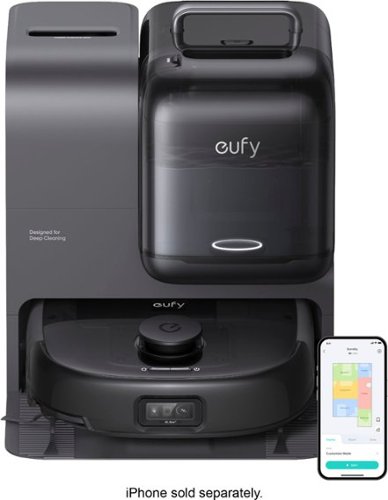
Designed for Pet Families~The eufy Robot Vacuum E28. Say goodbye to fur, dander, and pet messes. The eufy E28 is built for homes with pets, delivering powerful 20,000Pa suction and anti-tangle DuoSpiral brushes that lift hair from every surface. The HydroJet one-pass mopping system cleans without streaks, while the detachable spot cleaner handles muddy pawprints and spills on the spot. Maintenance? Not your job. The smart base auto-empties, washes, dries, and refills~so you never touch the mess. CornerRover reaches edges where pet hair hides, and AI-powered navigation avoids bowls, toys, and tails. Control everything from your phone for a truly hands-free clean. Let E28 handle the mess, so you can enjoy more snuggles~not scrubbing.
Customer Rating

3
Two Steps Forward, Three Steps Back
on August 13, 2025
Posted by: RedScorpion
I have never been more divided in my opinion about a product than I am with the Eufy Omni E28. This device has several commendable features: detailed mapping, a dual roller to minimize hair tangles, excellent suction power, and a remarkable ability to navigate and reach into tight corners. However, the mopping function was somewhat disappointing, as it left streaks and the cleaning solution had an unpleasant odor. Additionally, I had mixed feelings about the battery life. While the handheld cleaning mode is effective, the unit felt heavy and cumbersome, making it difficult to recommend over a standalone spot cleaner. The Omni E28 excels as a robot vacuum cleaner, and users seeking a good robot vacuum with mopping and portable spot cleaning capabilities could do worse. Nevertheless, given its price, it is challenging to recommend the robot enthusiastically.
Unboxing Experience: One aspect that piqued my interest in this robot was its lower profile compared to the S1 Pro. The Omni E28 also includes a handheld mode for mopping up messes. Eufy provides two bottles of cleaning solution, one for the base unit and one for pre-treating stains before using the handheld cleaner. However, the Omni E28 does not come with many accessories out of the box, which was unexpected based on my past experiences. My package did not include extra side brushes, rollers, or filters.
User Experience: Eufy offers multiple applications for interfacing with their robots, including the “Eufy” app, which combines cleaning and security features. However, I preferred the "Eufy Clean" app on my Samsung Galaxy S24+. I encountered a peculiar firmware issue where the application notified me of a required update out of the box. The firmware update seemed to hang at 95% for hours, and upon relaunching the application, there was no notification indicating whether the update was successful or had failed.
The Omni E28 performed exceptionally well in carpeted bedrooms, and I appreciated the robot's light, which helps illuminate darker areas. Although I am unsure why it needs a light with active lidar, it was impressive to see in action. However, the robot nearly knocked over a potted plant once or twice and got caught on small rugs a few times.
The mopping function was less impressive. I did not like the smell of the cleaning solution, although opinions were divided among my friends and family. Half of us found the smell unpleasant, while the other half thought it was acceptable. Regardless, the cleaning left noticeable streaks, making it evident where the Omni had cleaned.
The mapping software in the Eufy Clean application was more challenging to modify than expected. The default 3D mode was useless to me, so I switched to a 2D mode to better draw boundaries. It took several attempts to get the mapping changes, room labels, and borders to register, as the changes would either refuse to save or the connection would time out during the process.
The handheld mode for messes was heavy and awkward. I would prefer a dedicated handheld carpet cleaner for this task, as the added hose makes the docked unit bulkier. Despite this, I cannot think of any other robot vacuum cleaner with a handheld feature, and this feature does work.
Comparison with the Eufy S1 Pro: Compared to the Eufy S1 Pro, the Omni E28 has fewer parts to change out. One of my complaints with the S1 Pro was the numerous individual parts that needed regular replacement, especially with the water chambers. The S1 had three tiny filters to replace with the dirty water tank, whereas the Omni E28 is more efficient in this regard.
However, the Omni E28 did not run as long in my testing as the S1 Pro, and its raised lidar sensor prevented it from getting underneath as many objects. I did appreciate the Omni E28’s corner brush and split roller for minimizing hair tangles. The base station is extremely loud, and if you have pets, the extra noise occurs several times during the cleaning cycle as the robot docks more frequently.
Conclusion: Somewhere between the features of the Eufy Omni E28 and the Eufy S1 Pro lies the ideal robot vacuum and mop. As it stands, the Omni E28 is good, but it could be better. The mopping function works but leaves streaks, and while the vacuuming function is excellent, obstacle avoidance could be improved. The Omni E28 is good enough for a slightly positive review, but I would advise potential buyers to carefully consider the costs and features before making a purchase.
3/5
I would recommend this to a friend!



Share this review:


0points
0of 0voted this as helpful.
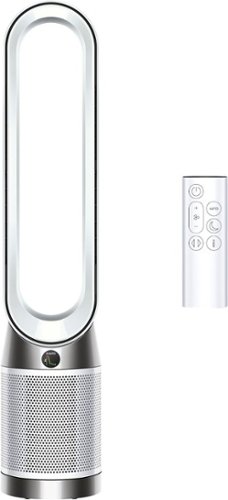
Dyson Purifier Cool PC1 delivers whole-room purification~ and powerful cooling.~ The fully sealed filter system captures 99.97% of microscopic allergens~ and pollutants as small as 0.3 microns.~ The whole purifier, not just the filtration system, is fully sealed to HEPA H13 grade.~ Air Multiplier technology projects over 76 gallons per second of smooth, yet powerful airflow.~ Connects to the MyDyson app to control and monitor air quality from anywhere, or hands-free with compatible voice services.~ Recommended for rooms upto 7101 Sq Ft.
Customer Rating
5
Breathe Easy With Dyson's Powerful And Smart PC1
on July 25, 2025
Posted by: RedScorpion
The Dyson Purifier Cool PC1 is another solid device from Dyson. I love the design, the build quality, the app controls and features, and the great air that comes out. This is a solid fan with an air purifier built in. The PC1 comes with a ton of features and Dyson’s patented device polish. Replacement filters can be a bit pricey and Amazon Alexa integration was a bit glitchy during my testing, but beyond that, this is an excellent home purifier.
Unboxing: Opening the box, you are greeted with the sleek Dyson PC1 fan/purifier and a handy remote control that magnetically attaches to the top of the fan. It is a small touch, but it adds to the overall convenience and elegance of the device.
Experience: The PC1 delivers a cool breeze without the usual noise of traditional tower fans, making it perfect for a peaceful environment. With a customizable swivel of up to 350 degrees, you can direct the airflow exactly where you need it. Personally, I find a 45-degree setup ideal for efficiently circulating air from the corner of the room.
The HEPA filter is a “breeze” to access and replace, ensuring that your air stays clean and fresh. My only gripe is the cost of replacement filters, which can be a bit steep.
One of the standout features of the PC1 is its smart home integration. Controlling the fan through Google Home was a seamless experience, and the native app support is top-notch. However, the Alexa plugin was a bit glitchy during my tests, but I am hopeful that future updates will iron out these issues.
Conclusion: The Dyson PC1 is a top-tier fan and purifier. It is quiet, well-integrated with smart home systems, and built with exceptional quality. This polished device is a must-have for beating the summer heat. I give it a solid 4.5/5.
I would recommend this to a friend!




Share this review:


0points
0of 0voted this as helpful.
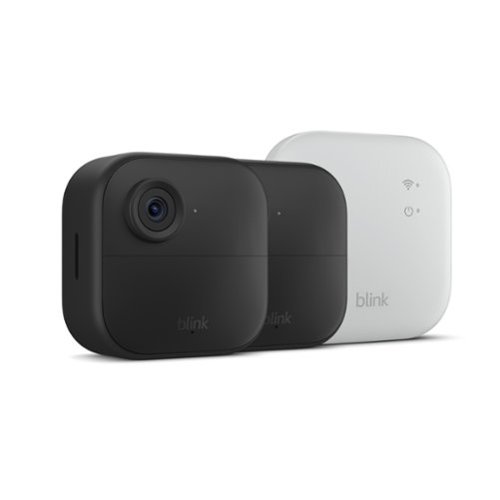
Wireless security camera with extended range, go up to 400 feet from your home. Sync Module XR included ~ 2 camera system
Customer Rating
5
Home Surveillance in a Tiny Package
on July 23, 2025
Posted by: RedScorpion
Blink Outdoor 4 XR is a security surveillance system in a tiny package. The ease of use combined with good enough video quality from the cameras creates a package that is quite appealing. The ability to go offline and store local files on a micro-SD card is convenient. Unfortunately, some features are behind a subscription. While XR is great in helping maximize camera range, it comes with a quality hit to the performance of the cameras. Still in terms of ease of use, installation, and operation, you really cannot beat Blink cameras and this XR package is an excellent value.
Unboxing: Blink includes two cameras, 4 lithium AA batteries, mounting kits, the Blink Sync Module XR, a USB cable and power adapter.
Setup: First thing is to download the Blink App to your Android or Apple phone. I used a Samsung Galaxy S24+, and setup went smoothly. After setting up the app and your account, set up the Blink Sync Module XR before adding cameras. This is not my first Blink camera or sync module, and I know from prior experience, installing the sync module first can help eliminate technical hiccups down the road. Also, be sure to sync cameras to your Blink account / app before you mount them.
Experience: I ran my cameras in XR mode and mounted them to the backyard fence. The quality has been good, but I do notice some occasional pixelation. Nighttime shots are not particularly clear, but daytime videos and pictures look good.
Initially, Blink gives you a trial with their cloud-based services. Cloud based services are nice and do help speed up access to videos. But accessing videos from device storage only is much better on the Sync XR Module versus the USB options on the Sync 2 module.
I am not sure I understand the temperature alerts as both of my cameras seemed to have a challenging time calibrating to the temp and would report wildly inaccurate temperatures. I know Blink says that direct sun exposure can affect the temperature readings, but even when the cameras were not in direct sunlight, the readings were way off.
Blink subscriptions still seem very pricey to me. I have a subscription on my Blink doorbell, but I prefer local storage for the Outdoor cameras.
Conclusion: Video quality is good enough. The cameras are rugged and easy to install. The application works well most of the time. Overall, this is a good package. Buyers should research the cloud-based packages, and the features gained / lost if the user decides to keep their cameras on local storage only. But, with the MicroSD slot on the XR sync module, local storage is much more viable now than it used to be with prior Blink systems.
I would recommend this to a friend!




Share this review:


-1point
0of 1voted this as helpful.
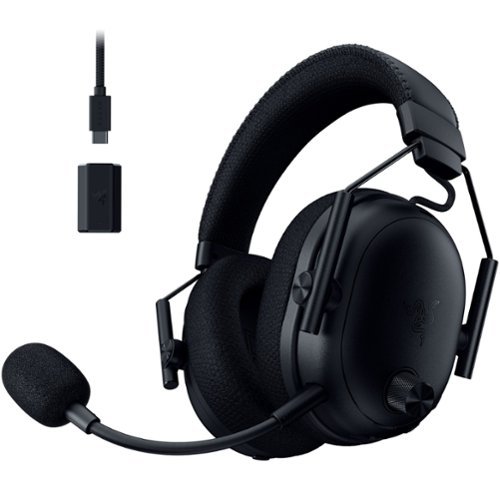
The esports headset trusted by pros evolves for ultimate dominance. Stay ahead of the competition with the Razer BlackShark V3 Pro~an advanced wireless ANC esports headset. Upgraded with industry-leading ultra-low latency wireless technology and a full band mic, victory is all but assured.
Customer Rating
5
This Headset Sets The Bar
on July 15, 2025
Posted by: RedScorpion
I have had quite a large number of gaming headsets over the years and the Razer BlackShark Pro V3 is the best gaming headset I have ever owned. It performs at such an elevated level that I cannot imagine going back to any other headset at this point. The audio quality is great. The THX spatial sound works well especially if the game makes native use of the feature. The built-in ANC does a great job eliminating background noise. The microphone picks up my voice without picking up fan noises in the room. Add to that package comfort and a long-lasting battery life and I really cannot say enough good things about this headset.
Unboxing: Razer includes the headset, a USB-A to USB-C cable, a USB-C to 3.5mm cable, and the wireless dongle
Experience: *You will need Razer’s Synapse software to fully customize the headset. Synapse is easy to use. It is responsive, but there are a ton of customization options from within Synapse such as turning on THX spatial enhancements and other customization options. From within Synapse, you can tell the headset how to manage incoming Bluetooth calls (mute 2.4ghz signal or slightly lower 2.4ghz signal for example), adjust headset latency, customize the indicator light on the dongle, adjust microphone settings, etc. There is truly a lot you can do with this headset, and you will need Synapse to get the full benefits. *
This is a comfortable headset. Even without ANC being enabled, the earmuffs seem to naturally drown out a lot of outside noise. I never feel like my ears are getting hot while wearing the headset. If anything, I tend to even forget I am wearing them.
Battery life has been good. I have low latency mode enabled which I have noticed drains the battery a bit quicker. But, even still, I have been using the headset for fifteen hours and have only drained about thirty percent of the battery life. Thanks to the indicator light on the dongle, I will know when my headset needs to be charged before the headset gets too low.
I cannot say enough good things about the audio quality. Launching into Helldivers was a completely unique experience. Sounds stood out so much more. Everything has a clarity to it that I was not expecting. This is the way many of these games were meant to be played. Some games in my library with the THX enhancements built-in to Synapse include: Hogwarts Legacy, Doom: Eternal, Baldur’s Gate 3, Star Wars Outlaws, and Warhammer 40k Space Marines 2. But even games that do not have these custom enhancements, they still sound amazing. Taking a dive in Subnautica for instance you really get a feel for the deep echoes and chilling noises of the deep ocean.
I must applaud Razer for including a 3.5mm adapter so you can use the headset with Xbox controllers or Nintendo Switch consoles. This is a very complete package.
I must applaud Razer for including a 3.5mm adapter so you can use the headset with Xbox controllers or Nintendo Switch consoles. This is a very complete package.
My only nitpick is that I have too many wireless dongles on my desk. Please, Razer, pick one. Between the nano receivers of some peripherals, to the dongles of the Adder and the BlackShark, please pick a unifying dongle or release a unifying dongle. I am running out of USB ports. Plus, it is getting to the point where I occasionally notice interference with other wireless adapters such as with the Xbox Wireless Adapter.
Conclusion: I love this headset. This is the standard by which I will forever judge gaming headsets. This is amazing. Everything about this headset is top notch and I can easily recommend it. 5/5
I would recommend this to a friend!






Share this review:


0points
0of 0voted this as helpful.
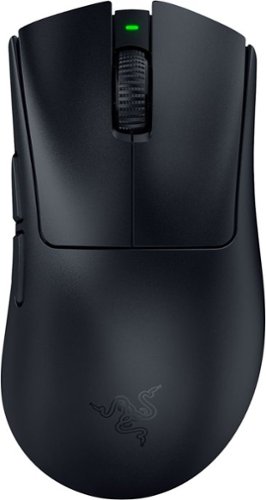
Become the deadliest version of yourself with the Razer DeathAdder V4 Pro~an ultra-lightweight wireless ergonomic mouse that~s the perfect esports specimen. Upgraded on all fronts with our most cutting-edge tech, feel the immediate impact as every advantage you have comes into play.
Customer Rating
5
Razer Swings for the Fences
on July 11, 2025
Posted by: RedScorpion
The Razer DeathAdder V4 Pro is billed by Razer as the “Fastest Gaming Mouse.” The mouse has high polling and low latency dongle, an excellent grip, is ultralight weight, and is infinitely customizable and tweaked thanks to Razer’s Synapse software. I am not entirely sure how well some of these claims will truly translate into winning the next gaming session, but it is an impressive mouse.
Unboxing: Razer includes the USB-A to USB-C cable, the new spherical dongle, and the mouse. Users should know that Razer’s Synapse software will tell users that they need to download the latest firmware updates from Razer’s website. So, in addition to Razer’s Synapse, expect a firmware update out of the box.
Experience: This is an ultra-light mouse with a great grip. It fits my hand very well. The scroll wheel is elevated and precise. The mouse clicks register well. Razer implies that this is the most advanced mouse, and it may very well be, but in terms of gaming performance, the war for performance supremacy is apparently won in inches rather than miles. The leaps may be big, but they never seemed that big to me during my gaming sessions. This mouse feels great, but the shape and weight are not a drastic departure from what has come before.
I think the thing that caught my eye the most out of the box was the new spherical dongle that Razer includes. Gone are the days of a nano dongle that you can easily slide into a USB-A port on the side of your laptop gaming PC. This sticks out. The three light indicators are super helpful and are customizable. It is at its best connecting to a desktop on the floor. The weighted dongle has a decent grip on it and will stay well on the desk.
It seems a lot of the boosts to the mouse’s performance come down to this new dongle. The dongle is what allows for lower latency and higher polling. Polling is how frequently the mouse updates its positions and reports clicks to the computer. Personally, I noticed improvements at 2,000hz over the 1,000hz default, but I could not say that I noticed any gains after that. In addition, the higher the polling rate, the quicker the mouse’s battery will drain. So, this was, in my experience, a mixed bag of features. I did notice gains, but I am not sure it was enough to call it a “must-have” feature.
Rather, the feature that I liked the most was the dynamic sensitivity toggles. How a mouse's cursor movement speed changes based on how quickly you move the mouse is the sensitivity curve. There is a traditional linear acceleration curve, a natural curve, and a jump curve. Or you could create your own. The “Natural” curve worked well in RTS strategy games while the “Jump” curve worked great for FPS twitch fests like Doom: Eternal. The jump curve provides the right amount of instant acceleration yet proved more stable once I was fine tuning my aim. I loved this feature.
Battery Life: Battery life has been good, but again your mileage will vary depending on polling rate and usage. Averaging my usage out over five hours, I lost about one percent of charge every hour of use. Now if I turn polling back down, the numbers could improve.
Conclusion: I have had many gaming mice over the years, but I keep coming back to Razer’s mice in part because Razer’s software is familiar and effective. It is rare that I ever have a problem with Synapse conflicting with drivers or software from other hardware manufacturers. In the case of the DeathAdder V4 Pro, Razer’s Synapse offers a lot of customization options for the mouse. The options are easy to cycle, and everything works just as I would expect for a mouse of this quality.
I am not sure that the DeathAdder V4 Pro is the leap in performance that Razer claims it to be. It is good. It is my favorite Razer mouse to date. It is the mouse that I will use on my gaming desktop going forward. But the polling speed increases felt like a double-edged sword without much benefit.
The new spherical dongle looks cool but is less convenient than the prior nano receivers.
This is a great mouse. It is the best gaming mouse I have ever used. I do not know if all its features are truly going to be of much benefit to me, but I would still recommend the mouse to gamers demanding the latest and greatest gaming mouse features.
This is a great mouse. It is the best gaming mouse I have ever used. I do not know if all its features are truly going to be of much benefit to me, but I would still recommend the mouse to gamers demanding the latest and greatest gaming mouse features.
Recommended 4.5/5
I would recommend this to a friend!





Share this review:


0points
0of 0voted this as helpful.
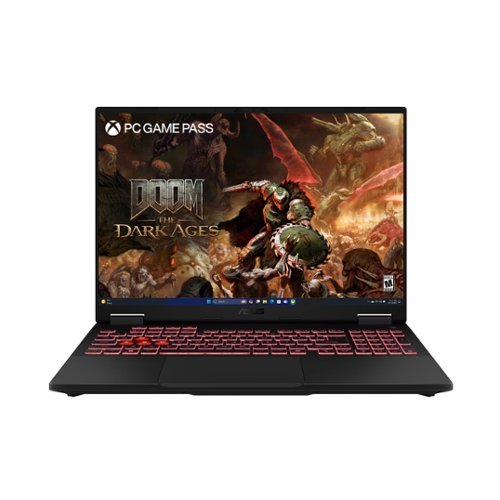
The TUF Gaming A16 is built for resilience, delivering powerful performance in any environment. Equipped with Windows 11 Home and Microsoft Copilot, it features an AMD Ryzen AI 9 270 processor and an NVIDIA GeForce RTX 5070 Laptop GPU, ensuring seamless gameplay and multitasking. With 32GB of DDR5 RAM and a 1TB PCIe Gen 4.0 SSD, load times remain lightning-fast. Designed for durability, the laptop meets military-grade standards while maintaining a sleek, understated aesthetic with the TUF logo. Its 16-inch, 165Hz display with a 16:10 aspect ratio delivers immersive gaming visuals, while 2nd Gen Arc Flow Fans, a full-width heatsink, and integrated dust filters keep performance cool and efficient. Dolby Atmos and Hi-Res audio provide rich, distortion-free sound, keeping distractions at bay so gamers can stay focused on the action.
Customer Rating
5
One TUF Cookie..... Err Gaming Laptop
on July 11, 2025
Posted by: RedScorpion
The ASUS TUF Gaming A16 laptop is a blast. I love this laptop for gaming. Games from “Star Wars: Outlaws” to “Helldivers 2” have played well. The screen looks great: no ghosting or light bleed in my experience. The keyboard and the trackpad exceed my expectations. The setup experience was good. This is a good gaming machine.
Unboxing: Asus includes what you would expect: the laptop, the power brick, and the extension cable for the brick.
Experience: Setup was quick and easy. I was into Windows and downloading games within a few minutes. As I said, the machine excels at the basics. It performs well out of the box without many updates needed beyond the traditional Windows updates. The screen looks great. The build quality feels very solid.
The keyboard is very solid and I appreciate the included number pad. The touchpad feels good with great tracking and excellent click response.
The Steel Nomad Benchmark on 3D Mark showed a machine that benchmarks well. However, temperatures on the GPU could spike up to 80 degrees Celsius. The machine is not loud on its own even during situations where the fans have picked up. I would recommend a chill pad or mat to help lower temperatures while gaming. This is especially true if you intend to keep the machine docked to a monitor, keyboard, and mouse.
Buyers should know that this has the NVIDIA 5070 GTX as opposed to the 5070ti. The 5070ti would perform a bit better, but the most noticeable difference between the two cards is the increased graphics memory on the 5070ti. (Usually 5070ti have 12GB versus the 8GB on the standard 5070 GTX.)
The machine has a few features that were new to me and native to the hardware. For instance, the processor has discreet graphics built in. But the PC also has the 5070 GTX NVIDIA graphics card. The machine, by default, will try to balance this out with the discreet graphics managing everyday tasks and the 5070 taking over for gaming tasks. This is the Optimus feature. It works fine, but occasionally random pieces of software will interfere with the switch. For instance, the Windows phone connect application would occasionally pop an error message when the machine was switching from discreet graphics to gaming mode. Not sure why. A quick online lookup shows other people with other hardware also running Optimus style machines having difficulties. Again, this was an occasional problem, and it is solved by simply running the machine with the 5070 GPU always running in Ultra mode. Alternatively, you just close the offending application. Asus advertises Ultra mode as having more power, but I should note that I did not notice any framerate boosts to speak of in my benchmarks.
My biggest nitpicks come down to Asus’ Armory Crate software and the fact that the case can be a bit of a fingerprint magnet. Armory crate controls the keyboard lighting and software updates from Asus. It is meant to be Asus control center for the machine. But, without fail, changes to lighting would often not appear right away. I would have to restart the machine for the changes to register.
Upgradability: There are currently two sticks of Crucial SODIMM RAM operating in the machine. It might be possible to upgrade, but tear downs that I have checked out have indicated that the RAM might be located behind a heatsink. Also, there appears to be a second Gen 4 NVME Slot, but it looks like it overlaps with the NVME slot for the wireless networking card. It would behoove you to research the upgrades before purchasing components and tearing the machine down. Personally, 1TB hard drive and 32GB of RAM is enough for a gaming laptop and I do not see myself upgrading this machine soon. But, if this is your sole gaming computer, I could see wanting another hard drive sooner rather than later.
Conclusion: This is a solid gaming machine. I really like it. I have had gaming laptops that are not near as stable, efficient, or operational out of the box. It is amazingly easy for me to recommend. I look forward to gaming on it for years to come. 5/5
I would recommend this to a friend!






Share this review:


+2points
2of 2voted this as helpful.
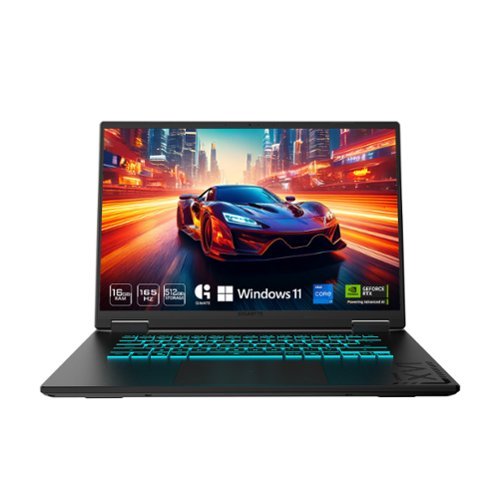
The GIGABYTE GAMING A16 redefines accessible gaming with a perfect synergy of AI-powered performance and ergonomic design. Featuring an Intel Core i7-13620H Processor and up to a NVIDIA GeForce RTX 4050 GPU, the GAMING A16 is ideal for casual gamers, students, and professionals exploring generative AI. Equipped with GiMATE - an intelligent AI agent - this laptop, personalizes your computing experience by adapting system operations to your unique needs. With a focus on user comfort, the GIGABYTE GAMING A16 introduces the premium GIGABYTE Golden Curve Keyboard and a versatile 180-degree hinge design, accommodating various usage scenarios from gaming to productivity. Perceive every game winning moment on a panoramic 165Hz display with slim bezels and a 16:10 aspect ratio while Dolby Atmos creates an immersive audio experience.
Customer Rating
4
Solid Gaming Laptop.... Once I Reinstalled It.
on July 9, 2025
Posted by: RedScorpion
The Gigabyte A16 CMH is an entry level gaming laptop with solid performance and features. However, the initial setup process was far more difficult than I had expected it to be. I spent hours with the laptop stuck in update loops that never progressed. After hours of waiting, the machine would give an error and then proceed into Windows. But once in Windows, the situation did not improve much. Updates would regularly give error messages. System update downloads from Gigabyte and Microsoft would stall out or produce errors.
Still, once I got the machine up and running (read on for details!), I enjoyed the laptop. It is a good gaming laptop with a solid screen, keyboard, and processor. The 4050 NVIDIA GPU is okay. The audio with Dolby Atmos support is good. There was not much bloatware pre-installed on the machine. If it were not for my horrible setup experience, this would be a five-star machine for the price.
Unboxing: Gigabyte includes the laptop, a few print materials, and a charger with cable in the box.
Experience: The hardware makes a good impression. The screen looks nice. I had a minimal amount of light bleed, but overall, I thought the screen looked good. The keyboard is backlit, but I could not find a way to customize the color of the lighting. Hope you like that shade of blue.
Experience: The hardware makes a good impression. The screen looks nice. I had a minimal amount of light bleed, but overall, I thought the screen looked good. The keyboard is backlit, but I could not find a way to customize the color of the lighting. Hope you like that shade of blue.
But, as I noted above, I had a horrible time getting the machine operational. When you first turn the laptop on, it will want to connect to the internet and proceed with updates from Windows. I tried that. But updates would not download or repeatedly failed. So, after a couple of hours waiting on that update, I got into Windows, but I could not download updates after I got into Windows, either. Internet connection on wired and wireless was fine, but system updates, Gigabyte updates, and NVIDIA updates failed every time I tried to update the machine. I spent over seven hours trying to get things up and running without any real luck. I had no other computers with similar problems.
I do not know the complete cause of why I had these problems. I tried using Windows shell commands to clear some cache and fix errors on the drive, but I never got any further with those techniques. I noticed that Gigabyte included a lot of out-of-date software and drivers with the machine out of the box. For instance, the NVIDIA drivers come with the “NVIDIA Experience” which NVIDIA had swapped out for the “NVIDIA App” over seven months ago. I felt like a lot of the problems I experienced could have been resolved if the imaging used to set up the machine had not been quite so dated in the first place.
Solution: I did a complete clean installation. I created a Windows 11 USB drive using Microsoft’s Windows Media Creation tool. I then reset the computer and booted it from that USB drive. Now, reinstalling Windows 11 was not entirely straightforward because you need to activate storage drivers (which you can download from Gigabyte’s website) during the installation process. Without those drivers, the Windows 11 installation cannot find the hard drive. But once the hard drive was recognized, I immediately removed every partition that Gigabyte had installed. Why? Well, the Gigabyte recovery partition, which I will never use, was taking up a good chunk of the hard drive space. I went from 432GB available to 472GB of available space after deleting the excess partitions created by Gigabyte. I would never use those partitions anyways.
Microsoft will install most of the drivers during the Windows install process, but, if you are forced to take the same steps as I did, you will need Realtek drivers to finish setting up the audio features for the device. Once the system is up, you should also download the NVIDIA App to make sure you are using the latest version of NVIDIA drivers and features for gaming. Any other missing driver is available on Gigabyte's support website. You can download the GiMATE utility for system customization from Gigabyte’s support page as well.
While that sounds like a lot of steps, I had the machine reinstalled via this method in less than forty-five minutes versus the hours of pointless frustrations I had prior to the reinstall.
I had no problems with system updates after that. Everything has worked great. It is not the fastest laptop, but for a system in this price range, performance has been good enough to play the games I have thrown at it. I have been back into “Hell Divers 2” and the machine handles it well.
3D Mark tests showed under load that the GPU hovered around 73 degrees Celsius. The machine has powerful fans, but they were never terribly loud in my experience.
3D Mark tests showed under load that the GPU hovered around 73 degrees Celsius. The machine has powerful fans, but they were never terribly loud in my experience.
I guess I should mention Gigabyte's AI companion tool. It gets a dedicated button on the keyboard, but I really do not understand why Gigabyte included this "feature." There is already a Microsoft CoPilot button. If I have to pick an AI assistant it is not going to be Gigabyte's. It was not really effective in my testing and I just do not see the point of developing and including it in the first place. I cannot imagine anyone needing or wanting it when we have so many better alternatives.
UPGRADES: In terms of upgrades, the machine currently is only using one of two DDR 5 SoDIMM slots and one out of two Gen 4 NVME slots. The RAM is upgradable to 64GB. I would strongly recommend adding another hard drive and boosting the RAM to 32GB. You will run out of storage quick at less than 512GB of useable hard drive space. Most games today average 50 to 60GB. Some take over 100GB.
Conclusion: This is a good entry level gaming laptop if you can get it to boot up and update. If you struggle as I did, I would strongly recommend reinstalling the operating system. That is the easiest way to be sure you are using the latest software. Unfortunately, I feel like that is too much of a hassle out of the box for me to give the machine a perfect score. But now that it is working as expected, I do like it. 4/5
I would recommend this to a friend!





Share this review:


+1point
1of 1voted this as helpful.
RedScorpion's Review Comments
RedScorpion has not submitted comments on any reviews.
RedScorpion's Questions
RedScorpion has not submitted any questions.
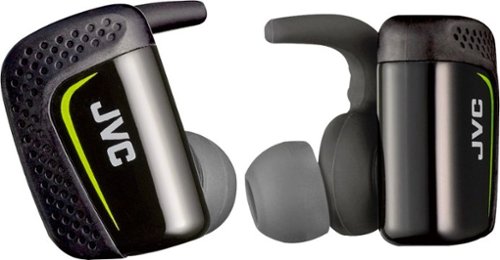
Play cool music while performing your fitness routines with these water-resistant JVC wireless sport headphones. The Pivot Motion Fit provides a secure hold during rigorous workouts, and the JVC Headphones Manager app lets you control audio settings. These JVC wireless sport headphones come with a lightweight charging case that provides three hours of battery life on a single charge.
Hi, how is the sound quality for talking? Do the buttons hurt your ears when you push them in?
I didn't think they sounded that good and the person I called said I sounded very static-y.
8 years ago
by
RedScorpion

Automatically go from hundreds of mystery folders to a visual view in the photo and video Organizer. See your best photos thanks to auto-curation. Effortlessly extract candid photos from your raw footage. Make photos and videos look amazing with automated photo editing and video creation options. And create and share beautiful printed artwork, new dynamic slideshows, photo and video collages, animated GIFs*, and full-length movies. Being creative is even easier with the Elements bundle.
Do you have to purchase a monthly or annual subscription in addition to the software?
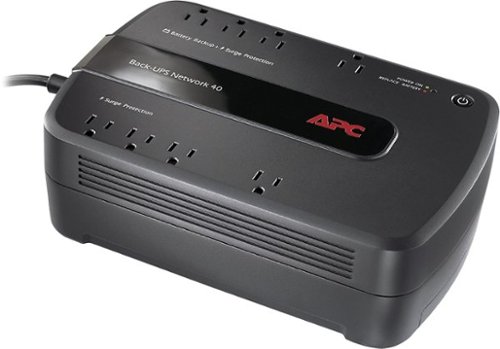
Keep your home networking equipment working when the electricity goes out with this APC Back-UPS Network 40 BN4001 UPS that features 4 battery-backup and surge-protection outlets to ensure electronics remain powered during outages.
Where do I get a new Battery for this?
I'm sure my battery didn't last three years and I need a new one. What size am I looking for and where can I get one?
You can find replacement battery information on APC's website at:
http://www.apc.com/tools/upgrade_selector/
http://www.apc.com/tools/upgrade_selector/
10 years ago
by
RedScorpion

JBL Flip 3 Speaker: Stream your favorite songs and Internet radio stations from your compatible audio device using this speaker, which offers extensive playback with the rechargeable battery. Dual external bass radiators offer booming low tones, and you can enjoy clear phone calls with the integrated speakerphone.
can it be connected to a ipod nano
Yes.
If your iPod Nano has blue-tooth (which the newer models do), then you can connect this to your Nano that way. If your Nano does not have blue-tooth, you can always connect the Flip 3 with an auxiliary 3.5mm audio cable.
If your iPod Nano has blue-tooth (which the newer models do), then you can connect this to your Nano that way. If your Nano does not have blue-tooth, you can always connect the Flip 3 with an auxiliary 3.5mm audio cable.
10 years ago
by
RedScorpion