


RedScorpion's stats
- Review count234
- Helpfulness votes1,564
- First reviewJune 21, 2012
- Last reviewJune 11, 2026
- Featured reviews0
- Average rating4.5
Reviews comments
- Review comment count0
- Helpfulness votes0
- First review commentNone
- Last review commentNone
- Featured review comments0
Questions
- Question count0
- Helpfulness votes0
- First questionNone
- Last questionNone
- Featured questions0
- Answer count14
- Helpfulness votes42
- First answerMay 13, 2016
- Last answerSeptember 30, 2020
- Featured answers0
- Best answers5
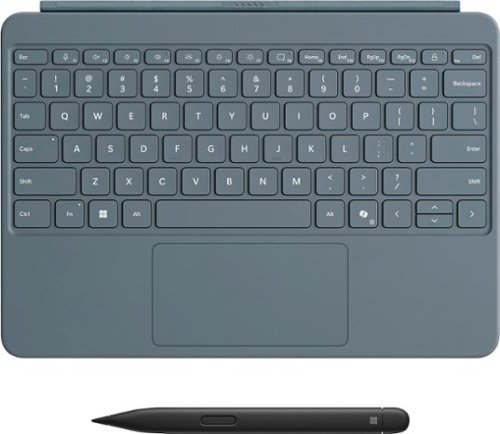
Level up your productivity in a click by easily attaching Surface Pro 12" Keyboard to Surface Pro 12" [1], transforming it into a powerful laptop. Designed by Microsoft, it features a stable and durable design, full size backlit keyboard, a dedicated Copilot key for instant AI access, and dynamic hinge that unlocks new postures. Perfect for your on-the-go lifestyle.
Customer Rating

5
A Must Have Surface Pro Accessory
on June 9, 2025
Posted by: RedScorpion
The Microsoft Surface Pro Keyboard 12” with Slim Pen feels like a product that should have been included by default with the Microsoft Surface Pro 12”. That is not a criticism of either the keyboard or the pen, both are great. But the fact that they are not included in the package feels off as the Microsoft Surface Pro benefits so much from the keyboard and slim pen that it feels incomplete without them. This is an excellent pen for the Surface Pro and a good tablet keyboard. Both are just as polished as the Surface Pro itself, and I have thoroughly enjoyed them.
Experience: The Surface Pro Keyboard magnetically attaches to the side of the Surface Pro and instantly works with the tablet. The Slim Pen also works with the Surface Pro out of the box and charges by snapping magnetically to the back of the tablet.
The keys and the trackpad for the keyboard feel great. The felt-like material on the back side of the keyboard adds some style and feels good to the touch. The keyboard features backlighting that, in my experience, stood out just enough to help me type in dark rooms.
The pen has haptic support, pressure sensitivity, and two different buttons with functions that vary depending on the application you are using. Flip the pen around and you can use the backside of the pen as an eraser to correct mistakes. The pen has a good fit in my hands and is my favorite stylus to date.
Conclusion: I really have no nitpicks with either the keyboard or the pen. They both work well and set the bar for tablet keyboards and pens. I just wish both had come with the Surface Pro. 5/5 Must have accessory.
I would recommend this to a friend!




Share this review:


0points
0of 0voted this as helpful.
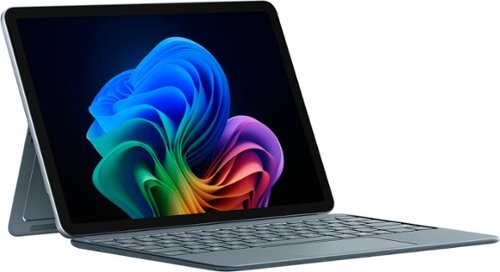
Use the new Surface Pro 12~, a Copilot+ PC, as a powerful tablet with an intuitive touchscreen, touch, voice, and Surface Slim Pen [3] to bring ideas to life, or attach the Surface Pro 12~ Keyboard for a full Windows laptop experience [3]. With built~in AI features, seamless integration across the Windows ecosystem, and an ultra~thin, lightweight design, Surface Pro gives you the freedom and versatility designed for creativity, efficiency and mobility to go beyond what you thought possible.
Customer Rating
5
Snappy Tablet for Creators
on June 9, 2025
Posted by: RedScorpion
The Microsoft Surface Pro 12” with Snapdragon Processor is a tablet with the operating system of a Windows 11 PC. This could be Microsoft’s answer to the iPad, but because you have access to full Windows 11 applications, the experience is as rich as your home Windows 11 laptop or PC. This variant features a Snapdragon (or ARM) processor which can make application compatibility a bit tricky. In addition, the keyboard, pen, and power charger are sold separately adding to the price tag. Still, simply as a Windows 11 tablet, the experience is surprisingly good. Anyone looking for a Windows tablet for creative applications should check it out.
Unboxing / Setup: Contents of the packaging are sparse. Inside the box you have the tablet and a USB-C to USB-C cable. Microsoft sells a 45W charger separately.
Experience: The tablet feels premium. There are no audible fans. The metal kickplate and magnetic charging tray for the Slim Pen make up the back of the tablet along with a rear facing 10MP camera. The tablet has a power button, volume up and down toggle, and two USB-C 3.2 ports.
The screen itself sports a slim border, two speakers, and a front facing Windows Hello Camera.
The screen itself sports a slim border, two speakers, and a front facing Windows Hello Camera.
Colors are rich on the screen. Blacks look great. I had no noticeable light bleed on the screen. However, I did notice a fair amount of glare during my usage. The small built-in speakers sound very impressive for their size. They can get impressively loud. Touch response is good. The software keyboard is quick and responds well. Co-pilot and other A.I. features did an excellent job predicting text. Using the Microsoft Slim Pen, I was able to sketch in applications like Adobe Fresco as well as have my handwritten notes transcribed accurately in Microsoft Note.
In terms of security, the tablet utilizes the front camera for Microsoft Hello. Facial recognition worked well, and I had no false unlocks in my experience.
In terms of security, the tablet utilizes the front camera for Microsoft Hello. Facial recognition worked well, and I had no false unlocks in my experience.
Despite not having fans, the tablet never got hot during my testing.
Battery life was good due in large part to the efficiency of the Snapdragon X Plus processor. But that processor was also a bit of a double edge sword as some applications have compatibility issues with the processor. I did not bother trying games with the device as my experience has been that game compatibility with Snapdragon X is more miss than hit. Some Adobe applications are still slow to work on the new processor.
I had a few hiccups in terms of bugs and application crashes. In addition, my tablet does not boot as quickly as I would like and has a black screen for several seconds after initial post and before the Windows login screen appears.
Anyone interested could hook the Surface up to a USB-C hub or docking station and output video and connect more USB peripherals. For my testing, I hooked the Surface Pro up to a monitor running at 120hz, a USB-A keyboard, USB-A mouse, and USB-C headphones.
Conclusion: Microsoft has created a Windows 11 tablet that is good for creators, students, and professionals. The entire build feels polished. The device is very feature rich. But, it has not replaced my laptop for everyday typing. Trying to place the tablet on my lap even with Microsoft’s Surface Pro keyboard is just not as simple or convenient as typing with my everyday laptop. Compatibility issues with the Snapdragon processors still exist. I wish Microsoft had simply sold the tablet, keyboard, pen, and power adapter together rather than separately as the device feels incomplete without the entire package.
Still, I really like this tablet. My wife and I are getting into designing and creating downloadable content and this tablet has a lot of potential and appeal for us. I have a feeling it will work well for others, too. 4.5/5 Recommended
I would recommend this to a friend!




Share this review:


0points
0of 0voted this as helpful.
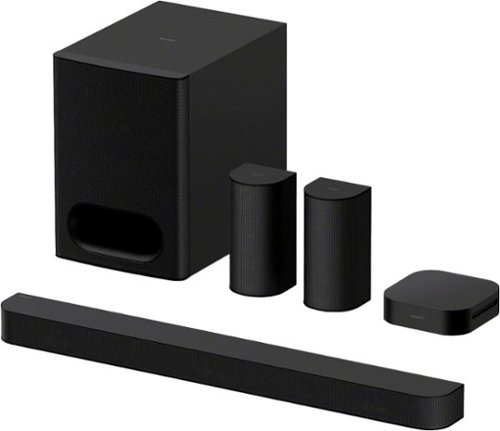
Turn up the energy with BRAVIA Theater System 6 all-in-one 5.1ch system. Featuring 10 total speakers, including a subwoofer and rear speakers, and with support for Dolby Atmos and DTS:X, movies will explode with powerful, immersive surround sound. Ready to entertain? Energize your next party with room-filling multi-stereo sound.

Posted by: RedScorpion
I must say that the Sony Bravia Theater 6 home theater system is surprisingly powerful. The system is a traditional soundbar with truly dedicated rear speakers. Yet the entire system is controlled from the subwoofer, not the soundbar. The system advertises Dolby Atmos and DTS-X, but there are no true up-firing speakers. The Dolby Atmos and DTS-X effects are present but are not as impressive as if there was truly a dedicated up-firing speaker. There is obvious power and bass at higher volumes, but, at the same time, I could turn down the bass and easily hear content at night in lower volumes. There is also no screen or touch controls, the remote control manages the basics, but most settings are controlled from the “BRAVIA Connect” Sony application on your Android or Apple phone. Still, movies and games sound amazing. Overall, I am impressed. For more about my experience, please read on.
Setup: The bulkiest part of this entire setup is the subwoofer. Because the subwoofer and soundbar are connected, you will need the subwoofer close to the TV. The speaker connection on the soundbar is proprietary and has an almost unique Molex connector connecting to the sub. The subwoofer is where you will connect your HDMI or Optical cable. I connected the system via HDMI eARC to take full advantage of Dolby Atmos and DTS-X content. Unfortunately, there is only one HDMI port on the subwoofer.
The rear speakers connect to a hub that synchronizes wirelessly to the Subwoofer. The rear speakers themselves have built-in cables. I wish Sony had not used built-in cables because if the cable breaks or is accidentally cut, replacing the cable would be more difficult than a simple swap.
Sony impressed me by including optional attachable feet for the center soundbar. Those feet helped the soundbar grip the glass of my entertainment center and kept the speaker from rubbing against the TV stand.
Sony impressed me by including optional attachable feet for the center soundbar. Those feet helped the soundbar grip the glass of my entertainment center and kept the speaker from rubbing against the TV stand.
Sony includes mounting guides if you should choose to mount the speakers.
Experience: Sound experience was impressive. You can really shake the walls with this little system. It is not hurting for volume. In home cinema setups or bedrooms, the volume is great, and the sound is rich. Atmos and DTS-X height effects were a bit lacking in my testing. I noticed them, but I never got the height effect I do with truly dedicated Atmos speakers. Transitions to rear effects were great and the rear speakers sounded good without any popping or hissing due to the wireless connection.
The user experience is a bit hampered by the need to use the Sony Bravia Connect application. Do not get me wrong, I had no trouble getting the system set up. At the time of my testing, there was no firmware update for the system, and everything paired quickly. But, if you want to make any changes to the sound field, you will need the application. If you want to know in advance if the sound field or night mode is enabled, you will need the application to see. You can turn some features on or off from the remote, but because you only have a small LED dot on the subwoofer to know if a button was pressed or not, it can be a bit difficult to tell what features are on or off at any given time.
I had a terrible time at first with video sources from the same input having horrible variances in volume. Adds on my Fire TV would be super loud while content on HBO Max or Disney+ would be super quiet. There is an auto adjustment to keep volume levels more even, but you must hunt for that feature in the Bravia Connect application.
Also, while Sound field and Voice modes stay toggled on when you turn the system off and then back on, the Night Mode is always off upon turning the system back on. You have to reenable Night Mode if you want to use it. If a user has the system in a bedroom and would prefer the Night Mode to always be on by default, then the user is simply out of luck and must toggle the setting on each time they turn on the TV.
Trying to adjust BASS or Volume settings within the Bravia Connect application was always frustrating and the response was always delayed.
Conclusion: Still, once the system is where you want it, it sounds good. Bass is powerful without overpowering the center channel. The sound transfer from front to rear speakers was flawless. I feel like the Atmos and DTS-X experience are a bit lacking, the Bravia Connect application is clunky and not terribly user friendly, and I wish many of the cables were not hard wired to their respective speakers, but I still love this system. If there had been true up-firing speakers along with less reliance on the Bravia Connect app, the system would be perfect. 4/5 Recommended
I would recommend this to a friend!




Share this review:


+1point
1of 1voted this as helpful.
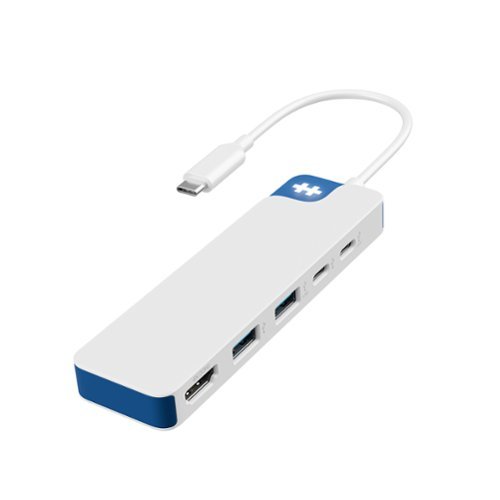
Take your desk setup to the next level. Whether you're gaming, designing, or juggling deadlines, the HyperDrive Flex 5 Port USB-C Hub keeps you seamlessly connected. Enjoy crisp 4K monitor support for sharp visuals while editing, streaming, or multitasking. Power your laptop and other devices simultaneously with the 100W Power Delivery USB-C port, and transfer files in seconds via its high-speed USB ports. With a sleek design crafted from 75% post-consumer recycled plastics, it~s bold, functional tech that complements your style.
Customer Rating
5
Warp Speed Ahead for All Your Peripheral Needs
on June 5, 2025
Posted by: RedScorpion
HyperDrive Flex 5 Port USB-C Hub is a convenient way to add more peripherals to laptops and tablets that are limited to one or two USB-C ports. With the Flex 5, I could easily hook up my tablets, Chromebook, or PC laptop to a keyboard, mouse, USB-C headphones, and a monitor all while powering the device. The experience was flawless.
Experience: Power pass-through and HDMI video were extremely easy to use. Users will need to make sure that the passthrough will supply enough power for their individual PC or tablet, but it worked with my devices fine.
There is an HDMI port on the Flex 5. Display via HDMI is capped to 30FPS at 4K. I was able to get it to 120hz in 1080P but features like Nvidia G*Sync did not work for me with the adapter attached. Also, audio did transfer via HDMI in addition to the video.
My only real “Con” to the device is that the lit-up logo is a bit bright.
Conclusion: A solid hub. It never got hot in my experience. It works as expected and advertised. It is truly a plug and play hub that worked for me with a variety of devices.
5/5 Recommended.
5/5 Recommended.
I would recommend this to a friend!


Share this review:


0points
0of 0voted this as helpful.

The X870 AORUS ELITE WIFI7 ICE supports AM5 Processors and features unparalleled performance. GIGABYTE X870 motherboards come with upgraded power design, high grade storage standards, and outstanding connectivity that enables you to optimize your performance.
Customer Rating
5
Great Looks with Stellar Performance
on May 14, 2025
Posted by: RedScorpion
This motherboard is a looker. It looks amazing. It is easily one of my favorite boards for an AMD Ryzen system built. I wish Gigabyte had solved the PCIE Lane Sharing issue (see more below), but this is an impressive board with a slew of features and has worked great for me in my week with it.
Unboxing: Included in the box with the motherboard are the following items: User’s Manual, Quick Installation Guide, One antenna, Two SATA cables, One G Connector, One M.2 Thermal pad, Three packs of M.2 thick/thin rubber pads. Of these items, the only one that I used was the antenna.
The system I used to test this motherboard are: Ryzen 7 9700x processor, G.SKILL Trident Z5 RGB Series DDR5 RAM 32GB (2x16GB) 6000MT/s CL36 RAM, Corsair 3500X Case (from Best Buy) with 3 additional Corsair RS120 Fans (from Best Buy), Thermaltake 850W PSU, Cooler Master 360L Core White ARGB AIO Liquid Cooler, 1TB Gen5 Crucial P510 NVME (from Best Buy), and a Nvidia 4060 graphics card.
Experience: Simply, this motherboard looks amazing. I have it in a white case with nearly all white parts, but this motherboard would look great in a black case as well. This motherboard does not have RGB lighting on the board itself, but it has three independent ARGB headers for you to customize your build however you like.
I have this setup without utilizing any SATA cables, but there are 4 SATA connectors on this motherboard if you need. I highly recommend utilizing the Gen5 NVME slot for your OS and other storage needs. Windows 11 load speeds from startup are under 27 seconds for this setup.
One downside of the chipset used for this motherboard is “lane sharing.” You can use the first two NVME slots without lane sharing with the graphics card, but when the M2B_CPU or M2C_CPU connector is populated, the PCIEX16 slot operates at 8X speeds. Depending on your usage requirements, this may or may not impact you. This is a conflict that impacts the whole x870 chipset, not specific to this board.
As an ATX motherboard, you will need a case large enough to accommodate it. The Corsair 3500x more than fits this board and looks great. The Corsair 3500x has 2 case fan spots on the bottom of the case (over the PSU) that could block the bottom PCIe slot but are also great at hiding some of the wires and cables on the bottom of the case.
Upon startup, the BIOS was immediately able to detect the RAM at its advertised speed. I have evaluated 2 different memory sticks with this motherboard, and both worked flawlessly and were easily detected.
Once Windows is loaded, the Gigabyte software suite will prompt the user to install. I highly recommend you use this software. It will allow you to get both the software needed to control the fans, RGB lights, and other features, it will ensure you are keeping the drivers up to date.
A weird bug with the F3 version of the bios for this board is that some of the item descriptions in the bios will be in Spanish regardless of whether the English language option is selected. Hopefully, future bios updates fix this glitch.
Conclusion: Overall, I am extremely happy with this board and absolutely recommend it. 4.5/5
I would recommend this to a friend!




Share this review:


+1point
1of 1voted this as helpful.
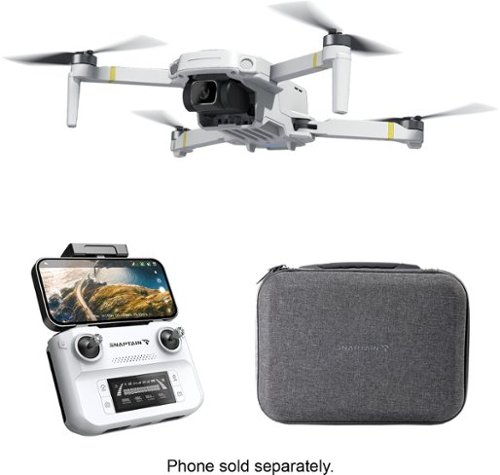
Snaptain P30 Pro is a 4K drone with GPS that uses brushless motors to deliver powerful power, smart flight and Return to home to make flying easier and safer, with a weight of less than 249g exempt from FAA registration. The new user interaction system and novice mode make use easier and faster.
Posted by: RedScorpion
Snaptain P30 Pro 4K is a gateway drone. As my first drone, this thing has been a blast. My neighbors have been watching me fly the drone and I even have several folks in the neighborhood wanting to pick one up. This is a cool device. I wish video were more stable and that the connection to the drone worked better at long ranges, but, all-in-all, I really like the drone.
Setup: Snaptain gives you a case, the drone, battery pack, battery charger, the flight controller, and extra propellers. The included manuals help walk through first time set up and calibration of the drone. With full batteries, I was up and flying quickly.
Experience: Controls are good. It took me a bit of time to get used to the sensitivity of the controls. Out of the box, the drone is set in “beginner” mode which greatly caps the maximum flight distance. Eventually, I turned that beginner mode off, but with any breeze, the video stream to my phone would cut out relatively quickly.
Setup: Snaptain gives you a case, the drone, battery pack, battery charger, the flight controller, and extra propellers. The included manuals help walk through first time set up and calibration of the drone. With full batteries, I was up and flying quickly.
Experience: Controls are good. It took me a bit of time to get used to the sensitivity of the controls. Out of the box, the drone is set in “beginner” mode which greatly caps the maximum flight distance. Eventually, I turned that beginner mode off, but with any breeze, the video stream to my phone would cut out relatively quickly.
With any breeze, the video quality of my recordings was rough. There is little in the way of image stabilization, and it shows when watching playback.
Flight time lasted about 30 minutes a charge.
Flight time lasted about 30 minutes a charge.
The A.I. features worked well, but occasionally the drone would lose the tagged subject.
Conclusion: I recommend this drone. This drone is a blast to fly. As someone who has never had a video drone before, it was super simple and intuitive to fly. I had a lot of fun flying over the roof and around the house. It has limitations in video stability and range of flight, but as my first drone, I really like it.
Conclusion: I recommend this drone. This drone is a blast to fly. As someone who has never had a video drone before, it was super simple and intuitive to fly. I had a lot of fun flying over the roof and around the house. It has limitations in video stability and range of flight, but as my first drone, I really like it.
My biggest disappointment is that I wish the drone came with more batteries. Once I get the drone flying, I do not want to stop and forget about the battery until the app starts beeping at me. I plan on picking up another battery asap.
I know some people might be more harsh about the flight distance and the app ability once the drone gets too far away, but I really like this drone. It is perfect for beginners or kids. 4.5/5 Would recommend.
I would recommend this to a friend!



Share this review:


0points
0of 0voted this as helpful.

The Crucial P510 offers powerfully fast Gen5 read/write speeds of 11,000/9,500MB/s, reducing load times while enhancing overall system responsiveness. Built for both laptops and desktops with an easy-to-install single-sided design and power-efficient architecture, the P510 offers lower energy consumption and is designed to support battery life. Backed by Micron~s 45-year reputation for quality and reliability, the Crucial P510 delivers top-tier performance that can boost everything from your workflow to your next game.
Customer Rating
5
A Mainstream Gen 5 NVME Hard Drive
on May 2, 2025
Posted by: RedScorpion
The Crucial P510 Gen 5 NVME is great. The installation was easy. The speeds were impressive. I cannot think of a single negative about this drive. This drive is very easy to recommend for anyone seeking a Gen 5 drive and, at this price and with backwards compatibility, individuals with Gen 4 NVME motherboards should still give this drive a look. I have been very impressed and plan on picking up a few more P510 drives in the future.
Installation: Installation of NVME drives depends a lot on the motherboard or computer manufacturer, but I found installation to be straight forward and simple. Once installed, my AMD Ryzen build recognized the hard drive instantly. After mounting the drive in Windows, I was good to go.
Individuals should know that there is no mounting screw. I think most people expect mounting screws for NVME drives to be supplied by the laptop / motherboard manufacturer. But I remember a few years ago everyone expected mounting screws to come with the drives for some reason. So, if anyone is wondering, yeah, no mounting screw. Not a problem, just pointing that out in case anyone is wondering.
Users should know there is a difference between NVME Gen 5, NVME Gen 4, and PCIe 5. You will need a motherboard that supports NVME Gen 5 to get the highest speeds from the drive.
Experience: My benchmarks showed a Gen 5 drive that got speeds near Crucial’s advertised specs. I had no errors while using the drive. Everything worked as expected with no problems. That is truly all I could want in a drive. I did not notice heat problems, but, NVME drives can run hot and a lot about the temps will depend on your own machine’s passive and active cooling measures.
I truly cannot think of a negative to this drive. I had no problems. There are faster Gen 5 drives, but those often come with heat dissipation issues and a higher price point. With the P510 you get a drive that has good speeds with manageable temps for laptop and gaming desktop users.
Conclusion: I guess buyers should know there are faster drives, but the speeds of the P510 are good. I had no difficulties during my testing. I really like this drive and look forward to picking a few more up in the next few weeks. 4.5/5 Recommended
I would recommend this to a friend!


Share this review:


0points
0of 0voted this as helpful.
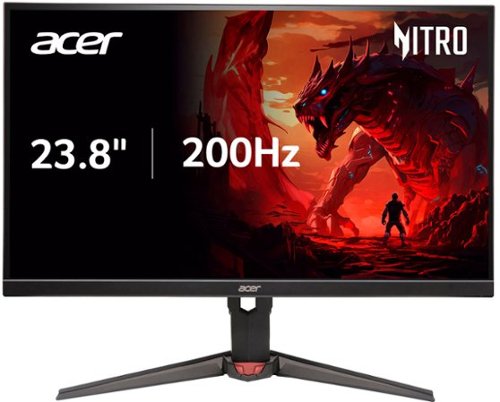
In competitive gaming, every frame matters. Introducing Acer's XV240Y gaming monitor - the Full HD (1920 x 1080) resolution monitor that can keep up with your game play. Through AMD FreeSync Premium Technology, the game~s frame rate is determined by your graphics card, not the fixed refresh rate of the monitor, giving you a serious competitive edge. Plus, users can enjoy comfortable viewing experience while gaming via flicker-less, low dimming and ComfyView display. The design saves space on your desk and lets you place multiple monitors side by side to build a seamless big-screen display
Customer Rating
5
Solid Gaming Monitor with HDR
on May 1, 2025
Posted by: RedScorpion
The Acer Nitro XV240Y 23.8” gaming monitor is a solid gaming monitor. With HDR 10, low latency, and a stable base. I enjoyed gaming on the monitor. HDR mode limited OSD customization of the display, and I felt colors could be a bit deeper. But I noticed no light bleed and response times during gaming sessions were very good. Anyone who needs a gaming monitor that will not break the bank should check this model out.
(I tested the monitor using an NVIDIA 4060 gaming laptop.)
Setup: Out of the box, you get the power cable, stand in two pieces, an HDMI 2.0 cable. The monitor comes with one DP 1.4 and 2 HDMI 2.0 ports built in. There is also a 3.5mm headphone jack on the back of the monitor.
Experience: Touch controls are intuitive. OSD works well. Gaming sessions have looked good. My unit had no ghosting, light bleed, or dead pixels. Stand takes up more of a footprint than I would like, but it is very stable. There is some slight cable management built into the base of the stand.
HDR is good, but…. to get HDR, you must enable HDR mode from the monitor. The problem here is once you enable HDR, you lose a lot of the built-in display customization. To further customize the display, I had to turn to my video card’s color and brightness calibrations to further tune the display to my desired output. It works, but I would have preferred that customization built into the OSD. By default, I found the HDR mode a bit too dark and colors were a bit more muted than I would have liked. But after tweaking brightness and color vibrancy within my video card’s control panel, everything looked good.
The only other nitpick is the viewing angle is not quite as wide as I would like. Things looked good if I was viewing the screen directly, but shifting a bit left or right revealed noticeable viewing angle distortion.
Conclusion: This is a solid gaming monitor. The experience was good. Anyone on the fence for a gaming monitor should definitely check it out. 4.5/5
I would recommend this to a friend!



Share this review:


+2points
2of 2voted this as helpful.
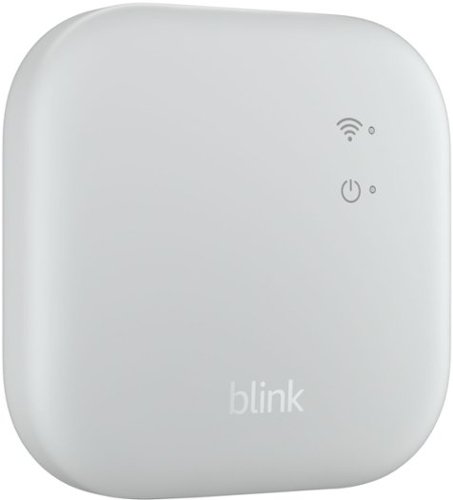
System hub for Blink devices, broader smart security coverage for Blink Outdoor 4 cameras with new extended range functionality, local storage
Customer Rating
5
A More Polished Hub for Blink Cameras
on March 24, 2025
Posted by: RedScorpion
The Blink Sync Module XR is an improvement over the Sync Module 2. Gone is the clunky USB storage and in its place, we have a faster MicroSD storage solution. The casing for the Sync Module looks more polished. In addition, the ability to have XR and XR+ connections allows for placement of Outdoor 4 cameras much further away. I recommend the Blink Sync Module XR for those with Blink Outdoor 4 cameras.
Unboxing: Inside you get the Sync Module XR, a USB-C to USB-A charging cable, and a USB-A wall adapter.
Installation: I swapped the Sync Module XR for a Sync 2 that I had been using for the last three years. For those wondering, swapping out the Sync modules was easy, and the app walks you through the process. First you must remove the existing Sync module and then you add the new XR module through the Blink application.
Experience: The Blink app recommended that I switch my Outdoor 4 camera to XR mode. And this was where I encountered a small hiccup. For some reason, my Outdoor 4 camera would not work in XR mode. It worked fine in Wi-Fi mode but would not properly work in XR mode. For anyone else who encounters this bug, I had to remove the battery of the Outdoor 4 camera and powered the camera via the USB-C access port. After that, I had no problems with XR mode. I am still not sure why that solution worked, but since that initial frustration, it has all worked very well.
The new Sync XR has a solid connection to my Wi-Fi router several rooms away. I have had no signal issues with my existing Sync Doorbell or my Outdoor 4 camera.
Some things to keep in mind: The XR mode and XR+ operate with a lower resolution than Wi-Fi connectivity. On XR the resolution caps at 720p.
Some things to keep in mind: The XR mode and XR+ operate with a lower resolution than Wi-Fi connectivity. On XR the resolution caps at 720p.
Worth a pickup? If you have any Outdoor 4 cameras, then the Sync Module XR is worth the price. Keep in mind that only two cameras can function in XR mode at a given time. If you do not have any Outdoor 4 cameras and things are working well enough with the Sync Module 2, then you might be okay staying with what you have. I like the XR Module for its MicroSD storage and increased XR range, but the Sync Module XR does not increase the resolution of Blink cameras.
Still if you have yet to purchase a Sync module for your Blink cameras, have Blink Outdoor 4 cameras, or prefer a Sync module with MicroSD over USB-A, then this is an easy device to recommend. 5/5
I would recommend this to a friend!

Share this review:


+1point
1of 1voted this as helpful.
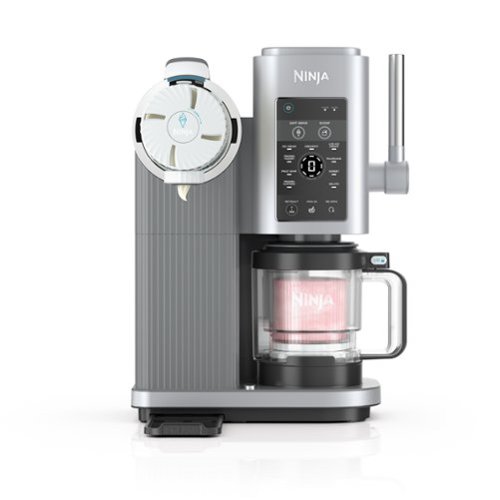
The Ninja~ CREAMi~ Scoop & Swirl turns almost anything into ice cream, soft serve, and much more at the touch of a button. Customize flavor, control ingredients, and choose classic scooped or swirled.
Customer Rating
5
Ice Cream, Soft Serve, and More!
on March 19, 2025
Posted by: RedScorpion
One of my favorite new gadgets of the last few years was Ninja’s Creami. My family and I enjoy the frozen treats. It has been nice knowing exactly what is going into our desserts. When I found out that Ninja was making a variant of the Creami with a soft serve dispenser, I leapt at the opportunity to give it a go. For the most part, the experience has been very good. It is not an experience without a few shortcomings, but my family and I have really enjoyed it. I can still make every treat that I love for the original Creami, but now we get the benefit of soft serve treats at home. Anyone looking into making their own soft serve ice cream cones, should pick up a Swirl by Creami. For more on my experiences, please read on!
Setup: The Swirl comes with quite a few accessories. There are some obvious differences from the original Creami out of the box. For one, this comes with two new pints. These pints have a twist open base and a dispenser opening built into the pint. As far as I can tell, old pints from previous Creami models are not compatible with the Swirl. When making soft serve, there is a plunger lid that is made up of three different components. Beyond that, you still have the base unit, the container with handle, the paddle, and the lids for the pints.
Experience: My favorite recipe for the original Creami is the Strawberry ice cream recipe from the original Creami recipe guide. Making a scoop recipe for the Swirl was exactly the same as it had been with the original Creami. I had heard that the Swirl was quieter than the original Creami. It may be a bit quieter, but it is still loud enough to wake up every kid in your house or to annoy apartment neighbors. Still, the recipe came out well.
I tried my hand at a few soft serve recipes. There is a beginner soft serve recipe and an intermediate soft serve recipe. The difference primarily being that the beginner recipe uses vanilla pudding mix and the intermediate recipe uses milk powder and xanthan gum. Between the two recipes, I highly recommend the intermediate recipe. It is not much more difficult to make, and the product is much more stable than the beginner recipe. The beginner recipe tastes fine, but it melts super-fast.
Nitpicks: I have already mentioned the noise, but there are a few other items that concern me a bit with the new model. First, the Swirl wastes a decent amount of soft serve from the pint. When the machine believes it has gotten all the ice cream out of the pint, there was still about a half of an inch of ice cream left in the bottom of the pint. More was stuck near the nozzle.
The second complaint is that there are a lot more moving part now than there were with the original Creami. As mentioned above, the Swirl has many pieces to keep track of and clean. The original Creami felt more “self-contained” whereas the Swirl has an extra plunger lid that I must keep track of for making soft serve and the pints themselves have more working parts. And these new pints can leak beyond their base. They seal up, but the seal is not always perfect.
Conclusion: Still, I have enjoyed Swirl by Creami. The frozen treats taste great. It is fun to make the recipes. Everything has worked well overall. I am not entirely sold on the new pints, and I wish the unit were quieter, but this is a great device for anyone looking to make frozen treats at home.
4.5/5 Recommend
I would recommend this to a friend!




Share this review:


0points
0of 0voted this as helpful.
RedScorpion's Review Comments
RedScorpion has not submitted comments on any reviews.
RedScorpion's Questions
RedScorpion has not submitted any questions.
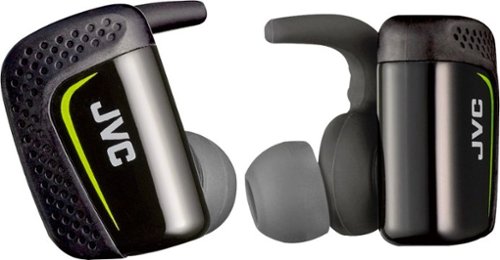
Play cool music while performing your fitness routines with these water-resistant JVC wireless sport headphones. The Pivot Motion Fit provides a secure hold during rigorous workouts, and the JVC Headphones Manager app lets you control audio settings. These JVC wireless sport headphones come with a lightweight charging case that provides three hours of battery life on a single charge.
Hi, how is the sound quality for talking? Do the buttons hurt your ears when you push them in?
I didn't think they sounded that good and the person I called said I sounded very static-y.
8 years ago
by
RedScorpion

Automatically go from hundreds of mystery folders to a visual view in the photo and video Organizer. See your best photos thanks to auto-curation. Effortlessly extract candid photos from your raw footage. Make photos and videos look amazing with automated photo editing and video creation options. And create and share beautiful printed artwork, new dynamic slideshows, photo and video collages, animated GIFs*, and full-length movies. Being creative is even easier with the Elements bundle.
Do you have to purchase a monthly or annual subscription in addition to the software?
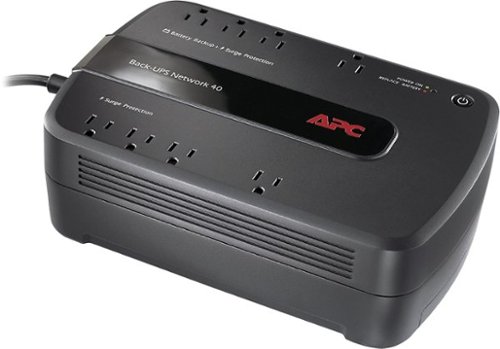
Keep your home networking equipment working when the electricity goes out with this APC Back-UPS Network 40 BN4001 UPS that features 4 battery-backup and surge-protection outlets to ensure electronics remain powered during outages.
Where do I get a new Battery for this?
I'm sure my battery didn't last three years and I need a new one. What size am I looking for and where can I get one?
You can find replacement battery information on APC's website at:
http://www.apc.com/tools/upgrade_selector/
http://www.apc.com/tools/upgrade_selector/
10 years ago
by
RedScorpion
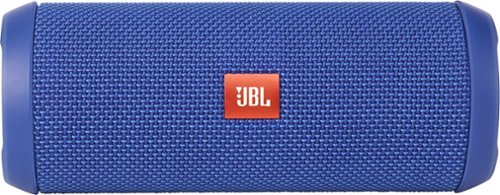
JBL Flip 3 Speaker: Stream your favorite songs and Internet radio stations from your compatible audio device using this speaker, which offers extensive playback with the rechargeable battery. Dual external bass radiators offer booming low tones, and you can enjoy clear phone calls with the integrated speakerphone.
can it be connected to a ipod nano
Yes.
If your iPod Nano has blue-tooth (which the newer models do), then you can connect this to your Nano that way. If your Nano does not have blue-tooth, you can always connect the Flip 3 with an auxiliary 3.5mm audio cable.
If your iPod Nano has blue-tooth (which the newer models do), then you can connect this to your Nano that way. If your Nano does not have blue-tooth, you can always connect the Flip 3 with an auxiliary 3.5mm audio cable.
10 years ago
by
RedScorpion