


RedScorpion's stats
- Review count234
- Helpfulness votes1,564
- First reviewJune 21, 2012
- Last reviewJune 11, 2026
- Featured reviews0
- Average rating4.5
Reviews comments
- Review comment count0
- Helpfulness votes0
- First review commentNone
- Last review commentNone
- Featured review comments0
Questions
- Question count0
- Helpfulness votes0
- First questionNone
- Last questionNone
- Featured questions0
- Answer count14
- Helpfulness votes42
- First answerMay 13, 2016
- Last answerSeptember 30, 2020
- Featured answers0
- Best answers5
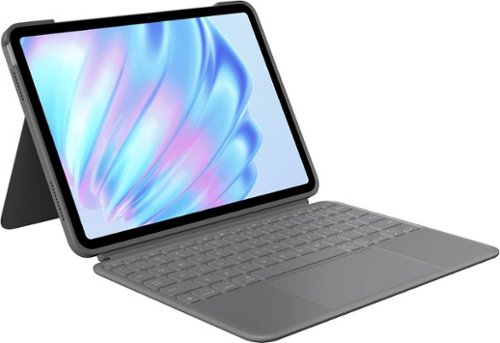
Type, sketch, view and read with the Combo Touch keyboard case. A flexible kickstand and a full-size, detachable keyboard give you multiple use modes for any task. Take iPad further with a bigger trackpad that gives you superior, intuitive tracking experience with familiar Multi-Touch gesture controls.
Customer Rating

5
Solid Case with Keyboard and Touchpad
on October 7, 2024
Posted by: RedScorpion
With the right accessories, you can easily turn your iPad into a full laptop replacement. Logitech has many iPad accessories, and I have been extremely impressed with the features and functionality of the Logitech Combo Touch. It is a great option for anyone wanting a case and keyboard combo for their iPad Air.
Installation is simple: you place the iPad into the case and snap the magnetic keyboard into place. The most difficult part is making sure you have the right case for your device. I have the Combo Touch for the iPad Air 5th Gen (2024 model). After snapping the iPad into the case, I did get a prompt for an app download, but I could not tell that the app really did anything.
Experience: As a case, this is a thick and sturdy case. Users should know that the bundle does add some heft and weight to the light iPad Air, but I never thought it made the tablet excessively heavy.
Typing experience is good. Keys had good response. Keys are well lit. Touchpad is surprisingly big and is clicky and responsive. There was not any significant delay with either typing or presses with the touchpad.
Typing experience is good. Keys had good response. Keys are well lit. Touchpad is surprisingly big and is clicky and responsive. There was not any significant delay with either typing or presses with the touchpad.
I love the included kickstand which was sturdy enough to allow me to sketch with my Logitech Crayon (sold separately).
One of my concerns was what the battery drain would be like, but I have not noticed any significant battery drain.
Conclusion: I really like this keyboard and case. I really have no qualms with it. Everything has been simple to use and has worked well. This is a solid case. It is thick and sturdy. It adds some weight to the iPad Air, but that trade off is worth it for the impressive keyboard and touchpad. If you are looking to add a keyboard and touchpad to your iPad, I would highly recommend the Logitech Combo Touch.
5/5
I would recommend this to a friend!





Share this review:


0points
0of 0voted this as helpful.

Rank up to Premier Cross-Platform Performance. The Turtle Beach Stealth 700 wireless multiplatform gaming headset for PC, PlayStation, Steam Deck and mobile is redesigned for a 3rd generation of premium gaming prowess. The all-new CrossPlay wireless system with dual USB transmitters and simultaneous Bluetooth connectivity deliver quick and easy connection to PC, gaming consoles & mobile devices. Huge, 60mm Eclipse Dual Drivers deliver 24-bit audio quality for unparalleled PC audio performance, and the Gen 3, flip-to-mute mic with high-bandwidth mic performance allows for exceptionally clear voice accuracy. Plus, using the Swarm II companion app, you can adjust your microphone & audio settings to your exact, customized preference. Dominate for hours in complete comfort with an 80-hour battery life, and memory foam ear cushions.
Customer Rating
5
Great Sound and Innovative Features
on October 2, 2024
Posted by: RedScorpion
The Turtle Beach Stealth 700 Gen 3 are a good set of headphones with some novel features. Dual connectivity dongles and over the air connection to the Swarm 2 mobile app, are great benefits. Audio quality is exceptionally good. The audio is punchy, loud, and detail rich. Positional audio in games works well. The microphone sound is a bit muffled for my taste, the headset update process is a bit cumbersome, and the headset can get a bit warm on the head after a bit. Still, this is a good headset. I am impressed with the audio quality and breadth of features.
Setup: Inside the box, you get the headset, two wireless USB dongles, and a USB-C to USB-A charging cable. My headset required an update out of the box. I used the SWARM 2 mobile app for my updates, but you should know that your dongles will need to be plugged in to two different devices in the same room while you update your headset.
This is where I should speak about the app experience for a bit. You can customize the audio mix for the headphones and the microphone from the phone application. I really appreciated the ability to do everything I used to do with a desktop application from my phone. You get the benefit of a consistent audio experience no matter the source and one less application to load on the PC. Now there is a Swarm application for PC, but, honestly, I prefer the mobile application. My PC has enough applications along the taskbar.
Experience: Audio quality and battery life are really this headset’s claim to fame. Positional audio works very well with the Dolby Atmos spatial audio enabled on Windows 11, and the 60mm drivers allow these speakers to get plenty loud. I found the headset more than loud enough during PC play sessions at 40 percent volume.
Whether I was listening to music, TV, or games, I cannot say enough about how good the audio quality was while listening to this headset. I have truly been impressed with the audio quality.
The wireless dongle toggle works well allowing you to switch between devices with a push of a button. I also like that the dongle itself has an LED indicator to let you know if the microphone is disabled or enabled.
The wireless dongle toggle works well allowing you to switch between devices with a push of a button. I also like that the dongle itself has an LED indicator to let you know if the microphone is disabled or enabled.
The headset has Bluetooth 5.2 built in. I evaluated the headset on gaming consoles and on a TV. Bluetooth works well. I noticed no syncing problems or latency issues.
Battery life has been great. With a solid week of evening game and movies, I still have not had to charge the headset. Turtle Beach advertises that this headset will get 80 hours on a charge, and I believe them.
Battery life has been great. With a solid week of evening game and movies, I still have not had to charge the headset. Turtle Beach advertises that this headset will get 80 hours on a charge, and I believe them.
The headset feels okay on my head, but my ears got warm during extended play sessions. This is a nitpick, but a cooler mesh option for the ear cushions would have been preferable to the cushions that come included by default.
Also, the microphone sound is a bit off to me. Audio sounded a bit muffled for my taste, but I am still playing with the equalizer and hope I can get that a bit better.
Conclusion: This is a solid headset. Audio quality and battery life are great. Bluetooth, multiple dongles, and a solid phone app experience elevate this headset above similar options. The firmware update process is a bit cumbersome, and I may change out the foam pads in the future, but nitpicks aside, this is an easy headset to recommend. 4.5/5
I would recommend this to a friend!




Share this review:


0points
0of 0voted this as helpful.

Google - Nest Learning Thermostat (4th gen) with Nest Temperature Sensor (2nd gen) - Polished Silver
The Nest Learning Thermostat (4th gen) is Google~s smartest, most advanced thermostat yet. It~s a brilliant way to save energy and keep your home comfortable. It learns the temperatures you like, when you like them, even as your routine changes.~ It gets to know how outdoor temps naturally heat and cool your home to save energy.~ And it helps make sure your heating and cooling systems run smoothly.~
Customer Rating
5
The Original Smart Thermostat Gets an Upgrade!
on August 29, 2024
Posted by: RedScorpion
The Google Nest 4th Edition Learning Thermostat feels like the next evolution for the design of the Nest thermostat. Upgrading to the Nest from a traditional thermostat was relatively easy. I have used Nest thermostats in the past, but this is my first time to own. The insights and ability to coordinate my thermostat with a sensor in another room is great. Unfortunately, it will take some time to see if the learning and ECO features translate to a lower utility bill but based purely on my experience over the last few days, I am impressed.
Installation: Inside the box, you get both the front and back half of the thermostat, a remote sensor, a junction box mounting plate, and a face plate to cover up the holes from an existing installation. Google also includes screws for drywall and electrical box mounting.
Google has a Nest thermostat compatibility checker. If you search for “Google Nest thermostat compatibility checker,” you can locate the checker easily. You go to the website and, based on your current wire hookup, Google will tell you if your existing set up is compatible or not with the Nest Learning Thermostat. It is all very straightforward, but I would recommend checking out the site and as I discovered I needed an electrician to get things squared away before I could install the thermostat. The wiring looked fine based on the compatibility check, but prior owners had the house wired a bit oddly with a no longer present security system.
When it comes to physically installing the thermostat, Google has the mounting brackets on the top and bottom of the Nest. I appreciated that as the prior thermostat attached on the left and right. Inserting the cables is easy. You just press on the release and insert the cable. Google will verify that all cables are attached during the app set up process. There is even a small LED light, and a bubble leveler built into the back of the thermostat to aid in installation.
If you currently have a jumper for the RC to RH on your thermostat, you should note that you will not use an external wire or metal jumper. The Nest has that feature built-in to the thermostat itself.
Once all wiring issues were sorted, physical installation was painless. Except, I will say that if you are installing directly onto drywall, you need to invest in drywall anchors. I do not know why Google did not include drywall anchors as the screws simply did not hold during my installation. And because you are physically turning a large dial to change the thermostat, you need the device to be as secure to the wall as possible.
Once all wiring issues were sorted, physical installation was painless. Except, I will say that if you are installing directly onto drywall, you need to invest in drywall anchors. I do not know why Google did not include drywall anchors as the screws simply did not hold during my installation. And because you are physically turning a large dial to change the thermostat, you need the device to be as secure to the wall as possible.
Experience: To finalize setup, you will need to use the Google Home app. Google has included Linked Matter support with the thermostat, but, as far as I can tell, you still need the Google Home app to complete set up. I tried adding the thermostat via the Nest app, but I had no luck.
Set up was easy. This is a Wi-Fi device. Adding the thermostat to my smart home via Alexa or Google Home was obviously amazingly simple. It is great to be able to access the thermostat from Alexa devices. My house is primarily using Google and Alexa devices, but the Matter support for Apple is a nice addition.
The Thermostat has a humidity helper function. Smart features all the thermostat to use outside air as opposed to the AC to cool the house. The interface is very sharp and clean. The dial works well (when properly secured.)
My wife and I want to make sure that the baby’s room stays at a certain temperature. The remote sensor allows us to run the thermostat to get temperatures right for that room. You can also use the remote sensor as a way of closing and redirecting vents to establish the best way to keep temperatures even across the house.
Conclusion: I really like the Nest 4th Generation. Most of my installation struggles were unique to my set up. But assuming everything is wired properly, it is extremely easy to install the thermostat. My only nitpick is that I wish Google had included drywall anchors as they are necessary for a secure installation. But beyond that, if you currently do not have a smart thermostat or if you are thinking about upgrading from an older model, I think the current 4th generation Google Nest is worthy of the upgrade. I look forward to the insights (and hopefully lower utility bills) in the months to come.
4.5/5
I would recommend this to a friend!




Share this review:


0points
0of 0voted this as helpful.
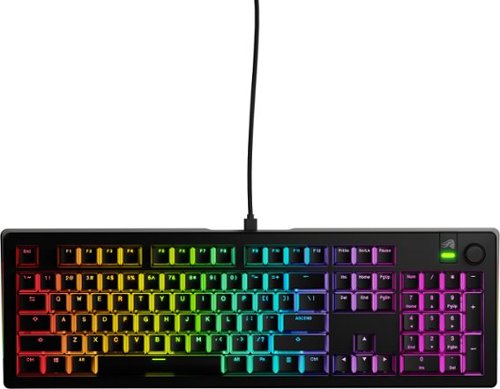
Step into the world of ultimate customization with the GMMK 3, a wired gaming keyboard designed to give you complete control over your gaming performance, typing experience, and aesthetics. With over 1 billion possible configurations, this keyboard is crafted for gamers who demand precision and flexibility. The GMMK 3 features 9 points of modularity, making it incredibly easy to swap out parts and tailor the keyboard~s look, sound, and feel to your exact preferences. The innovative Modular Gasket System (MGS) allows for simple customization of the internal gaskets, offering a firmer or more flexible typing feel inspired by building blocks. A standout feature of the GMMK 3 is its programmable knob. Twist to quickly adjust your device's volume, press to play or pause media, instantly mute, or create a custom action with Glorious CORE 2.0 software, putting advanced control at your fingertips. Built to last, the GMMK 3's PBT double-shot Keycaps resist fading and shine over time, ensuring that your RGB lighting shines through with unmatched clarity. The aluminum switch plate balances firm yet flexible typing with a neutral sound profile, while also allowing for the swapping of alternative material plates to customize keystroke acoustics and haptic feedback. With 5-pin MX hotswap support, you can easily plug and play with a wide range of Glorious MX switch styles to define your GMMK 3~s typing sound and feel, all without the need for soldering. This makes it easier than ever to achieve the perfect setup for your gaming and typing needs. To top it off, the GMMK 3 is equipped with sound-dampening foam. Two layers of dense foam within the case absorb unwanted resonance, providing a satisfyingly clean acoustic profile that enhances your overall experience. Discover the world~s most customizable wired gaming keyboard with the GMMK 3, where every detail is designed to offer unparalleled flexibility and performance for gamers who settle for nothing but the best.
Customer Rating
5
Your New Obsession: The Customizable Keyboard
on August 24, 2024
Posted by: RedScorpion
The Glorious GMMK 3 is not your traditional keyboard. It is a system; a starting off point to creating a keyboard tailored to you and what you want. It is a good keyboard out of the box, but one with the ability to tailor key caps, switches, and more. This is my second keyboard from Glorious, and I wasted no time swapping out switches on the GMMK 3. The Glorious Fox switches were perfectly fine, but I must tinker! And I am pretty sure this is how it begins…. Switches here, keys there, plates, foam, and eventually divorce papers. No regrets…
Setup: Out of the box, Glorious provides tools to pull keycaps and swap switches, a few sample switches to test, MAC keycaps, and a braided USB-C to USB-A cable, sponges, and a screwdriver to take off the back plate. There is quite a lot with the keyboard. Sadly, there is no wrist pad. Glorious sells wrist pads that you can purchase from Glorious’ website. (I did not find one on BestBuy.com, but Best Buy sells other wrist pads.)
There is a mac / windows toggle on the back of the keyboard along with a profile toggle.
Experience: I will admit that I am still rather new to the custom mechanical keyboard space. But I really like the system that Glorious has with the GMMK 3. You get a good keyboard out of the box that you can tinker with and change to truly make it your own.
The GMMK 3 comes with “Glorious Fox” switches. They are fine. They are very responsive. I like a bit more resistance. So, as my first tinker / change / upgrade, I picked up some Raptor switches from Glorious. These switches are louder and have a more obvious key press. Glorious includes a sample Raptor switch and a sample Panda switch inside the box. (Should note, if you decide to switch out your keyboard switches, you will need three boxes of the thirty-six switches to fully swap out all of the switches on your GMMK 3.)
The entire experience is managed via the Glorious Core software. From a simple software interface, you can set up lighting, macros, polling rate, and input latency. For my testing, I have been using a DEV version of Glorious Core 2.0.
I must say that I have not been the biggest fan of Glorious Core 2.0 to put it mildly. The software has improved. It was so bad a few months ago, that I uninstalled GC 2.0 and went back to 1.0. I will say that the application still has some bugs, but that it is much more functional now. I could set up lighting and macros from within the app. Now, occasionally, the keyboard would cease responding after I made an update in app, and I would have to unplug and re-plug in the keyboard to get things functioning normally. I still had some weird quirks such as the software starting up with the PC whether or not I enabled that feature in setup. Sometimes changes to macros or lighting would cause the keyboard to become unresponsive.
There are a few aspects to the keyboard that I do not understand, yet. There is an RGB accent plate located near the media knob. The plate is held in place with a magnet. I do not know if Glorious plans to sell customized plates or if there is another manufacturer that makes those plates. Could be a fantastic way to further customize the keyboard, but right now I cannot find much info on that plate.
Conclusion: I still have some lingering concerns about the Glorious Core software, but I really like the keyboard itself. As someone new to mechanical keyboards, Glorious does make it amazingly easy to get into the hobby. It is quite easy to swap out switches and key caps to truly create a custom experience. Easy Recommendation: 4.5/5
I would recommend this to a friend!






Share this review:


0points
0of 0voted this as helpful.
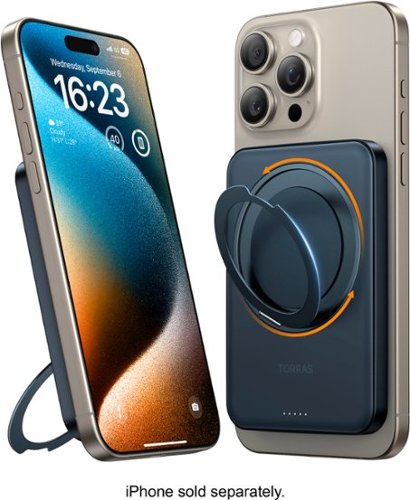
Introducing TORRAS Ostand power bank that combines convenience with functionality. This compact and lightweight 5000mAh power bank is designed to cater to the needs of individuals who value both portability and practicality. Equipped with a 5000mAh high-density battery, this power bank offers ample power to keep your devices charged throughout the day. Whether you're on a business trip or an outdoor adventure, it provides a reliable and efficient charging solution. What sets this power bank apart is its built-in stand that can be adjusted to different angles, allowing you to enjoy hands-free viewing of your favorite shows, video calls, or presentations. Its seamless integration provides a smooth slide into your pocket, wallet, or handbag, etc. Additionally, this power bank features fast charging technology with wireless maximum output power of 7.5W and maximum wired is 15W, enabling you to swiftly recharge your devices. Its intelligent graphene heat-dissipating technology ensures optimal charging efficiency while protecting your devices from overheating during the charging process. The Ostand power bank is not only practical but also stylish. Its sleek design and high-quality materials make it a visually appealing accessory that complements your modern lifestyle. Overall, this power bank helps you stay connected and powered up on the go. An essential companion for individuals who prioritize convenience, functionality, and style.
Customer Rating

3
Gets Hot and Fails to Fully Charge Phone
on August 24, 2024
Posted by: RedScorpion
Enter the Torras Ostand Magnetic Power Bank 5000mAH. Out of the box, it looks great. It is slightly thicker than my Samsung phone in case, but small enough to fit in a carry-on bag. The O-Stand works well. If you are using an Apple iPhone with MagSafe, the pack snaps quickly to the back of the phone. But, on my Samsung Galaxy S22 and on a Pixel 6, wireless charging made the battery pack extremely hot to the touch. I never got a full charge on an Android or Apple phone before the battery pack ran out of juice. Whether I was using the pack via wire or wireless, charging left the battery pack empty well before my phone fully charged. As a result, I am mildly disappointed.
Unboxing: Inside the box you get the battery pack and a small USB-C to USB-C cable.
Experience: The pack charges relatively quickly. I never timed it, but it seemed to take around an hour to fully charge. Unfortunately, the power indicator lights are on the back of the charger. If you have the battery pack lying flat with your phone on top, you cannot see the battery light indicator.
There is a power button located near the USB-C port. I am not sure why it is there, but I guess you could turn it off to save the battery pack. I just found the switch confusing because it did not seem to always register on or off.
Testing: To evaluate the pack, I discharged my primary phone's battery to 25%. Then, with a full charge on the Torras Power Bank, I assessed the power bank once wired and once wirelessly with my Samsung Galaxy S22 and once wirelessly on an iPhone 14 Pro.
While wireless charging with the Samsung Galaxy S22, I was surprised by how hot the battery pack and my phone got. The phone stopped charging at around 84% before the battery pack ran out of juice. Again, both the pack and my phone got ridiculously hot to the touch. Hot enough for me to be concerned. Wired charging fared a bit better. I got a bit more juice on my phone, but I still did not get a full charge.
Wireless charging with the Apple iPhone 14 Pro performed much better. The temperatures would get warm and then cool off. This pack does feel more tailored for iPhone users than for Android users, but, again, I did not get a full charge from the battery pack.
The pack has fast wireless charging and fast wired charging. It does not have Samsung’s Super Fast Charging, though.
You can keep the battery pack plugged in and use it as a wireless charging pad if you choose, but if you would be better off just plugging your phone in at that point.
Conclusion: I cannot truly recommend this battery pack. It looks cool. As a stand / charger for iPhones, I like the pack a bit better, but for Samsung phones, I was concerned about the heat. The biggest deal breaker for me is that I cannot fully charge my phones with the battery pack. That is disappointing and reason enough for me to not recommend the battery pack.
3/5 It will charge your phone….but maybe not fully.
No, I would not recommend this to a friend.




Share this review:


+2points
2of 2voted this as helpful.

Meet the YubiKey by Yubico: the ultimate hardware security key for phishing-resistant multi-factor authentication (MFA). The YubiKey requires a physical touch to authenticate, eliminating the risk of remote attacks. The YubiKey functions by combining something you know (your password) with something you have (the physical YubiKey) to add an extra layer of security. The YubiKey can also store Passkeys, which replace passwords entirely.Most cyber attacks begin with compromised account credentials, usually stolen usernames and passwords. Using a security key as two-factor authentication offers a straightforward and effective approach to safeguarding your identity, accounts and devices. Embraced by leading global brands and millions of users worldwide, the YubiKey remains a trusted choice for enhanced security.For consumers:- The highest level of phishing defense, yet easy to use, the YubiKey is your key to trust.- Works out of the box with Google, Apple ID, Facebook, X, Dropbox, password managers, and hundreds of other services.- The YubiKey works across both desktop and mobile with touch or tap-and-go authentication using USB or NFC.- Eliminate the need to reach for your phone to open an app, or memorizing and typing in a code~simply touch the YubiKey to verify and you~re in.- YubiKeys reduce the risk of unauthorized access to online accounts, emails, financial transactions, and sensitive information.For businesses:- Defend against phishing and credential theft with highest-assurance authentication.- Enhance security for users across devices, including desktop and mobile.- YubiKey hardware security keys reduce cyber risks and keep your intellectual property, customer data and financial information safe.- Works out-of-the-box with enterprise systems like Google Workspace, Microsoft Entra ID, Identity Access Managers, password managers and hundreds of other services.- Supports multiple protocols, including Smartcard/PIV and FIDO2, allowing for modern phishing-resistant authentication with device-bound passkeys.*Note that Yubico recommends having a spare key
Customer Rating
3
Solid Key, But Difficult To Use On Android Devices
on August 1, 2024
Posted by: RedScorpion
Every day I get a new notice that some system containing my personal information has been hacked. Always looking for new ways to secure my online accounts, I came across the YubiKey 5C NFC from Yubico. The 5C NFC is a USB-C security key with an NFC chip inside for wireless communication with your mobile device. The hardware and security protocols onboard are impressive. As a USB-C security key in Windows, the 5C NFC worked very well and was extremely simple to operate. On the iPhones I evaluated with the 5C NFC, everything went well. But I had compatibility problems getting the key to work over NFC on my Samsung Galaxy S22 and Google Pixel 6 phones. I obviously cannot say if my problems would be a problem for every Android user, but I never could get the NFC features to work properly on my Android devices.
SETUP: Inside the package you get the small key itself and on the back of the package you see instructions to go to yubico.com/start for assistance with setting the key up with various accounts such as Microsoft and Google. Many apps will require a PIN. On PC, it is a good idea to download the YubiKey Manager Windows application from Yubico’s website and the Yubico Authenticator via the Microsoft Store.
EXPERIENCE: Setting keys up via PC was easy and straightforward. The trick is finding the settings for each account where you can activate an external security key to protect the account. Usually, that setting was listed under security or related to 2FA. Many accounts require a preset PIN in my experience. The application will usually tell you when you need to press the button on the key and the key lights up.
The key is small. It is about as thin as a USB-C slot. It fits easily in my pocket on a keychain.
After registering the key on PC, I was able to use the key over NFC on iPhones. But I could not get it to work over NFC on Android. Occasionally, some accounts would work over USB-C on Android, but that was spotty. Microsoft on Android would work over USB-C, but Amazon would not.
After registering the key on PC, I was able to use the key over NFC on iPhones. But I could not get it to work over NFC on Android. Occasionally, some accounts would work over USB-C on Android, but that was spotty. Microsoft on Android would work over USB-C, but Amazon would not.
On the one hand, I cannot fault the device as this is a solid key. I know the NFC chip is communicating with my phones as it initially triggered demo mode and could communicate with the Yubico Authenticator app without difficulty. The key works on iPhones and my Windows 11 based PCs very well. But I primarily use an Android device.
If you are only using this from a PC with a USB-C port, the experience is great. My Android based difficulties make this a hard device to rate. I can say it worked on the Apple phones I tested via NFC, and it works well on my Windows 11 PCs. I hope Samsung, Google, and others in the Android space embrace this tech and that solutions roll out in the near future. If you are using PCs and iPhones, this is a 5/5 and easy to recommend. If you are using Windows PCs and Androids, you may be better off with one of Yubico’s USB only solutions. On my Android devices, the experience is frustrating. I love the USB-C options for Windows, but the device was near useless on my Android phones. 3/5
I would recommend this to a friend!


Share this review:


0points
0of 0voted this as helpful.
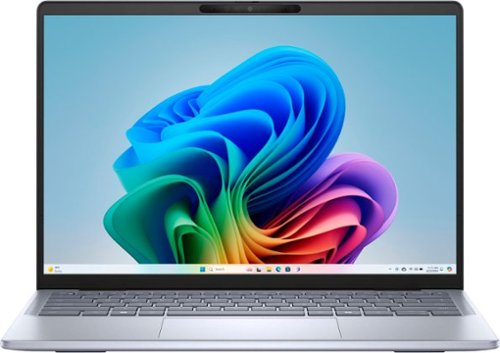
Unprecedented efficiency on a premium 14-inch CoPilot+ PC featuring touch, text, and voice control for intuitive, smartphone-like ease of use so you can streamline your daily tasks and workflows.
Customer Rating

4
Snappy Yet Held Back by Some Compatibility Issues
on July 19, 2024
Posted by: RedScorpion
I have been super stoked to get my hands on the Dell Inspiron 14 Plus featuring a Snapdragon X Plus processor. I geek out a bit at the prospect of new hardware in the PC space. While ARM PCs running Windows have existed for a few years now, this latest push for the Snapdragon X Elite and Snapdragon X Plus is my first foray with the hardware. I have a feeling that will be the case for many people.
Unfortunately, I must say at the beginning that I am not entirely sold on Windows 11 on ARM. There is a ton of potential and I hope that this recent push of Snapdragon X Co-Pilot PCs helps with the development of native applications. This could be my favorite laptop at this point next year, but as of right now, I have some mixed feelings.
I think this laptop is good: it has an excellent screen, good keyboard, WiFi7, a dedicated NPU, and excellent battery life, but that does not seem to matter when applications are still not compatible, or applications run slower than a comparable PC with an AMD or Intel processor because the application is running through emulation.
I do recommend the laptop. But users will need to check with their specific work or school needs to see if the PC is right for them.
Installation / Setup: The laptop comes with the base computer and Dell’s standard at this point 65w USB-C charger. Turning the laptop on, Microsoft will guide you through the setup process. As to be expected, there were a fair amount of driver and software updates out of the box all handled through Windows Update.
Experience:
The Good: The first thing that stood out to me was this screen. The colors and black levels look great. I noticed no stuck pixels or light bleed. The speakers are loud. The webcam comes with a Windows Hello facial recognition scanner. You also have Dell’s trusty fingerprint reader. All worked very well. The keyboard and trackpad are great as per usual with Dell.
The Good: The first thing that stood out to me was this screen. The colors and black levels look great. I noticed no stuck pixels or light bleed. The speakers are loud. The webcam comes with a Windows Hello facial recognition scanner. You also have Dell’s trusty fingerprint reader. All worked very well. The keyboard and trackpad are great as per usual with Dell.
Most of the hardware internals on the PC come from Qualcomm. I had some concerns about hardware compatibility, but Bluetooth microphones and USB headphones worked well. I had no printer compatibility issues. I heard about some potential quirks with Canon software, but I did not experience any hardware related hang-ups in my testing.
However, I do not think you will be making many hardware upgrades on the internals. The machine simply does not appear to be as receptive to internal hardware changes or upgrades.
Battery life is good. It is not 20 hours good. It is 10 to 12 hours good. Still. That is good.
Microsoft Co-Pilot A.I. features work well. I have been using Co-Pilot for a while to help research a book I am working on. I was amazed that an A.I. tool could help me develop a character for my work.
Battery life is good. It is not 20 hours good. It is 10 to 12 hours good. Still. That is good.
Microsoft Co-Pilot A.I. features work well. I have been using Co-Pilot for a while to help research a book I am working on. I was amazed that an A.I. tool could help me develop a character for my work.
The Bad: The obvious thing that stood out to me was software compatibility. Many apps do work. Some applications have native ARM variants and the installers for those applications will detect the ARM processor when you go to set up or download the application. For instance, Chrome and CPU-Z have ARM variants. Windows applications like Office 365 work well. If an application is native for the CPU, it works great. But occasionally I would discover an application that did not work. For instance, I use the AppleTV and Apple Music apps, but those applications are not ARM compatible. Some applications will work in an apparent emulation mode. But that emulation takes a hit to the CPU performance. If you are looking into this PC, I would suggest making sure your important applications are compatible with the processor first.
This is not meant to condemn the laptop. There is a lot of potential here. But students and people working from home will need to make sure that software and hardware compatibility is present before diving in.
I tried testing out some games. I know this machine is not marketed for gaming, but I had to check. I thought I even read that this processor and GPU would run many games in emulation. But I had absolutely no luck. Sorry SIMS 4 players, this laptop did not work for me. Sorry Helldivers, you will not be spreading managed Democracy. It seems that nearly any game with an anti-cheat feature will struggle to even launch. I could not get any of my recent Steam library games to work on this laptop. I cannot claim that was an exhaustive test, but I was a tad disappointed. I was able to benchmark the CPU and the GPU using 3DMark. CPU numbers were good, but GPU numbers were abysmal. But I am not sure what good the recent benchmarks are if there is a performance hit due to emulation. So, if you want to play any games on this PC, I recommend streaming over Steam or a service like Geforce Now.
Also, the laptop is hurting for connectivity. You get two USB-C ports (one of which will be dedicated to the charger), one USB-A port, a MicroSD slot, and a headphone jack. That is it. The laptop is really pushing wireless peripherals or dedicated docking solutions.
Conclusion: I do like this laptop. I love the screen, but I cannot watch my purchased AppleTV movies and shows. Hopefully, software updates will continue, and more apps will gain ARM support. At the moment, it feels like there are two versions of Windows 11 and Windows applications: programs for X86 and programs for ARM. Many X86 programs will work in emulation at a slight performance hit, but others will not run at all in their current state...
If you are primarily seeking a laptop for web applications, Microsoft Office, and some Adobe products, this laptop is great. It will work perfectly. But if you have specific software and networking requirements for work or school, you will need to do some research to decide if this laptop will work for you now or in the future. That ambiguity and the abysmal GPU performance are the only things keeping me from saying this is a 5/5 must buy. As is, I would say the laptop is more of a 3.5 or 4. It is a good machine. Hopefully future application updates and conversions will make it even better.
I would recommend this to a friend!






Share this review:


+4points
4of 4voted this as helpful.
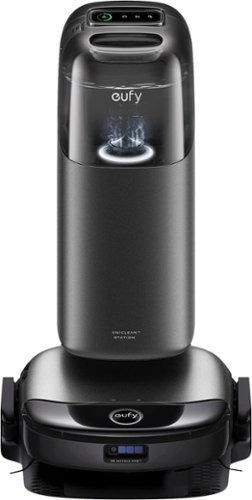
Ready to take your cleaning game to the next level? Say hello to the new eufy S1 Pro Robot Vacuum a true game changer for anyone who dreams of a spotless home without lifting a finger. Imagine coming home after a long day to perfectly clean floors, no crumbs, no dust bunnies just pristine surfaces that look like they~ve been meticulously swept and vacuumed. That~s the magic of the S1 Pro. This little powerhouse is designed to seamlessly fit into your life, taking care of the dirty work so you can focus on what really matters. The S1 Pro isn~t just a vacuum; it~s like having a dedicated cleaning assistant that never gets tired. With its advanced navigation and powerful suction, it tackles dirt and debris with ease, even in those hard-to-reach spots. Whether you have hardwood, carpet, or tile, the S1 Pro adapts effortlessly, ensuring every inch of your home is covered. One of the best things about the S1 Pro is how smart it is. It learns the layout of your home and optimizes its cleaning path, making sure no area is missed. Plus, with its intuitive app control, you can schedule cleanings, set boundaries, and even start a cleaning session from your phone while you~re out and about. It~s like having a cleaning crew at your fingertips. And let~s talk about peace of mind. The S1 Pro is equipped with top-notch sensors to avoid obstacles and prevent falls, so you don~t have to worry about it getting stuck or damaged. It~s designed to be gentle on your furniture and tough on dirt, ensuring a thorough clean every time. But what really sets the S1 Pro apart is how it makes you feel. There~s something incredibly satisfying about knowing your home is being taken care of, even when you~re not there. It~s more than just a cleaner home, it~s more time to enjoy with family, friends, or simply relaxing. It~s the joy of coming home to a space that~s ready for whatever life throws at you. So, why not treat yourself to the eufy S1 Pro Robot Vacuum? Experience the ultimate convenience, the impeccable cleanliness, and the sheer delight of having a home that feels like new every single day.
Customer Rating
5
The Cadillac of Robot Floor Cleaners
on July 10, 2024
Posted by: RedScorpion
The Eufy S1 Pro is my sixth robot vacuum. It is also the best robot vacuum I have ever had. It is not perfect, but my gosh it is pretty darn close. The robot itself gives off race car vibes. It is less round and more square than similar vacuums allowing the S1’s brushes to better reach corners. It is slimmer with sensors located on the front of the robot instead of on top. It performs mopping and vacuuming well. It has good obstacle avoidance. The always clean mop is revolutionary. But the robot is only half of the equation; the other half you have a polished docking station that looks like a smart watercooler. The entire package looks good. Battery life on the robot was particularly good. So, for all the positive reasons above, I am wholeheartedly recommending S1 Pro.
Unboxing: There is a lot in this packaging. In addition to the parts needed to get the vacuum running, there is a spare empty station bag, spare roller, spare side brushes, and a spare mop.
Step one is removing the tape and assembling and placing the station. I chose to place the station in the kitchen / dining room area. My wife and I have a small child and a dog, and this is sticky floor central in our household.
Step one is removing the tape and assembling and placing the station. I chose to place the station in the kitchen / dining room area. My wife and I have a small child and a dog, and this is sticky floor central in our household.
The empty station is multifaceted. You have the tray at the base of the station to aid in drying the roller. You have the bag that goes inside the station underneath one of the water tanks. You have the clean and dirty water tank. The entire station is very cool. The ozone process that sterilizes the water is a neat touch. The on-screen display is handy, and the top mounted buttons work well. Afraid your kids might push the buttons on the station? There is a child lock feature.
Eufy utilizes a proprietary cleaning solution delivered through their cleaning solution tank that snaps into the empty station behind the water tank.
The robot is a similar story. You must remove all tape. Inside the robot you have a filter. You have the main roller assembly. You have the mop roller. Snap on the side brushes. This vacuum charges in the rear so you must remember to put the robot in the station backwards.
Experience: It was at this point that I had my first real snafu with the robot. There is a required firmware update out of the box. I got the vacuum hooked onto my network quickly with a strong signal, but I had some difficulty getting the firmware to update. Eventually I did push the update through, but I had to keep my phone screen and app on the entire time. So, if you are having difficulties with the mandatory firmware update process, I would suggest plugging your phone in and keeping the screen active during update.
When you first start a run, the vacuum will map your floor plan. This process is quick. I must say this is some of the best mapping software I have seen on a robot vacuum. The maps were detailed enough that it made setting no-go zones easy in app.
My first vacuuming run was a bit of a mixed bag. The vacuum performance was good. Obstacle avoidance was generally good, but at one point the primary roller got some of my wife’s hair wrapped around the end, and the entire robot shut down until I could remove said hair. At another point, the robot decided it wanted to climb up the side of my wife’s ramped desk leg at which point the robot shut down and gave me a warning that it was “off the ground.”
Now, I am used to quirks with robot vacuums. As said above, this is not my first rodeo. I feel like you sort of learn the quirks and adapt your map as you go. I learned to not trust the vacuum around my wife’s desk. But since that initial run, I have run the vacuum several more times without issue. Either the vacuum or I have worked that out.
The mopping process is really where this robot shines. And my toddler who enjoys throwing his sippy cups and squeezing his pouches put this robot to the test. I was honestly extremely impressed by how clean the floors were after mopping. If you tell the robot to clean a mix of carpeted and hard surface areas, the robot will pick up the mop to not make the carpeted areas wet. Once finished mopping, your auto empty station will spend four hours drying the mop to prevent odors from developing.
The mopping process is really where this robot shines. And my toddler who enjoys throwing his sippy cups and squeezing his pouches put this robot to the test. I was honestly extremely impressed by how clean the floors were after mopping. If you tell the robot to clean a mix of carpeted and hard surface areas, the robot will pick up the mop to not make the carpeted areas wet. Once finished mopping, your auto empty station will spend four hours drying the mop to prevent odors from developing.
I would suggest that you make sure every tank is properly seated in the auto empty station as my only other problem was that sometimes the auto empty station would say a tank was not properly seated or that the robot had disconnected.
Conclusion: The point of a robot is to make the user’s life easier. I have always had some concerns about “set it and forget it” robot vacuums. In the past I had a robot close itself in a bathroom where it went in circles until the battery went out. Another robot made its way down the stairs. One somehow got vertically stuck on its side. These have been gadgets that are interesting, but I have never completely felt like I can just turn it on and walk away.
The Eufy S1 Pro is the closest I have to that ideal. Obstacle avoidance works very well. I have some concerns about the roller obstruction and the effort to climb the desk. Perhaps a software update will fix that in the future. Since that night I have run the vacuum many times without issue. This is a polished device. It performs well. The auto empty station works well, but make sure everything is properly seated.
The only other piece of advice I have is to make sure you keep stocked up on items like the proprietary cleaning solution. I know from experience that sometimes replacement parts for brushes, filters, and empty bags can become hard to find. Almost all of the parts are available through Eufy’s website as of the time of this review.
I like this robot. It has been the best robot floor cleaner that I have used. I hope that future firmware updates further tweak and refine some of the performance issues I mentioned above. Easily recommended 5/5
I like this robot. It has been the best robot floor cleaner that I have used. I hope that future firmware updates further tweak and refine some of the performance issues I mentioned above. Easily recommended 5/5
I would recommend this to a friend!






Share this review:


0points
0of 0voted this as helpful.
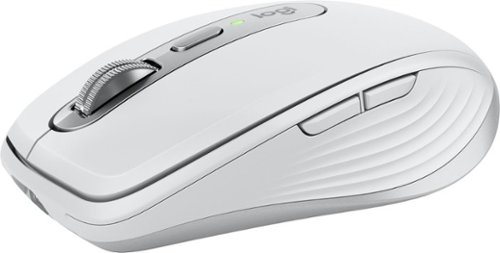
Introducing Logitech MX Anywhere 3S for Mac ~ a compact mouse optimized for macOS & iPadOS, with matching Apple finishes and a design that blends into your Apple setup. It~s upgraded for ultimate performance with quiet clicks and 8K DPI any-surface tracking. Logi Options+ enables flow to work simultaneously on multiple Apple computers.
Customer Rating
5
Stylish Mouse with Great Sensor and Scroll Wheel
on June 29, 2024
Posted by: RedScorpion
The MX Anywhere 3S for MAC is a mouse designed to complement your Apple MAC computer or iPad device. It is sleek looking. Performs well with an 8K DPI Sensor, has quiet clicks, functional software in Logi Options+ and works well over Bluetooth and Logitech’s Bolt receiver. Smaller than the MX Master mouse by what feels like half the size. This is a solid mouse good for travel or home use. My only question is why this device is advertised as an Apple optimized device. It clearly works on any PC with modern Bluetooth or a Logitech Bolt receiver. White for Mac and black for Windows. After a few days with the mouse, I am willing to sing its praises and recommend it to anyone looking for a stylish mouse with good battery life and a great sensor.
Unboxing: The package comes with the mouse and a USB-C to USB-C charging cable. Unlike the PC marketed equivalents, there is no Bolt receiver. If you wish to use a Bolt USB receiver, you will need to purchase that separately.
Setup: My mouse arrived with around a 60 percent charge. Good enough to turn things on and get the Logi Options + set up. The mouse charges very quickly. I had a full charge in under an hour.
Experience: The mouse pointer is very precise. The scroll wheel is great. The button below the wheel allows you to have a free spin scroll or a ratchet scroll with precise clicks. If you spin the wheel fast on the ratchet scroll, the wheel automatically engages a free spin scroll. One of the nice things about the Logitech MX series of peripherals is they come with a toggle button that allows the device to pair with three different devices. Logi Options + is available for Mac OS 12 and Windows 10 or later.
I really appreciate how easy it is to use Logi Options + to customize DPI settings, create smart actions, or otherwise customize the buttons. From installation to day-to-day use, Logitech has the easiest mouse software to use and customize of any peripheral manufacturer out there.
There is no equivalent app that I could find for the iPad. A shame as I would have liked to have had a customized mouse experience on iPad. The ability to set up gestures on the iPad would have been nice. As is, the mouse is functional on iPad, but it is just as functional as any other Bluetooth mouse. Still, if you are wanting to replace a MacBook or Windows 11 laptop with an iPad, an MX Keyboard + MX Anywhere 3S Mouse is a nice, portable combo. It is much easier to type a document in MS Word when you have the precise pointer click of a mouse. But using a mouse on an iPad is still a mixed experience and the MX Anywhere 3S is no different. Some apps work great, but gestures are often confusing and sometimes there is no way to close out of an app with the mouse like there would be on a Mac or Windows PC.
There is no equivalent app that I could find for the iPad. A shame as I would have liked to have had a customized mouse experience on iPad. The ability to set up gestures on the iPad would have been nice. As is, the mouse is functional on iPad, but it is just as functional as any other Bluetooth mouse. Still, if you are wanting to replace a MacBook or Windows 11 laptop with an iPad, an MX Keyboard + MX Anywhere 3S Mouse is a nice, portable combo. It is much easier to type a document in MS Word when you have the precise pointer click of a mouse. But using a mouse on an iPad is still a mixed experience and the MX Anywhere 3S is no different. Some apps work great, but gestures are often confusing and sometimes there is no way to close out of an app with the mouse like there would be on a Mac or Windows PC.
As said above, I evaluated this mouse on PC, too. You can connect to a PC with Bluetooth or a Logitech Bolt receiver (sold separately). Bluetooth pairing was extremely easy. You just change the device selector on the bottom of the mouse to an unpaired selection. In my case, Windows 11 detected the device nearly instantly. Once paired, Windows then prompted me to download Logi Options + the same as it would with one of their Windows marketed devices.
Conclusion: I am used to mice that are a bit larger. I was concerned about how I would feel about the size of this mouse, but it is a good fit. It is big enough to be comfortable even in my hand, but small enough that it will travel much easier than other mice. The MX Anywhere 3S for Mac and iPad works well on Apple devices, but it also works on PC devices. If you like the look of this mouse and think it would compliment your LG Gram, Surface Book, or other polished Windows laptop, you can pair this device with a Windows PC easily and it works just as well as it would on an Apple device. I cannot see any hardware difference between the MX Anywhere 3S for Mac than I can on the regular MX Anywhere 3S except one is black and the other is white with silver accents. Any differences in software are just that. So, if you are looking for a stylish, functional mouse with a great DPI sensor and scroll wheel, I highly recommend the MX Anywhere 3S for MAC (and Windows).
I would recommend this to a friend!






Share this review:


0points
0of 0voted this as helpful.
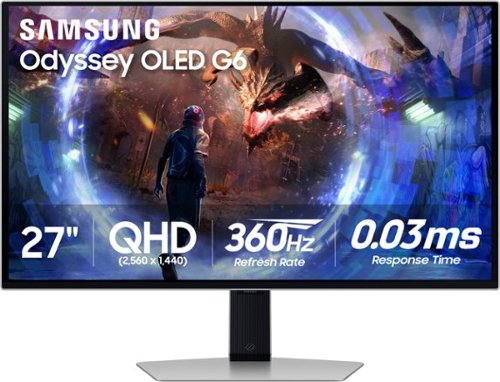
Samsung's OLED G6 Gaming Monitor delivers superior brightness with an expansive spectrum of colors and nearly limitless shades. The 360Hz refresh rate and 0.03ms response time (GtG), along with AMD FreeSync Premium Pro, allow ultra-fast & smooth gaming action. OLED Safeguard+ technology includes a groundbreaking Dynamic Cooling System and thermal modulation that auto-controls brightness to prevent burn-in. OLED Glare Free technology significantly reduces glare from external light sources, and deep black levels with dynamic contrast enable supreme depth expression. Features a sleek metal design and ergonomic stand for optimal comfort when playing for extended periods of time. 3-Year Warranty.
Customer Rating
5
Stunning Display for PC Gamers
on June 24, 2024
Posted by: RedScorpion
The Samsung Odyssey OLED G6 has an amazing display. But you already know that. HDR videos and games just look amazing. The monitor is worth the price tag. Samsung makes great OLED displays. I am recommending this display as this is a great PC gaming display. Games look amazing. I had some concerns about the AMD Freesync certification as I game with NVIDIA, but while this monitor is not officially certified for GSYNC, GSYNG does appear to be enabled. Either way, I have not noticed any screen tearing or refresh rate issues. Whether you are gaming with an AMD or NVIDIA graphics card, this is an excellent monitor for any gamer.
Setup: Inside my box (in case contents differ), I had the pieces to the stand, a Super High Speed HDMI cable, a Display Port cable rated for 8K (my connection method), a huge power brick, a power cord, a USB 3.0 B to A cable, and the monitor itself. The stand is great and allows the user to display the monitor vertically. Cables and USB devices stick out a couple of inches from the back of the monitor.
There are quick start guides and installation instructions. But I wish there had been more information about the screen’s optimization features. As it was, I kept receiving “screen has not been optimized” notices every time I turned the monitor on for the entire first day. Some explanation about the notices and what I needed to do to help optimize the screen would have been appreciated. As it is, I felt a bit clueless. Eventually the notifications went away. Some online sleuthing led me to believe optimization occurs while the monitor is not receiving a signal for a period of fifteen minutes to an hour, but I cannot say that for certain.
There are quick start guides and installation instructions. But I wish there had been more information about the screen’s optimization features. As it was, I kept receiving “screen has not been optimized” notices every time I turned the monitor on for the entire first day. Some explanation about the notices and what I needed to do to help optimize the screen would have been appreciated. As it is, I felt a bit clueless. Eventually the notifications went away. Some online sleuthing led me to believe optimization occurs while the monitor is not receiving a signal for a period of fifteen minutes to an hour, but I cannot say that for certain.
Cable management with the monitor is a bit rudimentary, but it works. It does not conceal cables, but it does keep them tidy on the back of the stand.
I have the monitor hooked up via the Display Port cable. Samsung advertises that this monitor is using AMD Freesync. AMD paid for the sponsorship, but most gamers use NVIDIA based on the recent numbers from Steam. As such, while I was able to enable G-Sync, NVIDIA Control Panel will tell you that the monitor has not been “validated as G-Sync Compatible.” Perhaps validation will come with a later patch? Still, it works.
Experience: Colors look amazing. HDR videos and games are amazing on this monitor. I had primarily been gaming on a 1080p display, but I surprisingly have not noticed much of a performance hit going to the higher DPI on this monitor. Text appearance is a bit of a mixed bag. The text looks fine. I have had better and worse displays for text. Text is fine.
I plugged a Nintendo Switch into the HDMI port. I am seeing colors on the Nintendo Switch that I have never seen before with the console. Even gaming on the Switch looks great with this monitor. My only complaint is that this higher res display shows off the DPI limits of the Switch hardware more than I am used to.
There is an occasional shift in the screen. This is a feature designed to help prevent burn-in.
The LED light on the back of the monitor does a good job syncing up to the screen colors. I just wish it were a bit brighter. As is, the light is barely noticeable unless you are gaming in a dark room.
My biggest complaint is that the power button and controls are on the back of the display. I would prefer an application, a remote, or front facing controls.
I initially encountered some glitches and problems related to the monitor’s USB ports. Devices would clearly get power but would not communicate with my PC. However, after the monitor ceased giving me optimization messages, the errors and disconnects with USB devices plugged into the monitor went away. I cannot say if this was a problem with my PC or with the monitor. I have not been able to duplicate the error the last few days. I debated on not mentioning that glitch, but I thought maybe if someone else encountered the same problem it could be useful for me to talk about it here. But again, that problem went away. It could have been related to drivers on my PC for all I know.
The only other drawback is the giant power brick for this monitor. It is inline with a separate power cable that plugs into the outlet, but still that brick is bigger than the bricks for many gaming laptops. It is huge and it does get a bit warm.
Conclusion: Great display. I love this monitor. Now that I have had my first OLED gaming monitor, I am not sure I can ever go back to an IPS display. The visuals are amazing. I wish there had been a bit more documentation to explain the monitor’s optimization process. A brighter rear light and a better placement for the power switch are my only remaining nitpicks.
4.5/5 Recommended
I would recommend this to a friend!






Share this review:


+1point
1of 1voted this as helpful.
RedScorpion's Review Comments
RedScorpion has not submitted comments on any reviews.
RedScorpion's Questions
RedScorpion has not submitted any questions.
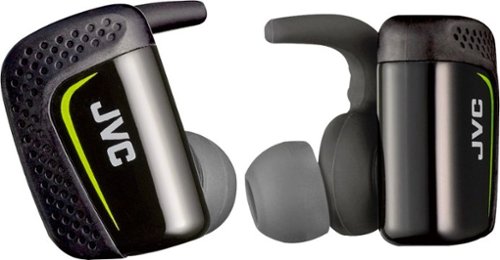
Play cool music while performing your fitness routines with these water-resistant JVC wireless sport headphones. The Pivot Motion Fit provides a secure hold during rigorous workouts, and the JVC Headphones Manager app lets you control audio settings. These JVC wireless sport headphones come with a lightweight charging case that provides three hours of battery life on a single charge.
Hi, how is the sound quality for talking? Do the buttons hurt your ears when you push them in?
I didn't think they sounded that good and the person I called said I sounded very static-y.
8 years ago
by
RedScorpion

Automatically go from hundreds of mystery folders to a visual view in the photo and video Organizer. See your best photos thanks to auto-curation. Effortlessly extract candid photos from your raw footage. Make photos and videos look amazing with automated photo editing and video creation options. And create and share beautiful printed artwork, new dynamic slideshows, photo and video collages, animated GIFs*, and full-length movies. Being creative is even easier with the Elements bundle.
Do you have to purchase a monthly or annual subscription in addition to the software?
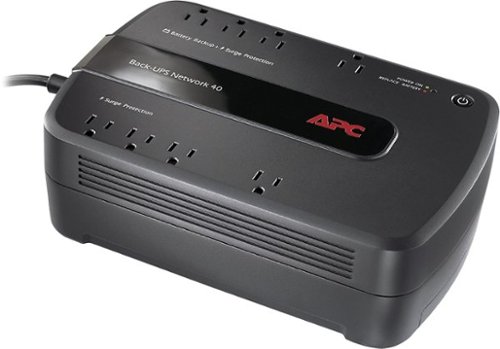
Keep your home networking equipment working when the electricity goes out with this APC Back-UPS Network 40 BN4001 UPS that features 4 battery-backup and surge-protection outlets to ensure electronics remain powered during outages.
Where do I get a new Battery for this?
I'm sure my battery didn't last three years and I need a new one. What size am I looking for and where can I get one?
You can find replacement battery information on APC's website at:
http://www.apc.com/tools/upgrade_selector/
http://www.apc.com/tools/upgrade_selector/
10 years ago
by
RedScorpion
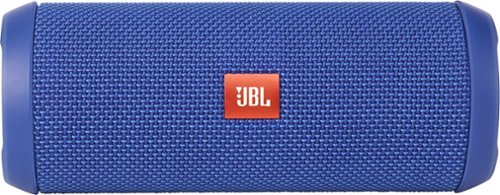
JBL Flip 3 Speaker: Stream your favorite songs and Internet radio stations from your compatible audio device using this speaker, which offers extensive playback with the rechargeable battery. Dual external bass radiators offer booming low tones, and you can enjoy clear phone calls with the integrated speakerphone.
can it be connected to a ipod nano
Yes.
If your iPod Nano has blue-tooth (which the newer models do), then you can connect this to your Nano that way. If your Nano does not have blue-tooth, you can always connect the Flip 3 with an auxiliary 3.5mm audio cable.
If your iPod Nano has blue-tooth (which the newer models do), then you can connect this to your Nano that way. If your Nano does not have blue-tooth, you can always connect the Flip 3 with an auxiliary 3.5mm audio cable.
10 years ago
by
RedScorpion