Samsung
Samsung's Stats
Reviews
- Review Count0
- Helpfulness Votes0
- First ReviewNone
- Last ReviewNone
- Featured Reviews0
- Average Rating0
Reviews Comments
- Review Comment Count0
- Helpfulness Votes0
- First Review CommentNone
- Last Review CommentNone
- Featured Review Comments0
Questions
- Question Count0
- Helpfulness Votes0
- First QuestionNone
- Last QuestionNone
- Featured Questions0
- Answer Count74095
- Helpfulness Votes37,971
- First AnswerApril 24, 2013
- Last AnswerSeptember 4, 2026
- Featured Answers0
- Best Answers3950
Samsung's Reviews
Samsung has not submitted any reviews.
Samsung's Questions
Samsung has not submitted any questions.

Samsung - Galaxy Book5 360 - Copilot+ PC - 15.6" FHD AMOLED Touch-Screen Laptop - Intel Core Ultra 7 - 16GB Memory - 512GB SSD - Gray
Go from class time to downtime on one versatile device. With a 2-in-1 design, Galaxy Book5 360 makes it easier to tackle all your tasks and connect seamlessly to your other Galaxy devices, bringing your world full circle. Boasting a brilliant 15.6" Full-HD AMOLED display and a 360-degree hinge, Book5 360 makes everything from studying to streaming a comfortable experience. Need to go laptop mode to finish an assignment? Easy. Want to take a break with a movie? Prop up Book5 360 in tent mode, select what you want to watch from your touchscreen and kick back. No matter how many hours you plan to spend prepping for your next test or cozying up to watch your favorite series, Book5 360 has a battery built to keep up for hours on end.* Whether you need structure or want to enjoy some spontaneity, Galaxy Book5 360 adapts to do exactly what you need it to, seamlessly.
Is RAM expandable above 16 GB?

Hi there Scott, thanks for taking the time out of your day to ask us your question about the Samsung Galaxy Book5 360. No, the Galaxy Book5 360 does not have expandable RAM as it is soldered onto the motherboard and cannot be upgraded. If you have any other questions or if you would like any further assistance, please feel free to contact Support. Thanks for being a faithful Samsung customer. - Debra
1 year, 2 months ago
by
Posted by:
Samsung

Meet our thinnest, lightest Chromebook Plus ever ~ now with Google AI built in to supercharge your productivity.
Is this compatible with wireless keyboard and wireless mouse, if so how does it connect to them?
Greetings Handi10, thank you for finding the opportunity to ask us your questions about the Samsung Galaxy Chromebook Plus. Yes, the Galaxy Chromebook Plus is compatible with wireless keyboards and mice. The Chromebook Plus supports both Bluetooth and USB 2.4GHz wireless devices, which are the most common ways wireless peripherals connect. If you have any other questions, please feel free to contact Support. Thank you for being a valued Samsung customer. - Debra
1 year, 2 months ago
by
Posted by:
Samsung
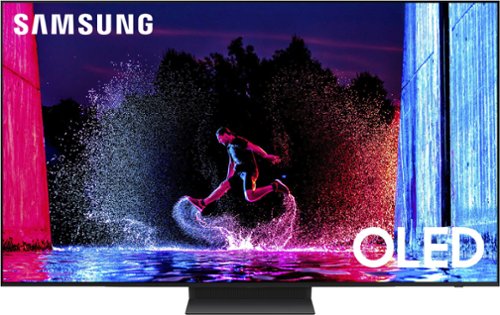
Samsung - 55" Class S90D Series OLED 4K UHD Smart Tizen TV (2024)
This premium TV features a detailed image, strong contrast and clear motion. Increased depth and AI-powered 4K upscaling all work to bring clarity to your content.
is there an ambient mode or something similar to the frame tv?
jpie - Yes, the S90D features Ambient Mode.
~ Samsung Specialist
~ Samsung Specialist
1 year, 2 months ago
by
Posted by:
Samsung
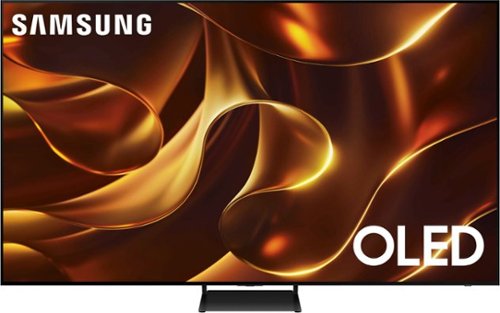
Samsung - 77 Class S84D Series 4K OLED Smart Tizen TV
This premium TV features details and contrast, expert validated colors and a slim bezel. Its design brings you a modern look, wh ile clear motion and depth enhance the picture.
John .. Can I use Direct TV with this TV
Yes, the DirecTV app can be installed.
~ Samsung Specialist
~ Samsung Specialist
1 year, 2 months ago
by
Posted by:
Samsung
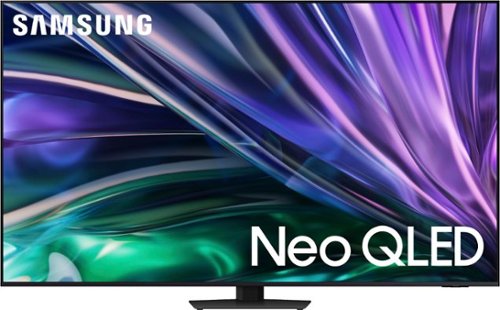
Samsung - 65 Class QN85D Series NEO QLED 4K Mini LED Smart Tizen TV (2024)
This Samsung AI TV uses individual zones of light for impressive color and contrast for an optimized viewing experience. Clear motion is matched with synced sound, all with more picture dimensions to draw you in.
What type/spec HDMI cable is required for the 2024 85N model?
RJC - Examples of eARC-compatible cables include a High-Speed HEAC or HEC cable. Make sure you use a cable you know is functional and in good condition.
~ Samsung Specialist
~ Samsung Specialist
1 year, 2 months ago
by
Posted by:
Samsung
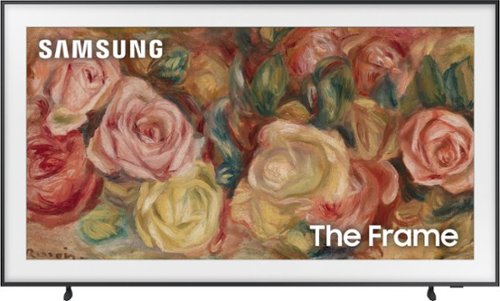
Samsung - 65 Class LS03D The Frame Series QLED 4K with Anti-Reflection and Slim Fit Wall Mount Included (2024)
This lifestyle TV helps you curate your own gallery with works of art or personal photos. It~s customizable and showcases expert validated color and 4K resolution.
Can I install vpn on Samsung TV
Oladapo2025 - Please give us the opportunity to better assist with this by reaching Samsung Support at: 1-800-SAMSUNG, 8AM - 12AM EST, 7 days a week, or Chat with us on Samsung.com: https://www.samsung.com/us/support/contact/
~ Samsung Specialist
~ Samsung Specialist
1 year, 2 months ago
by
Posted by:
Samsung
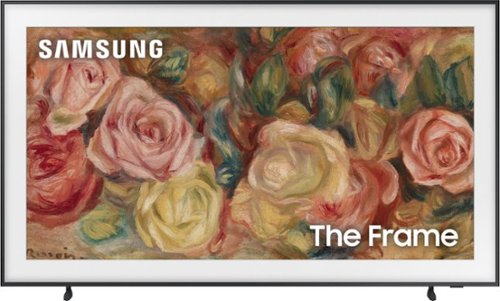
This lifestyle TV helps you curate your own gallery with works of art or personal photos. It~s customizable and showcases expert validated color and 4K resolution.
Will a sound bar mount to the bottom of this tv ? If so, do you have any recommendations for a sound bar bracket?
dannyboy - Please give us the opportunity to better assist with this by reaching Samsung Support at: 1-800-SAMSUNG, 8AM - 12AM EST, 7 days a week, or Chat with us on Samsung.com: https://www.samsung.com/us/support/contact/
~ Samsung Specialist
~ Samsung Specialist
1 year, 2 months ago
by
Posted by:
Samsung

Make every day more extraordinary with Galaxy Tab S10 Ultra. Power through all your favorite experiences with groundbreaking Galaxy AI features, a long-lasting battery and a powerful chipset. Discover new ways to simplify your life with Galaxy AI on the big screen of Tab S10 Ultra. Write notes with that pen like feeling using the included S Pen, or type on an attachable keyboard then instantly summarize and organize your notes with Note Assist. Looking for another great time saver? Transcript Assist transcribes meetings and lectures for you, freeing you up to do other things. Find more information on items online quickly and easily using Circle to Search with Google. Simply circle what you~re interested in on the screen and then shop, identify or translate what you see, just like that. Indulge yourself in the ultimate viewing experience a glorious 14.6" Dynamic AMOLED 2X display. It~s the largest tablet screen available. Whether you~re streaming a blockbuster or outracing your competition in a game, experience every heart pounding moment with vibrancy and clarity. Plus, the screen is designed to minimize glare, making it easy to see even in bright sunlight. When it~s time to get back to the real world, work like a boss with plenty of space to toggle between windows or collaborate on calls. There~s so much room, you can even do both at once and more. Have the confidence to take your Tab with you as you get things done with enhanced durability that~s built to withstand even fast paced lifestyles. The enhanced Armor Aluminum frame offers strong protection against dings and scratches. And Tab S10 Ultra is water and dust resistant, so it~s made to go where you go, unlike some of those other tablets. Break free from the ordinary with the tablet that stands out Galaxy Tab S10 Ultra.
Can i expand the storage with a memory card?
Howdy Beast, thanks for taking the time out of your hectic day to ask us your question about the Samsung Galaxy Tab S10 Ultra. Yes, the Galaxy Tab S10 Ultra offers expandable storage capabilities up to 1.5TB when you add a microSD card to this device. If you have any other questions, please feel free to reach out to Support. Thanks for being a faithful Samsung customer. - Debra
1 year, 2 months ago
by
Posted by:
Samsung
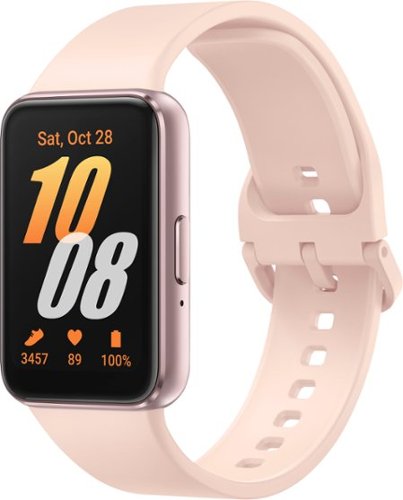
Samsung - Galaxy Fit3 Aluminum Smartwatch 40mm BT - Pink Gold - (2025)
Get a little help with your wellness using Galaxy Fit3. With a slim, sporty design, Fit3 provides you the basics to help you track your wellness journey ~from your daily steps to your heart rate. It also tracks your sleep habits, collecting info on how long and how well you slept. Plus, Fit3 syncs seamlessly with your compatible Samsung smartphone, where you can use the Samsung Health app to give you even more insights into your daily movement. Galaxy Fit3 is more than a device ~it~s a way to simply track and monitor how you move each day
Is this watch compatible with a Samsung galaxy s25 ultra?
Hello there Lisa22, thank you for finding the available time out of your lively day to ask us your question about the Samsung Galaxy Fit3. Yes, the Galaxy Fit3 is compatible with the Galaxy S25 Ultra. You can easily connect these devices using the Galaxy Wearable app. If you have additional questions, please feel free to reach out to Support. Thanks for being a valued Samsung customer. - Debra
1 year, 2 months ago
by
Posted by:
Samsung
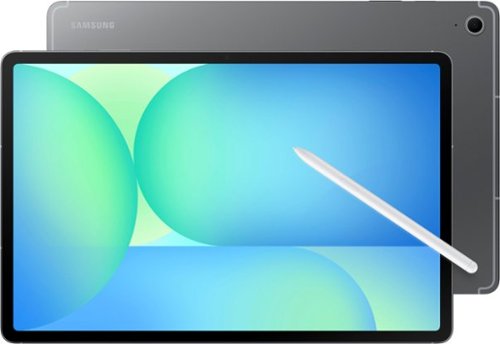
Step up your tablet game with Galaxy Tab S10 FE+. The expansive 13.1" screen brings your favorite content to life with stunning detail, whether you~re catching up on a new series, diving into your next creative project or staying on top of your to-do list. Need to look something up? Circle to Search with Google makes it easy. Whether you see a stylish jacket in a music video or a mouthwatering dish on your feed, just circle it and let the answers come to you. Its durable IP68-rated design is ready for wherever the day takes you, while the included S Pen lets you write, draw and sketch with a natural, pen-on-paper feel. And with a long-lasting, fast-charging battery, you can stream, create and explore for hours without slowing down. Discover a tablet that fits your world with Galaxy Tab S10 FE+.
What keyboard goes with this pad
Hey there J, thank you for finding the free time out of your busy day to ask us your question about the Samsung Galaxy Tab S10 FE+. The Galaxy Tab S10 FE+ is compatible with the Samsung Book Cover Keyboard Slim - AI Key. If you have any other questions, feel free to contact Support. Thank you for being a loyal Samsung customer. - Debra
1 year, 2 months ago
by
Posted by:
Samsung