Lenovo Product Expert
Lenovo Product Expert's Stats
Reviews
- Review Count0
- Helpfulness Votes0
- First ReviewNone
- Last ReviewNone
- Featured Reviews0
- Average Rating0
Reviews Comments
- Review Comment Count0
- Helpfulness Votes0
- First Review CommentNone
- Last Review CommentNone
- Featured Review Comments0
Questions
- Question Count0
- Helpfulness Votes0
- First QuestionNone
- Last QuestionNone
- Featured Questions0
- Answer Count37808
- Helpfulness Votes24,833
- First AnswerApril 21, 2014
- Last AnswerOctober 9, 2026
- Featured Answers0
- Best Answers2827
Lenovo Product Expert's Reviews
Lenovo Product Expert has not submitted any reviews.
Lenovo Product Expert's Questions
Lenovo Product Expert has not submitted any questions.
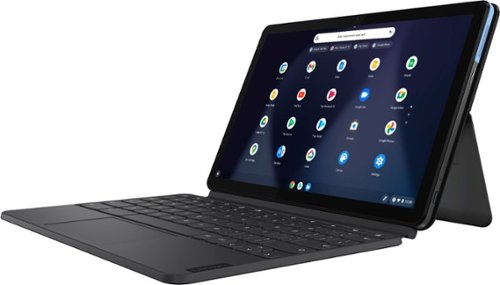
Lenovo - IdeaPad Duet Chromebook - 10.1 (1920x1200) Touch 2-in-1 Tablet - MediaTek P60T - 4G RAM - 128G eMCP4x - with Keyboard - Ice Blue + Iron Gray
Work on pending assignments while on the move with this Lenovo Chromebook Duet. The 10.1-inch touch screen provides an interactive user experience, while the 128GB of internal storage offer ample space for apps and media files. This Lenovo Chromebook Duet features a MediaTek Helio P60T processor and 4GB of RAM for effortless multitasking.
I bought this brand new but when I try to use camera it doesn’t work. I tried to do a video call also and it says no camera detection or that camera might is used in another app. How do I fix this?

Since this Lenovo Chromebook Duet has two cameras, Front 2.0MP / Rear 8.0MP, check to be sure you have the front facing, webcam selected. You can open the Launcher from the bottom right corner (it looks like a circle within a circle), click the upwards-pointing arrow to expand the apps menu, then click the camera app icon. Click the Switch Camera icon. It looks like a circle of arrows on the left side of your screen. Click the circular icon. Here is a link to more information: https://www.wikihow.com/Switch-Cameras-on-Chromebook. If the issue continues after trying this, we recommend you contact Lenovo Tech Support for Chromebooks for additional help at: 800-426-7378.
4 years, 4 months ago
by
Posted by:
Lenovo Product Expert
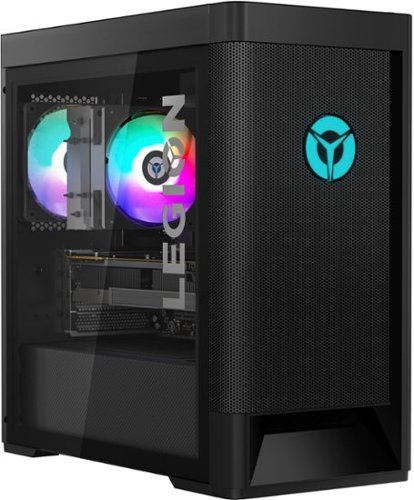
Lenovo - Legion Tower 5 AMD - 90RB001LUS 26/Ryzen 7 5700G/16GB/512GB/1TB/NVIDIA GeForce RTX 3060/Windows 11 Home - Raven Black
Engineered out of a passion for savage power and unmatched speed, the Lenovo Legion Tower 5 AMD delivers mind-blowing performance that combines AMD Ryzen processors and top-of-the-line NVIDIA GeForce graphics cards for blazing-fast frame rates at up to 4K resolution. Pushing far beyond the upper bounds of smaller rig configurations while keeping things cool and whisper quiet, the Legion Tower 5 is a marvel of build and design, accentuated by its illuminated blue LED logo and lighting, as well a transparent side panel that can properly showcase your internals.
Does this MOBO support gen4 m.2 or just gen3?
This Lenovo Legion Tower 5 AMD Gaming Desktop, model number 90RB001LUS, ships with two installed hard drives: 512GB M.2 2280 PCIe 4.0x4 NVMe solid state hard drive + 1TB HDD 7200rpm 3.5 inch. The maximum storage capacity that this model configuration can support is: Up to five drives, 2x 3.5 inch HDD + 1x 2.5 inch HDD + 2x M.2 SSD: • 3.5 inch HDD up to 2TB, • 2.5 inch HDD up to 1TB plus • M.2 SSD up to 1TB. This model configuration ships with the AMD - E AB550 DDR4 DIMMx4 AVE MP MB, WIN DPK SYSTEM BOARDS, Lenovo Part number - 5B20W27654. Here is a link to the complete parts list for this model configuration: https://pcsupport.lenovo.com/us/en/products/desktops-and-all-in-ones/legion-series/legion-t5-26amr5/90rb/90rb001lus/parts/display/model
4 years, 4 months ago
by
Posted by:
Lenovo Product Expert
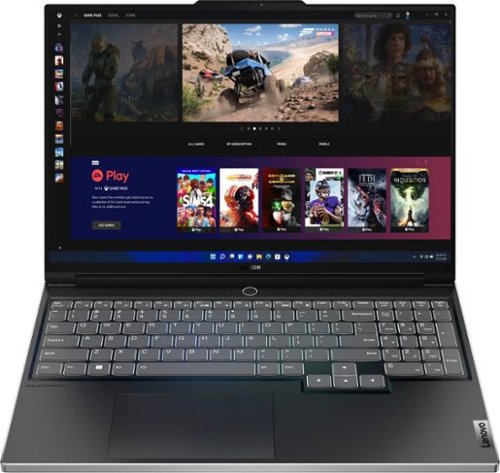
Lenovo - Legion Slim 7i 16" Full HD Gaming Laptop - Core i7-12700H - 16GB Memory - NVIDIA GeForce RTX 3060 - 512GB SSD - Onyx Grey
Engineered for those who know gaming is a way of life, the Lenovo~ Legion Slim 7, in Onyx Grey, is calibrated for next-gen creation and gaming alike. Redefine gaming experiences with the latest generation Intel Core i7 processor and NVIDIA GeForce RTX graphics that are AI-optimized via the Legion AI Engine, all the while cooled by the Legion Coldfront 3.0~s thermal system. The Legion Slim 7~s light and exhilarating design is further machined from an Aluminum and Magnesium blend that defies all basic laws of laptop engineering. Crush the competition in WUXGA for immersive gaming anywhere life takes you.
This Lenovo Legion Slim 7i 16 Gaming Laptop, model number 82TF000RUS, ships with a Integrated 71Wh, Lithium-Polymer Battery, installed. Can this battery be replaced if it should wear out?
The Integrated 71Wh, Lithium-Polymer Battery Pack within the Lenovo Legion Slim 7i 16, model number 82TF000RUS is not listed as a Customer Replaceable Unit (CRU). The battery pack is listed as a Factory Replaceable Unit (FRU) and should only be replaced at the factory or by a certified technician, as directed by Lenovo Legion Ultimate Support, which can be reached at: 888-278-9707.
4 years, 4 months ago
by
Posted by:
Lenovo Product Expert
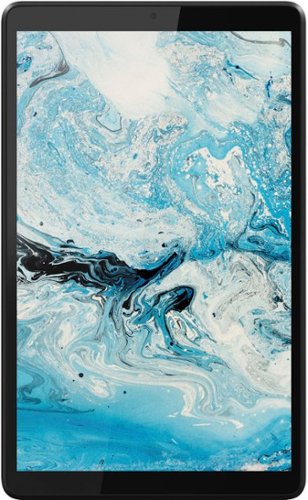
Lenovo - Tab M8 HD (2nd Gen) - 8" - Tablet - 32GB - Iron Grey
Lenovo Tab M8 is the 2nd generation mainstream tablet that comes with standout metal design, and is tailored to make your entertainment experience richer. The stunning 8" HD display brings you a crispier and brighter visual world. More than that, no matter you are watching a thrilling online movie or playing an exciting game, the fast speed and stable connection can also make your enjoyment perfect. Non-stop entertainment is just ON. Lenovo Tab M8, your best companion device with stunning performance and stylish design. The device that everyone wants to have.
Drone screen? Can this tablet download a flight app from the Mavic website? I would ike to use a screen larger than my phone for the telemetry of the drone.
That will depend on the requirements and compatibility of the specific APP you want to install. The Lenovo Tab M8 Tablet ships with Android 9.0 Operating System installed and can be upgraded to Android 10.0 OS. The Tab M8 Tablet is compatible with Google Play Store APPs. We recommend you check with the specific APPs software publisher's web site for their compatibility with Android 9/10 operating system and the minimum/recommended hardware requirements (Is a Graphics card required, the processor speed and the minimum required system RAM and the minimum available hard drive space) to run their program, then compare those requirements to this Tablet's configuration.
4 years, 4 months ago
by
Posted by:
Lenovo Product Expert
Lenovo - Tab M8 HD (2nd Gen) - 8" - Tablet - 32GB - Iron Grey
Lenovo Tab M8 is the 2nd generation mainstream tablet that comes with standout metal design, and is tailored to make your entertainment experience richer. The stunning 8" HD display brings you a crispier and brighter visual world. More than that, no matter you are watching a thrilling online movie or playing an exciting game, the fast speed and stable connection can also make your enjoyment perfect. Non-stop entertainment is just ON. Lenovo Tab M8, your best companion device with stunning performance and stylish design. The device that everyone wants to have.
Confirm OS? Another retailer has two versions of this with conflicting info on whether it has 9 or 10 on it.
This Lenovo Tab M8 2nd Gen Tablet, model number ZA5G0060US ships with Android 9.0 Operating System installed and can be upgraded to Android 10.0 OS by the user.
4 years, 4 months ago
by
Posted by:
Lenovo Product Expert
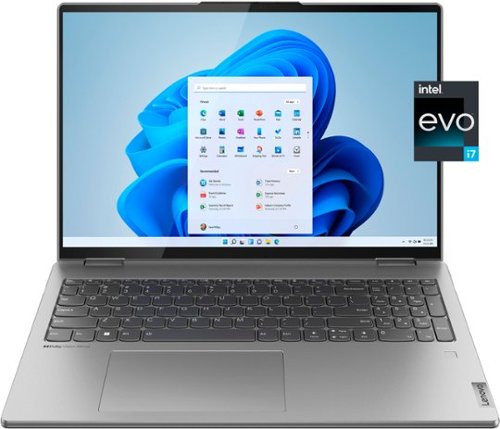
Lenovo - Yoga 7i 16" 2.5K Touch 2-in-1 Laptop - Intel Evo Platform - Core i7-12700H - 32GB Memory - Intel Arc A370M - 1TB SSD - Arctic Grey
The Lenovo Yoga 7i combines versatile portability and enhanced productivity, thanks to the boundary-breaking performance and responsiveness of 12th generation Intel Core processors and vibrant WQXGA clarity with Intel Arc A370M graphics. Go anywhere with a sleek 2-in-1 metal chassis featuring thoughtful details including an IR camera with privacy shutter.
Does this laptop come with dedicate graphic arc a370m? because I read the official specification and they only specify integrate graphic.
This Lenovo Yoga 7i 16, model number 82UF0000US, ships with the discrete Intel Arc A370M GPU, with 4GB GDDR6 VRAM on the card.
4 years, 4 months ago
by
Posted by:
Lenovo Product Expert
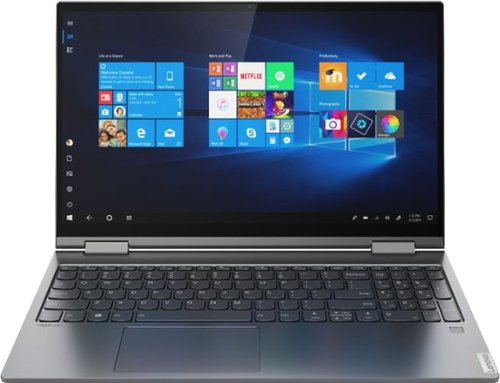
Lenovo - Yoga C740 2-in-1 15.6" Touch Screen Laptop - Intel Core i5 - 8GB Memory - 512GB SSD + 32GB Optane H10 - Iron Grey
Combining sleek design, long-lasting battery life, and smart high-speed processing, the Lenovo Yoga C740 blazes a trail with the latest 10th Generation Intel Core processors. Furthering Yoga~s famous 2-in-1 versatility, the Yoga C740 is available in both 14" and 15.6" sizes, offering the clarity of up to a FHD VESA400 HDR display, Dolby Atmos speakers, and a webcam privacy shutter for a robust user experience.
If my computer doesn't turn on if water felled on the computer and I don't have warranty on it would there be any chance to get it fixed for I can use it again
We recommend you make an appointment with your local Best Buy Geek Squad and bring your Lenovo Yoga C740 15 in and have the Geek Squad analyze the issue for you and determine how to fix the issue. The Geek Squad can provide paid assistance even if your computer is no longer covered by a warranty.
4 years, 4 months ago
by
Posted by:
Lenovo Product Expert
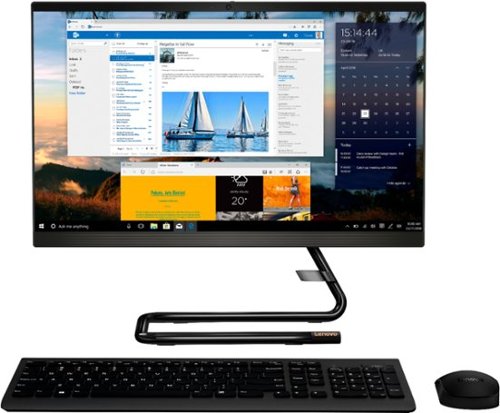
Lenovo - IdeaCentre A340-22IGM 21.5" Touch-Screen All-In-One - Intel Pentium Silver - 8GB Memory - 1TB HDD - Business Black
Finish office work flawlessly with this all-in-one Lenovo IdeaCentre desktop computer. The 1TB HDD provides ample storage space for projects and media, while the 8GB of RAM and Intel Pentium Silver processor let you run multiple programs effortlessly. This 21.5-inch Lenovo IdeaCentre desktop computer includes a Full HD touchscreen, and integrated Intel UHD graphics produce quality visuals.
This model comes with windows 11?
No. This Lenovo IdeaCentre A340 22 All-In-One System will ships with Windows 10, Home 64-bit Operating System factory installed.
4 years, 4 months ago
by
Posted by:
Lenovo Product Expert

Lenovo - Yoga 7i 2-in-1 15.6" HDR Touch Screen Laptop - Intel Evo Platform Core i7 - 12GB Memory - 512GB Solid State Drive - Dark Moss
The Lenovo~ Yoga~ 7i 15" combines versatile portability and enhanced productivity, thanks to the boundary-breaking performance and responsiveness of 11th generation Intel~ Core~ i7 processors and a vibrant VESA Dolby HDR 400 display in FHD clarity with Intel~ Iris~ Xe graphics. Go anywhere with a sleek 2-in-1 metal chassis featuring thoughtful details including a webcam privacy shutter.
Can this be fitted with an internal DVD/CD drive?
No. There is no headroom within the chassis of this ultra-slim profile Yoga 7i 15 for an internal CD/DVD drive to be installed. You can use an external, USB-based, Windows compatible CD/DVD drive with this Yoga 7i 15, like this one: https://www.bestbuy.com/site/lg-8x-external-usb-double-layer-dvdrw-cd-rw-drive-black/5852919.p?skuId=5852919
4 years, 4 months ago
by
Posted by:
Lenovo Product Expert
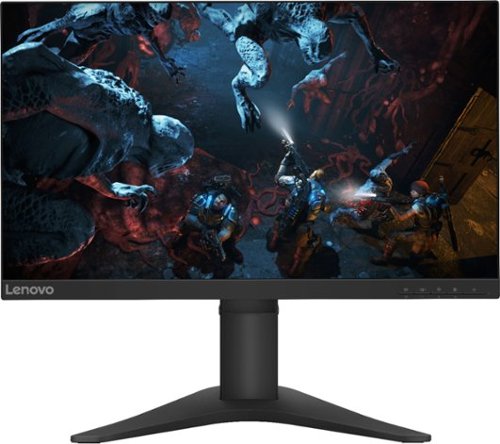
Lenovo - G25-10 24.5" LED FHD FreeSync Gaming Monitor (HDMI) - Raven Black
Amplify your gaming excitement with this Lenovo gaming monitor. The 24.5-inch screen features 1920 x 1080 resolution and NearEdgeless bezels, while a 144MHz refresh rate eliminates lag during intense gameplay. This Lenovo monitor is fueled by AMD FreeSync technology, and the blue light filter and height-adjustable stand provide hours of gaming comfort.
Would this monitor suffice for intermediate graphic design and video editing?
That really will depend on your individual specification requirements for the work you do. The Lenovo G25-10 Monitor provides 100 Percent of the sRGB (72 Percent of the NTSC) color gamut. Has a brightness level of 400 nits with an Anti-glare Coating on the screen. Color Support (typical) of 16.7 Million, Contrast Ratio (typical) of 1000:1 and a Dynamic Contrast Ratio (typical) of 3M:1. Motion blur is minimized with a 144 Hz refresh rate. The 1ms response time eliminates streaking and ghosting. You will protect your eyes from harmful blue light with this TUV Rheinland Eye Comfort-certified monitor. The flicker-free technology educes eye fatigue.
4 years, 4 months ago
by
Posted by:
Lenovo Product Expert