


BobinVA's stats
- Review count163
- Helpfulness votes454
- First reviewDecember 19, 2014
- Last reviewSeptember 1, 2026
- Featured reviews0
- Average rating4.1
Reviews comments
- Review comment count0
- Helpfulness votes0
- First review commentNone
- Last review commentNone
- Featured review comments0
Questions
- Question count0
- Helpfulness votes0
- First questionNone
- Last questionNone
- Featured questions0
- Answer count28
- Helpfulness votes23
- First answerAugust 12, 2016
- Last answerJanuary 22, 2022
- Featured answers0
- Best answers2
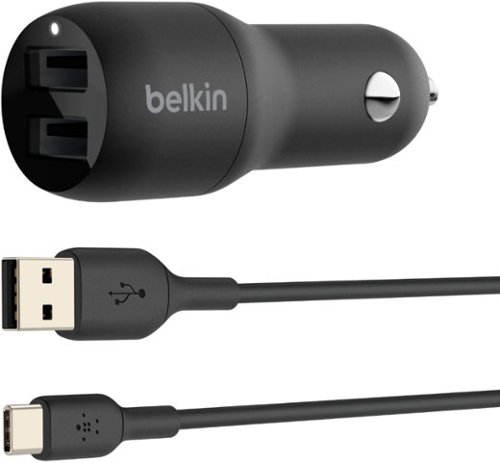
Charge two devices simultaneously with our Dual USB-A Car Charger. This compact charger offers faster-than-standard charging speeds and an LED indicator to let you know when it~s connected to a power source. A cable is included, so you can get charging right away. Compatible with the iPhone 17, 17 Pro Max & 17 Pro.
Customer Rating

5
Higher power means faster charging
on November 12, 2020
Posted by: BobinVA
from Forest
My 2019 truck has a built-in USB-A port, but unfortunately it's of the lower-power variety. How can this be true in 2019/20? Because of that, I picked up this Belkin charger.
The Belkin charger features two USB-A ports, both of which deliver 12W of power to charge devices. Belkin also makes a charger with USB-C ports, but I have both Android and Apple devices, so sticking with USB-A provides more versatility for me. The downside is that this charger does not provide as much power as the USB-C version, but you'll need to weigh this against your needs.
My devices charge faster using this charger than the built-in one, and the ability to charge 2 devices at the same time is very convenient. I appreciate that Belkin also included a USB-A to USB-C cable, as that allows me to leave it in the truck , where I'm now always ready when my wife rides with me and brings her Android phone, which uses USB-C.
This charger is well-built and feels like it's higher quality that those cheap freebies you can find anywhere. If you're looking for more power in a charger, but need to stay with USB-A, this is the one you're looking for!
Mobile Submission: False
I would recommend this to a friend!
Share this review:


0points
0of 0voted this as helpful.
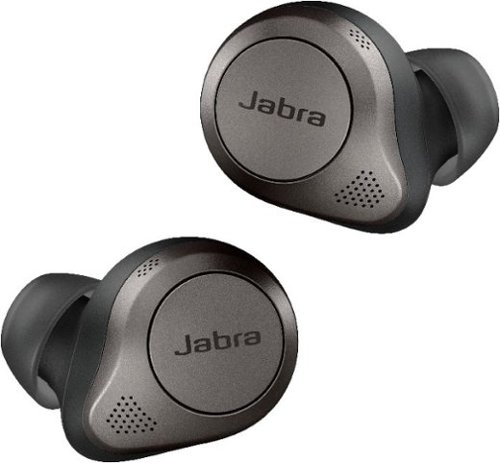
Jabra Elite 85t true wireless earbuds have been engineered for a calls and music experience like never before, with fully adjustable Jabra advanced Active Noise Cancellation~, 12mm speakers for big sound, up to 25 hours of battery (ANC on), and 6-mic technology with wind protection for amazing calls. And because it~s Jabra tech, it~s all crammed into a really tiny body. Because ANC doesn~t only stand for Active Noise Cancellation~ Jabra Elite 85t: Accept No Compromise.
Customer Rating
5
Finally, comfort and sound quality together!
on November 12, 2020
Posted by: BobinVA
from Forest
If you’ve seen any of my other reviews for wireless earbuds, you may wonder why I have so many. It’s because I have a problem—I love these things and I’ve been in search of the perfect set of true wireless earbuds. Getting so many different types has allowed me to really figure out what I like and what I don’t. I’ve always thought of Jabra’s offerings as being at or near the top of the charts, so when I heard they were coming out with new earbuds, I jumped at the chance to get a pair.
I’ve never had a pair of Jabra’s earbuds before, so I didn’t get to experience the 75Ts. The newer version, the 85T, improves on the previous model by adding active noise cancellation (ANC). At the same time, Jabra has complicated matters by releasing a firmware update for the 75T that adds ANC to that model as well. The difference is that the 85T has a dedicated chip to handle the ANC duties, as well as some extra microphones to make it more effective.
Everybody has certain criteria that they use to evaluate wireless earbuds. We’re all evaluating the same features, but we may have them in different order. For me, the top 4 things I look for are fit/comfort, sound quality, connection stability and functionality. Battery life follows right behind these, but my typical use is generally satisfied by the battery life offered by most all major brands, so I didn’t include battery life in my top 4. Let’s get into some details.
Fit:
I didn’t realize how important fit and comfort would be for me, but I think it’s become such a big deal because true wireless earbuds have to pack so much circuitry into a small space, and not every company does a good job with that. It’s important that the earbuds be balanced and not sticking way out of my ears. Several manufacturers add “wings” or “fins” that go into the outer part of your ear, helping to keep them from falling out. I hate those things, and I have yet to find any of those designs that are comfortable to wear for extended periods without needing constant adjusting. Thankfully, the Jabra 85Ts do not need any sort of fin to make them fit. They’re small and light, and I couldn’t believe how easy they were to insert into my ear.
I didn’t realize how important fit and comfort would be for me, but I think it’s become such a big deal because true wireless earbuds have to pack so much circuitry into a small space, and not every company does a good job with that. It’s important that the earbuds be balanced and not sticking way out of my ears. Several manufacturers add “wings” or “fins” that go into the outer part of your ear, helping to keep them from falling out. I hate those things, and I have yet to find any of those designs that are comfortable to wear for extended periods without needing constant adjusting. Thankfully, the Jabra 85Ts do not need any sort of fin to make them fit. They’re small and light, and I couldn’t believe how easy they were to insert into my ear.
Jabra tried something different with the 85T. Instead of using the typical circular-shaped ear tips, they went with an oval shape to provide a semi-open design. With ANC turned off, you can definitely hear more of the sounds around you than if they were completely sealed inside the ear canal. This will perhaps be one of those things that you either love or hate. To be honest, I didn’t know about this when I ordered mine, so I wasn’t sure how I would like it when they finally arrived, but I was pleasantly surprised at just how comfortable they were. My ears didn’t feel like they were stuffed with something, and that allowed me to wear them for hours with no discomfort at all! It’s true that a good seal does help with the bass, but I feel like this is a worthy trade-off. The Jabra 85Ts are so light and slip in the ear so easily, I often had to check to make sure they were still in place. I never once found them to have come loose, nor did they fall out even if I deliberately shook my head. I think I’ve been trained by other brands to have to adjust them constantly, but that is definitely not a problem with these. I am thrilled by the comfort level of these buds.
Sound quality:
Sound quality is pretty subjective, so your mileage may vary, but in my opinion, the Jabra 85Ts have very good sound quality. Until I got these, I thought the Sony WF-SP800N earbuds were my favorites in terms of good sound quality. In a direct comparison, the Sonys were a bit louder, and maybe a bit brighter, but the Jabras feature a much fuller, richer sound. The SP800Ns have more bass and crisper highs, but I think the overall sound of the Jabras is preferable, with the overall sound stage feeling a bit more open to me. The Jabra app is very good at providing options for adjusting the sound. You can choose a preset EQ option or tailor it yourself using a 5-band graphic equalizer. The settings are saved to the buds and carry over, no matter which app you use for listening.
Sound quality is pretty subjective, so your mileage may vary, but in my opinion, the Jabra 85Ts have very good sound quality. Until I got these, I thought the Sony WF-SP800N earbuds were my favorites in terms of good sound quality. In a direct comparison, the Sonys were a bit louder, and maybe a bit brighter, but the Jabras feature a much fuller, richer sound. The SP800Ns have more bass and crisper highs, but I think the overall sound of the Jabras is preferable, with the overall sound stage feeling a bit more open to me. The Jabra app is very good at providing options for adjusting the sound. You can choose a preset EQ option or tailor it yourself using a 5-band graphic equalizer. The settings are saved to the buds and carry over, no matter which app you use for listening.
The active noise cancellation is pretty impressive. Jabra has also included a “hear through” mode that turns off ANC for times when you need to hear what’s going on around you. Hear through uses the microphones to let you hear the sounds around you. This isn’t unique to Jabra, but what is unique is that the Jabras allow you to switch back and forth between hear through and ANC with a single press of a button. Others force you to cycle through various levels of noise cancellation, but Jabra’s approach is much more convenient for when you just need to check in on your surroundings and then want to get back to your music.
The more I listened to these, the better I thought they sounded. Together with a comfortable fit, that made them a winner in my book!
Connection stability:
This is another one of those things that I didn’t think would be so important, but you quickly realize how important it is when you’re constantly interrupted by a drop in the signal between your buds and the phone. Even if it’s just a second, it’s very disconcerting and annoying. While I’ve only had the Jabras for a few days, I’m happy to report that I haven’t had the connection drop even once yet. Walking around my house never posed a problem either. Jabra is still using the master/slave architecture for these buds, and I find that to be a little less robust than having each bud connect independently, but so far I haven’t had any problems whatsoever. Some reviewers have complained about being forced to use the right bud if they only want to use one, but I have no need to use only one, so that was not an issue for me. The 85Ts connect to my phone in the time it takes to pick up one earbud and put it in my ear, so speed is not a problem.
This is another one of those things that I didn’t think would be so important, but you quickly realize how important it is when you’re constantly interrupted by a drop in the signal between your buds and the phone. Even if it’s just a second, it’s very disconcerting and annoying. While I’ve only had the Jabras for a few days, I’m happy to report that I haven’t had the connection drop even once yet. Walking around my house never posed a problem either. Jabra is still using the master/slave architecture for these buds, and I find that to be a little less robust than having each bud connect independently, but so far I haven’t had any problems whatsoever. Some reviewers have complained about being forced to use the right bud if they only want to use one, but I have no need to use only one, so that was not an issue for me. The 85Ts connect to my phone in the time it takes to pick up one earbud and put it in my ear, so speed is not a problem.
Functionality:
I was a little leery when I found out that Jabra still uses a physical button on these earbuds. I’ve had other brands where the button was so hard to press that I ended up shoving the earbud too deeply into my ear every time I used the button. Thankfully, that is not the case for the 85Ts. In fact, Jabra’s implementation of the buttons works so well that I’ve come to like it better than touch-sensitive controls. The physical button is easy to depress and works every time—I don’t have to find the “sweet spot” in order for it to work. The buttons are completely customizable, so you can tailor their features to your liking, and Jabra includes a wide range of functions that the buttons can do, including answering/rejecting calls, volume up/down, track skipping and play/pause.
I was a little leery when I found out that Jabra still uses a physical button on these earbuds. I’ve had other brands where the button was so hard to press that I ended up shoving the earbud too deeply into my ear every time I used the button. Thankfully, that is not the case for the 85Ts. In fact, Jabra’s implementation of the buttons works so well that I’ve come to like it better than touch-sensitive controls. The physical button is easy to depress and works every time—I don’t have to find the “sweet spot” in order for it to work. The buttons are completely customizable, so you can tailor their features to your liking, and Jabra includes a wide range of functions that the buttons can do, including answering/rejecting calls, volume up/down, track skipping and play/pause.
Using the 85Ts for phone calls works very well. I got no complaints about my voice, and being able to use both earbuds for calls meant that I could hear the person on the other end very well. Long conference calls is where the comfort really comes into play.
These earbuds also feature the ability to stop the music when you remove one from your ear. This is a nice feature and works well, with one caveat. Removing the right earbud will cause the left to emanate a loud “pop” in your ear. It’s not a big deal, but it’s annoying, and hopefully something that can be corrected in a future firmware update.
The case is a great size, small enough to fit in your pocket, but big enough to include a reasonably sized battery. It can be charged with the included USB-C cable, or wirelessly using a Qi charger, if you prefer. It’s nice to have the flexibility to charge either way.
The Jabra Sound+ app is very nice and well designed. You can go through a hearing test to tweak the sound to your individual hearing. I did this, but I’m not sure how to tell whether it made a difference. As I mentioned before, you can save EQ settings, as well as controlling how much or how little ANC you want to use. The app even includes some white noise, such as ocean waves, for when you just want to shut the world out. I thought this was a very nice touch.
I’ve used a lot of different earbuds, and there are a lot of good ones out there, but these Jabra 85Ts have now moved to the top of my list. Their combination of good sound quality and excellent comfort make them my new go-to earbuds. I do think they’re too expensive, but hopefully discounts will become common soon. Because of the big price difference over the 75T, the 85T is not quite as good of a value, but it may be worth it because of the better ANC and comfort.
I’m sure I’ll still be tempted by other brands and models, but now they have a new king of the hill with which to compete!
I’m sure I’ll still be tempted by other brands and models, but now they have a new king of the hill with which to compete!
Mobile Submission: False
I would recommend this to a friend!
Share this review:


+4points
4of 4voted this as helpful.
The Samsung Jet~ 70 Pet Cordless Stick Vacuum features a lightweight and maneuverable design plus a removable battery that can be easily swapped* for a spare extended cleaning time up to 40 minutes. Compatible with Samsung Clean Station~ for mess-free, automatic emptying of the hygienic dust bin.
Customer Rating

4
Solid performance at a reasonable price
on November 6, 2020
Posted by: BobinVA
from Forest
The market for “stick” vacuums is growing, and Samsung has several entries that are quite good. I got the Jet 70 Pet Stick, which is their most reasonably priced model. I’ve been using a Dyson for the last year, so when I needed an additional vacuum, I decided to give the Samsung a try. It’s significantly cheaper than the Dyson, but I wanted to see if there were too many tradeoffs to make it worth it.
The first thing I noticed was that the Samsung uses an electronic on/off switch rather than a trigger. The Dyson uses a trigger, but it doesn’t lock, so you have to keep it depressed the entire time you’re using it. That made the switch on the Samsung seem like a breath of fresh air. It also has an easy-to-use power adjustment switch that can be used on the fly, which is another plus.
Battery life is rated at 40 minutes on the lowest power setting, while the Dyson is rated at 60 minutes. In real-life usage, you won’t get anywhere near that using higher power settings. On the highest suction power, I didn’t get 10 minutes, but the medium power level provided about 15 minutes or maybe a little more. If there’s one area that could be improved, it’s battery life. You’re not going to use this for a continuous whole-house vacuuming session, but doing a few rooms at a time or a quick pick-up is no problem. One feature of the Jet 70 that I really appreciate is the removable battery. Samsung provides a wall-mounted charger that can hang the vacuum while charging, but the battery can also be placed in the charger by itself, if you’d prefer not to dedicate wall space to the charger.
The dust bin on the Jet 70 is small, but adequate for most rooms. Emptying it involves removing the bin, then removing the filter and “cyclone” center. While this is admittedly more of a hassle than the Dyson, it’s not too bad, and does make it easier to access all the parts. It’s not exactly “touch free”, but you really don’t come in contact with the dirt.
The dust bin on the Jet 70 is small, but adequate for most rooms. Emptying it involves removing the bin, then removing the filter and “cyclone” center. While this is admittedly more of a hassle than the Dyson, it’s not too bad, and does make it easier to access all the parts. It’s not exactly “touch free”, but you really don’t come in contact with the dirt.
The Jet 70 is very well constructed and feels solid. The motorized brush head is also easy to disassemble, which makes it easy to clean up if you get fibers wrapped around it. There’s an additional smaller head for things like stairs and cleaning your car. Interestingly, it does not have brushes, but rather a protruding rubber strip. This works well enough, but I think brushes work better. It comes with the usual compliment of accessories, and the crevice tool features a unique telescoping feature to help you really get into those hard to reach spots. In a head to head comparison with the Dyson, both vacuums fared equally at picking up lines of salt on a hardwood floor.
So, is the Jet 70 a winner? I think it is, given the lower price. The Dyson may have been slightly more powerful, but I’m not sure it’s worth hundreds more. The real question I have is longevity, but only time will tell (see what I did there?). My Dyson is still going strong almost 18 months in, and I hope that the Samsung Jet 70 will do just as well. If you’re looking for a well-built mid-range stick vacuum, take a look at the Jet 70.
Mobile Submission: False
I would recommend this to a friend!
Share this review:


+7points
12of 17voted this as helpful.

Make the most of your tablet with the ZAGG Pro Stylus. Take notes, sketch, mark-up documents, swipe through pages, and just do more. With a eight-hour battery life, palm-rejection technology, and compatibility with apps that support Apple Pencil, you~re ready for anything. Compatible with Apple iPad Pro 12.9" 6th Generation (2022) 5th Generation (2021), 4th Generation (2020), 3rd Generation (2018); iPad Pro 11" 4th Generation (2022), 3rd Generation (2021), 2nd Generation (2020), 1st Generation (2018); iPad Air 10.9" 5th Generation (2022), 4th Generation (2020); iPad 10.2" 9th Generation (2021), 8th Generation (2020), 7th Generation (2019); iPad 9.7" 6th Generation (2018); and iPad mini 6th Generation (2021), 5th Generation (2019).
Customer Rating
5
Better than the Apple Pencil
on October 8, 2020
Posted by: BobinVA
from Forest
As a user of the Apple Pencil for the last couple years, I’ve been very happy with it. With only a few things I didn’t like, I was curious as to whether the new Zagg Pro Stylus could meet and even exceed the value and performance of the Apple Pencil. At $70, it’s a $30 savings over the Apple Pencil, so it starts with an advantage right out of the gate.
One of the things that annoys me about the Pencil is that it is perfectly round, which makes it easier to roll off the table. Yes, I know that Apple made it unbalanced so that it shouldn’t just roll away, but that doesn’t really work in practice. The Zagg Pro Stylus has one flat side, which makes it easier to stay put. In addition, it’s magnetized, so it’ll stick to the iPad, or even better to the smart cover. It’s a pretty strong magnetic connection, but I’m not sure I’d trust it while carrying the iPad around. It is, however a great option to have while using it in your home or office, much better than just lying around separately from the iPad.
The Zagg Pro has a single button, which is the power button. I wondered why they included such a thing, but I’ve come to believe that this is a good idea. After a period of inactivity, the stylus will go to sleep, preserving battery power. And speaking of power, it charges via USB-C using a port that is cleverly hidden under the cap. No more awkwardly charging while sticking out of the lightning port or using the easy to lose male-to-female adapter to use with your charging cable. The cap does not come off, so you don’t have to worry about losing it, nor do you need to buy any third-party solutions to keep it connected to the stylus. This is definitely an improvement over the Apple Pencil. The last improvement with the cap is that there is a soft capacitive tip on the cap that can be used to scroll pages or for any other touch gesture that you might do with a finger. This is one of those little things that isn’t a big deal, but it’s a nice touch.
How about performance? I did not find any scenario in which the Zagg Pro did not perform just as well as the Apple Pencil. It has great palm rejection, and recognizes tilt and pressure. I’m not an artist, but I did try it in a drawing program, and it worked flawlessly. Pairing isn’t necessary, it just works right out of the box—it couldn’t be easier! Especially since the Apple Pencil 2 doesn’t work with the iPad (only the Air and Pro), those who still use Apple’s entry-level iPads will be happy to have another option. At a 30% savings, there’s really no reason to consider anything else.
Mobile Submission: False
I would recommend this to a friend!
Share this review:


0points
0of 0voted this as helpful.
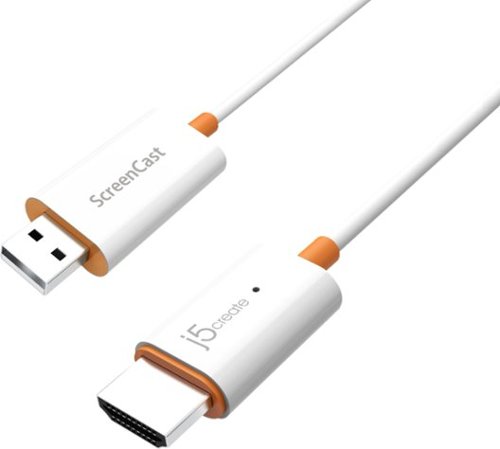
The JVAW53PRO Wireless Display HDMI~ Extender Pro includes a transmitter and receiver kit. It can send a high definition video and audio signal to an HDMI~ enabled TV set, projector or LCD PC monitor display device with receiver distance up to 100 meters and nearly zero latency. Users can extend other HDMI~ sources, including DVD players, Blu-ray~ players, PCs, notebooks and gaming machines (ex. Sony~ PS5~, Nintendo Switch 2~). The JVAW53PRO is fully HDCP compliant via HDMI~, supporting resolutions up to 1080p and stereo digital audio. The extender also supports the transfer of IR remote control signals to the receiver side.
Customer Rating

3
Great idea, but some issues ruin the experience
on September 23, 2020
Posted by: BobinVA
from Forest
My interest in the j5 Screencast device is as a teacher. With the widespread availability of big flat-screen TVs, it makes sense to make use of them to display a slideshow or graphical content while conducting a lecture. The problem is that it’s often inconvenient to use a long HDMI cable to do so. Enter the j5 Screencast.
The Screencast is a small device with a USB connector at one end (for providing power), and an HDMI connection at the other end. Most modern TVs have both USB and HDMI ports not too far apart, and that’s the perfect setup for the Screencast. To get started, all you have to do is plug it in. j5create even includes a USB extension cable in case your USB port is too far away from the HDMI port to use the device as is.
The way the Screencast works is that it creates its own little wifi network. You join the Screencast’s network by selecting its SSID from your wifi setup page and then entering the password. Here’s where I first ran into trouble: the device wouldn’t accept the wifi password that is on the screen and in the documentation! After trying to figure it out on my own, I called tech support, who suggested that I perform a factory reset. Fortunately, this worked and I was able to use the default password. I wasn’t impressed that I had to do a reset out of the box, but I was glad that it worked.
When I realized that I had to join a different wifi network than what I normally use at home, I wondered how the device would support mirroring internet content from my phone to the TV. The answer is that you let the device join your home network, then that signal is provided to your phone when you join the device’s network. Once I was properly connected, it was time to give it a try.
On my Apple iPhone, I swiped up from the bottom and chose “screen mirroring”. It listed the Screencast device as a viable option for casting, but that’s where the fun ended. My iPhone 8 using iOS 13.6 failed to connect to the Screencast. It’s possible that there is some sort of security policy on my corporate phone that is preventing that, but I could not find any documentation to help me with that, so using the iPhone was a no-go for me.
To make sure that this wasn’t just a problem with iOS devices, I tried it with my iPad, and it worked fine, with the exception that I couldn’t cast HD content from Amazon Prime, and it wouldn’t work with Sling TV. It did, however, work with Hulu. I also dusted off an ancient iPod Touch, and screen mirroring worked just fine on that as well. Lastly, I tested it with an Android phone and had no problems.
While watching video in an app on my iPad, I thought it would be good to see it on a larger screen. The devices were able to “talk” to each other, but only the audio from the app was cast to the TV. It seems that there are too many restrictions and/or glitches to reliably cast videos using this device. I am aware that some video services, such as Amazon Prime, protect their content with HCDP, but it’s still disappointing and limiting to run into this.
For my original purpose of sharing slideshows in class, this device works just fine. I’m not sure I’d want to pay the full $55 just for that purpose, however. Chromecast serves the same purpose for less.
Mobile Submission: False
No, I would not recommend this to a friend.
Share this review:


0points
0of 0voted this as helpful.
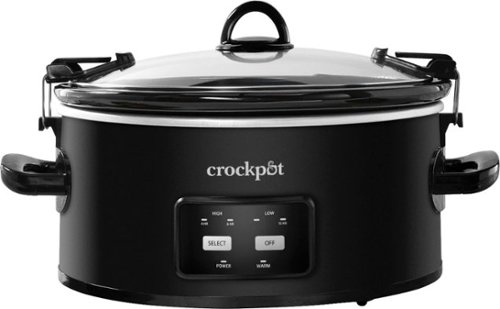
Crock-Pot 6-Quart Programmable Cook & Carry Slow Cooker is the perfect programmable slow cooker for those with a busy, on-the-go lifestyle. Its large capacity ensures that everyone gets enough to eat, and its portability makes it a great choice for travel. The secure-fitting lid and locking system create a tight seal between the stoneware and lid.
Customer Rating
5
Does one thing and does it well
on September 18, 2020
Posted by: BobinVA
from Forest
It’s been a long time since we’ve updated our Crockpot. This one provides the right mix of easy to use features combined with the tried and true Crockpot formula. The removable stoneware insert has plenty of room for preparing family-sized meals, and we loved the locking glass lid. My family loves to laugh about “the beanie w**nie debacle” when a Crockpot turned over in my car, so I’m thrilled to have a locking lid that should reduce the chance of such a disaster happening.
Perhaps the thing that excited me the most about this new Crockpot is the ability to program a time setting. It’s even better because they made it so simple to use. You simply choose high or low temperature and either 4 or 6 hours (High) or 8 or 10 hours (Low). That’s it. After the specified period of time it switches to “keep warm” and you come home to a nice warm, not burnt dinner! It really couldn’t be any simpler.
The locking lid kept the steam locked in and cooked our food just right. Cleanup is easy, and we were even happy about the addition of rubber coated feet on the bottom of the base. Maybe that shows how old our previous model was!
You can’t go wrong with a Crockpot, and I think every home should have one. This is the perfect replacement for our old version, and if this works as well as that one did, it’ll be many more years before we need another!
Mobile Submission: False
I would recommend this to a friend!
Share this review:


0points
0of 0voted this as helpful.
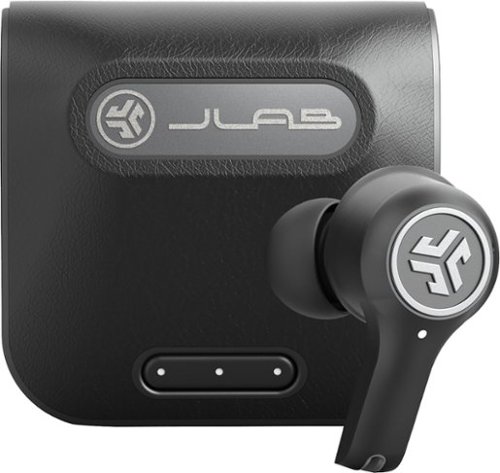
Calls. Conferences. ON-the-GO. Air never looked so epic. Offering the ultimate true-wireless experience for any professional or audiophile, JLab Epic Air ANC offers customized sound and active noise canceling plus industry-leading 48+ hours playtime. Transition from music to calls, work to home effortlessly with features like wear-detect, movie mode, wireless charging and more.
Customer Rating
4
Super comfortable and packed with features
on September 17, 2020
Posted by: BobinVA
from Forest
I’m a sucker for wireless earbuds, so when JLAB came out with their Epic Air ANC true wireless earbuds, I jumped at the chance to get them. I’ve tried many different styles of wireless earbuds, but never the kind with a stem, like these (no, I’ve never had ear pods).
This is my fifth pair of JLAB earphones, so I do really like their products. They provide much better value than the other major players, with lots of features for the money. While I have many earbuds from different manufacturers, JLAB’s products consistently provide a more comfortable fit, and these Epic Air ANC earbuds are no exception. As I’ve used Bluetooth earbuds more and more, I’ve found that fit and comfort are extremely important. I have some that sound great, but they’re so annoying to wear that I don’t want to use them. On that score, the Epic Air ANCs get top marks! They’re light, comfortable, and don’t move in my ears at all, no matter how much I move. I found that the cloud foam worked best for me, and provided a good seal in the ear canal, which helps the sound quality. I found that I could wear these for extended periods of time with no discomfort, and I didn’t have to constantly adjust them in my ears. Compared to so many others, that’s a big win!
The other thing that really matters to me is sound quality. On that score, the Epic Air ANCs are good but not great. JLAB isn’t trying to have the best sound quality, but it is very good for the price. I thought the sound stage was a little shallow, and the low end notes were a bit muddy. Highs are fine, but not as crisp as I would like. Overall, you won’t be disappointed until you compare them to models costing twice as much or more. They do not support either AptX or AAC—I wonder if that would help the overall sound quality.
I did experience more Bluetooth dropouts than I would have liked, but it wasn’t overly annoying. According to JLAB, both earbuds connect independently, but I’m not sure about that. When I paired them with my phone, only one earbud showed the blinking blue light for Bluetooth pairing, and when that one paired, they both worked. When they lose connection for a split second, it always seems to be the left earbud, which is another thing that makes me think that it’s the right earbud that connects to the phone, and then the left connects to the right. I’m not sure about that, but it’s consistent with the behavior of other TWS earbuds that use this setup. I’ll admit that I was disappointed that this happened as often as it did. It only lasts for a second, but it is annoying.
Call quality is okay. I can clearly be heard, but there are aural artifacts in the sound that really shouldn’t be there. This is fine for the short occasional call, but I wouldn’t want to subject someone to that for an extended period of time. To compare, I also have the JLAB Epic ANC neckband earbuds, which sound basically identical, but they do not exhibit this problem on calls. Definitely not a deal-breaker, but it could be better.
Similar to other JLAB ANC models, I’m impressed by how good the active noise cancelling is on these. For a lot less money than others, JLAB provides very capable noise cancellation that works very well. In addition, they’ve included a feature called “Be aware” which amplifies outside sounds. This is a great feature not usually found in ear buds under $100. They also feature a wear detect sensor, which will stop your music if you remove one of the earbuds. The touch controls are a big improvement over the physical buttons that were on the JBuds Air. It takes some getting used to the touch controls, but they work pretty well. Lastly, the case features a built-in charging cable, or you can charge the case wirelessly. This full set of features is what really sets these apart from the competition.
I’m very glad that JLAB now has an app. It’s great to be able to change settings, especially EQ, in an app. My only complaint is that the app was sometimes buggy, undoing my changes right before my eyes. Hopefully the app will only get better over time.
I’ve never had the Executive TWS earbuds, but these seem to be those with the addition of active noise cancelling. So, the question is whether the addition of this feature is worth an additional $30. Like their other offerings, the Epic Air ANC earbuds offer a long list of features not usually found until you spend a lot more. The sound quality will satisfy all but the audiophiles, but you might just overlook that to get a comfortable fit, long battery life, and tons of features.
Mobile Submission: False
I would recommend this to a friend!
Share this review:


0points
0of 0voted this as helpful.
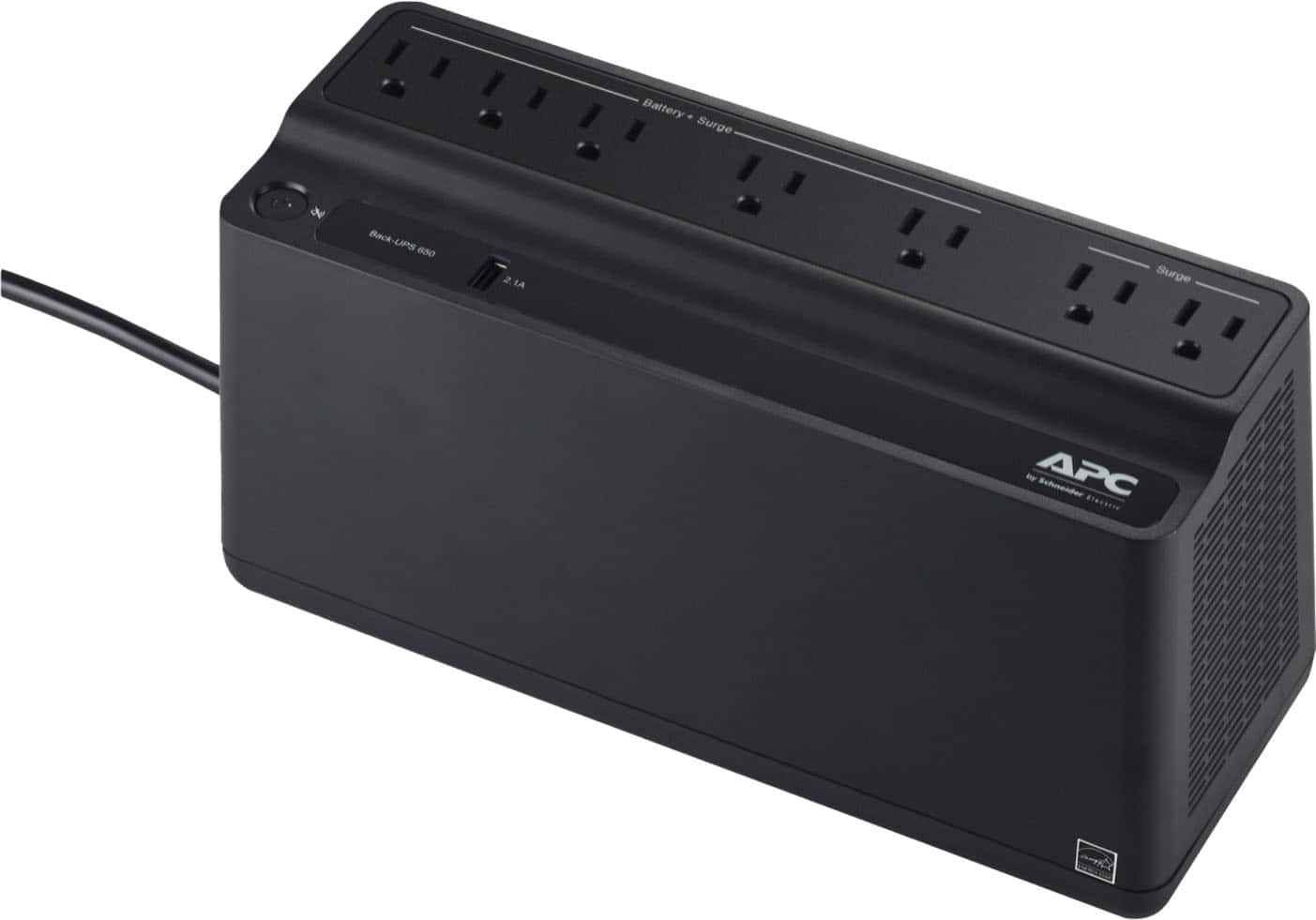
APC - UPS Battery Backup, 650VA/360W, Tower/Wall Mount, 7 Outlets, LED Indicator, USB-A port - Black
The Back-UPS battery backup offers guaranteed power and surge protection for wireless networks, computers, gaming consoles and other electronics in your home or business. Models supply battery backup during outages and unsafe voltage fluctuations, as well as provide protection from damaging surges and spikes. They're available in 'tower' or 'floor' styles, and together with a variety of standard features, they are the perfect choice to protect your data and keep you connected.
Customer Rating
4
Power through a blackout
on August 19, 2020
Posted by: BobinVA
from Forest
I used to use an old APC battery backup for my desktop computer, monitor and printer, but since moving entirely to laptops, I didn’t think I needed a UPS anymore. After all, the laptop has its own battery to get me through a short power outage, right? That’s true, but these days it’s hard to do much without an internet connection, and that’s what ultimately convinced me to pick up the APC Back-UPS 650VA. It provides a simple battery backup for the equipment that needs to keep running, even when there’s no power.
The Back-UPS 650VA features 7 outlets and one USB port. 5 of the outlets are backed up by the battery, and all of them feature surge protection. I got this unit to power my modem, router, VOIP phone and outside cameras. My hope is to continue to be able to use my computer and internet, even if I’m without power temporarily.
Setup is easy enough, consisting only of plugging in a connector that activates the power flow to/from the battery. Think of this as an upgraded version of the piece of tape that many consumer electronics use to prevent the battery from discharging before you even open the package. After that, plug it into the wall outlet and start plugging in your devices.
Here's where I had to take away a star. The unit is compact, but maybe a little too compact. Many of today’s electronics feature a power brick, or “wall wart” that includes a square or rectangular plug-in. This means that, for most of them, you can’t put two such plugs side by side in this UPS because the outlets on the unit are too close. I had to resort to adding small extension cords to alleviate the crowding. I get that they wanted a compact unit, but this one is not even as long as many surge protectors, so I think it could have been a little longer, allowing for wider spacing between outlets.
The unit features the ability to change how and when it beeps. The default setup was fine for me, so I did not have a need to change it, but it’s good to know that I could do that if needed. It also supports a voltage sensitivity adjustment, which allows you to vary the level of voltage drop-off that needs to occur before the battery kicks in. I didn’t have a need to use this, but it’s helpful to know that it’s there in case you need it.
So, does it work? I pulled the plug on the unit and my connected devices continued working without a hitch. I liked that it doesn’t beep initially while on battery power, but will beep when the power drops below 20%. My previous UPS would beep every few seconds as soon as your house lost power. That’s pretty annoying, but I think the UPS category has come a long way since then. This unit provides several hours’ worth of power, allowing you to finish what you’re working on, and hopefully getting you through until the power comes back on. While I did like the compact size because it fits discreetly behind my couch, I do wish it was a little longer to accommodate larger plugs. Other than that, I’m quite happy with the Back-UPS unit from APC.
Mobile Submission: False
I would recommend this to a friend!
Share this review:


+3points
3of 3voted this as helpful.

Stream audio and video with this black Belkin USB-C to HDMI adapter and charger. The USB-C port connector delivers up to 60W for ultra-fast device charging, while the plug-and-play design offers hassle-free use. This Belkin USB-C to HDMI adapter and charger supports 4K resolution at 60Hz for transmitting clear, detailed visuals. It is compatible with the iPhone 17, 17 Pro Max and 17 Pro.
Customer Rating
5
Great for external monitor, charging is a plus
on July 12, 2020
Posted by: BobinVA
from Forest
More and more laptops are making the move to USB-C. I applaud this development, but it can be problematic if you have only one or 2 USB-C ports and they are also the only way to charge your laptop. In that scenario, giving up one of those precious ports to use an external monitor can be problematic. Belkin’s new adapter addresses that problem, and provides 4K output to an external monitor at 60 Hz.
I like the style of this adapter because it incorporates a short length of cable to the part that you plug your HDMI cable into. That’s because the adapters without a cable can end up being subjected to a lot of stress depending upon where you put your laptop. Any stress to the adapter is also stressing your port, and that’s not good. That’s why I like this design better.
I also like this design because of the passthrough charging port that is included. This allows you to charge your laptop using the same adapter that you’re using to power the external monitor. I don’t have a full 4K external monitor, but I do have a 32” QHD monitor, and this adapter easily handles it, and it looks great! My laptop has a small screen, so this gives me much better output options, and that’s easier on my eyes. I was just on an extended Zoom call, so I needed both USB-C ports for the monitor and webcam, but noticed that my laptop wouldn’t last through the end of the call. Not a problem, since I had the Belkin adapter! It worked flawlessly and I was able to use the external monitor while still charging my laptop. I was so glad to have this when I needed it. This is a simple product with a simple focus, and it does it well.
Mobile Submission: False
I would recommend this to a friend!
Share this review:


0points
0of 0voted this as helpful.
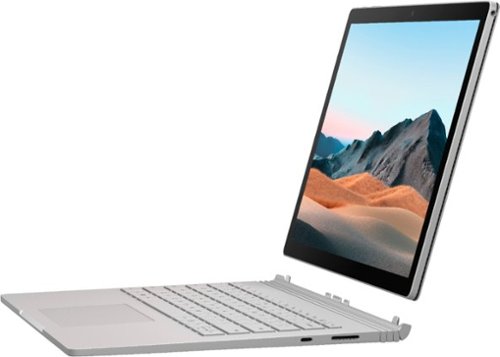
Performance meets versatility. From intensive video and graphics files to high-octane gaming, the most powerful Surface laptop yet combines speed, graphics, and long battery life with the versatility of a laptop, tablet, and portable studio. Tackle your biggest demands with quadcore powered 10th Gen Intel Core processors, blazing NVIDIA graphics, and high-resolution PixelSense Display designed for Surface Pen* and touch.
Customer Rating
4
An awesome 2-in-1, for the right person
on July 8, 2020
Posted by: BobinVA
from Forest
Disclaimer: I received this product as part of my participation in the Best Buy Technical Insiders Program. Reviewers in this invitation-only program are provided products for the purpose of writing honest, unbiased reviews. Everything in this review reflects my honest beliefs, opinions or experiences, and participation in the program is not dependent on me providing a positive review.
The latest version of the Surface Book 3 is a controversial one. If you read any of the various online reviews, you’ll run into a lot of complaints about how this version is no different on the outside, but only has upgraded internals. Another complaint is about how there are so many other cheaper laptops with better performance. But I think the key to understanding this machine is to understand who they built it for. My main laptop is 4 years old now. It has 8 GB of RAM, a 1 TB SSD, and uses the AMD FX chip, which has worked very well for me, but I’ve been itching for a laptop that really feels like a laptop, but with the capability of becoming a very capable tablet for drawing and taking notes with digital ink. For me, that made the SB3 the perfect machine. In this review, I’ll share the real-life usage tests I put it through to find out if it really can be what I’m looking for.
Fit and finish:
I’ll just touch briefly on the build, since you can find other opinions on that in lots of other reviews:
-The build quality is absolutely solid! The full magnesium case has no flex, and is still reasonably lightweight. No matter how you hold it, it feels solid, and the much-maligned fulcrum hinge provides a very comfortable place to hold it, just like the spine of a book. What many people fail to understand is that this hinge is what’s required to make a tablet work as a laptop. Kickstands don’t work in your lap.
-The screen is gorgeous, and the 3:2 aspect ratio makes the screen seem much bigger than it really is. I have the 13.5”, but I didn’t feel like the screen was cramped at all. I’ve never owned a laptop smaller than 15.6”, so that’s saying something. I did think the color temperature of the screen was a little cool, especially when compared to my other machines, but it still looks great, and I’m sure I can tweak it later.
-The keyboard is excellent, with good key travel and just the right amount of clickiness. This is one of the best keyboards you’ll find on any laptop. Tactile feedback is very good and allows you to type much faster than on other laptop keyboards. The trackpad is excellent, if a little small. Other reviewers complain about the size of the trackpad, but I’ve had no problems with it at all, and it is very responsive, using the Microsoft precision trackpad drivers.
I’ll just touch briefly on the build, since you can find other opinions on that in lots of other reviews:
-The build quality is absolutely solid! The full magnesium case has no flex, and is still reasonably lightweight. No matter how you hold it, it feels solid, and the much-maligned fulcrum hinge provides a very comfortable place to hold it, just like the spine of a book. What many people fail to understand is that this hinge is what’s required to make a tablet work as a laptop. Kickstands don’t work in your lap.
-The screen is gorgeous, and the 3:2 aspect ratio makes the screen seem much bigger than it really is. I have the 13.5”, but I didn’t feel like the screen was cramped at all. I’ve never owned a laptop smaller than 15.6”, so that’s saying something. I did think the color temperature of the screen was a little cool, especially when compared to my other machines, but it still looks great, and I’m sure I can tweak it later.
-The keyboard is excellent, with good key travel and just the right amount of clickiness. This is one of the best keyboards you’ll find on any laptop. Tactile feedback is very good and allows you to type much faster than on other laptop keyboards. The trackpad is excellent, if a little small. Other reviewers complain about the size of the trackpad, but I’ve had no problems with it at all, and it is very responsive, using the Microsoft precision trackpad drivers.
Performance:
-I used Handbrake to transcode a 1.5 hour video of my son’s high-school play at 720p at 30fps. The Surface Book 3 completed this in only 38 minutes. I don’t have a SB3 competitor to compare to, but on my old AMD FX it took 73 minutes to transcode the same video. So, from my perspective, this is a great improvement, but I can’t fully compare to other competitors in this class. From what I’ve seen in other tests, the SB3 is as good or better than other laptops this size.
-Developing software is a discipline that requires you to become really familiar with your computer. While I do some work in Javascript and Java, my favorite toolset is Microsoft’s Visual Studio. Installation of VS 2019 went surprisingly quickly on the Surface Book. WiFi downloads are amazingly fast and the installation of VS2019 went more quickly on this machine than any other I’ve used. To see how this machine would fare, I chose a project that consisted of 156 separate sub-projects that needed to all be compiled and put together to produce the final result. My old AMD laptop took 9-10 minutes to build this project, while the SB3 took only 3.5 minutes. This is the kind of speed improvement that results in real productivity gains over time, so this is a good start.
-Another thing that I commonly do is work with Excel spreadsheets. Sometimes, it’s just easier to develop a calculation tool in Excel than it is to write an entire application from scratch. To see how the SB3 performs here, I found an Excel test consisting of 100,000 VLOOKUP formulas and used a VBA macro to determine the exact calculation time. I ran the test 6 times and took the average calculation time on the new SB3 and the old AMD FX laptop. On my old machine, average calculation time was 6.75 seconds, while the SB3 handled them in an average of 2.5 seconds, 63% faster!
-One of my favorite software packages is Logos Bible Software. Logos offers a huge digital library, but the real value of the software is its ability to find connections between resources in your library, helping you find just what you need, without wasting time digging through book after book. One of the tasks that is more demanding of the CPU is to create a passage guide. The passage guide searches through your entire library to find related materials and make connections between them. On my old PC, creating the passage guide took just over 36 seconds, while the SB3 breezed through in only 14 seconds. Again, a real time saver!
-I use Photoshop Elements to do some photo editing and creation of photo projects, in addition to using the organizational capabilities of the software. For the work that I typically do, the SB3 provided a roughly 50% speed improvement in upsizing photos, and approximately a 70% improvement when applying complex filters.
-Many reviews include benchmarks, so I decided to try that out for myself. I downloaded the well respected Geek Bench suite and ran it on both my old computer and the new SB3. The SB3 logged a 944 single-core score and a 3255 multi-core score, versus 425 and 1223. As you would expect, this is a drastic increase in performance, and while I don’t have another direct competitor to put the SB3 up against, professional reviewers say that the 13.5 inch SB3 bests competitors from Dell and HP.
-I used Handbrake to transcode a 1.5 hour video of my son’s high-school play at 720p at 30fps. The Surface Book 3 completed this in only 38 minutes. I don’t have a SB3 competitor to compare to, but on my old AMD FX it took 73 minutes to transcode the same video. So, from my perspective, this is a great improvement, but I can’t fully compare to other competitors in this class. From what I’ve seen in other tests, the SB3 is as good or better than other laptops this size.
-Developing software is a discipline that requires you to become really familiar with your computer. While I do some work in Javascript and Java, my favorite toolset is Microsoft’s Visual Studio. Installation of VS 2019 went surprisingly quickly on the Surface Book. WiFi downloads are amazingly fast and the installation of VS2019 went more quickly on this machine than any other I’ve used. To see how this machine would fare, I chose a project that consisted of 156 separate sub-projects that needed to all be compiled and put together to produce the final result. My old AMD laptop took 9-10 minutes to build this project, while the SB3 took only 3.5 minutes. This is the kind of speed improvement that results in real productivity gains over time, so this is a good start.
-Another thing that I commonly do is work with Excel spreadsheets. Sometimes, it’s just easier to develop a calculation tool in Excel than it is to write an entire application from scratch. To see how the SB3 performs here, I found an Excel test consisting of 100,000 VLOOKUP formulas and used a VBA macro to determine the exact calculation time. I ran the test 6 times and took the average calculation time on the new SB3 and the old AMD FX laptop. On my old machine, average calculation time was 6.75 seconds, while the SB3 handled them in an average of 2.5 seconds, 63% faster!
-One of my favorite software packages is Logos Bible Software. Logos offers a huge digital library, but the real value of the software is its ability to find connections between resources in your library, helping you find just what you need, without wasting time digging through book after book. One of the tasks that is more demanding of the CPU is to create a passage guide. The passage guide searches through your entire library to find related materials and make connections between them. On my old PC, creating the passage guide took just over 36 seconds, while the SB3 breezed through in only 14 seconds. Again, a real time saver!
-I use Photoshop Elements to do some photo editing and creation of photo projects, in addition to using the organizational capabilities of the software. For the work that I typically do, the SB3 provided a roughly 50% speed improvement in upsizing photos, and approximately a 70% improvement when applying complex filters.
-Many reviews include benchmarks, so I decided to try that out for myself. I downloaded the well respected Geek Bench suite and ran it on both my old computer and the new SB3. The SB3 logged a 944 single-core score and a 3255 multi-core score, versus 425 and 1223. As you would expect, this is a drastic increase in performance, and while I don’t have another direct competitor to put the SB3 up against, professional reviewers say that the 13.5 inch SB3 bests competitors from Dell and HP.
So, what’s the point of my little homemade performance tests? It was for me to find out whether I was really getting a significant bump by going with the new SB3. The SB3 isn’t just a pretty face with a parlor trick, it’s actually ready to be my workhorse.
Gaming on the SB3: I loaded up Civilization VI, as this is one of my favorite PC games. The screen was gorgeous and easily handled loading up the world map with no parts of it missing. The high resolution made everything very small, but very detailed. CPU turn time was very fast, and it’s easily possible to get 60fps using the dedicated GPU. Late-game scenarios when there’s a lot going on will definitely benefit from the additional power. As good as it is, however, there are dedicated gaming machines with more power at lower prices. For me, that just doesn’t matter, however, as I consider the ability to play some top-tier games on the same machine where I do my work as a real bonus.
Many reviews focus on raw power for things like editing and rendering videos and photographs, and high-end gaming, but I think they’re missing the point. Yes, if those things are the reasons you bought the SB3, you might be a little disappointed. But the ideal candidate for the SB3 isn’t the high-end photographer, videographer or gamer, it’s the person who does some of those things, but not all of them all the time. It’s the person who needs the tablet capabilities of the SB3, as well as enough power to handle those other tasks and the occasional gaming session. Having the ability to have a single machine on which I can prepare a document, sign it with digital ink, convert it to a PDF and email it is great, and something that few other devices can do, and none with a fully detachable tablet.
Using the SB3 as a tablet: Let’s talk about the tablet for a moment. Those who criticize the design of the SB3 often suggest that Microsoft would be better served by just creating a thinner, lighter convertible with a 360-degree hinge. I have that machine, and it’s called the Google Pixelbook. That laptop is the thinnest and lightest I’ve ever owned, but at 2.4 pounds, it’s a heavy tablet, and it’s very annoying to have to deal with the keyboard on the backside of the screen, even though the keys are disabled when in tablet mode. The SB3 is 3.62 pounds when docked, but only 1.59 pounds as a tablet. The lighter weight and absence of a keyboard in your hand make for a surprisingly comfortable tablet. It’s just a bit heavier than the 12.9 inch iPad Pro, but the advantage here is that you’re getting the use of a full-blown Windows operating system, not an OS that is designed for mobile use first. With a stylus in hand, I had no problem using desktop-class Windows programs, and those designed for touch are even easier to use. To me, it was the best of both worlds, with no compromises and no need to purchase separate applications for use on the tablet. Windows ink is super responsive, with no perceptible lag time. Battery life when used as a tablet is only 3 hours or less, so could be better.
The Surface Book 3 is a finely-crafted computer that gets a performance boost this time around, making it a powerful tool for work, play, and art. If you, like me, are looking for a computer that can serve as a powerful laptop as well as a powerful, thin and light tablet, then this is the one for you. Perhaps my biggest reservation is the price. This versatility doesn’t come cheap, so you need to be really sure that you’ll benefit from the unique form factor of the Surface Book 3. If you don’t really need the detachable screen, there are plenty of other laptops that will probably suit you better. If you do need it, there’s not a better option available!
Mobile Submission: False
I would recommend this to a friend!
Share this review:


+1point
1of 1voted this as helpful.
BobinVA's Review Comments
BobinVA has not submitted comments on any reviews.
BobinVA's Questions
BobinVA has not submitted any questions.
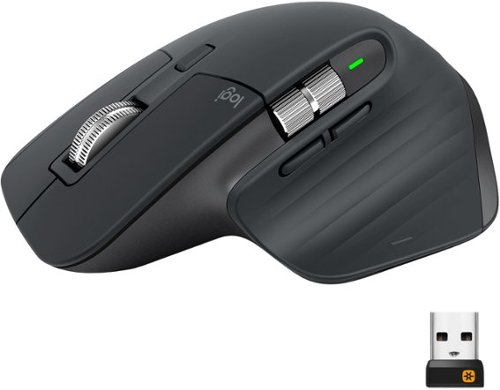
MX Master 3 is instant precision and infinite potential. Designed for designers and engineered for coders, it~s our most advanced Master Series mouse yet. App-specific button customizations speed up your workflow in the apps you use most and the electromagnetic MagSpeed wheel enables fast noiseless scrolling. Your hand rests perfectly on the sculpted form and allows you to work comfortably for hours across multiple computers and operating systems in one fluid workflow. Ready for video calls - predefined settings for Microsoft Teams and Zoom let you instantly mute and Start/Stop your video call. With MX Master 3, you can truly master what you make.
Bluetooth is turned off on our work computers. Will this operate as a wired mouse with the USB cable attached or is it strictly for charging
Yes, it will operate as a wired mouse that way, but that is really defeating its purpose. Can you use the unified receiver instead? I'm doing that instead of bluetooth, and it works very well.
6 years, 11 months ago
by
BobinVA
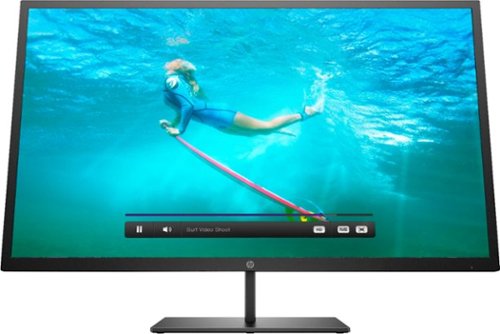
Multitask comfortably using this HP Pavilion 32-inch monitor. The QHD resolution provides immersive visuals for gaming and a spacious work space. Enjoy consistent clarity and color from multiple positions thanks to the 178-degree viewing angle. This HP Pavilion 32-inch monitor features an anti-glare panel for better visibility in bright conditions, while the Low Blue Light mode reduces eyestrain.
Wall mountable - yes How can this be wall mounted? Please suggest a wall mount for this monitor.
The monitor comes with a bracket that you can attach to the back of the monitor. This will allow you to attach it to a mount. I'd suggest a full-motion wall mount that has the square center bracket, as this will match up with the bracket on the monitor itself. I don't think the monitor conforms to the VESA standard for mounting brackets, but I'm not sure. I'm not mounting my monitor, so these are just some thoughts after having just setting mine up. Good luck!
7 years, 3 months ago
by
BobinVA
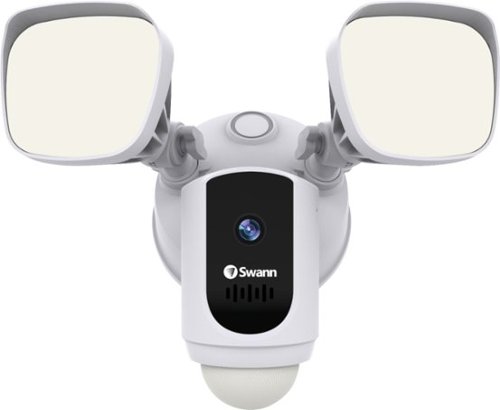
Protect your home or business with this Swann 1080p Wi-Fi floodlight security camera. The Full HD resolution lets you review captured footage in stunning detail, while the floodlight ensures that subjects are illuminated. This Swann 1080p Wi-Fi floodlight security camera includes a siren and two-way audio for scaring off trespassers and potential intruders.
How good is the motion detection really? I have purchased several cams and the motion detection is awful. Thanks
I've found it to be quite good. Sometimes it seems to pick up the motion of swaying tree branches. I'm still trying to figure out the optimal sensitivity setting.
7 years, 4 months ago
by
BobinVA
Protect your home or business with this Swann 1080p Wi-Fi floodlight security camera. The Full HD resolution lets you review captured footage in stunning detail, while the floodlight ensures that subjects are illuminated. This Swann 1080p Wi-Fi floodlight security camera includes a siren and two-way audio for scaring off trespassers and potential intruders.
How long are the recorded clips? Do the clips start before motion is detected?
I think the clips are about 30 seconds. They do seem to start before motion is detected, which results in complete clips of the action.
7 years, 4 months ago
by
BobinVA
Protect your home or business with this Swann 1080p Wi-Fi floodlight security camera. The Full HD resolution lets you review captured footage in stunning detail, while the floodlight ensures that subjects are illuminated. This Swann 1080p Wi-Fi floodlight security camera includes a siren and two-way audio for scaring off trespassers and potential intruders.
Can the floodlight be wired and howlong do the battery last
I'm not sure if there are other models, but mine is wired only. There is no option for it to be battery powered. Given how bright the lights are, and how often they're likely to be tripped, I would think that batteries would go dead pretty often. If you have the choice, hard wire it.
7 years, 4 months ago
by
BobinVA
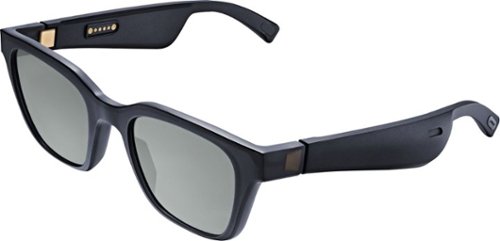
Meet Bose Frames. Bluetooth sunglasses with a soundtrack. The first audio sunglasses with built-in Bose speakers for an immersive audio experience unlike any other. A revolutionary personal audio experience hidden inside two classic designs, each enriched with premium accents and materials. Play music, take calls, and enjoy the sun with UVA/UVB protection. Bose Frames Alto feature a classic angular lenses, available in small and large size.
How long does the battery last?
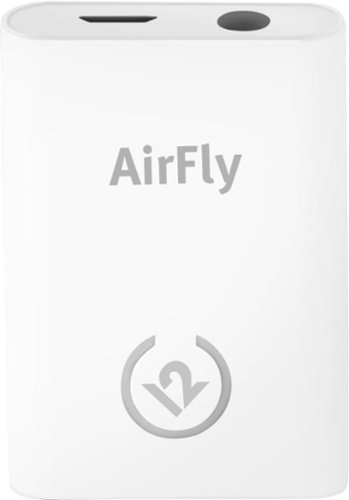
Unlock new potential for your wireless headphones with this Airfly headphone accessory. It plugs into any conventional headphone jack to enhance your listening experience and can pair with in-flight entertainment systems for added convenience. This Airfly headphone accessory has an eight-hour battery life and recharges through USB, so it's easy to take anywhere.
Can you plug wired headphones into this to make them wireless?
No, this is a wireless transmitter, not a wireless receiver. The headphone jack in the AirFly is for the source of the sound, and it then sends it out to headphones that are able to receive the signal.
7 years, 5 months ago
by
BobinVA
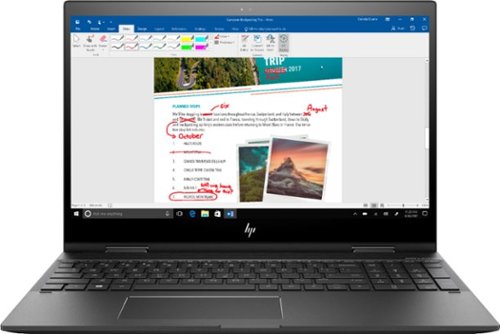
Study or work hard on this HP Envy convertible laptop, which features a large 15-inch screen. The laptop opens up easily to create a tablet for note-taking, while an AMD Ryzen processor supports Windows 10 Home and other applications effortlessly. The reliable128GB solid-state hard drive on this HP Envy convertible laptop stores lots of files and programs.Learn more.
Can this device connect to both 2.4 GHz and 5 GHz WiFi?
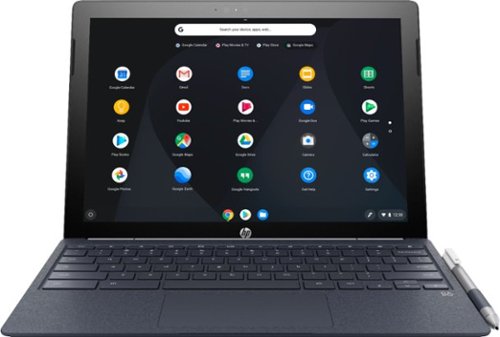
Run programs on this 12.3-inch HP Chromebook convertible laptop. Its detachable touch-screen display lets you enjoy brilliant 2K content, and you can write and draw on it with the included Active Pen. This HP Chromebook convertible laptop has 32GB of storage, and its Intel Core m3 processor and 4GB of RAM provide smooth performance.
Does this computer have a camera in which I can use Skype?
It has both front and rear-facing cameras. However, I don't think there's a version of Skype that will work with Chrome OS. If this is a deal breaker for you, you should research that to find out.
8 years, 3 months ago
by
BobinVA
Run programs on this 12.3-inch HP Chromebook convertible laptop. Its detachable touch-screen display lets you enjoy brilliant 2K content, and you can write and draw on it with the included Active Pen. This HP Chromebook convertible laptop has 32GB of storage, and its Intel Core m3 processor and 4GB of RAM provide smooth performance.