Lenovo Product Expert
Lenovo Product Expert's Stats
Reviews
- Review Count0
- Helpfulness Votes0
- First ReviewNone
- Last ReviewNone
- Featured Reviews0
- Average Rating0
Reviews Comments
- Review Comment Count0
- Helpfulness Votes0
- First Review CommentNone
- Last Review CommentNone
- Featured Review Comments0
Questions
- Question Count0
- Helpfulness Votes0
- First QuestionNone
- Last QuestionNone
- Featured Questions0
- Answer Count37808
- Helpfulness Votes24,825
- First AnswerApril 21, 2014
- Last AnswerOctober 9, 2026
- Featured Answers0
- Best Answers2827
Lenovo Product Expert's Reviews
Lenovo Product Expert has not submitted any reviews.
Lenovo Product Expert's Questions
Lenovo Product Expert has not submitted any questions.
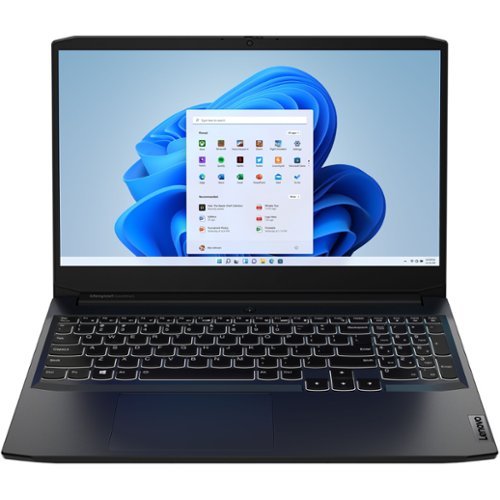
Lenovo - IdeaPad Gaming 3 15IHU6 15.6" Gaming Laptop - Intel Core i5 - 8 GB Memory - NVIDIA GeForce RTX 3050 - 256 GB SSD - Shadow Black
Lenovo Gaming 3 Series. Experience gaming like never before on the IdeaPad Gaming 3i laptop powered by an Intel Core processor. Play and stream PC games at peak performance on the IdeaPad Gaming 3i with up to 4.4GHz clock speed, 4 core, 8MB cache, NVIDIA GeForce RTX 3050 Graphics, High Definition Audio, and Wi-Fi 6 with Bluetooth 5.0.
Will 32gb of ram will work for this laptop?

This Lenovo IdeaPad 3 15 Gaming laptop, model number 82K1015EUS, ships with 8GB DDR4-3200MHz RAM installed (1x 8GB SO-DIMM DDR4-3200MHz RAM). There are two DDR4 SO-DIMM slots, dual-channel capable. The maximum RAM that this model configuration can support is: Up to 16GB DDR4-3200MHz RAM. We recommend you consult with your certified technician about your RAM upgrade options.
4 years, 2 months ago
by
Posted by:
Lenovo Product Expert
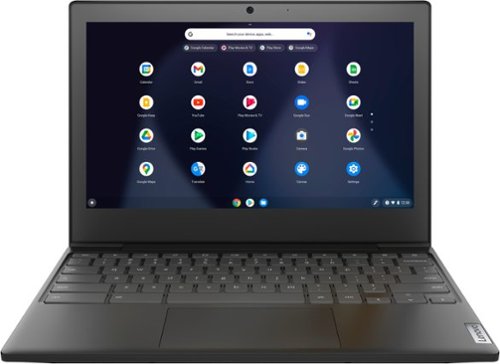
Lenovo - Chromebook 3 11.6" HD Laptop - Celeron N4020 - 4GB Memory - 64GB eMMC - Onyx Black
Fast, flexible, and fun, the Lenovo IdeaPad 3 Chromebook 11" brings everyone~s favorite Chromebook features, housed in a slim chassis, running on the lightning-fast Chrome OS that boots up in seconds, updates automatically, and is protected by built-in virus protection. Powered by Intel Celeron processor offers up to 10 hours of battery life, to seamlessly run all of your favorite apps at the same time.
Can you download games on it
That will depend on the requirements and compatibility of the specific games you want to download and run. This lenovo Chromebook 3 11 model number 82BA001FUS, ships with the Chrome Operating System installed and is compatible with Google Play Store APPs. Not all Google Play Store APPs are optimized for the Chrome OS. We recommend you check with the specific game's software publisher's web sites of the games you want to run, for their compatibility with the Chrome operating system and the minimum/recommended hardware requirements (Is a Graphics card required, the processor speed and the minimum required system RAM and the minimum available hard drive space) to run their program, then compare those requirements to this Chromebook's configuration.
4 years, 2 months ago
by
Posted by:
Lenovo Product Expert
Lenovo - Chromebook 3 11.6" HD Laptop - Celeron N4020 - 4GB Memory - 64GB eMMC - Onyx Black
Fast, flexible, and fun, the Lenovo IdeaPad 3 Chromebook 11" brings everyone~s favorite Chromebook features, housed in a slim chassis, running on the lightning-fast Chrome OS that boots up in seconds, updates automatically, and is protected by built-in virus protection. Powered by Intel Celeron processor offers up to 10 hours of battery life, to seamlessly run all of your favorite apps at the same time.
Can you expand the storage? 64 GB is pretty small. If so, what do you buy to expand the storage?
This Lenovo Chromebook 3 11 model number 82BA001FUS, ships with a 64GB eMMC 5.1 solid state hard drive soldered on the systemboard and is not upgradeable. There is a MicroSD Card Reader Slot that can be used for expanding external storage space as well as using a USB external hard drive that is compatible with the Chrome OS. All external storage media is sold separately.
4 years, 2 months ago
by
Posted by:
Lenovo Product Expert
Lenovo - Chromebook 3 11.6" HD Laptop - Celeron N4020 - 4GB Memory - 64GB eMMC - Onyx Black
Fast, flexible, and fun, the Lenovo IdeaPad 3 Chromebook 11" brings everyone~s favorite Chromebook features, housed in a slim chassis, running on the lightning-fast Chrome OS that boots up in seconds, updates automatically, and is protected by built-in virus protection. Powered by Intel Celeron processor offers up to 10 hours of battery life, to seamlessly run all of your favorite apps at the same time.
Does this work well for zoom?
That really will depend on the requirements and compatibility of the specific APP you want to use. This lenovo Chromebook 3 11 ships with the Chrome Operating System and is compatible with Google Play Store APPs. Not all Google Play Store APPs are optimized for the Chrome OS. We recommend you check with the specific APPs software publisher's web site for their compatibility with the Chrome operating system and the minimum/recommended hardware requirements (Is a Graphics card required, the processor speed and the minimum required system RAM and the minimum available hard drive space) to run their program, then compare those requirements to this Chromebook's configuration.
4 years, 2 months ago
by
Posted by:
Lenovo Product Expert
Lenovo - Chromebook 3 11.6" HD Laptop - Celeron N4020 - 4GB Memory - 64GB eMMC - Onyx Black
Fast, flexible, and fun, the Lenovo IdeaPad 3 Chromebook 11" brings everyone~s favorite Chromebook features, housed in a slim chassis, running on the lightning-fast Chrome OS that boots up in seconds, updates automatically, and is protected by built-in virus protection. Powered by Intel Celeron processor offers up to 10 hours of battery life, to seamlessly run all of your favorite apps at the same time.
What software is installed in the system?
Along with the Chrome Operating System, this lenovo Chromebook 3 11 model number 82BA001FUS, ships with these APPs installed: Google Assistant, Google Play Store, Android Studio.
4 years, 2 months ago
by
Posted by:
Lenovo Product Expert
Lenovo - Chromebook 3 11.6" HD Laptop - Celeron N4020 - 4GB Memory - 64GB eMMC - Onyx Black
Fast, flexible, and fun, the Lenovo IdeaPad 3 Chromebook 11" brings everyone~s favorite Chromebook features, housed in a slim chassis, running on the lightning-fast Chrome OS that boots up in seconds, updates automatically, and is protected by built-in virus protection. Powered by Intel Celeron processor offers up to 10 hours of battery life, to seamlessly run all of your favorite apps at the same time.
What’s the best compatible printer for this laptop?
This Lenovo Chromebook 3 11 model number 82BA001FUS, is compatible with any printer that is compatible with the Chrome Operating System. We recommend you check with your printer manufacturer's web site for the compatibility and requirements of your specific printer model. Here is a link to instructions for connecting a compatible printer to a Chromebook: https://support.google.com/chromebook/answer/7225252?hl=en.
4 years, 2 months ago
by
Posted by:
Lenovo Product Expert
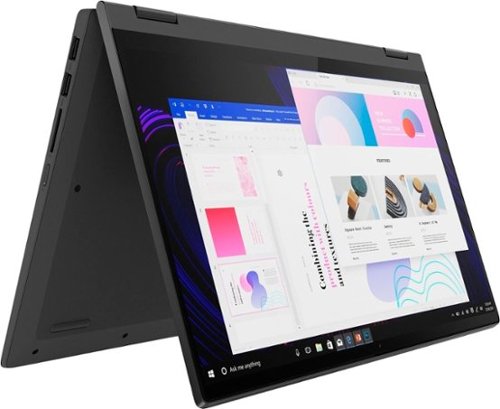
Lenovo - IdeaPad Flex 5 15ITL05 2-in-1 15.6" Laptop - Intel Core i5 - with 8GB Memory - 256 GB SSD - Graphite Gray
The IdeaPad Flex 5 2-in-1 Laptop. Featuring fast processors, an IPS touchscreen, and a 360-degree hinge to get things done efficiently for work, home, or school. Boasting a long battery life and security assets that include a webcam privacy shutter and fingerprint reader, the IdeaPad Flex 5 2-in-1 Laptop allows you to be creative and stay on point with your tasks.
Does this laptop include a stylus?
No. This Lenovo Flex 5i 15 model number 82HT00CQUS, is compatible with an AES Protocol Active/Digital Pen, which is sold separately, like this one: https://www.bestbuy.com/site/wacom-bamboo-ink-smart-stylus-for-windows-ink-2nd-generation-gray/6374981.p?skuId=6374981
4 years, 2 months ago
by
Posted by:
Lenovo Product Expert
Lenovo - Chromebook 3 11.6" HD Laptop - Celeron N4020 - 4GB Memory - 64GB eMMC - Onyx Black
Fast, flexible, and fun, the Lenovo IdeaPad 3 Chromebook 11" brings everyone~s favorite Chromebook features, housed in a slim chassis, running on the lightning-fast Chrome OS that boots up in seconds, updates automatically, and is protected by built-in virus protection. Powered by Intel Celeron processor offers up to 10 hours of battery life, to seamlessly run all of your favorite apps at the same time.
does this have an ethernet/LAN plug in or am i just looking at two usb?
This Lenovo Chromebook 3 11 model number 82BA001FUS, ships with these ports: 2x USB 3.2 Gen 1 Type A, 2x USB-C 3.2 Gen 1 (support data transfer, Power Delivery, and DisplayPort) with video out, 1x Card reader, 1x Headphone / microphone combo jack (3.5mm). You can connect this Chromebook 3 11 to a wired network ethernet cable, by using a USB to ethernet adapter, like this one: https://www.bestbuy.com/site/best-buy-essentials-usb-to-ethernet-adapter-white/6451327.p?skuId=6451327
4 years, 2 months ago
by
Posted by:
Lenovo Product Expert
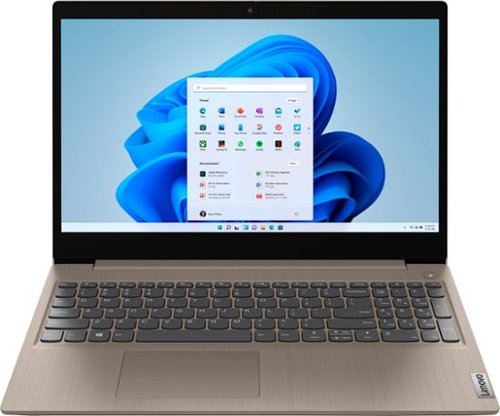
Lenovo - IdeaPad 3 15" HD Touch Screen Laptop - Intel Core i3-1115G4 - Intel UHD Graphics - 8GB Memory - 256GB SSD - Almond
Engineered for long-lasting performance, the Lenovo IdeaPad 3 is the perfect laptop for your everyday tasks with features that you can depend on.
Do I need an adapter to charge the computer in Europe?
Yes. This Lenovo IdeaPad 3 15 laptop, model number 81X800KLUS, ships with a Dual Voltage, 65W round tip, device side (2-pin, wall-mount, USA compatible) AC adapter/charger, 100-240V, 50-60Hz. To use this computer out side the USA, you will need to add a compatible wall side plug adapter, compatible with the Country that the computer will be used in.
4 years, 2 months ago
by
Posted by:
Lenovo Product Expert
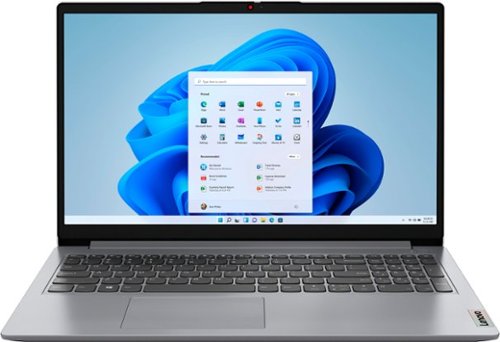
Lenovo - Ideapad 1 15.6" FHD Touch-Screen Laptop - Ryzen 7 5700U - 12GB Memory - 512GB SSD - Cloud Grey
Browse, explore and connect with confidence on the Lenovo IdeaPad 1 powered by ultra-fast AMD Ryzen~ 5000 U Series Mobile Processors on selected models. The IdeaPad 1 packs responsive performance in a thin and compact 17.9 mm chassis, making multitasking on-the-go a breeze. Get the most out of your device with a frameless display for more screen and Dolby Audio~ speakers, along with 10 hours of battery life and rapid charge. Great for video calls, the 1MP camera comes with a privacy shutter to keep out spying eyes, as well as Smart Noise Cancelling to eliminate background noise.
Does it have a hard drive for DVD's and CD'S
This Lenovo IdeaPad 1 15 Laptop, model number 82R4002PUS, does not have a built in CD/DVD drive. You can connect an external USB-based, Windows compatible CD/DVD drive to this laptop, like this one: https://www.bestbuy.com/site/lg-8x-external-usb-double-layer-dvdrw-cd-rw-drive-black/5852919.p?skuId=5852919
4 years, 2 months ago
by
Posted by:
Lenovo Product Expert