Lenovo Product Expert
Lenovo Product Expert's Stats
Reviews
- Review Count0
- Helpfulness Votes0
- First ReviewNone
- Last ReviewNone
- Featured Reviews0
- Average Rating0
Reviews Comments
- Review Comment Count0
- Helpfulness Votes0
- First Review CommentNone
- Last Review CommentNone
- Featured Review Comments0
Questions
- Question Count0
- Helpfulness Votes0
- First QuestionNone
- Last QuestionNone
- Featured Questions0
- Answer Count37880
- Helpfulness Votes24,853
- First AnswerApril 21, 2014
- Last AnswerOctober 16, 2026
- Featured Answers0
- Best Answers2830
Lenovo Product Expert's Reviews
Lenovo Product Expert has not submitted any reviews.
Lenovo Product Expert's Questions
Lenovo Product Expert has not submitted any questions.
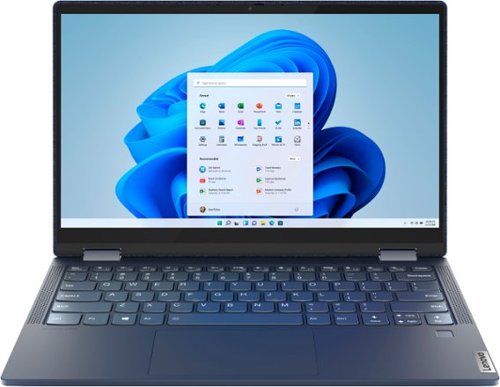
Lenovo - Yoga 6 13 2-in-1 13.3" Touch Screen Laptop - AMD Ryzen 7 - 16GB Memory - 512GB SSD - Abyss Blue with Fabric Cover
The Lenovo~ Yoga~ 6 is an ultra-portable 2-in-1 that combines unique style with the powerful responsiveness of an AMD Ryzen~ 5000 Series Mobile Processor, abundant memory and SSD storage. Enjoy a rich multimedia experience with the clarity of a 13.3" FHD touchscreen display, and enveloping sound with Dolby Atmos~-optimized stereo speakers.
How many nits is the display?

The Lenovo Yoga 6 13 model number 82ND0002US, ships with a 13.3 inch (screen size measured diagonally) IPS - FHD (1920x1080) 10-point Multi-touch screen, with a brightness level of 300 nits, has a Glossy finish. This screen provides 100 Percent of the sRGB (72 Percent NTSC) color gamut for excellent color accuracy.
5 years, 2 months ago
by
Posted by:
Lenovo Product Expert
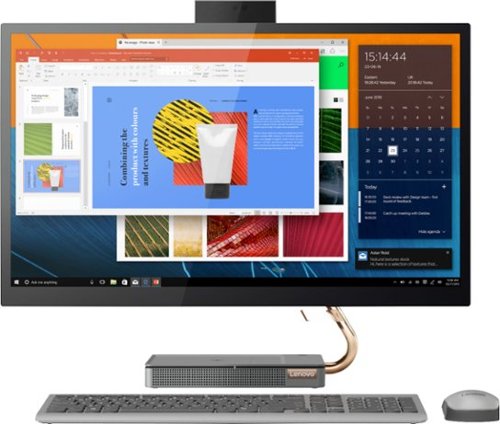
Lenovo - IdeaCentre A540-27ICB 27" Touch-Screen All-In-One - Intel Core i5 - 12GB Memory - 256GB SSD - Mineral Gray
Increase your productivity with this 27-inch QHD Lenovo IdeaCenter All-in-One desktop. The Intel Core i5 processor and 12GB of RAM support seamless multitasking, while a 256GB M.2 SSD combines rapid boots and ample storage. This Bluetooth-enabled Lenovo IdeaCenter All-in-One desktop features a Full HD camera for smooth videoconferencing and arrives with Windows 10 Home 64 bit installed to get you started right away.
can you mount it onto a wall?
No. The Lenovo IdeaCentre A540-27 All-In-One computer is not VESA Mount compatible.
5 years, 2 months ago
by
Posted by:
Lenovo Product Expert
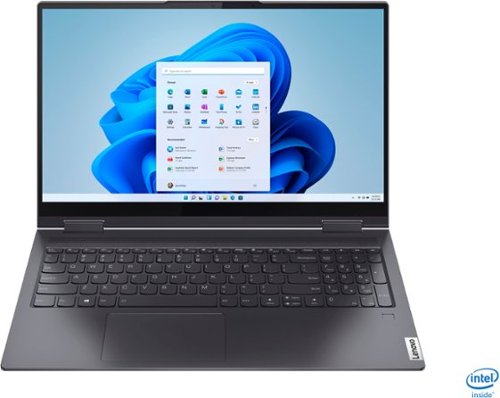
Lenovo - Yoga 7i 2-in-1 15.6" Touch Screen Laptop - Intel Core i5 - 8GB Memory - 256GB Solid State Drive - Slate Grey
The Lenovo Yoga 7i 15" combines versatile portability and enhanced productivity, thanks to the boundary-breaking performance and responsiveness of 11th generation Intel Core i5 processors and vibrant FHD clarity with Intel Iris Xe graphics. Go anywhere with a sleek 2-in-1 metal chassis featuring thoughtful details including a webcam privacy shutter..
Can I disable Alexa?
If you have not downloaded and activated the Alexa software on the Lenovo Yoga 7i 15 it is not active on the computer from the factory. The software link is on the computer, the user needs to download the Alexa Software from the internet, then activate the Alexa Software on the Yoga 7i 15. Here is a link to more information about Alexa on Lenovo Laptops: https://support.lenovo.com/us/en/solutions/ht506718-amazon-alexa-for-lenovo-pcs. You can also uninstall any program from your Windows 10 laptop, including Alexa. Here is a link to instructions for uninstalling a program from Windows 10: https://support.microsoft.com/en-us/windows/uninstall-or-remove-apps-and-programs-in-windows-10-4b55f974-2cc6-2d2b-d092-5905080eaf98#:~:text=Uninstall%20from%20the%20Control%20Panel,select%20Uninstall%20or%20Uninstall%2FChange. If you need additional help we recommend you contact Lenovo Tech Support at: 877-453-6686.
5 years, 2 months ago
by
Posted by:
Lenovo Product Expert
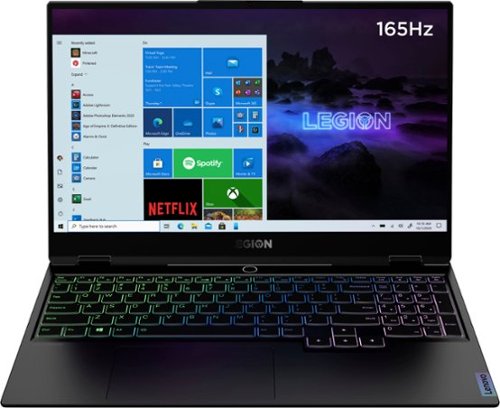
Lenovo - Legion Slim 7 15" Gaming Laptop - AMD Ryzen 7 5800H - NVIDIA GeForce RTX 3060 Max-Q - 16GB Memory - 512GB SSD
The Lenovo~ Legion Slim 7 was engineered for gamers who demand mobility and performance for day and night. Sporting a finely crafted chassis machined from 100% aluminum that is shockingly thin and impressively light, the Legion Slim 7 was expertly crafted for gamers who demand more.
Is it touch screen?
No. The Lenovo Legion Slim 7 15 Gaming Laptop, model number 82K80001US, does not have a touchscreen.
5 years, 2 months ago
by
Posted by:
Lenovo Product Expert
Lenovo - Yoga 7i 2-in-1 15.6" Touch Screen Laptop - Intel Core i5 - 8GB Memory - 256GB Solid State Drive - Slate Grey
The Lenovo Yoga 7i 15" combines versatile portability and enhanced productivity, thanks to the boundary-breaking performance and responsiveness of 11th generation Intel Core i5 processors and vibrant FHD clarity with Intel Iris Xe graphics. Go anywhere with a sleek 2-in-1 metal chassis featuring thoughtful details including a webcam privacy shutter..
Does this laptop come with any clolors besides grey?
Here is a link to all the available configurations of the Lenovo Yoga 7i 15 and the case colors, these configurations have: https://www.bestbuy.com/site/searchpage.jsp?st=Lenovo+Yoga+7i+15&_dyncharset=UTF-8&_dynSessConf=&id=pcat17071&type=page&sc=Global&cp=1&nrp=&sp=&qp=&list=n&af=true&iht=y&usc=All+Categories&ks=960&keys=keys
5 years, 2 months ago
by
Posted by:
Lenovo Product Expert
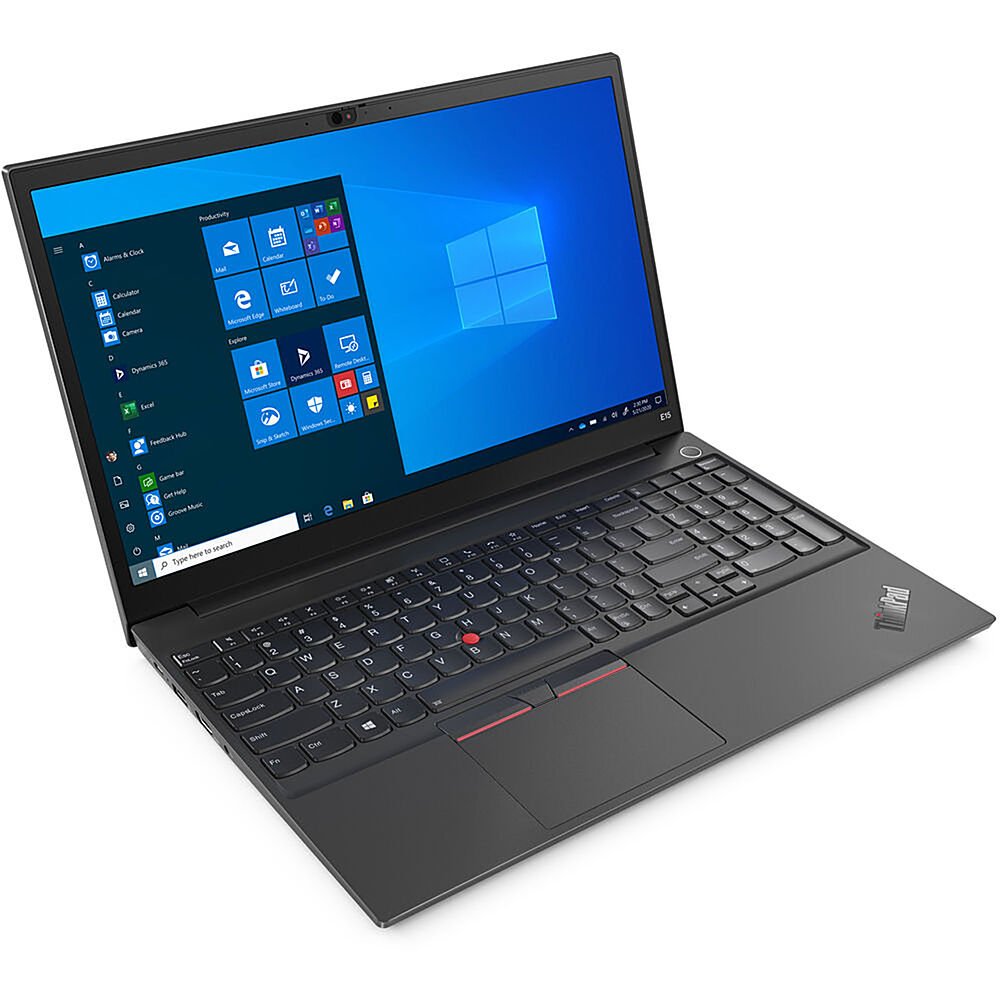
Lenovo - 15.6" ThinkPad E15 Gen 2 Laptop - Intel Core i5 - 8GB Memory - 256 SSD - Black
The ThinkPad E15 Gen 2 laptop harnesses the power of an 11th Gen Intel Core processor along with DDR4 memory and up to 1TB solid state storage drive to deliver high performance to your workday. It confidently handles whatever tasks come your way, and it even intelligently maintains the optimum temperature while running multiple apps.
Does this have an i5 or an i3? The description says i5 but the detailed specs say i3
The Lenovo ThinkPad E15 Laptop, model number 20TD003KUS, ships with the 11th Gen, 4-Core/8-Thread Intel Core i5-1135G7 processor.
5 years, 2 months ago
by
Posted by:
Lenovo Product Expert
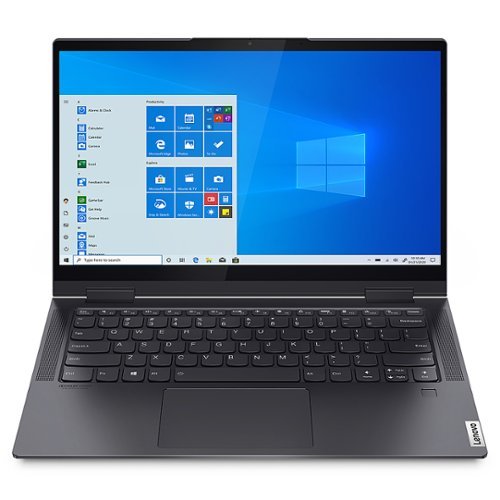
Lenovo - Yoga 7i 14 2-in-1 14" Touch-Screen Laptop - Intel Evo Platform Core i5 - 12GB Memory - 512GB SSD - Slate Grey
The Lenovo Yoga 7i combines versatile portability and enhanced productivity, thanks to the boundary-breaking performance and responsiveness of 11th generation Intel Core processors and vibrant FHD clarity with Intel Iris Xe graphics. Go anywhere with a sleek 2-in-1 metal chassis featuring thoughtful details including a webcam privacy shutter.
Does this system support Tpm 2.0 for Windows 11?
Yes. The Intel Evo-Certified, Lenovo Yoga 7i 14 model number 82BH0004US, ships with Firmware TPM 2.0 integrated in chipset, Security Chip.
5 years, 2 months ago
by
Posted by:
Lenovo Product Expert
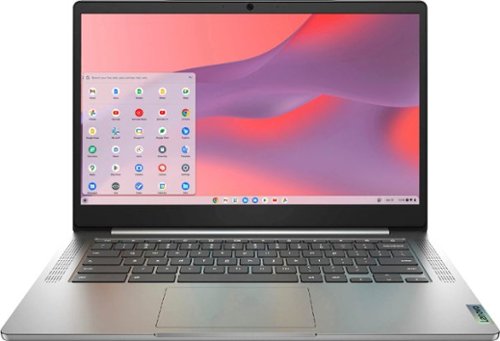
Fast, flexible, and fun, the Chromebook 3-14" brings everyone~s favorite Chromebook features, running on the lightning-fast Chrome OS that boots up in seconds, updates automatically, and is protected by built-in virus protection. Powered by a MediaTek processor and up to 10 hours of battery life, it~ll seamlessly run all of your favorite apps at the same time. Get Minecraft and 3 months of Realms Plus at no cost* with purchase of a new Chromebook. Terms Apply. *Offer valid for qualifying Chromebooks purchased on or after July 1st, 2023 through September 30th, 2023 while supplies last.
Can i use another search engine other than Gogglr?
The Lenovo Chromebook 3 14 will use Google as the default search engine. You can change the search engine to Yahoo!, Ask or even Bing. To change your default search engine, hover over the engine and Make Default will show up. Here is a link to more information: https://www.guidingtech.com/59124/custom-search-engines-chromebook/#:~:text=Your%20Chromebook%20will%20use%20Google,Make%20Default%20will%20show%20up.
5 years, 2 months ago
by
Posted by:
Lenovo Product Expert
Lenovo - Yoga 7i 2-in-1 15.6" Touch Screen Laptop - Intel Core i5 - 8GB Memory - 256GB Solid State Drive - Slate Grey
The Lenovo Yoga 7i 15" combines versatile portability and enhanced productivity, thanks to the boundary-breaking performance and responsiveness of 11th generation Intel Core i5 processors and vibrant FHD clarity with Intel Iris Xe graphics. Go anywhere with a sleek 2-in-1 metal chassis featuring thoughtful details including a webcam privacy shutter..
des it include Microsoft Office. I already have it on my current laptop.
There is a 30-day trial of Microsoft Office 365 included as part of the Windows 10 operating system. In order to keep the program active after the trial period, you will need to purchase a product key. You will not need to download any additional software. If you have a multiple device license for Microsoft Office currently, use your existing User Name and Password to access your existing account, using the Microsoft Office 365 Software already installed on this computer as part of the Windows 10 Operating System. You may need to enter the 25-digit Product Key found on the packaging of the original Microsoft Office License/software you purchased, one time, to activate your current Microsoft Office Account on this new computer. If your original license was for one device only, you will need to purchase another copy for this new computer.
5 years, 2 months ago
by
Posted by:
Lenovo Product Expert
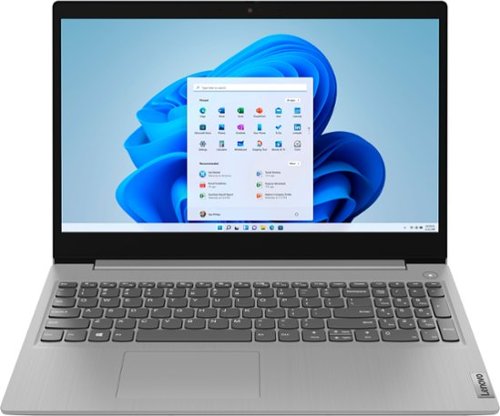
Lenovo - Ideapad 3 15 15.6" Laptop - AMD Ryzen 3 - 8GB Memory - 128GB SSD
Engineered for long-lasting performance, the Lenovo~ IdeaPad~ 3 delivers powerful performance with the latest AMD Mobile Processors with Radeon~ Graphics, in a laptop that's perfect for your everyday tasks, with features that you can depend on.
Does Lenovo sell a power cord that is longer than the 3 ft one that comes with this laptop or an extension cord that could be added to the original one?
Here is a link to a 10 foot extension cord with surge protection: https://www.bestbuy.com/site/cordinate-10-2-outlet-2-usb-extension-cord-with-surge-protection-black-heather/6282605.p?skuId=6282605
5 years, 2 months ago
by
Posted by:
Lenovo Product Expert