Samsung
Samsung's Stats
Reviews
- Review Count0
- Helpfulness Votes0
- First ReviewNone
- Last ReviewNone
- Featured Reviews0
- Average Rating0
Reviews Comments
- Review Comment Count0
- Helpfulness Votes0
- First Review CommentNone
- Last Review CommentNone
- Featured Review Comments0
Questions
- Question Count0
- Helpfulness Votes0
- First QuestionNone
- Last QuestionNone
- Featured Questions0
- Answer Count73673
- Helpfulness Votes37,929
- First AnswerApril 24, 2013
- Last AnswerAugust 17, 2026
- Featured Answers0
- Best Answers3941
Samsung's Reviews
Samsung has not submitted any reviews.
Samsung's Questions
Samsung has not submitted any questions.
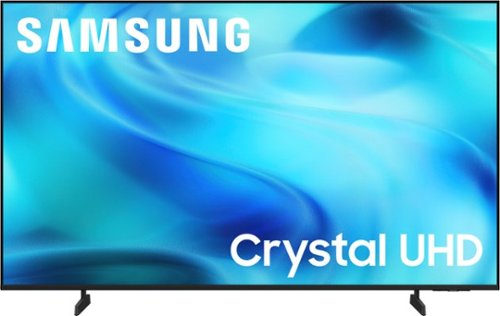
Watch all your content in crisp 4K resolution, with rich contrast, amazing color and clear picture. Discover thousands of subscription-free channels, including 700+ premium channels with Samsung TV Plus. Also, play thousands of video games without a console thanks to Samsung Gaming Hub. Enjoy peace of mind for years to come with the TV brand rated #1 in durability.
Does this have Samsung tv channels?

Hi MSil,
Yes, Samsung TV Plus is included with the U8000H TV.
~Samsung Advisor
Yes, Samsung TV Plus is included with the U8000H TV.
~Samsung Advisor
2 months, 1 week ago
by
Posted by:
Samsung
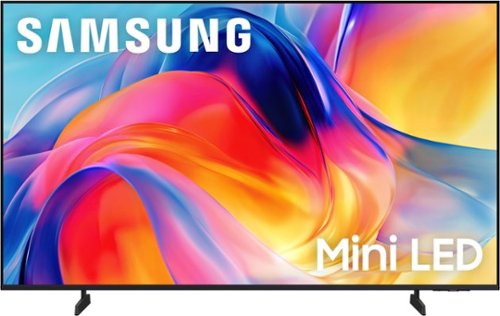
Bright, detailed colors pair together with deep, cinematic contrast in your favorite smart apps and video games thanks to precise control with Mini LEDs, delivering a realistic picture no matter what you watch. Get thousands of subscription free channels, including 700+ premium channels with Samsung TV Plus. Rest assured your personal data is secured with Knox Security.
There are no instructions about how to connect this TV. Info on wall mounting, unboxing, but nothing on connections. Haven't found anything online either. Need also to connect a Samsung soundbar and wireless Sennheiser headphones.
Hi Dave,
If you're setting up via HDMI ARC or eARC, here’s how to get everything connected for the best performance.
1. Check your ports:
• On your TV, look for an HDMI port labeled HDMI ARC or HDMI eARC (usually HDMI 3).
• On your soundbar, look for the HDMI OUT (TV-ARC) or HDMI OUT (eARC) port.
2. Use a high-speed HDMI cable:
• Connect one end of the HDMI cable to the HDMI OUT (TV-ARC) port on your soundbar.
• Connect the other end to the HDMI ARC/eARC port on your Samsung TV.
3. Turn on your devices. Power on both your TV and soundbar.
4. Set the TV’s sound output: Settings > All Settings > Sound > Sound Output
• Select your soundbar (it will appear as “Receiver (HDMI)” or the soundbar model name).
5. Enable HDMI-CEC (Anynet+): Settings > All Settings > General & Privacy > External Device Manager > Anynet+ (HDMI-CEC) = ON. This allows the TV and soundbar to control each other (e.g., volume and power on/off).
6. (Optional) Adjust audio settings for eARC:
• If your soundbar and TV both support eARC, make sure this is enabled: Settings > All Settings > Sound > Expert Settings > HDMI eARC Mode = Auto
• For optimal sound quality, set Digital Output Audio Format = Pass-Through if supported.
Need help troubleshooting?
• Make sure your HDMI cable is securely connected and supports ARC/eARC.
• Try unplugging both devices, then plug them back in.
• Update your TV’s firmware: Settings > Support > Software Update > Update Now
To pair an external device via Bluetooth: Go to Home > left directional key > Settings > Bluetooth. If your device isn’t detected, try moving it closer to the TV and select Refresh to re-scan for available devices.
If you need further assistance connecting a Bluetooth device, please contact Samsung Customer Support at 1-800-SAMSUNG (8AM – 9PM EST Mon – Fri, 8AM – 6PM Sat – Sun). LiveChat agents are also available by clicking the ‘Support’ link on our website.
~ Samsung Advisor
If you're setting up via HDMI ARC or eARC, here’s how to get everything connected for the best performance.
1. Check your ports:
• On your TV, look for an HDMI port labeled HDMI ARC or HDMI eARC (usually HDMI 3).
• On your soundbar, look for the HDMI OUT (TV-ARC) or HDMI OUT (eARC) port.
2. Use a high-speed HDMI cable:
• Connect one end of the HDMI cable to the HDMI OUT (TV-ARC) port on your soundbar.
• Connect the other end to the HDMI ARC/eARC port on your Samsung TV.
3. Turn on your devices. Power on both your TV and soundbar.
4. Set the TV’s sound output: Settings > All Settings > Sound > Sound Output
• Select your soundbar (it will appear as “Receiver (HDMI)” or the soundbar model name).
5. Enable HDMI-CEC (Anynet+): Settings > All Settings > General & Privacy > External Device Manager > Anynet+ (HDMI-CEC) = ON. This allows the TV and soundbar to control each other (e.g., volume and power on/off).
6. (Optional) Adjust audio settings for eARC:
• If your soundbar and TV both support eARC, make sure this is enabled: Settings > All Settings > Sound > Expert Settings > HDMI eARC Mode = Auto
• For optimal sound quality, set Digital Output Audio Format = Pass-Through if supported.
Need help troubleshooting?
• Make sure your HDMI cable is securely connected and supports ARC/eARC.
• Try unplugging both devices, then plug them back in.
• Update your TV’s firmware: Settings > Support > Software Update > Update Now
To pair an external device via Bluetooth: Go to Home > left directional key > Settings > Bluetooth. If your device isn’t detected, try moving it closer to the TV and select Refresh to re-scan for available devices.
If you need further assistance connecting a Bluetooth device, please contact Samsung Customer Support at 1-800-SAMSUNG (8AM – 9PM EST Mon – Fri, 8AM – 6PM Sat – Sun). LiveChat agents are also available by clicking the ‘Support’ link on our website.
~ Samsung Advisor
2 months, 1 week ago
by
Posted by:
Samsung
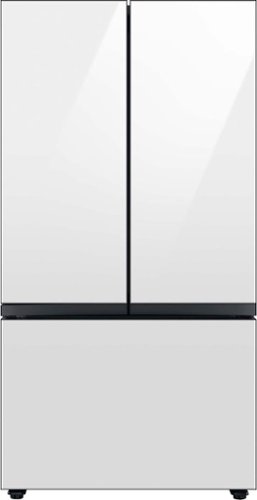
Extra-large capacity 3-Door French Door Refrigerator : a revolution in convenience and design, the concealed Beverage Center features both a water dispenser and AutoFill Water Pitcher. Plus a Dual Ice Maker with cubed ice and Ice Bites.
Does this refrigerator have a auto fill pitcher
Hello RonJ17,
Yes, this refrigerator comes equipped with a Beverage Center that includes an AutoFill Water Pitcher. This pitcher automatically refills with filtered water and can also be infused with fruit or herbs for added flavor.
Samsung truly values your business.
Nicole
Samsung Care
Yes, this refrigerator comes equipped with a Beverage Center that includes an AutoFill Water Pitcher. This pitcher automatically refills with filtered water and can also be infused with fruit or herbs for added flavor.
Samsung truly values your business.
Nicole
Samsung Care
2 months, 1 week ago
by
Posted by:
Samsung
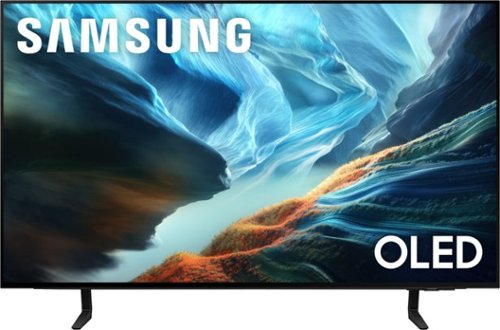
Level up your OLED experience and leave distracting reflections behind with Glare Free technology. Self-illuminating pixels precisely control brightness, contrast and color on this thin, sleek TV. Video games become ultra-smooth up to 165Hz thanks to the Ultimate Gaming Pack and the AI-powered processor enhances shows and movies for phenomenal depth and vibrant detail.
What is the distance between each of the stand feet
MIMI,
The feet on the 43" S90H are 25.7" apart.
~Samsung Advisor
The feet on the 43" S90H are 25.7" apart.
~Samsung Advisor
2 months, 1 week ago
by
Posted by:
Samsung
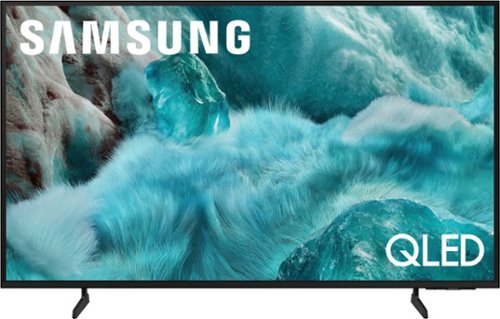
Discover a new level of visual and auditory brilliance with our next level smart TV. Powered by Pantone certified color accuracy, witness over one billion authentic hues burst forth in beautiful detail. Quantum HDR takes things further, elevating contrast for lifelike imagery. Add to that our advanced 3D audio system syncing flawlessly with on screen motion, all intelligently powered by Samsung Vision AI. And rest assured, Knox keeps your private info safe and secure.
What is the width of the stand legs
RedWolf - The leg width of the 55” Q7F is adjustable between two positions: 32.5” or 10”.
~ Samsung Specialist
~ Samsung Specialist
2 months, 1 week ago
by
Posted by:
Samsung
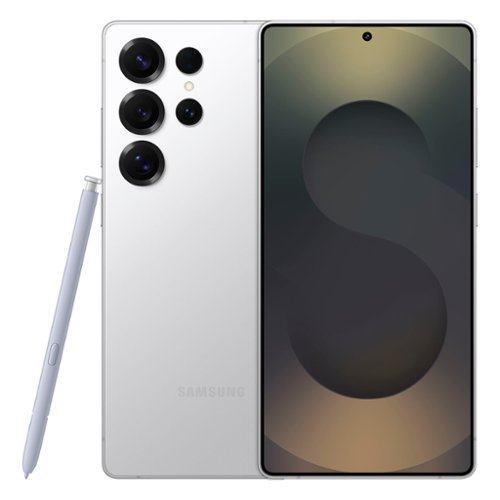
Staying in the moment is easier than ever with the all-new Galaxy S25 Ultra. Its intelligent AI transforms into your own virtual assistant that evolves with you to work better for you. Let~s say you want to enjoy a night out with friends but don~t have time to plan. Just ask Galaxy S25 Ultra to invite your friends to the nearest bowling lounge tonight. Your phone will find the info and text it to them. You don~t need to slow down your speech or speak like a robot ~just talk to your phone naturally, and it will understand. While you~re out rolling spares, Night Video brings out the details in every moment ~even in low light ~while Audio Eraser makes it easy to reduce distracting noises, like those pins crashing one lane over. Galaxy S25 Ultra also keeps up with your schedule and provides the weather forecast for your night, allowing you to stay a step ahead and adjust plans on the fly. With a phone as evolved as Galaxy S25 Ultra, you don~t have to sweat the small stuff ~it~s handled intelligently.
Does it require a cover and glass protector?÷
Hey there, thank you for taking the time to ask us your question about the Samsung Galaxy S25 Ultra. The advertised Galaxy S25 Ultra is a highly durable device. It features a tough Grade 5 titanium frame, an official IP68 rating for water and dust resistance, and Corning Gorilla Armor 2 glass on the front and back. We always recommend protecting your investment with the addition of a case and screen protector. However, the option of adding those accessories is completely up to you! Let us know if you have any other questions for us, please feel free to reach out to Support. Thank you for being a staunch Samsung customer. - Debra
2 months, 1 week ago
by
Posted by:
Samsung

Samsung - Galaxy A16 5G 128GB (Unlocked) - Blue Black
Galaxy A16 5G delivers an awesome experience at an awesome value, bringing you everything you need at a great price. Stream your favorite shows on its large 6.7~ display, enjoy smooth performance across all your apps and capture life~s special moments in detail with the triple-lens camera. Power through your day with a reliable Super Fast Charging battery, and stay connected to your family and friends with ultrafast 5G. Enjoy all the awesome perks that come with an A Series phone including Samsung Wallet, Samsung TV Plus and partner offers like three months of free Peacock Premium. Plus, with six years of OS and security updates, your phone helps keep you protected and up to date. Bring home a phone that delivers incredible value and makes your everyday a little easier.
Does it have an SD card slot
Salutations 1234, thank you for taking the time to ask us your question about the Samsung Galaxy A16 5G. Yes, the advertised Galaxy A16 5G does have a microSD card slot, supporting expandable storage up to 1.5TB. If you have any other questions for us or if you would like further assistance, please do not hesitate to reach out to Support. Thank you for being a dedicated Samsung customer. - Debra
2 months, 1 week ago
by
Posted by:
Samsung
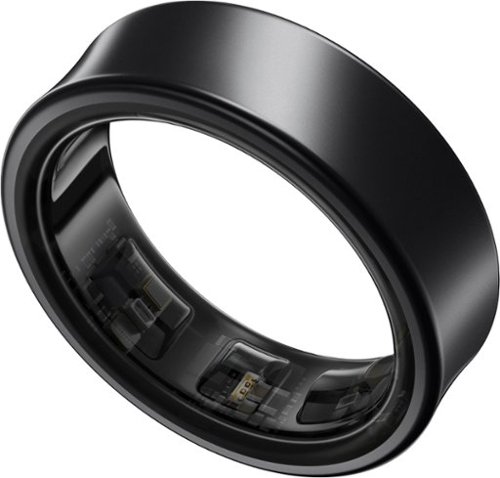
Get a deeper understanding of your body with the all-new Galaxy Ring. Merging the convenience of a wellness tracker with the timeless elegance of a sleek band, Galaxy Ring helps go-getters track their busy days in style. Packing the latest tracking innovations into a compact design that fits comfortably on your finger, Galaxy Ring tracks the valuable wellness insights you need to keep a pulse on your life, from the conference room to the yoga studio to dinner with family and friends. Enhanced by Galaxy AI,~ Galaxy Ring gives you new ways to feel amazing, like Energy Score ~ just open your phone to learn how ready you are to take on the day. You~ll also get a great night~s rest while Galaxy Ring does its thing ~ this sleep tracker is so comfortable, you~ll hardly know it~s there. The feather light silhouette slips seamlessly into your life with a durable design~ that allows you to wear it confidently from your morning shower to the gym, while a long-lasting battery~ lets you track insights for up to six days~ in between charges. Slip on a new, easier way to keep your health on track ~ Galaxy Ring
If the ring can measure body temperature, can it alert me if I have a fever?
Good day Kiki, thank you for taking the opportunity to ask us your question about the Samsung Galaxy Ring. The Galaxy Ring cannot directly alert you to a fever. While it features an infrared skin temperature sensor, it is designed to track temperature fluctuations relative to your baseline (primarily for cycle tracking) rather than providing real-time fever diagnostics. If you have any other questions for us or if you would like further assistance, please let us know by contacting Support. Thank you for being a loyal Samsung customer. - Debra
2 months, 1 week ago
by
Posted by:
Samsung
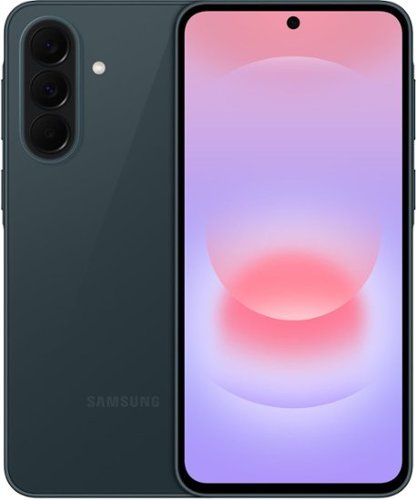
Galaxy A37 5G is a sleek and powerful entertainer that combines an elevated design, lasting performance and smart AI features. Its 6.7" Super AMOLED display with immersive viewing and up to 1900 nits peak brightness makes videos, games and browsing look stunning. Capture every moment with the 50MP HDR camera, featuring brighter, sharper videos in low light and improved shot speed, while the studio grade front camera ensures perfect selfies every time. Powered by the Exynos 1480 processor and a long lasting battery with Super Fast Charging 2.0, A37 keeps you going throughout your day. Plus, the enhanced durability of Gorilla Glass Victus+ and IP68 protection keeps your phone safe from dust and dirt no matter where the day may take you. Whether you're staying connected, capturing moments or browsing, A37 gives you premium performance at an affordable price. It's the smart choice you~ve been waiting for.
Can VoLTE be set for Samsung - Galaxy A37 5G smartphone ?
Hey there PhoneT, thank you for taking the time to ask us your question about the Samsung Galaxy A37 5G. Yes, VoLTE is supported and can be set on your Samsung Galaxy A37 5G. Since it is a 5G device, VoLTE is typically enabled automatically. If you have any other questions for us or if you would like further assistance, please le us know by contacting Support. Thank you for being a faithful Samsung customer. - Debra
2 months, 1 week ago
by
Posted by:
Samsung
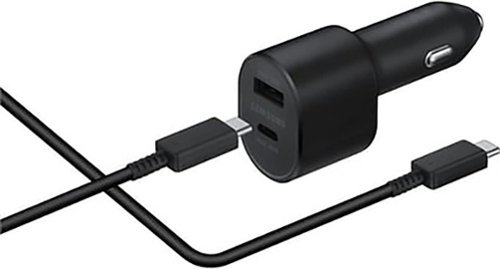
Stay powered up during your travels with the Samsung 45W Dual Car Charger. Designed for efficiency and versatility, this charger features a USB Type-C port delivering up to 45W and a USB Type-A port providing up to 15W, allowing you to charge two devices simultaneously at optimal speeds
Does this support SuperFast charging 3.0 for Samsung Galaxy phones S25 and newer?
Hi there Jess, thanks for taking the time to ask us your question about the Samsung 45W Dual Car Charger 1 USB-A port, 1 USB-C Port. The advertised 45W Dual Car Charger (Model: EP-L5300) features one 45W USB-C port and one 15W USB-A port. It supports Super Fast Charging 2.0 / 3.0 via Programmable Power Supply (PPS), easily handling the peak 43.5W to 45W power requirements for the Galaxy S25 series. If you have any other questions, please feel free to reach out to Support. Thanks for choosing Samsung! - Debra
2 months, 1 week ago
by
Posted by:
Samsung